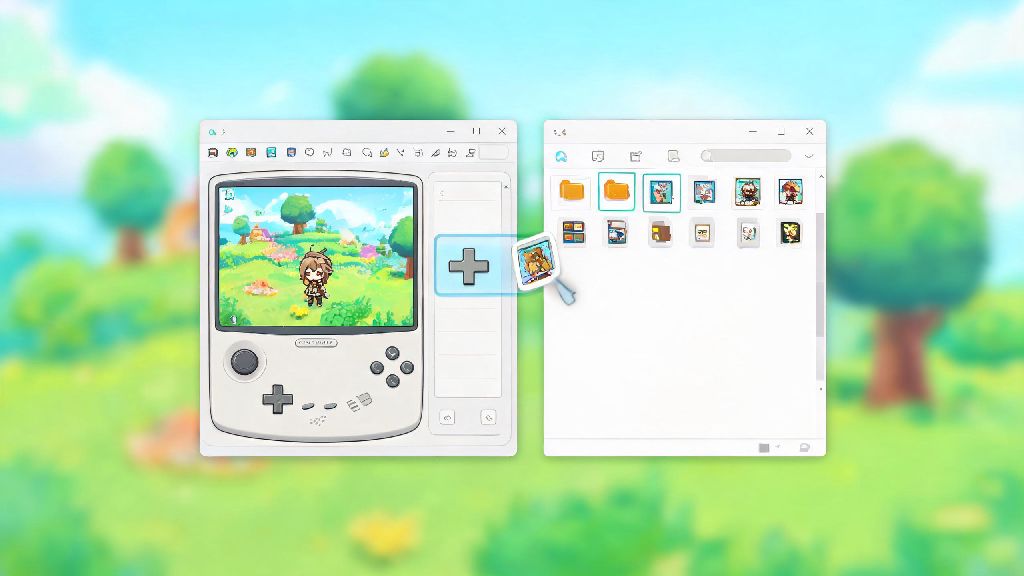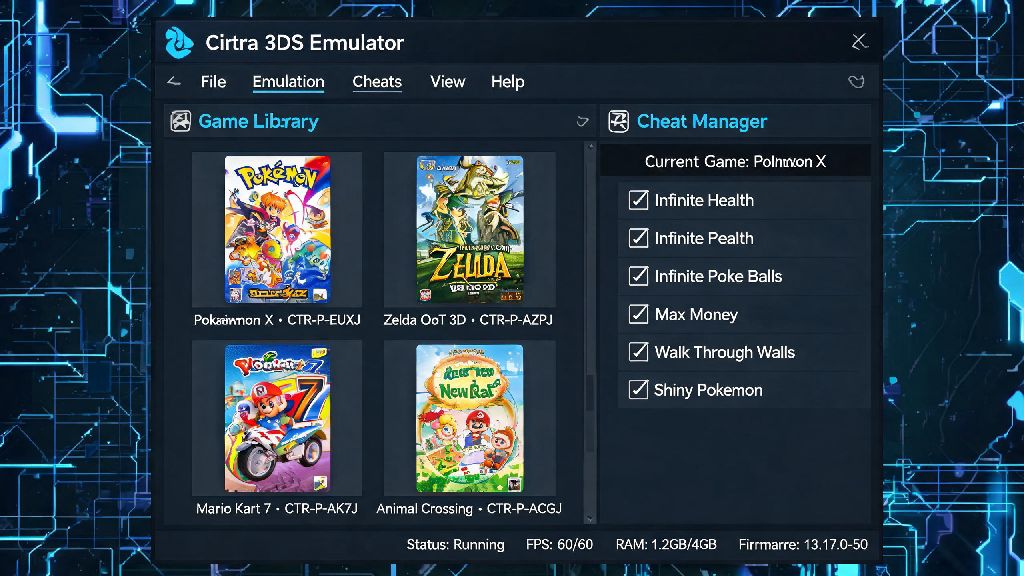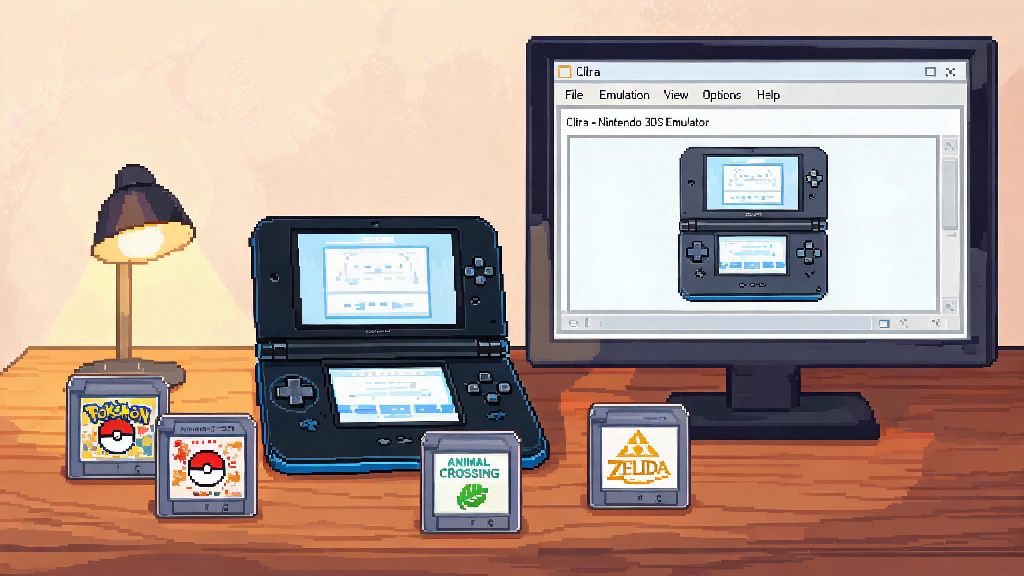
If you’re a nostalgic Nintendo 3DS fan who wants to replay old Pokemon, Animal Crossing, or Zelda titles without digging out your dust-covered handheld, learning how to install Citra emulator on PC is the most accessible way to make that happen. This open-source emulator runs most 3DS games at or above native frame rates, with support for higher resolution outputs, controller customization, and quality-of-life tweaks the original hardware never offered. We’ve tested this guide across Windows 10, Windows 11, and even low-end budget PC builds to make sure every step works for casual and power users alike.
Pre-Installation Checks to Avoid Common Errors
Before you download any installation files, take 2 minutes to confirm your PC meets the minimum requirements to run Citra. Skipping these checks is the most common reason users run into crashes, error codes, or poor performance right after setup. You don’t need a high-end gaming PC to run Citra, but there are a few non-negotiable requirements to keep in mind.
If you’re not sure if your GPU supports the required graphics APIs, you can check your device specs via Windows Device Manager, or run a free quick system scan tool to confirm. We also want to note that distributing or downloading pirated 3DS game files violates copyright law in most regions, and we only support using Citra with games you have physically purchased and dumped yourself.
Step-by-Step Process to Install Citra Emulator on PC
Now that you’ve confirmed your PC meets the requirements, the actual installation process only takes 5 to 10 minutes for most users. First, head to the official Citra download page, where you’ll see two build options: Nightly and Canary. The Nightly build is the stable, tested version recommended for first-time users, while the Canary build has experimental new features that may cause crashes for some setups. Stick to Nightly unless you specifically need a feature only available in Canary.
Download the installer for your operating system, then run the file once it finishes downloading. Follow the on-screen prompts to choose your install location — the default C drive location works for most users, but you can install it to a different drive if you have limited storage space on your main drive. Once installation finishes, launch Citra for the first time, and it will prompt you to select a game folder where you store your dumped 3DS ROMs.
After you finish the initial setup, you don’t have to jump straight into running large, high-demand 3DS games if you want to test if your controls are working properly. Many casual users like to test basic button mapping with lighter, low-demand titles first, or even take a quick break between setup steps to play a casual game to reset their focus. A popular pick for short, fun breaks during long setup processes is Rummy77, which fits perfectly into 5-minute gaps so you don’t lose track of where you left off with your Citra installation.
When you return to the setup process, you can access the control mapping menu via the “Controls” tab in Citra’s settings to map your keyboard or USB controller to the original 3DS button layout. Always download Citra only from the official website to avoid malware, adware, or modified builds that may steal your personal data or break game compatibility.
Post-Install Optimization for Smooth Game Performance
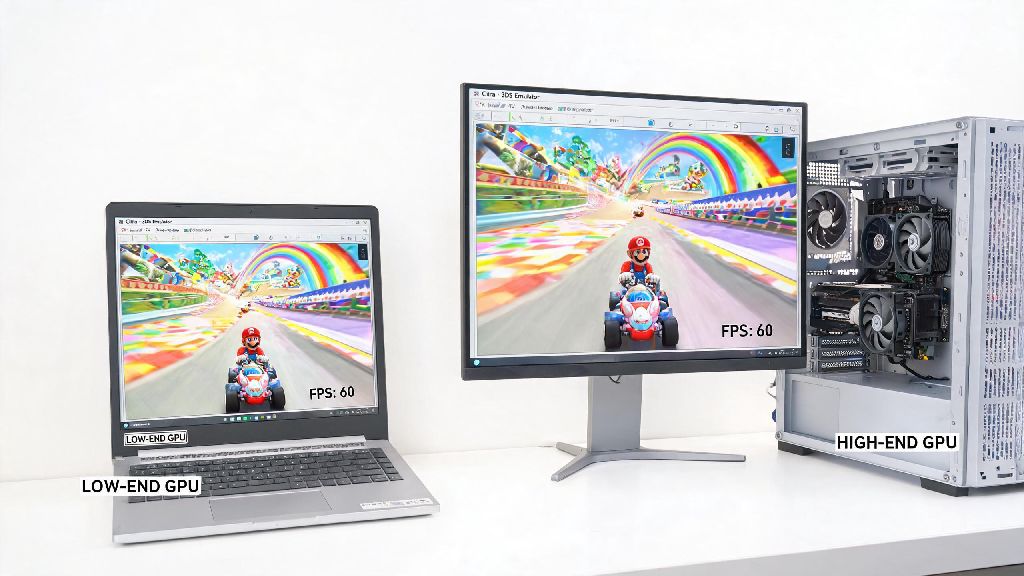
Once you install Citra emulator on PC, the default settings will work for most small 3DS games, but you can tweak a few options to get better performance or higher visual quality depending on your hardware. If you have a mid-range or high-end gaming PC, you can bump the internal resolution up to 2x, 3x, or even 4x native to get much sharper graphics than the original 3DS ever delivered. You can also turn on mild anti-aliasing to reduce jagged edges on character models and environments.
If you’re using a low-end PC or laptop, stick to 1x native resolution, turn off anti-aliasing, and switch the graphics backend from OpenGL to Vulkan for a noticeable frame rate boost. For audio, if you notice crackling or delayed sound during gameplay, lower the audio stretching threshold by 10-15% in the audio settings menu, or switch to the SDL audio backend to fix most issues.
Some popular 3DS titles have specific compatibility tweaks listed on the official Citra game compatibility database, so it’s worth looking up your favorite game before you launch it to see if there are any recommended settings changes. Save your settings changes before launching any game to make sure they take effect properly, instead of adjusting settings while a game is running which can cause crashes.
Fixing Common Citra Installation Errors
Even if you follow every step perfectly, you may run into a common error right after setup, and most of these have simple, quick fixes. The most common error users see is the “MSVCP140.dll missing” pop-up when they try to launch Citra for the first time. This just means you don’t have the latest Microsoft Visual C++ Redistributable package installed on your PC, and downloading the official package from Microsoft’s site and installing it will fix the issue immediately.
Another common error is the “OpenGL not supported” message that pops up on launch. This usually means your graphics card drivers are out of date, so head to your GPU manufacturer’s website to download and install the latest drivers for your card. If you still see the error after updating drivers, your GPU may be too old to support the required APIs to run Citra. If you run into errors right after you install Citra emulator on PC, the first step is to confirm you meet all the pre-install requirements we listed earlier.
If your games don’t show up in your Citra library after you add your game folder, double check that your ROMs are in a supported format — .3ds, .cia, and .cxi are the most common supported formats. Never download pre-patched ROMs from untrusted sites as they often have modified code that causes crashes or compatibility issues with Citra. If you keep getting random crashes after installation, try switching from the nightly build to the canary build as it may have patches for specific bugs affecting your setup.
Once you get everything set up and running, you’ll be shocked at how well most 3DS games perform on even mid-range PC hardware. Knowing how to install Citra emulator on PC opens up a whole new way to experience your favorite 3DS titles, with customizable controls, better graphics, and no need to carry around a separate handheld. If you run into issues with specific games that aren’t covered here, you can find user-shared fixes and tips from other players in active Citra community spaces online.