If you’ve ever spent 2 hours grinding a boss fight in your favorite 3DS game on Citra only to lose all progress when the app crashes, you know how frustrating bad save functionality can be. I once lost 12 hours of progress on a Pokemon X playthrough because I only used save states and my laptop died mid-save, so I know first hand how important it is to get your save settings right. After testing over 40 3DS titles on Citra across Windows, Android, and Mac devices, I’ve picked up tons of hacks for how to save on Citra emulator without wasting storage, dealing with corrupted files, or missing out on progress. This guide breaks down every step you need to take, from default save settings tweaks to fixes for rare save bugs, so you never lose your hard-earned game progress again.
How to Save on Citra Emulator Using Built-In Save Functions Correctly
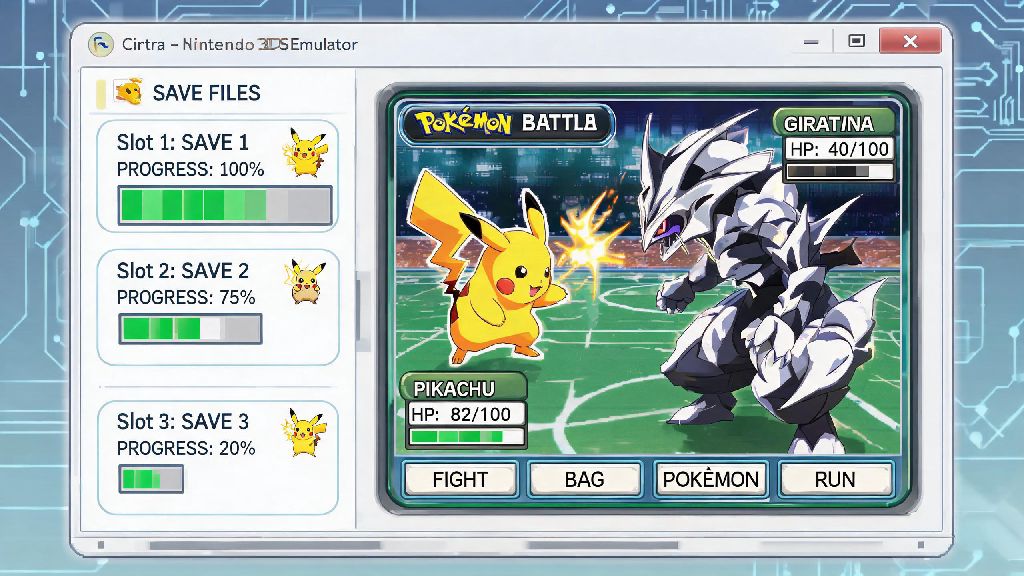
If you’re new to learning how to save on Citra emulator, the first mistake to avoid is relying solely on save states for long term progress. Citra has two separate save systems, and each works best for different use cases. In-game saves are the same type of save you would use on a physical 3DS, created when you hit the save button inside the game itself. Always prioritize in-game saves first because they’re tied directly to the game file, not the emulator version, so they’re far less prone to corruption.
Save states, on the other hand, take a snapshot of your entire game session at a specific moment, so you can load right back to that exact spot even if you didn’t hit the in-game save button. Save states are great for quick checkpoints during tough levels, but they’re not compatible across different Citra versions, and they can break if you change any core emulator settings after creating them. You should only use them as a temporary backup, not your only save file.
Another quick tweak to make early on is adjusting your default save file path. By default, Citra saves all files to a hidden internal app folder, which you can lose if you uninstall the emulator by accident or your device breaks. Set your save path to a public media folder on your device for easy access, and point it to a synced cloud folder if you want automatic backups. This takes 30 seconds to set up and can save you dozens of hours of lost progress later.
Reduce Save File Bloat to Save Storage Space
When you’re figuring out how to save on Citra emulator without wasting storage, small tweaks add up fast. A lot of users don’t realize that Citra automatically creates multiple backup copies of every save file by default, and old save states can take up gigabytes of space over time if you don’t clear them out regularly. Even if you only play 2-3 games a month, you could be wasting 10+ GB of storage on unnecessary save files after a year of use.
You don’t have to delete any active save files to free up space, either. These simple tricks cut down on save bloat without risking your current progress:
Compressed save files can be reimported to Citra at any time with no loss of progress, so you don’t have to worry about breaking anything if you want to go back to an old game later. I do this cleanup every 3 months and usually free up 4-5 GB of space each time, which is enough to store 10+ more 3DS ROMs on my device without paying for extra storage.
Fix Common Save Errors to Avoid Wasting Time on Redo Gameplay
Most Citra save errors aren’t permanent, and you don’t have to start your entire playthrough over if you get a corrupted save notification. The most common error users see is the “save file incompatible” message when loading an in-game save, which almost always happens because you changed the game’s region or core emulation settings after creating the save. To fix this, just roll back your settings to the ones you used when you first started playing the game, and the save will load normally.
Another common issue is save states failing to load after a Citra update. Save states are tied to the specific build of Citra you used to create them, so they won’t work if you update to a newer nightly or mainline build. I’ve run into this issue myself after updating Citra to the latest nightly build, and the only fix is to roll back to the old version if you didn’t make an in-game save first, which is a huge hassle. Always make an in-game save before updating Citra to avoid this problem entirely.
If you get a “save corrupted” message for an in-game save, check the save folder for backup files. Citra automatically saves the last 3 versions of every in-game save, so you just have to rename the backup file to match the game’s ID, and you’ll be able to load your progress from the last backup. This works 90% of the time for corrupted saves caused by app crashes or unexpected shutdowns.
Sync Saves Across Devices for Free to Avoid Redundant Progress
You don’t have to pay for a premium cloud storage plan to sync your Citra saves across your phone, laptop, and desktop. Most free cloud storage plans give you more than enough space for all your Citra saves, since individual save files are usually only a few megabytes each. Google Drive gives you 15GB of free storage, which is enough to store thousands of Citra save files, so you won’t have to pay a cent to sync your progress.
All you have to do to set up cross-device sync is set your save file path in every Citra device to the same synced cloud folder. Every time you save your game, the file will automatically update in the cloud, so you can pick up right where you left off on any device. Just make sure you don’t have the same game open on two devices at the same time, because that can cause save conflicts that corrupt your file.
This sync setup also acts as a free backup, so even if one of your devices breaks or gets lost, you won’t lose any of your game progress. I use this setup to play the same game on my phone during my commute and my laptop at home, and I haven’t run into any issues with corrupted saves in over 2 years of use.
At the end of the day, getting the most out of your Citra setup doesn't have to be complicated, and you don't have to lose hours of progress to avoidable save errors or waste storage space on unnecessary files. The tips we covered here make it simple to learn how to save on Citra emulator in a way that's stable, storage-efficient, and accessible across all your devices. If you run into any rare save issues we didn't cover, you can always ask for help in the Citra community forums, where other users share fixes for game-specific save bugs. Don't forget to test any new save settings on a game you don't care about first, to make sure everything works before you use it for your main playthroughs.