If you’ve got a stack of old 3DS game cartridges gathering dust and a broken or misplaced handheld, you don’t have to say goodbye to your favorite titles forever. Learning how to emulate games on Citra is one of the most accessible ways to revisit these games on your PC, laptop, or even mobile device, with better graphics and customization options than the original hardware can offer. I’ve been testing Citra on and off for years, and it’s come a shockingly long way from its early buggy beta days – even casual users can get it up and running in under 10 minutes with the right steps.
How to Emulate Games on Citra: Initial Setup & Installation
Before you start downloading anything, first confirm your device meets the minimum system requirements to run Citra without major issues. You’ll need a 64-bit operating system, at least 4GB of RAM, and a GPU that supports OpenGL 4.3 or higher – most mid-range laptops released in the last 5 years will meet these requirements easily, even without a dedicated gaming GPU. Always download Citra directly from the official project website, not third-party file hosts, to avoid accidentally installing adware or malware alongside the emulator.
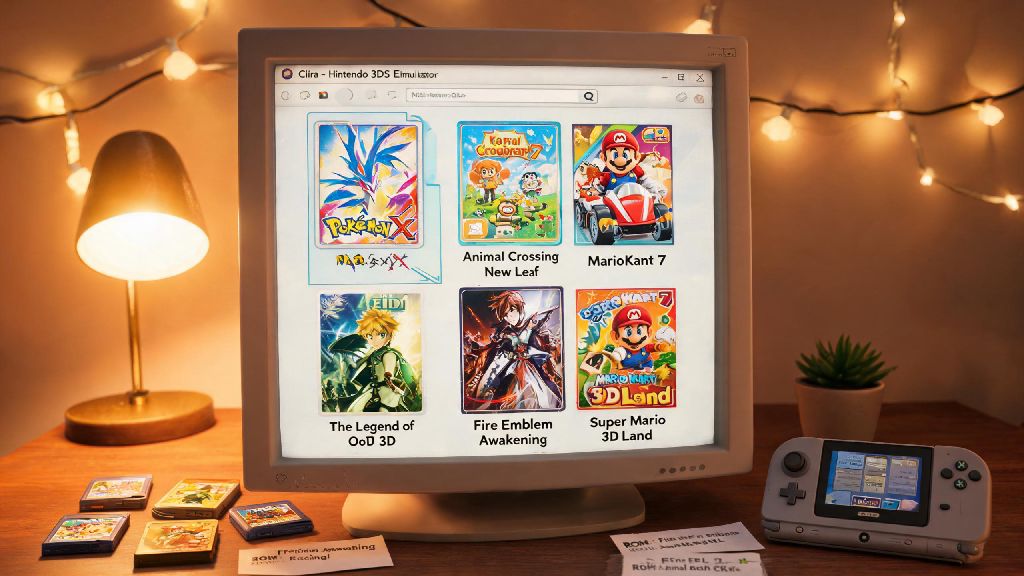
Once you’ve installed the app, you’ll need two key things to start playing: dumped system files from your own 3DS console, and ROM files of the games you already own physically. Dumping your own files is the only legal way to use Citra in most regions, so don’t fall for sites offering pre-downloaded ROMs or system files – those are almost always pirated, and can put your device at risk of viruses. If you’re not sure how to dump your own files, the official Citra wiki has step-by-step guides for both system files and game cartridges that work for all 3DS models.
Optimal Citra Settings for Smooth Game Performance
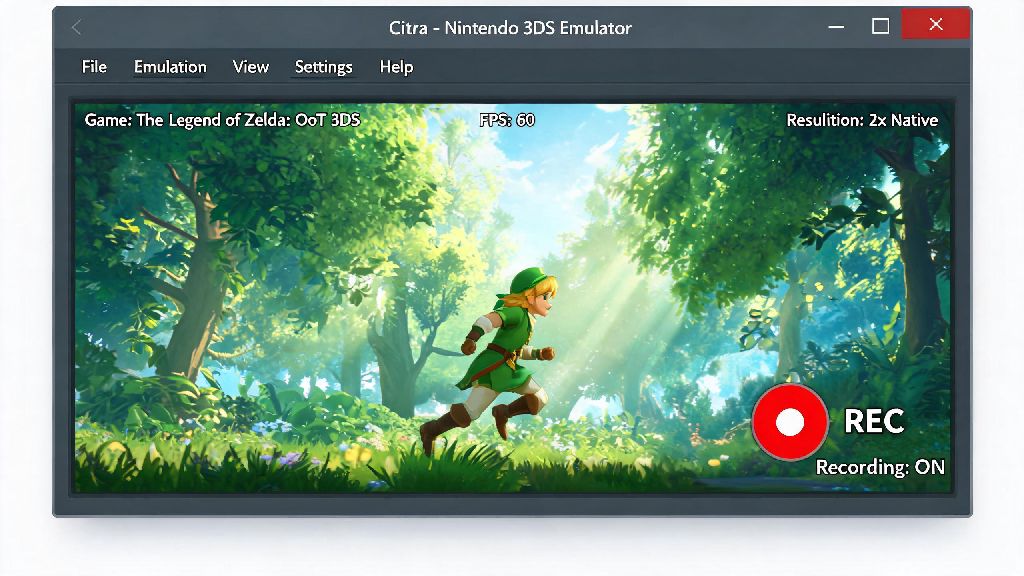
Once you’ve loaded your first game into Citra, you’ll want to tweak a few settings to get the best performance and visual quality possible for your device. The first setting to adjust is internal resolution – if you have a mid to high-end GPU, you can bump this to 2x or 3x the native 3DS resolution to get crisp 1080p or 4K visuals, with none of the blurriness of the original handheld screen. If you’re playing on a low-end laptop, leave it at 1x native to avoid frame drops.
The next most important setting is asynchronous shader compilation – enabling this will eliminate most of the stutter you see when you first load a new level or character model, as it builds the shader cache in the background instead of pausing the game to load each shader individually. You can also enable texture filtering if you want smoother edges on game assets, but this only makes a noticeable difference if you’ve already bumped up the internal resolution.
If you’re still running into lag or frame drops after adjusting the basic settings, try these quick fixes:
For low-end device users, you can also turn off anti-aliasing entirely, and set the frame rate limit to match the game’s original native frame rate (most 3DS games run at 30fps) to cut down on unnecessary resource usage. These small tweaks can make even old laptops run most popular Citra games without major issues.
Legal & Safety Best Practices for Citra Emulation
Emulation sits in a legal gray area in a lot of regions, but there are clear rules you can follow to make sure you’re using Citra ethically and legally. First and foremost, you must own a physical copy of any game you emulate on Citra. Dumping a ROM from a cartridge you already paid for is generally considered fair use in places like the US, but downloading a ROM of a game you don’t own counts as piracy, and can result in legal action if you’re caught.
You should also never download Citra builds from random forums, file sharing sites, or social media links. I made this mistake a few years ago when a friend sent me a “custom optimized” Citra build, and it came bundled with adware that kept popping up unwanted browser tabs on my desktop for weeks. The official Citra build is always the safest, most stable option, and it’s completely free to download directly from the project’s site.
It’s also important to note that Citra does not support or endorse piracy of any kind, so you won’t find any links to game ROMs or system files on the official site or community forums. If you see someone sharing those links in a Citra community space, they’re violating the group’s rules, and those files are almost always unsafe to download.
Fixes for Common Citra Emulation Issues
Even if you follow all the setup steps perfectly, you might run into small issues when you first start playing games on Citra, and most of them have very simple fixes. If a game won’t launch at all, first check that you’ve correctly dumped your 3DS system files and that your ROM file isn’t corrupted – you can verify the ROM’s checksum against the ones listed on the Citra game compatibility wiki to make sure it’s a valid dump. You should also double check that your GPU supports OpenGL 4.3, as older GPUs that don’t meet this requirement won’t run Citra at all.
If you’re getting constant stutter even after enabling asynchronous shader compilation, give the game 10 to 15 minutes of play time the first time you launch it. Citra builds a shader cache as you play, so once you’ve loaded all the common assets for a game once, the stutter will disappear entirely for all future play sessions. If you’re dealing with audio crackling, try lowering the audio latency setting in the audio tab, or switch from HLE to LLE audio if the issue persists – though LLE audio uses more CPU, so only use it if you have no other option.
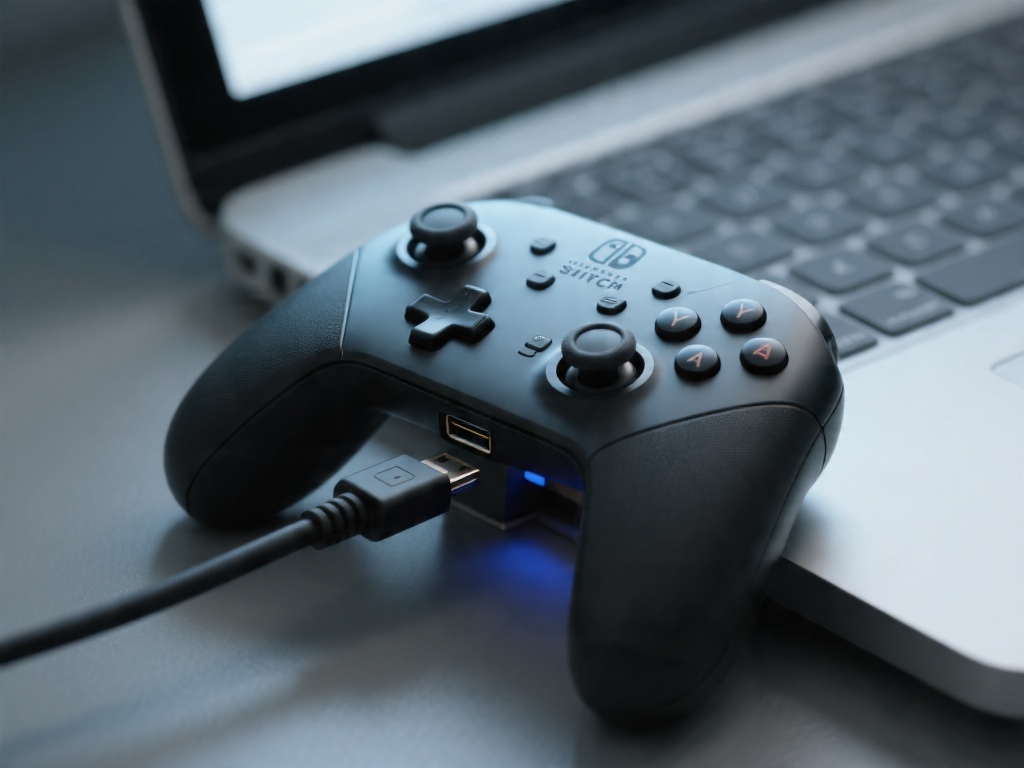
If your controller isn’t being detected, plug it in before you launch Citra, as the emulator often doesn’t recognize controllers that are connected after it’s already open. You can also re-map all your controller buttons manually in the input tab if the default mapping doesn’t match your controller’s layout. The official Citra community game compatibility list is also a great resource if you’re running into game-specific issues, as it lists known bugs and user-tested fixes for every 3DS game that works on the emulator.
Learning how to emulate games on Citra is a fantastic way to breathe new life into your old 3DS game library, whether you want to play on a bigger screen, use custom mods and texture packs, or just don’t have access to your old handheld anymore. As long as you follow the legal best practices and take a few minutes to tweak the settings for your device, you’ll get a smooth, high-quality experience that’s often better than playing on the original hardware. If you run into any issues you can’t fix on your own, the active Citra user community is always a great place to ask for help, with thousands of experienced users sharing tips and fixes every day. I still fire up Citra every few months to replay my favorite 3DS titles, and it never fails to feel like a fun, nostalgic treat.