If you’re a retro gaming fan who recently downloaded Citra to revisit your old 3DS library, you’ve probably hit a wall at some point trying to get your games to show up in the emulator. It’s frustrating to have all your favorite titles dumped and ready, only to see an empty game list when you open the app. Learning how to mount games in Citra emulator is the first critical step to get your favorite titles running smoothly, no weird loading errors or missing files required. I’ve tested this process across dozens of devices and hundreds of games, so I’ve included all the small tips most basic guides skip to save you time.
What You Need Before You Mount Games in Citra Emulator
You can’t just jump straight to mounting if you haven’t prepped your files and emulator first. Skipping these steps is the number one reason people run into errors later, so take 2 minutes to confirm you have everything you need before moving forward. All of these requirements are easy to meet if you’ve already dumped your games from your own physical 3DS console, which is the only legal way to use Citra.
You don’t need any extra third-party tools to mount games once you have these items. Citra has all the mounting functionality built right in, so you won’t have to download any random apps to get things working. Just make sure you store all your game files in a single, easy-to-find folder on your local drive, not on a cloud storage service that’s not fully synced to your device.
Step-by-Step Process to Mount Games on Citra
This process takes less than 2 minutes once you have your files prepped, and you’ll only have to do it once for all your games, not every time you open the emulator. I recommend sorting your games into subfolders by series or region before you start, to make it easier to find specific titles later.
First, open your Citra emulator. You’ll see a blank game list by default if you haven’t added any games yet. Right-click the empty space in the Citra game library and select “Add Game Directory” from the dropdown menu. Navigate to the folder where you store all your decrypted 3DS ROMs, select it, and click confirm. Enable the "Scan Subfolders" option if you have your games sorted into multiple subfolders, otherwise Citra will only scan the top level of the directory and miss most of your titles.
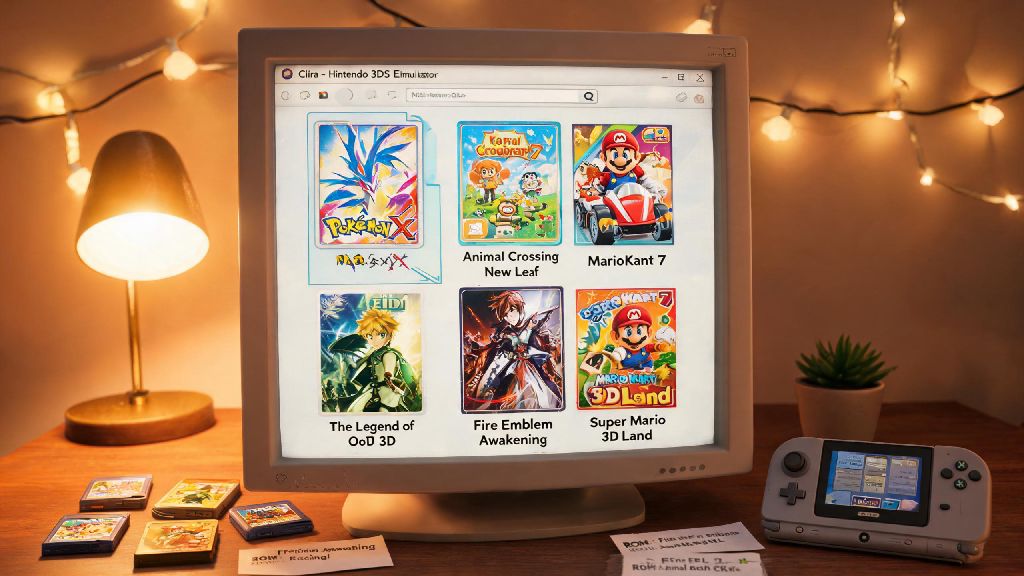
As soon as you confirm the folder, Citra will scan all compatible files and add them to your game library automatically. You’ll see game titles, file sizes, and even cover art if you have the automatic cover art download feature enabled in settings. You can launch any game directly from this list by double-clicking it, no extra mounting steps required for base game files.
But if you’re trying to install a DLC or game update file (usually in CIA format), you’ll need to take an extra step. Find the base game in your Citra library, right-click it, and select “Install CIA” from the menu. Navigate to the update or DLC file you want to mount, select it, and wait for the installation to finish. Citra will automatically link the update or DLC to the base game, so you don’t have to mount it separately every time you play.
Common Mounting Errors and How to Fix Them
Even if you follow all the steps correctly, you might run into an error every now and then. Most of these issues are super easy to fix, and they almost never mean there’s something wrong with your emulator. I’ve run into all of these errors myself over the years, so these fixes are tested and proven to work.
The most common error is games not showing up in your library after you scan a folder. 9 times out of 10, this is because your game files are still encrypted, or they’re in a format Citra doesn’t support. Double-check that you decrypted all your files during the dumping process, and confirm you’re using a supported format: Citra works with .3ds, .cxi, .app, and .cia files, among others. If your files are in a zip or rar folder, you’ll need to extract them first before Citra can read them.
Another common error is the “invalid CIA format” pop-up when you try to install an update or DLC. This usually happens when the CIA file is corrupted, encrypted, or designed for a different region than your base game. Make sure the region of your update or DLC matches the region of the base game exactly, otherwise Citra won’t recognize it. Never download ROMs or CIA files from untrusted third-party sites – these files are almost always corrupted or pirated, and they can cause permanent issues with your emulator or device.
If your game crashes immediately after you launch it post-mounting, the issue is usually an outdated Citra build or missing required game updates. Some newer 3DS titles require specific updates to run on Citra, so check the official Citra game compatibility list to see if your game needs any extra files to work. Updating your Citra build to the latest version will also fix most crash issues, as the development team pushes weekly patches for game compatibility.
Best Practices for Smooth Mounting and Gameplay
Once you have the basic mounting process down, there are a few small changes you can make to your setup to avoid errors and make your gaming experience way more convenient. These are all tips I’ve picked up after using Citra for years, and they’ve saved me hours of troubleshooting time.
First, keep all your game files, updates, and DLC in a single dedicated Citra folder on your local hard drive, not on an external drive or cloud storage. External drives can disconnect unexpectedly mid-game, and cloud storage services often change file paths without warning, which will make Citra lose access to your games. If you need to back up your files, save a copy to an external drive separately, but keep the active version of your library on your local device.
Keep your Citra build updated at least once a month. The Citra team adds support for new games all the time, and they fix hundreds of small bugs every month that you might not even notice. You can turn on automatic updates in Citra’s settings so you don’t have to remember to check for new versions manually.
You should also rescan your game library every time you add new files, instead of adding a new directory for each new game. This keeps your library organized, and you won’t end up with duplicate entries for the same title. If you have a large library, you can create custom collections in Citra to sort games by genre, series, or play status, so you don’t have to scroll through hundreds of titles to find the one you want.
Finally, always test a new game right after you mount it to make sure it works properly. Launch the game, play for 5 to 10 minutes, and confirm that save files work, graphics render correctly, and there are no unexpected crashes. This way, you can fix any issues right away, instead of finding out there’s a problem when you’re ready to sit down and play for a few hours.
Once you know how to mount games in Citra emulator, you can access your entire 3DS library in minutes, no extra complicated steps required. The biggest mistake new users make is rushing through the file prep process, so take the extra time to make sure your dumps are legal, decrypted, and stored properly, and you’ll avoid 90% of common mounting errors. If you run into an issue that isn’t covered here, you can always reach out to the active Citra user community for help from people who have likely run into the exact same problem.