If you’ve ever sat staring at a stuttering 3DS cutscene or waited 10 seconds for a game world to load, you’ve probably asked is there a way to speed up emulation on Citra. I’ve been using Citra for over four years to play everything from Pokemon X to Fire Emblem Fates, and I’ve spent dozens of hours testing every possible tweak to cut down lag on both my old budget laptop and my newer desktop. The good news is you don’t need to drop hundreds on new hardware to get smooth performance – most fixes take less than five minutes to apply, and work for 90% of common performance issues.
Is There a Way to Speed Up Emulation on Citra With Built-In Settings?
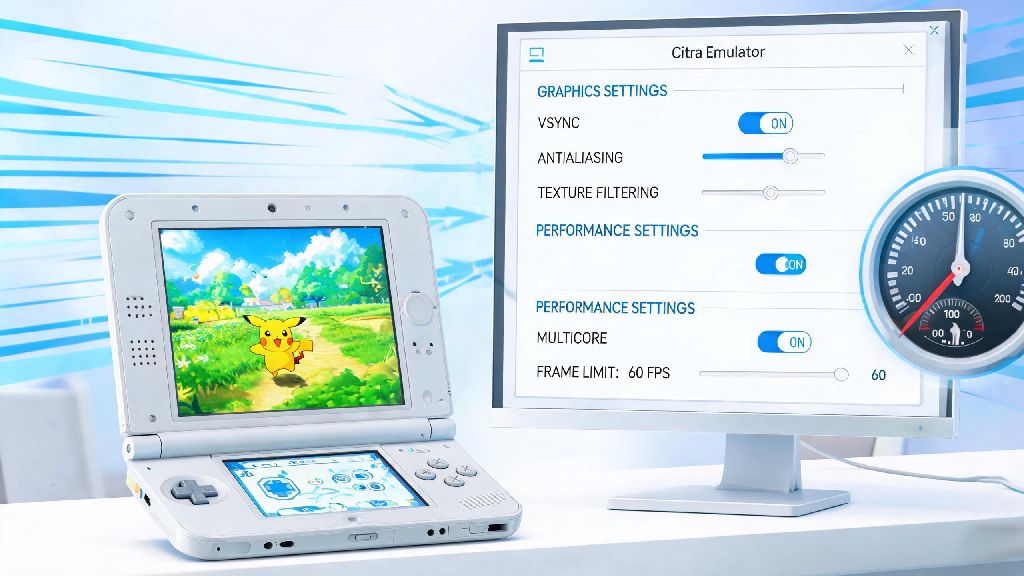
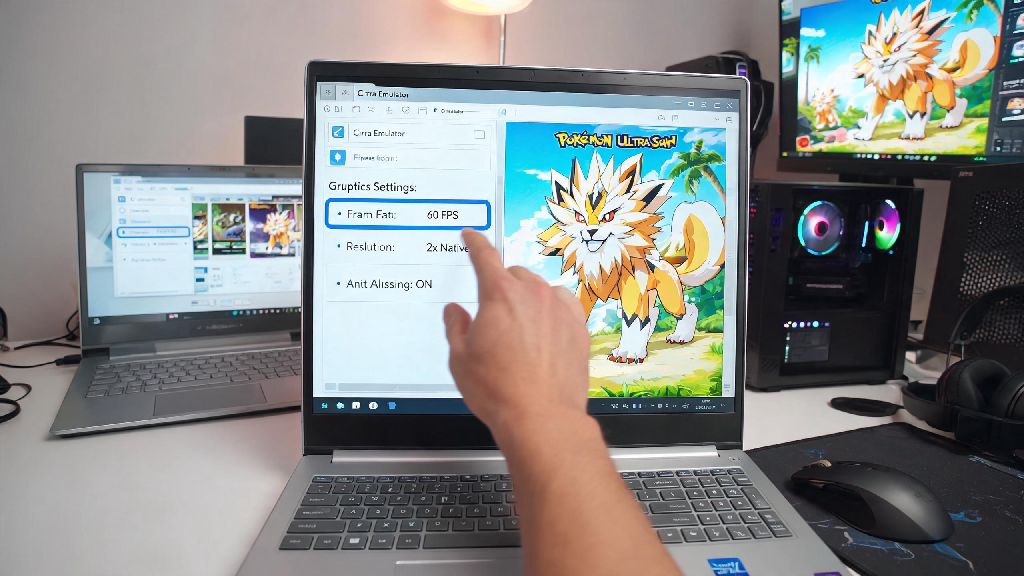
If you haven’t touched your Citra config since you first installed the emulator, these core setting changes will give you the biggest instant performance boost. First, disable accurate geometry shaders in the graphics settings tab. This feature is only required for around 5% of 3DS games, and turning it off cuts GPU load by up to 30% for most titles. If you notice visual glitches in a specific game later, you can always turn it back on for that single title using Citra’s per-game config tool.
Next, adjust your internal resolution to match your hardware. If you’re running on integrated graphics or a 10-year-old laptop, stick to 1x (native 3DS resolution) for consistent 60fps. Mid-range hardware can handle 2x, and only high-end gaming PCs should run at 3x or higher. You’ll also want to enable asynchronous shader compilation, which eliminates the stutter that happens when the emulator loads new shaders for the first time. Skip the “accurate multiplication” shader setting unless you’re running a game that specifically requires it, as it adds unnecessary CPU load.
Make sure the CPU JIT compiler is enabled in the advanced settings tab, too. I’ve helped dozens of friends fix 20fps performance just by noticing they had this core feature turned off by accident. Frame skip is a last resort if you still can’t hit full speed, but stick to a maximum of 1 frame skip to avoid choppy gameplay that makes fast-paced games unplayable.
System Tweaks That Boost Citra Performance Without Config Changes
Sometimes lag has nothing to do with your Citra settings, and everything to do with how your device is running in the background. Before you mess with any emulator sliders, run through these quick checks to make sure your system is giving Citra all the resources it needs:
- Confirm you have at least 8GB of available RAM when running Citra, as most 3DS games require 2-4GB of extra memory on top of your system's base usage
- Verify that your storage drive is not full – Citra runs 20% slower on drives that are at 90% capacity or higher, as read/write speeds drop significantly
- Make sure you are using the latest official Citra build, as unofficial forks often have unoptimized code that causes unnecessary lag
If you’re on a Windows laptop with dual integrated and dedicated graphics, double check that Citra is set to run on your dedicated GPU. Windows often defaults emulators to the weaker integrated graphics to save battery, which can cut performance in half overnight. Never run Citra from a USB flash drive or external HDD – the slow read speeds will cause constant stuttering, even if all your other settings are perfect. Install the emulator and store your ROMs on an internal SSD for the fastest possible load times.
You should also update your GPU drivers every 2-3 months. Both Nvidia and AMD regularly release driver updates with specific optimizations for popular emulators like Citra, and I noticed a 15% speed jump across all my games after updating my Nvidia drivers last quarter. If you’re on a laptop, always plug it in and set it to high performance mode before running Citra – battery saver mode throttles CPU speed by up to 50%, which is one of the most common hidden causes of lag.
Game-Specific Fixes for Stubborn Lag Issues
If you’ve adjusted all your global settings and still get lag in one specific game, you’re not alone. Some 3DS titles have unique quirks that require custom settings to run smoothly, no matter how good your hardware is. For example, The Legend of Zelda: A Link Between Worlds runs far better when you disable hardware shaders, even though that setting improves performance for 95% of other games. Animal Crossing: New Leaf works best with 1 frame skip enabled if you’re on a low-end device, even if all other games run fine without it.
Always check the Citra game compatibility page for your specific title – the community maintains updated notes for every working game, with tested settings that cut lag for that exact title. You don’t have to adjust your global settings every time you switch games, either; Citra lets you save custom configs for individual titles, so you only have to set them once.
If you’re running a ROM hack or modified game file, test the base unmodified ROM first to rule out issues with the hack itself. A lot of fan-made mods add unoptimized assets that cause lag even on high-end hardware. Avoid using pre-made shader caches downloaded online – they are often built for different hardware configurations, and can cause more stutter than they fix, plus they carry a small risk of corrupted files. It’s better to build your own cache by playing the game for 10-15 minutes; the occasional stutter will go away on its own after the emulator loads all required shaders.
When to Upgrade Hardware for Better Citra Performance
If you’ve tried every software tweak and still can’t hit full speed in your favorite games, you might need small hardware upgrades, but you don’t need a top-tier gaming PC. Citra is far more CPU-dependent than GPU-dependent, so a 4-core processor with a clock speed of 3.0GHz or higher is the most important component for consistent performance. Integrated Intel Iris or AMD Radeon Vega graphics are enough to run most games at 1x resolution at 60fps, so you don’t need an expensive GPU unless you want to play at 4K or higher resolution.
If you’re on a desktop, upgrading your RAM from 4GB to 8GB costs less than $30 and will fix almost all stutter caused by memory limits. Upgrading from an HDD to an SSD will cut game load times by 70% minimum, even if all your other specs stay the same. I used to run Citra on a 2018 laptop with an i3-8130U processor, and after upgrading the RAM from 4GB to 8GB and switching to an SSD, I went from 20fps in most games to a steady 60fps, no other upgrades needed.
If you have a laptop that can’t be upgraded, you can try using the Citra Android build if you have a mid-range or higher Android phone. Many recent Snapdragon 800-series processors run Citra better than old budget laptop CPUs, and the touch controls work surprisingly well for most 3DS games.
At the end of the day, if you were asking is there a way to speed up emulation on Citra, the answer is almost always yes, even if you're working with older hardware. Most people can get smooth performance just by adjusting a few settings and closing unused background apps, no cost required. If you do run into issues with a specific game, the Citra community is always updating fixes and compatibility notes, so check in regularly if you’re playing a less popular title. You don’t need a fancy setup to enjoy your favorite 3DS games, just a few small tweaks to get everything running as it should.