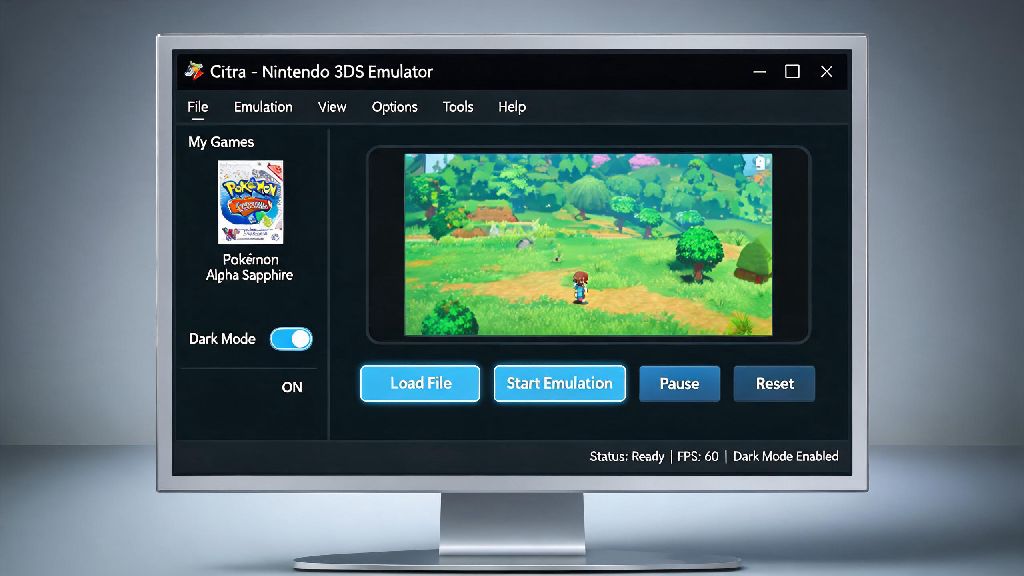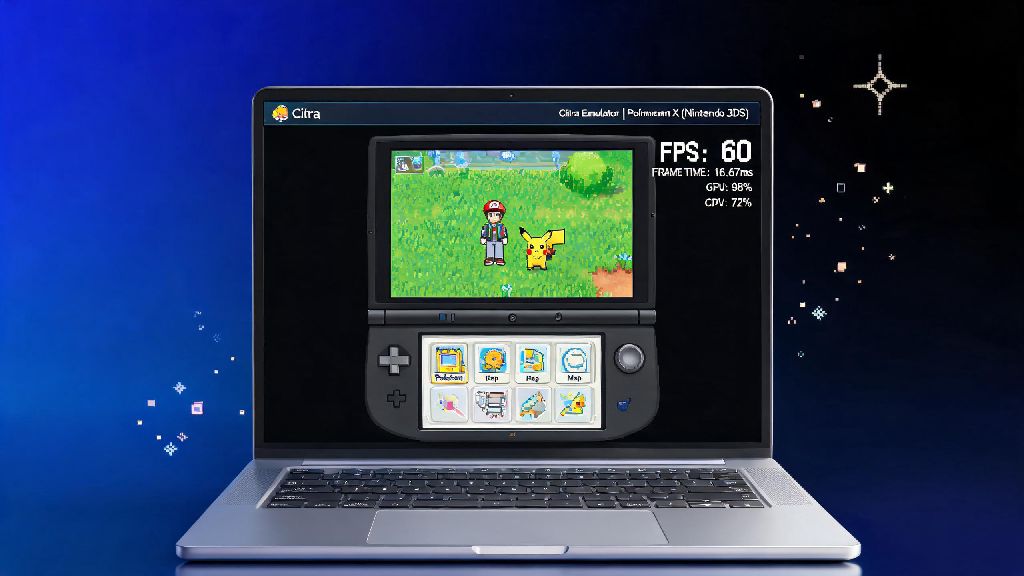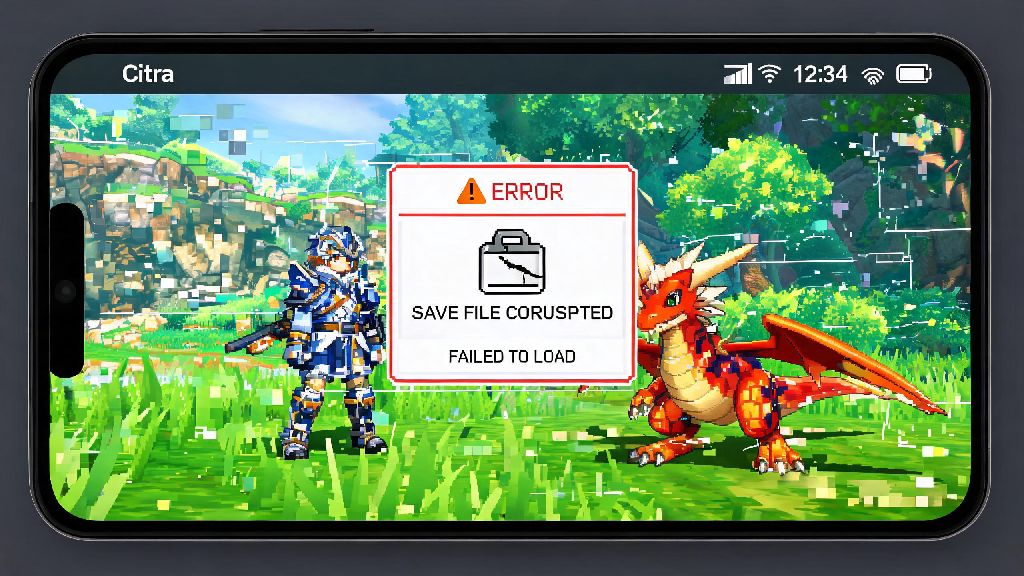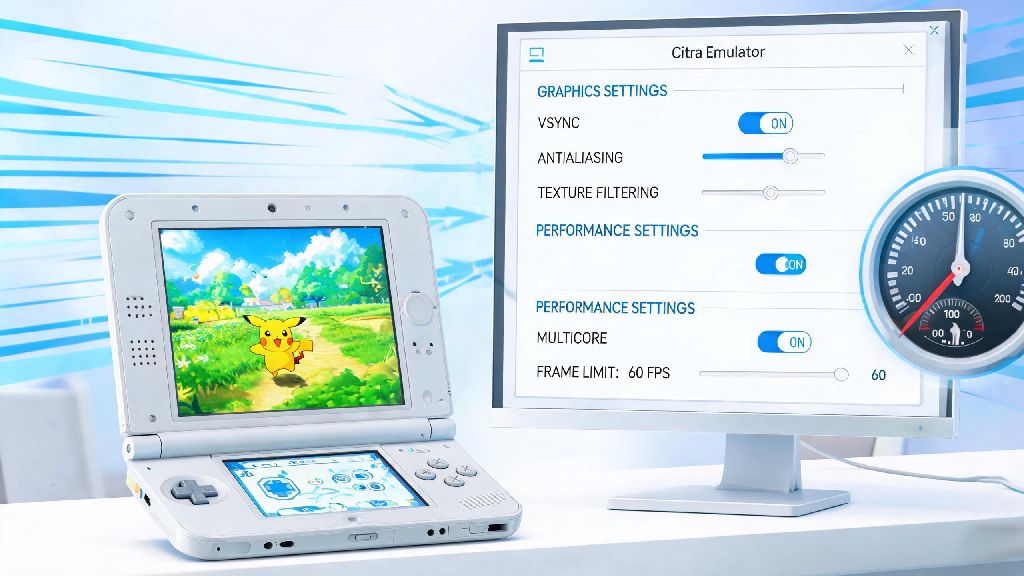
If you’ve ever sat down to play your favorite 3DS title on Citra, only to be met with choppy frame rates, random freezes, or audio that cuts out every two seconds, you know how frustrating it is to have your gaming session derailed. Most performance issues with the emulator aren’t caused by underpowered hardware—they come down to misconfigured settings, unoptimized ROM files, or outdated software. This guide walks you through how to fix speed up citra emulator without needing to upgrade your PC or phone, with tweaks that take less than 10 minutes to apply for most users.
Optimize Core Citra Settings to Fix and Speed Up Citra Emulator
The first place to start when fixing Citra performance issues is the core settings menu, where small adjustments can double your frame rate in most cases. Vulkan is the best default choice for most users when picking a graphics API, as it’s far more efficient than OpenGL for both AMD and Nvidia graphics cards, as well as modern mobile chipsets. Only switch back to OpenGL if you’re running very old Intel integrated graphics that don’t support Vulkan properly, as you’ll likely run into crashes or visual glitches otherwise.
Stick to 1x (native 3DS resolution) if you’re on a low-end device to avoid unnecessary GPU load. You can bump up to 2x or 3x resolution if you have a mid to high-end GPU for sharper visuals, but anything higher than 3x wastes resources with barely noticeable improvements to image quality. Enable asynchronous shader compilation to eliminate stutter when new in-game effects load, though you might see minor visual glitches the first time a shader renders—this goes away permanently after the first playthrough of a section.
For quick wins, adjust these four settings first before making any other changes:
Fix ROM and File Related Performance Issues
If you’re still struggling to fix and speed up Citra emulator after adjusting your settings, the problem is almost always tied to your ROM files. Only use decrypted, properly dumped ROM files you created from your own physical 3DS game collection, as bad dumps, encrypted files, or modified ROMs from untrusted sources cause 90% of random lag and crash issues that have nothing to do with your setup. If you downloaded a ROM from a random site and it’s lagging even with perfect settings, test a different dump first to rule out file corruption.
Avoid unoptimized ROM hacks and fan mods that add extra graphical effects not present in the original game, as many of these modifications aren’t built to work well with Citra’s emulation engine. You should also store your ROMs on an SSD instead of a traditional hard drive if you’re on PC, as this cuts loading times by 70% on average and eliminates stutter when open world games load new map assets. If you’re on mobile, don’t store ROMs on a standard SD card unless it’s a high-speed U3 model, as slow storage causes consistent lag during asset-heavy sections of games like Animal Crossing or Pokémon Sun and Moon.
Update and Maintain Your Emulator Build for Consistent Speed
Many users skip updating their Citra build because they worry new versions will break their existing settings, but running outdated software is one of the most common causes of poor performance. Always use the latest official Citra Nightly or Canary build downloaded directly from the official source, as old third-party builds are often full of bugs and missing years of performance improvements. Nightly builds are the most stable for most users, while Canary builds include the latest experimental performance patches for less common hardware configurations.
These small maintenance steps go a long way to help you fix and speed up Citra emulator without any extra work. Clear your shader cache every 2 to 3 months, as old cache files get corrupted over time and cause stutter even if you haven’t changed your settings. You can find the shader cache folder in your Citra user directory, and deleting it will prompt the emulator to rebuild fresh cache files the next time you launch a game. If you’re on mobile, close all background apps before launching Citra, as even a running social media app can take up 30% of your device’s RAM, leaving too little for the emulator to run smoothly. Windows users should also make sure they have the latest graphics drivers installed, as outdated drivers are a common cause of Vulkan-related performance drops.
Advanced Tweaks for High End and Low End Devices Alike
If you’ve tried all the basic tweaks and still aren’t getting the performance you want, there are a few device-specific adjustments you can make to squeeze extra frames out of your setup. For low-end devices, enable "CPU JIT" and "Hardware Renderer" if you haven't already—these settings are enabled by default, but if you turned them off for testing previously, switching them back on can double performance for most games. You can also turn off audio stretching if you don’t mind minor audio crackle when frames drop, as this reduces CPU load by a small but noticeable amount, especially on older mobile chipsets.
For high-end device users, you can safely enable texture filtering and 2x anti-aliasing without losing frame rate, but don’t go overboard—any anti-aliasing higher than 2x is barely noticeable on 3DS games and wastes GPU resources. If you’re playing a specific game that still lags despite perfect general settings, check the official Citra game compatibility page to see if there are custom recommended settings for that title, as many popular games have small tweaks that fix title-specific performance issues.
It’s also important to manage your expectations: some 3DS games are still not fully emulated, and will run poorly even on the most powerful hardware. If a game is marked as "Okay" or "Intro" on the Citra compatibility list, consistent frame drops are not a sign of a problem with your settings, and you’ll likely have to wait for future emulator updates to get smooth performance for that title.
At the end of the day, you don’t need a top of the line gaming PC to get smooth performance from Citra. Most of the time, a few quick setting changes, a properly dumped ROM file, and a quick update to your emulator build is all you need to fix speed up citra emulator for your favorite 3DS titles. Take 10 minutes to test these tweaks one at a time, so you can see which changes make the biggest difference for your specific device and game library. If you’re still running into issues after trying all these steps, you can always ask for help in the Citra community, where other users share device-specific tweaks for hard to fix performance problems.