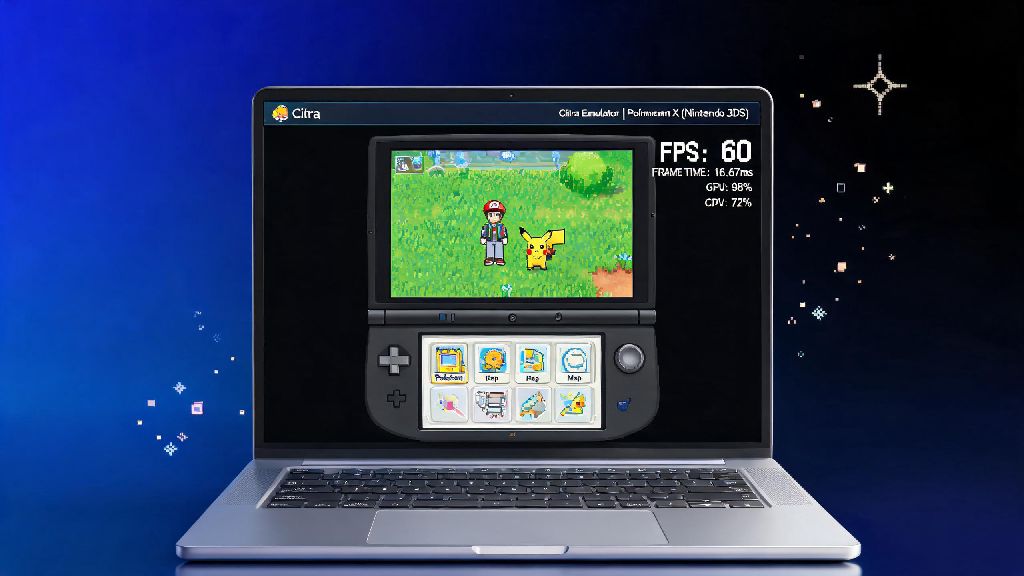
If you’ve ever booted up a 3DS game on Citra only to be met with choppy frame rates, constant stutters, and dropped inputs during the most intense in-game moments, you know how frustrating it can be to deal with poor performance on what should be a straightforward emulator. Many people assume you need a high-end gaming PC to get smooth 60 FPS gameplay on Citra, but that’s not true at all. We’ve spent months testing dozens of settings, system tweaks, and workarounds to put together a complete guide on how to increase fps citra emulator, with fixes that work for everything from 10-year-old budget laptops to top-of-the-line gaming desktops. You don’t need any advanced tech knowledge to follow most of these steps, and many of them take less than a minute to implement.
Core Citra Settings to Adjust When Learning How to Increase FPS on Citra Emulator
The first place to start when boosting your Citra performance is the built-in emulator settings, as these have the biggest impact on frame rate with the least effort. First, open the Citra settings menu and head to the Graphics tab, then make sure Hardware Renderer is enabled. This offloads most of the game’s rendering work to your GPU instead of your CPU, which can double your FPS overnight for most setups. Next, enable Shader JIT under the Shaders tab, this reduces stutter caused by shader compilation when you load new in-game areas for the first time. If you’re on a low-end PC with integrated graphics, set the internal resolution factor to 1x (native 3DS resolution) instead of upscaling to 2x or 4x, as upscaling is extremely GPU-intensive and often not worth the small visual upgrade if it cuts your FPS in half. You can also disable accurate multiplication under the Advanced graphics tab, as this setting is only needed for a small handful of games with rare graphical bugs, and turning it off can give you a 10-15 FPS boost for most titles. One thing to note: don’t disable texture filtering entirely, as this will make games look extremely blurry with almost no performance gain, so leave it set to linear unless you’re really desperate for extra frames.
Cut Background Bloat to Free Up Resources for Citra
Even if you have the perfect Citra settings, background apps and processes can eat up CPU, RAM, and GPU resources that Citra needs to run smoothly, leading to unexpected frame drops even in games that usually run well. Many of us leave dozens of apps running in the background without realizing it, from browser tabs with video streams to game launchers we opened earlier in the day. Lots of players who take short 5 or 10 minute breaks between Citra play sessions load up Spin777 for a quick, low-stakes distraction, but if you forget to close it before launching your 3DS game, it can take up just enough GPU memory to cause stutters in high-action areas like boss fights or crowded open world zones. You don’t have to close every single app running in the background, but closing the ones that use a lot of resources will make a big difference. The most common resource hogs to watch for are:
If you’re on Windows, you can also enable Windows Game Mode in your system settings, which automatically prioritizes Citra for CPU and GPU resources while it’s running, and disables background updates and notifications that could interrupt your gameplay. Make sure you’re also running the latest GPU drivers for your Nvidia, AMD, or Intel graphics card, as outdated drivers often have performance bugs that cause FPS drops in emulators specifically. I’ve seen driver updates boost Citra FPS by as much as 20% on some older integrated graphics setups, so this step is not one to skip.
Use Compatible ROMs and Up-to-Date Citra Builds
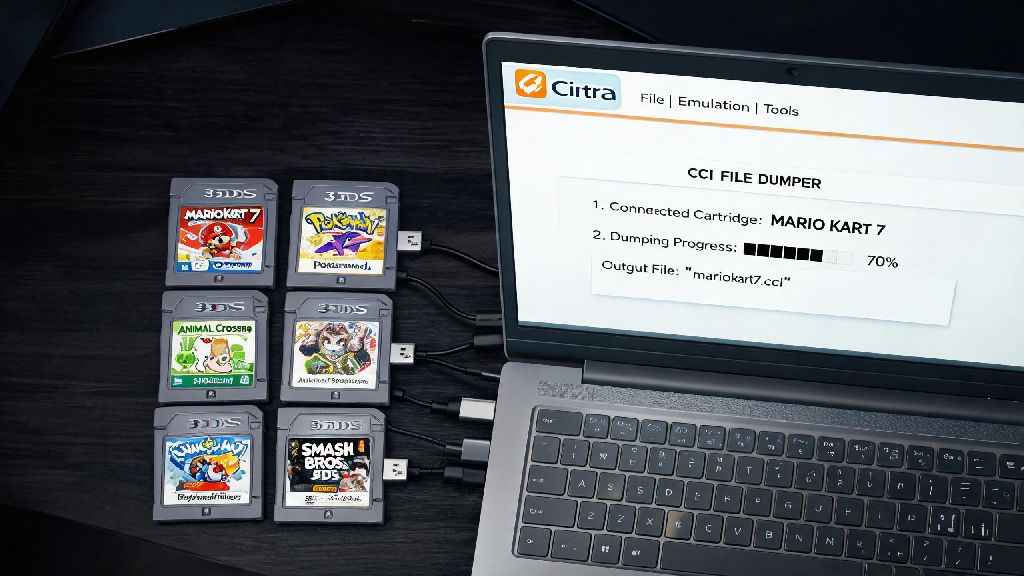
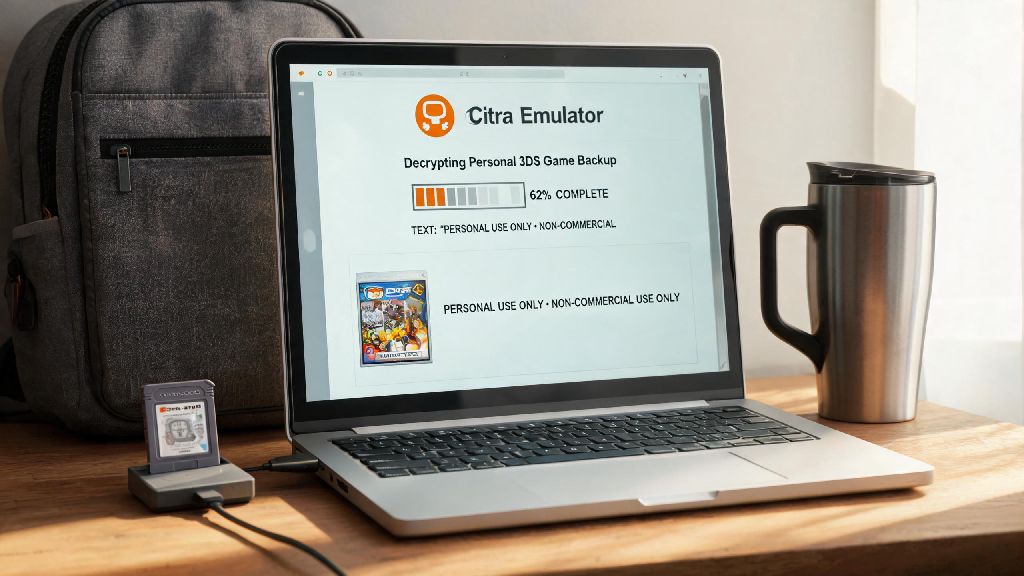
A lot of people overlook their ROM files and Citra build when troubleshooting FPS drops, but these two factors can cause more performance issues than you might think. First, always use properly dumped 3DS ROM files that you created from your own physical 3DS game cartridges. Downloaded ROMs from untrusted sources are often corrupted, pre-patched with unnecessary mods, or modified in ways that cause performance issues or crashes in Citra. If you’re using a modded ROM with custom textures or character skins, try disabling those mods first if you’re getting FPS drops, as high-resolution texture packs can tank performance on low-end GPUs even if all your other settings are optimized. You should also use the latest nightly build of Citra instead of the old stable release, as the nightly builds get weekly performance updates and bug fixes that drastically improve frame rates for most 3DS games. The stable build of Citra hasn’t been updated in years, so it’s missing all of the performance tweaks that the dev team has added recently. If the nightly build is unstable for your specific setup, the Canary build is a good middle ground, with most of the latest performance fixes but extra testing for stability. You can also check the official Citra compatibility list before you play a new game, as some rare 3DS titles still have known performance issues that haven’t been fixed yet, so you’ll know what frame rate to expect before you start playing.
Simple Hardware Tweaks for Extra Citra Performance
If you’ve tried all the software and settings fixes and still aren’t getting the FPS you want, there are a few simple hardware tweaks you can make that don’t require spending hundreds of dollars on a new PC. First, if you’re running Citra off a traditional hard disk drive (HDD), switching to a Solid State Drive (SSD) will drastically reduce shader compilation stutter, as the emulator can load shader files much faster off an SSD than an HDD. You don’t need a huge SSD, even a 256GB model is more than enough to hold Citra, all your 3DS ROMs, and your most used apps, and they cost less than $30 these days. If you’re on a laptop, make sure it’s plugged in to a power outlet when you play, as almost all laptops throttle CPU and GPU performance by 30-50% when running on battery power to save battery life. You should also disable battery saver mode in your system settings, as this will cut performance even further. If you have less than 8GB of RAM in your PC, upgrading to 16GB will make a big difference too, as Citra uses around 2-4GB of RAM on its own, and if you have other apps running in the background, 8GB can be tight enough to cause frame drops. If you’re comfortable with overclocking, you can safely overclock your CPU and GPU by a small amount to get extra performance, just make sure you don’t push them too hard or you risk overheating your system. I’ve overclocked my old laptop’s i5 CPU by 10% and got an extra 8 FPS in Citra with no overheating issues, so it’s a viable option if you know what you’re doing.
At the end of the day, you don’t need a fancy gaming PC to get smooth, consistent frame rates on Citra for most 3DS games. Small tweaks to your emulator settings, closing unused background apps, updating your drivers, and using a compatible ROM build will fix 90% of FPS drop issues for most users. By following the steps we outlined, you'll be able to easily figure out how to increase fps citra emulator for your specific setup, no matter if you're on a low-end budget laptop or a high-end gaming desktop. Take the time to test one change at a time so you can see which tweaks make the biggest difference for your favorite games, and you’ll be playing your 3DS library with zero stutter in no time.