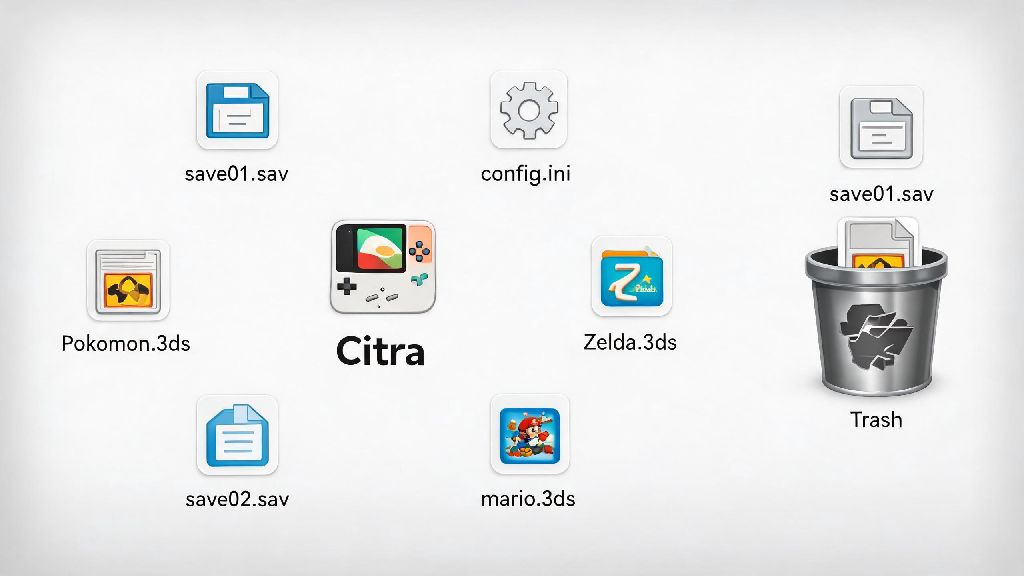
If you’ve ever run into constant crashes, corrupted save files, or simply don’t use the app anymore, knowing how to uninstall Citra 3DS emulator fully is key to avoiding leftover junk cluttering your device. Many users make the mistake of just deleting the desktop shortcut or the main application folder, which leaves behind gigabytes of game ROMs, save files, configuration data, and cache that take up valuable storage space. Even worse, these leftover files can cause conflicts if you ever decide to reinstall Citra later, leading to the same glitches you were trying to fix in the first place. I’ve walked dozens of new emulator users through this process over the years, so I’ve broken down every step to make it simple no matter what operating system you use.
How to Uninstall Citra 3DS Emulator on Windows, Mac, and Linux
The base uninstall process is slightly different for each operating system, but all versions start with the same critical first step. Always close all open Citra windows and background processes before starting the uninstall process to avoid file access errors. You’d be surprised how many people skip this step and end up stuck with an error message halfway through uninstalling. You can use Task Manager on Windows, Activity Monitor on Mac, or the htop command on Linux to check for and force close any running Citra processes.
For Windows users, open the Start menu, search for “Add or Remove Programs”, and scroll through the list of installed apps until you find Citra. Click the three dots next to the app name, select Uninstall, and follow the prompts in the uninstall wizard to remove the base application. The whole process only takes 10 to 20 seconds for most devices.
For Mac users, open your Applications folder, find the Citra app icon, and drag it directly to your Trash bin. Right click the Trash icon and select Empty Trash to finish removing the base application. If you installed Citra via Homebrew, you can run the command “brew uninstall citra” in your terminal for a faster uninstall.
For Linux users, the process depends on how you installed Citra in the first place. If you used the apt package manager, run “sudo apt remove citra” in your terminal. If you used Flatpak, run “flatpak uninstall org.citra_emu.citra”. If you installed it from a standalone archive, just delete the folder you extracted Citra to when you first installed it.
Why You Should Remove Leftover Citra Data After Uninstalling
The standard uninstall process only removes the core Citra application files, not any of the user-specific data that gets stored while you use the app. This data doesn’t get deleted automatically because the system assumes you might want to keep it if you reinstall the app later. Leftover Citra data can take up 10GB or more of storage space if you have a large library of ROMs and shader caches, so clearing it out can free up a lot of room for other files.
If you’re uninstalling because you’re done playing 3DS games entirely, that extra space can go to new games, work files, or whatever else you need. If you’re uninstalling to fix a bug, leaving those old files means you’ll have the same exact problem when you reinstall, which defeats the whole purpose. Corrupted configuration files or broken shader caches are the cause of 90% of common Citra glitches, so removing those leftover files is non-negotiable if you want a fresh start.
You can find leftover Citra data in the following locations for each operating system:
Just navigate to these folders, select all the files inside, and delete them permanently to clear all leftover Citra data. Double check the folders are empty once you’re done to make sure you didn’t miss anything.
How to Back Up Your Citra Data Before Uninstalling
You don’t have to delete all your Citra data permanently if you’re uninstalling to fix a glitch or plan to come back to 3DS games later. Backing up your most important files only takes a minute, and it saves you from losing dozens or hundreds of hours of game progress. Never skip backing up your save files if you’ve spent a lot of time playing 3DS games on Citra – there’s no way to recover them once you delete the user data folder.
The most important files to back up are your save files, which are stored in the “sdmc” folder inside your Citra user data directory. You can also back up your custom controller configurations, cheat code files, and screenshot folders if you want to keep those. Just copy the folders you want to save to a separate location on your device, an external hard drive, or a cloud storage service like Google Drive or Dropbox.
If you only want to fix a persistent glitch, you don’t even have to uninstall the whole app. You can just delete the “config” folder inside your Citra user data directory, which resets all your Citra settings to default without touching your save files or ROMs. That’s a much faster fix for most common issues, and it saves you the hassle of reinstalling the app entirely.
Common Uninstall Mistakes to Avoid
There are a few really common mistakes that make the uninstall process way more frustrating than it needs to be, and most of them are super easy to avoid. The first mistake is only deleting the Citra desktop shortcut instead of uninstalling the actual app. That doesn’t remove any of the application or user data at all, it just removes the icon you use to open the app.
The second mistake is using paid third-party uninstaller tools that claim to “deep clean” your device. You don’t need paid third-party tools to fully remove Citra from your device – the built-in uninstall features for your OS work perfectly if you follow the steps correctly. A lot of these third-party tools end up deleting unrelated system files by mistake, which can cause way bigger issues than a few leftover Citra files.
The third mistake is deleting your user data folder before you back up any files you want to keep. I’ve talked to so many users who lost hundreds of hours of game progress because they rushed through the uninstall process without checking what was in the user data folder. Take 30 seconds to scan the folder before you delete it, just to make sure you aren’t throwing away anything important.
If you get an error message saying Citra files are “in use” during uninstall, open your task manager or activity monitor and force close all Citra processes before trying again. This error almost always happens because a Citra background process is still running that you didn’t see. Once you close those processes, the uninstall will go through with no issues.
At the end of the day, the process to fully remove the app doesn’t have to be complicated if you take it step by step. Knowing how to uninstall Citra 3DS emulator completely helps you free up space, fix persistent glitches, and make sure a future reinstall goes off without a hitch. Don’t rush through the process, double check you’ve backed up any files you want to keep, and take an extra 30 seconds to delete the leftover user data folder once the base uninstall is done. You’ll avoid all the common headaches that come with partial uninstalls, and your device will run a little smoother for it.