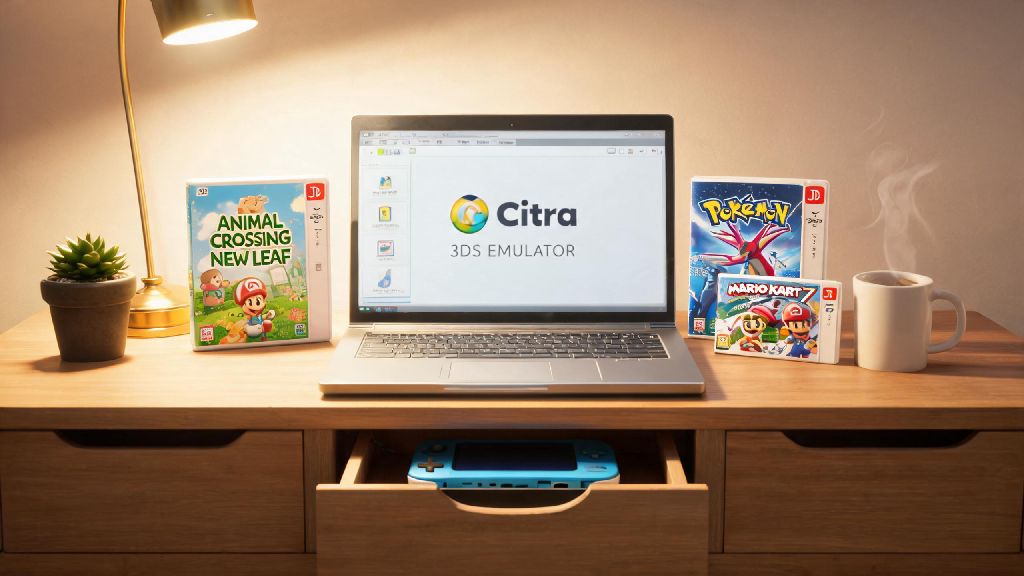
I still have my original 3DS sitting in a desk drawer, but I almost never use it now that I can play all my favorite titles at 1080p on my laptop. If you’ve ever wanted to revisit classic 3DS games like Animal Crossing: New Leaf or Pokémon X without digging your old handheld out of storage, you’re not alone. I’ve tested dozens of 3DS emulators over the years, and Citra remains the most reliable, feature-rich option for Windows, Mac, Linux, and even Android devices. This guide breaks down how to emulate 3ds games with citra from files, covering every step from pre-requisites to post-setup tuning so you don’t waste hours troubleshooting avoidable issues. Before we dive in, it’s important to note that you should only emulate games you own a physical or official digital copy of, to stay compliant with copyright laws in your region.
Pre-Setup Checks Before You Emulate 3DS Games with Citra from Files
The first and most important rule of emulation is that you have full rights to the content you’re playing. You are legally required to own a copy of any game you emulate, and you should only use game files you dump yourself from your own 3DS hardware. Downloading pre-ripped ROMs from random sites is not only illegal in most regions, it also puts you at risk of malware or corrupted files that can damage your device. You can find official step-by-step guides for dumping your own 3DS games on the Citra developer website, and the process only takes a few minutes once you have homebrew enabled on your handheld.
Next, confirm your device meets the minimum system requirements to run Citra smoothly. For desktop devices, you’ll need a 64-bit operating system, at least 4GB of RAM, and a GPU that supports OpenGL 4.3 or higher. For Android devices, you’ll need Android 8.0 or later, and a Snapdragon 835 or equivalent processor for consistent performance with most titles. Only download Citra from the official developer website to avoid adware or corrupted builds — third-party repacks often come with unwanted extra software or broken features that will cause issues down the line.
Finally, make sure your game files are in a compatible format. Citra supports .3ds, .cci, .cxi, and .cia files, and you don’t need to extract individual game assets to run them. If your files are compressed in ZIP or RAR folders, you’ll need to extract them first before adding them to Citra.
Step-by-Step Setup for Citra and Your Game Files
Once you have your pre-requisites sorted, setting up Citra only takes a few minutes. First, run the Citra installer you downloaded from the official site, and follow the on-screen prompts to install the program on your device. You can choose between two builds: Citra Nightly for the most stable, tested experience, or Citra Canary if you want access to the latest experimental features. Most casual users will be perfectly happy with the Nightly build.
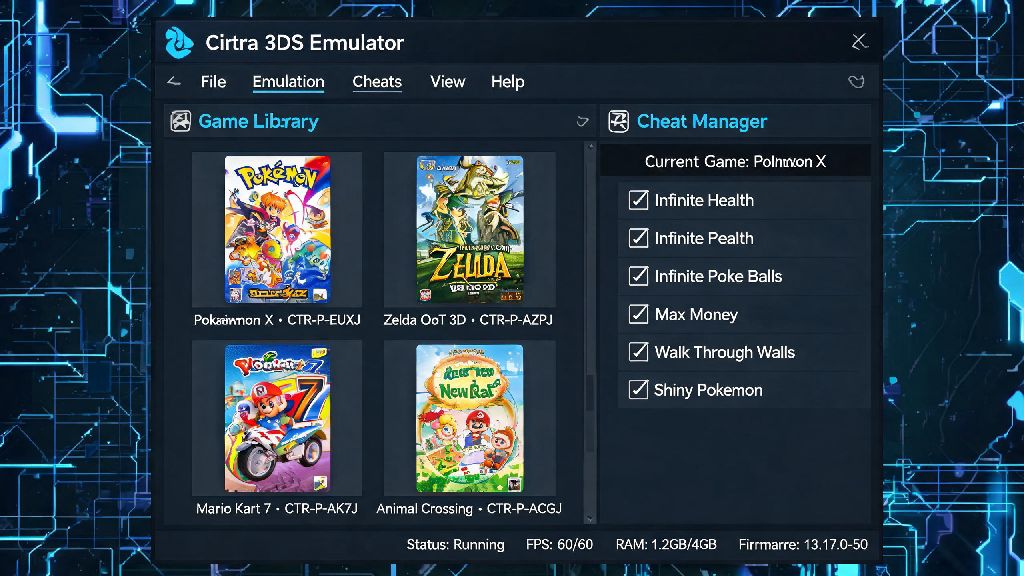
After installation, open Citra, and navigate to File > Add Game Directory in the top menu. Select the folder where you store your dumped 3DS game files, and Citra will automatically scan the folder and add all compatible games to your library. If you enable the metadata download feature in the settings, Citra will also pull in official cover art, game descriptions, and release dates for all your titles to make your library look polished.
If you have .cia files, you’ll need to install them separately instead of adding them to your game folder. Go to File > Install CIA, select the .cia file you want to add, and wait for the installation process to complete. The game will automatically appear in your library once it’s done installing. Make sure your game files are not compressed in ZIP or RAR folders before adding them to Citra, as the emulator can’t read compressed files directly. I’ve had friends spend hours troubleshooting why their games won’t load, only to realize they forgot to unzip the files first.
There are a few common file issues that can prevent your games from loading properly:
Optimal Citra Settings for Smooth Game Performance
Out of the box, Citra works pretty well for most titles, but tweaking a few settings will drastically improve your gameplay experience. The biggest setting to adjust is internal resolution, which controls how sharp your game looks. Native 3DS resolution is 240p, so setting the internal resolution to 2x or 3x will give you 720p or 1080p graphics that look far better than the original handheld can produce. If you have a lower-end device, stick to 1x or 2x resolution to avoid lag. If you have a high-end GPU, you can go up to 4x resolution, but anything higher is usually overkill and won’t give you a noticeable visual improvement.
The single most impactful setting for reducing stutter is async shader compilation, which you can enable in the graphics settings menu. This setting pre-loads shader assets in the background, so you won’t get lag spikes when new in-game areas or effects load for the first time. It’s enabled by default in newer Citra builds, but if you’re running an older version you’ll want to turn it on manually.
For audio settings, stick to the default HLE audio emulator for most games, as it’s far faster and uses less system resources. Only switch to LLE audio if you run into distorted sound or missing audio cues for specific titles, as LLE audio is much more resource intensive. You can also map controls to a keyboard, but I recommend connecting an Xbox or PlayStation controller for a more authentic experience — Citra automatically recognizes most wired and Bluetooth controllers, so you won’t need to install any extra software.
Some games require custom settings to run perfectly, so if you run into glitches or performance issues with a specific title, you can check the full list of tested titles on the official Citra game compatibility database to see if any custom settings are recommended for your game.
Common Issues to Fix When Emulating 3DS Games on Citra
Even if you follow all the setup steps perfectly, you might run into small issues from time to time. The most common issue is games failing to load entirely. If this happens, first confirm your game file is not corrupted by re-dumping it from your 3DS. If the file is fine, make sure you have the necessary system files dumped from your 3DS installed in Citra — some titles, especially DSiWare games, require official system BIOS files to run properly.
If you’re getting low FPS or consistent lag, first lower your internal resolution and turn off any post-processing effects like anti-aliasing. Close any other heavy apps running in the background, like video editors or streaming software, that are taking up system resources. If you’re playing on Android, turn off battery saver mode, as it often throttles your processor to save power and will cause lag in emulators.
Distorted or missing audio is another common issue. First, try switching between HLE and LLE audio in the settings menu to see if that fixes the problem. If you’re on a desktop device, make sure your audio drivers are updated to the latest version, as outdated drivers often cause compatibility issues with emulators.
If you get a black screen when you launch a game, try disabling the hardware shader setting in the graphics menu, especially if you’re running an older GPU that doesn’t support newer OpenGL features. Updating your graphics drivers to the latest version will also fix most black screen issues. 90% of common Citra issues can be fixed by updating your graphics drivers and verifying your game dump is not corrupted, so always try those two steps first before you start troubleshooting deeper settings. If you still can’t fix the issue, you can ask for help in the official Citra Discord server, just make sure you have your system specs and game file details ready when you ask for support.
Emulating 3DS titles is a great way to preserve your favorite games and play them with better graphics and quality of life features you can’t get on the original hardware. Once you know how to emulate 3ds games with citra from files, you can tweak settings to your preference, add mods, and even play local multiplayer with friends who also use Citra. Just remember to always stick to legal game dumps, use official Citra builds, and adjust settings based on your device’s capabilities for the best experience. If you found this guide helpful, feel free to share it with other 3DS fans who want to revisit their favorite titles without digging out their old handheld.