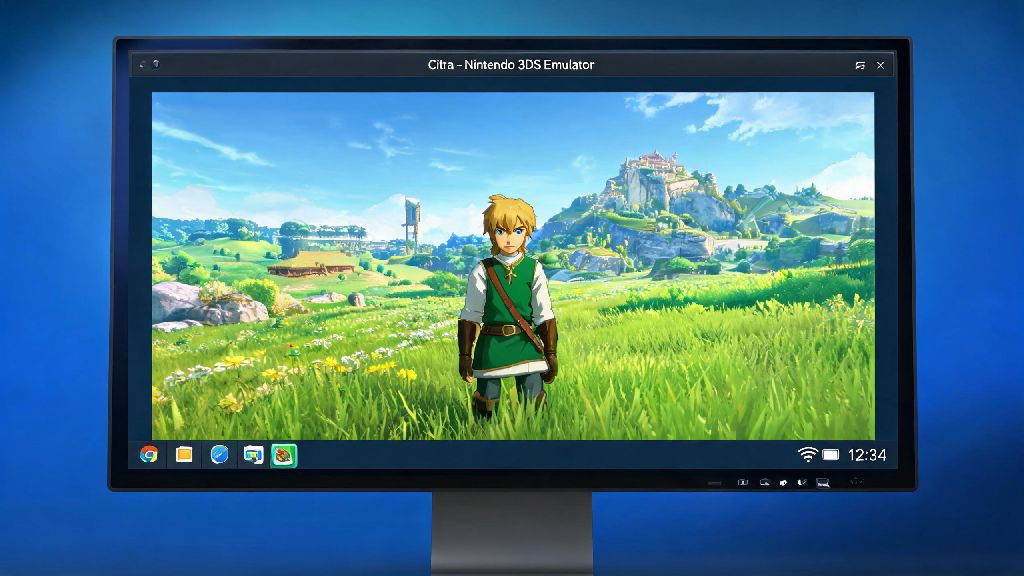
If you’ve ever played your favorite Nintendo 3DS titles on Citra only to squint at a tiny, boxed-off window in the middle of your monitor or phone screen, you know how much it kills the nostalgic vibe. Playing Pokemon, Animal Crossing, or Zelda at half your display’s size makes it hard to pick up small details, and it wastes all the high-resolution upscaling Citra is capable of. That’s where knowing how to make Citra emulator big screen without ruining image quality or triggering lag becomes a game-changer for every 3DS fan. I’ve tested every possible method across Windows, Mac, Android, and even Linux devices over the past two years, so I’m breaking down exactly what works, what doesn’t, and how to avoid common mistakes that mess up your gameplay.
Core Settings to Adjust First to Make Citra Emulator Big Screen
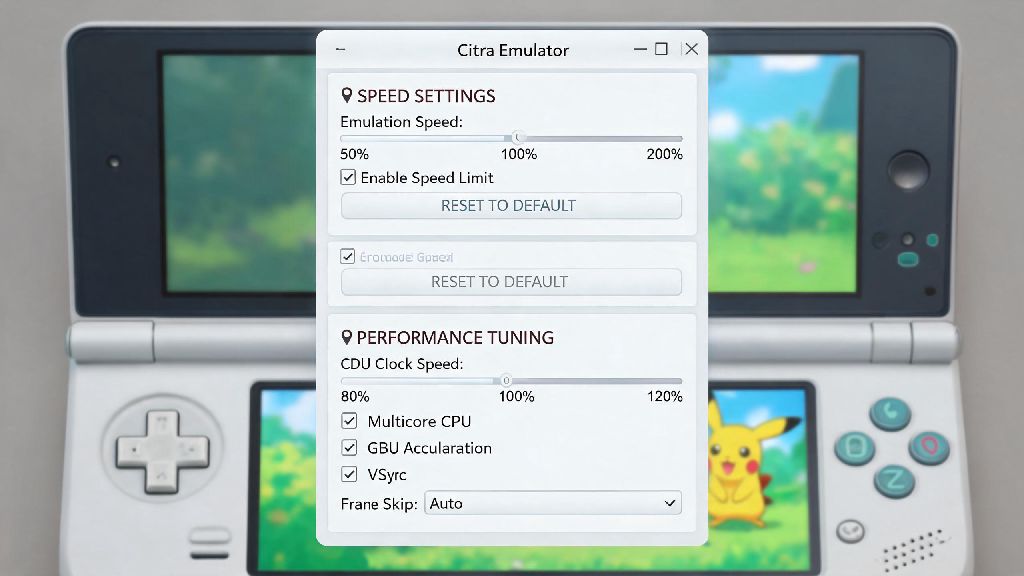
Before you hit the fullscreen button and call it a day, there are a few foundational settings you need to tweak to make sure your big screen experience is smooth and distortion-free. First, open Citra, head to the Emulation tab, and select Configure > Graphics to access all display-related options. These settings are identical across desktop platforms, and Android users can find the same options in the in-app settings menu under the Graphics tab.
Turn off the “Internal Resolution” lock first if you want crisp visuals on a larger screen. The default native 3DS resolution is only 400x240, so blowing that up to a 1080p or 4K display will look extremely pixelated if you don’t scale this up first. I used to make the mistake of cranking internal resolution to 6x on my old laptop, and I couldn’t figure out why my big screen gameplay was stuttering so bad until I dropped it to 2x, and it ran perfectly with zero noticeable drop in visual quality. For most mid-range devices, 2x or 3x resolution is the sweet spot.
Set the “Aspect Ratio” to match your display to avoid stretched or squished visuals. If you have a standard 16:9 monitor or TV, pick the 16:9 option to fill the entire screen, but if you prefer the original 3DS 4:3 aspect ratio with no distortion, you can stick to that and just deal with small black bars on the sides. Toggle the “Borderless Fullscreen” option instead of regular fullscreen if you switch between Citra and other apps often, it cuts down on load time when alt-tabbing and prevents display glitches that happen when Citra takes full control of your screen.
Fix Common Issues When Scaling Citra to a Larger Screen
Even if you adjust all the core settings correctly, you might run into small issues when you first switch to big screen mode. Most of these are super easy to fix with a few quick tweaks, and you won’t have to reinstall Citra or mess with complicated config files to resolve them. I’ve run into every one of these issues at least a dozen times, so these fixes are all tried and tested:
You should always adjust per-game settings instead of global settings if you only have issues with specific titles, for example, some older 3DS games don’t support widescreen at all, so forcing it will cause glitches even if the setting is turned on. I’ve run into this with a few niche JRPGs, so I just keep the 4:3 aspect ratio for those titles and deal with the small black bars, it’s better than broken cutscenes or missing UI elements.
How to Use External Displays With Citra for Even Larger Gameplay
If you want to go beyond your desktop monitor or phone screen and play Citra on a living room TV or large external display, there are a few extra steps you need to take to make sure the setup works smoothly. For desktop users, the first thing you need to do is set your external display as the primary monitor in your system settings before opening Citra, otherwise the big screen mode will default to your original monitor’s resolution and look blurry.
Enable controller support before switching to big screen mode so you don’t have to get up to adjust settings from your couch. I usually set up a separate controller profile for big screen play, so I don’t have to remap buttons every time I switch between my desk monitor and living room TV. If you’re using a wireless controller, make sure it’s paired to your device before you launch Citra to avoid connection issues mid-game.
For Android users, if you’re casting your phone screen to a TV or using a USB-C to HDMI cable, turn on the “Force Landscape Mode” in Citra’s Android settings first, otherwise the game will only take up half the TV screen in portrait orientation. Note that if you’re using a wireless display connection like Chromecast, you might see slight input lag, so a wired HDMI connection is always better for fast-paced games like Mario Kart 7 or Super Smash Bros for 3DS.
Optional Tweaks to Improve Big Screen Citra Gameplay Quality
Once you have your basic big screen setup working, there are a few optional tweaks you can make to improve the visual quality even more, without sacrificing performance. Most of these tweaks only take a few seconds to enable, and they make a huge difference when you’re playing on a large 4K display.
First, turn on linear texture filtering to make upscaled textures look less blocky on a big screen, it barely uses any extra GPU power and makes older 3DS game textures look much smoother. If you have high-res texture packs for your favorite games, you can enable texture dumping and replacement in the Graphics settings to use those packs, they look incredible on a big screen and make 3DS games look almost as good as modern Switch titles.
Turn on the “Show FPS Counter” option temporarily when you first set up big screen mode to make sure you’re getting a consistent 60fps, if it drops below 30fps, you need to lower your graphics settings. For people who prefer to have the bottom 3DS screen smaller or off to the side when playing on a big screen, you can adjust the layout settings to put the bottom screen in a corner, or even turn it off entirely if you don’t need it for the game you’re playing. For example, when I play Super Mario 3D Land, I turn the bottom screen off completely because it only shows extra stats I don’t need, so the entire big screen is used for the main gameplay view.
At the end of the day, tweaking your setup to learn how to make Citra emulator big screen is all about balancing visual quality, performance, and personal preference. You don’t need a high-end gaming PC to get a smooth, immersive big screen experience – even mid-range devices can run most 3DS games at 1080p with the right settings. Don’t be afraid to test different aspect ratios and internal resolution levels until you find what works best for your device and the games you play most. Once you get it set up right, you’ll never want to go back to playing on a tiny window again.