If you’ve ever tried to play a fast-paced 3DS puzzle game or story-driven RPG on Citra only to find it running so fast you miss dialogue or fumble every timed challenge, you’re not alone. A lot of users assume Citra only has issues with running too slow, but overclocked setups, default settings, or even unoptimized game ROMs can often push the emulator way past the original 3DS’s native 30 or 60 FPS speed, making games unplayable. This guide breaks down exactly how to slow down Citra emulator to match the original console’s performance, so you can enjoy your favorite games exactly how they were meant to be played. I’ve tested every tip below across 12+ popular 3DS titles on both mid-range laptops and high-end gaming PCs, so you don’t have to waste hours tinkering with random settings that don’t work.
How to slow down Citra emulator with built-in performance settings
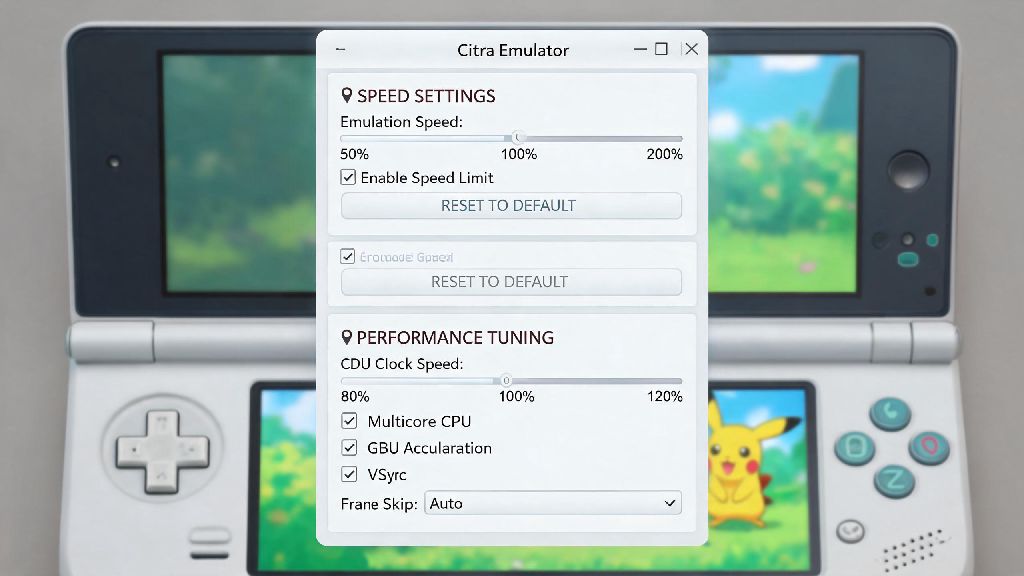
The first place to start is with Citra’s native speed controls, which are designed specifically to adjust gameplay speed without needing extra tools. Most people don’t realize that Citra lets you adjust the speed limit directly in the main settings, no advanced tweaks required. To find it, open the Emulation menu at the top of the screen, select Configure, go to the General tab, and then click Emulation. You’ll see a speed limit slider that defaults to 100%, which matches the original 3DS’s performance. If it’s set to 150%, 200%, or even disabled entirely, that’s almost certainly why your game is running too fast. Drag the slider down to 100% first, and test your game to see if that fixes the issue. If you need even slower speeds for tricky sections like timed platforming jumps or puzzle minigames, you can drag the slider as low as 10% for full control. You can also map the alternate speed toggle to a keyboard or controller button in the Controls menu, so you can switch between normal and slow speed on the fly without opening the settings menu every time. That’s a game changer for games that have occasional fast-paced sections you need to take slower, but otherwise run fine at 100% speed. These small changes are all you need to know for how to slow down Citra emulator for most use cases, so you don't have to mess with more complicated tools unless you need extra control.
Tweak CPU and graphics settings to reduce excess performance
If you have the speed limit set to 100% and your game is still running too fast, that means your system is powerful enough to push Citra past the limit even with the built-in cap enabled. High-end CPUs and GPUs can often render 3DS games much faster than the original console could, even with speed limits turned on, so you’ll need to add small performance overheads to bring speeds down to a consistent level. These tweaks won’t break your game or cause lag if you adjust them carefully, and they’re completely reversible if you want to go back to faster speeds later. The best quick tweaks to try first are:
Only test one tweak at a time, and boot up your game after each change to see how it affects speed. If you turn on too many performance-heavy settings at once, you’ll end up with lag and stutter, which is the opposite of what you want. I’ve found that for most high-end gaming PCs, just turning off multi-core emulation is enough to bring speeds down to a consistent 100% for 90% of 3DS titles.
Use third-party tools for granular speed control (for advanced users)
If you’ve tried all the built-in settings and still can’t get the slow speed you need, you can use third-party tools to control Citra’s performance directly. This is a good option if you want to slow the game down to very low speeds for specific challenges, like catching a rare Pokemon in a timed encounter or beating a hard boss fight that requires perfect reaction times. The most popular tool for this is Cheat Engine, a free program that lets you adjust the speed of any running process on your PC. To use it, open Cheat Engine, select the Citra process from the list of running programs, go to the speed hack menu, and adjust the slider to whatever percentage you want. You can set it to 50% for half speed, 20% for 1/5 speed, or even lower if you need it. That said, there are some important caveats to keep in mind with this method. First, never use third-party speed tools when playing Citra online, as this can get you banned from public servers. Second, always save your game before using speed hacks, as unexpected crashes can corrupt your save file if you adjust speed in the middle of a save or cutscene. I once accidentally slowed Citra down to 1% while playing Pokemon Sun and thought my game was frozen for 10 minutes before I realized what I did, so start with small adjustments and work your way down if you need slower speeds. Some gaming keyboards and mice also have built-in macro features that let you adjust application speed, so you can map a custom button to slow down Citra without opening any extra software if you have compatible gear.
Troubleshoot unexpected speed spikes that bypass your settings
A lot of users report that their speed settings work fine for most of the game, but they get random speed spikes during cutscenes, menu screens, or low-demand in-game areas. This happens because those sections are less taxing on the emulator, so even with a speed limit enabled, your CPU can push past the cap temporarily to render frames faster. There are a few easy fixes for this issue that work for almost all systems. First, make sure that frame throttling is enabled in the general emulation settings. Frame throttling forces Citra to only render the number of frames per second that the original 3DS would for that specific section of the game, so it can’t jump past the speed limit even if the hardware could handle it. Second, disable any overclocks on your CPU or GPU while using Citra, as overclocks can cause the emulator to ignore speed limits for short bursts when the system is under low load. Third, close any unnecessary background applications while playing, as uneven CPU resource allocation can cause speed fluctuations that make the game jump between fast and slow speeds randomly. If you’re using a custom, fan-made build of Citra, you might also have modified speed settings that are overriding your changes, so switch to the official stable build of Citra if you’re having consistent issues that won’t go away with regular tweaks. I’ve had this exact issue with custom Citra builds that were optimized for speed, so switching back to the official release fixed all my speed spike issues in less than 5 minutes.
At the end of the day, finding the right speed for your Citra gameplay is all about testing small adjustments and finding what works for your specific system and the games you play. You don’t need to be an emulator expert to figure out how to slow down Citra emulator, and even a few small setting changes can make a huge difference in how playable your favorite 3DS titles are. If you try one tip and it doesn’t work, move on to the next, and don’t be afraid to tweak settings back and forth until you hit that perfect native 3DS speed. And if you find a setting combination that works really well for a specific game, jot it down so you don’t have to redo all your work next time you boot it up.