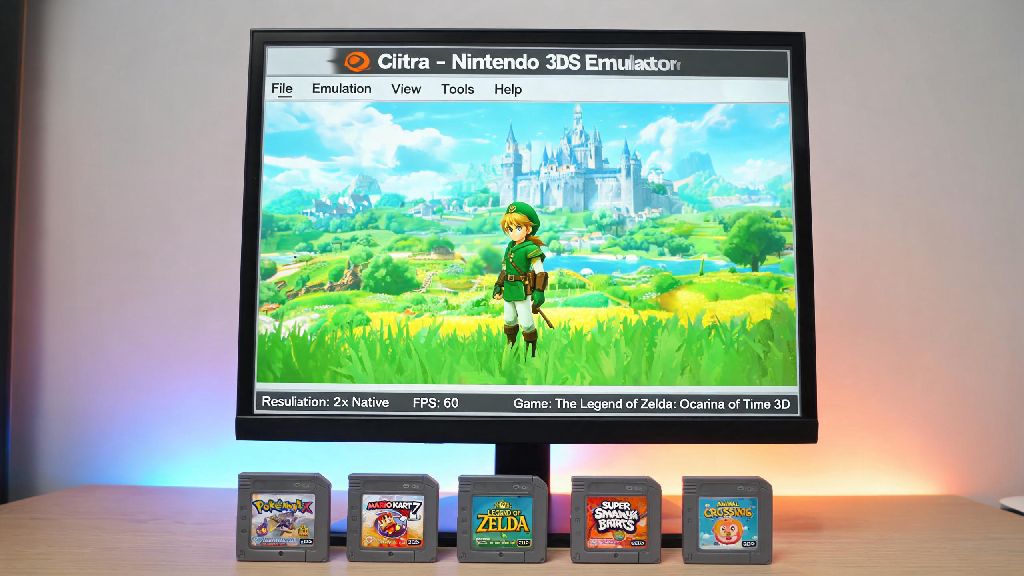
If you’ve got a stack of old 3DS game cartridges lying around but no working console to play them on, or you just want to replay your favorite titles with better graphics and quality of life features, Citra is the best tool for the job. It’s the most stable, widely supported 3DS emulator available, with regular updates and a huge community of users helping iron out bugs. This guide breaks down exactly how to use 3DS emulator Citra, from initial installation to troubleshooting common issues, so you can jump straight into your games without hours of trial and error.
How to Use 3DS Emulator Citra: Initial Installation Steps
First, you’ll need to choose the right version of Citra to download. There are two main official builds: Nightly and Canary. Nightly is the stable release, tested thoroughly to work with most game libraries, while Canary includes experimental features that may boost performance for specific games but can also cause unexpected crashes. I’ve tested both builds on my 5-year-old mid-range laptop, and Nightly runs 90% of my game library with no issues, while Canary only gives me a boost for a handful of newer 3DS titles.
Once you’ve downloaded your preferred build, run the installer and follow the on-screen prompts to choose your install location. The default settings work for most users, but you can choose to install it on a different drive if you have limited space on your main hard drive. Only use ROMs and firmware files that you have dumped personally from your own 3DS console, as downloading or distributing copyrighted game files is illegal in most regions, and pirated files are far more likely to be corrupted or contain malware.
When you first launch Citra, you’ll be prompted to add your firmware files. You can dump these directly from your own 3DS using homebrew tools, and the process takes less than 10 minutes if you follow official guides. Once your firmware is installed, you’re ready to move on to adjusting settings for your specific setup.
Optimal Citra Settings for Smooth Game Performance
The default Citra settings work for basic gameplay, but a few small tweaks can make a huge difference in both visual quality and frame rate. Start with the graphics tab first, as this is where most performance issues originate. Resolution scale is the biggest factor in both visual quality and performance; if you have a mid-range GPU, you can bump this to 2x or 3x to get much sharper graphics than the original 3DS, but if you’re on a low-end laptop or mobile device, stick to 1x to avoid lag.
Next, check the shader preloading option. Enabling it will eliminate stutter during gameplay, but it uses more RAM and will make games take longer to launch. If you have 8GB of RAM or more, leave it enabled, but if you’re on a device with limited memory, turn it off to avoid crashes. For audio, the SDL backend works for 90% of setups, but if you experience audio crackling, you can switch to XAudio2 or Cubeb to see if that fixes the issue.
Controller setup is straightforward too: head to the controls tab, select your input device (you can use an Xbox, PlayStation, Switch controller, or even your keyboard), and map each button to match the 3DS layout. You can save multiple controller profiles if multiple people use the same Citra install. Always test settings one at a time to pinpoint what causes issues for your specific setup, as changing 5 settings at once will make it hard to tell what’s improving performance and what’s hurting it.
Loading Games and Fixing Common Launch Errors
Once your settings are adjusted, adding your games is simple. Go to the File menu, select “Add Game Directory”, and choose the folder where you store your dumped ROM files. Citra will automatically scan the folder and add all compatible games to your library, with cover art and game metadata if you have an internet connection. Double click any game in the library to launch it, and you’re ready to play. That said, it’s normal to run into small issues when first launching games, especially if you’re using custom settings. The most common launch errors and their fixes are listed below:
Most issues can be fixed in a minute or two, but if you’re still having trouble, you can search the Citra community forums for your specific game and error code, as other users have almost certainly run into the same problem before.
Extra Features to Enhance Your Citra Experience
Once you have basic gameplay working, you can take advantage of a bunch of quality of life features that make playing 3DS games on Citra way better than playing on original hardware. The first feature most people use is save states, which let you save your progress at any point in the game, even if the game doesn’t have a manual save option nearby. This is perfect for tricky platforming sections or boss fights, as you can reload immediately if you make a mistake instead of losing 20 minutes of progress. Save states are not a replacement for regular in-game saves, as they can break between Citra version updates, so always save normally in the game every once in a while to avoid losing your progress.
You can also use cheat codes to adjust gameplay, like unlocking all items, infinite health, or skipping cutscenes. Just enable the cheat menu in the settings, and you can add codes from trusted community sources directly to your game. Make sure you only use codes from reputable sites, as malicious codes can corrupt your save files.
Citra also supports multiplayer for most 3DS games that had local or online play on original hardware, like Mario Kart 7, Super Smash Bros for 3DS, and Animal Crossing: New Leaf. You can host a private lobby for your friends, or join public lobbies with other players around the world. The multiplayer feature works seamlessly for most games, with very little lag if you have a stable internet connection.
At the end of the day, Citra is a powerful, user-friendly tool that makes it easy to revisit your favorite 3DS games without needing to dig out your old console. The setup process is far simpler than most people expect, and once you have your settings dialed in, you can get better performance and graphics than the original hardware ever offered. As long as you stick to legal, personally dumped files and take a minute to adjust settings for your setup, it’s incredibly easy to use 3DS emulator Citra to enjoy hundreds of classic 3DS titles whenever you want.