If you’ve ever dug through a closet looking for your old Nintendo 3DS, only to find the battery is dead or you lost your favorite game cartridge, you know how frustrating it is to miss out on classic titles. The good news is you don’t need to track down a working secondhand console to revisit those games. Learning how to use 3DS Citra Emulator lets you play almost any 3DS title on your PC, Mac, or Android device, with better graphics and more customization options than the original hardware. I’ve tested Citra across three different devices over the past four years, and this guide covers every step you need to get up and running without headaches.
How to Use 3DS Citra Emulator: Initial Setup for All Devices
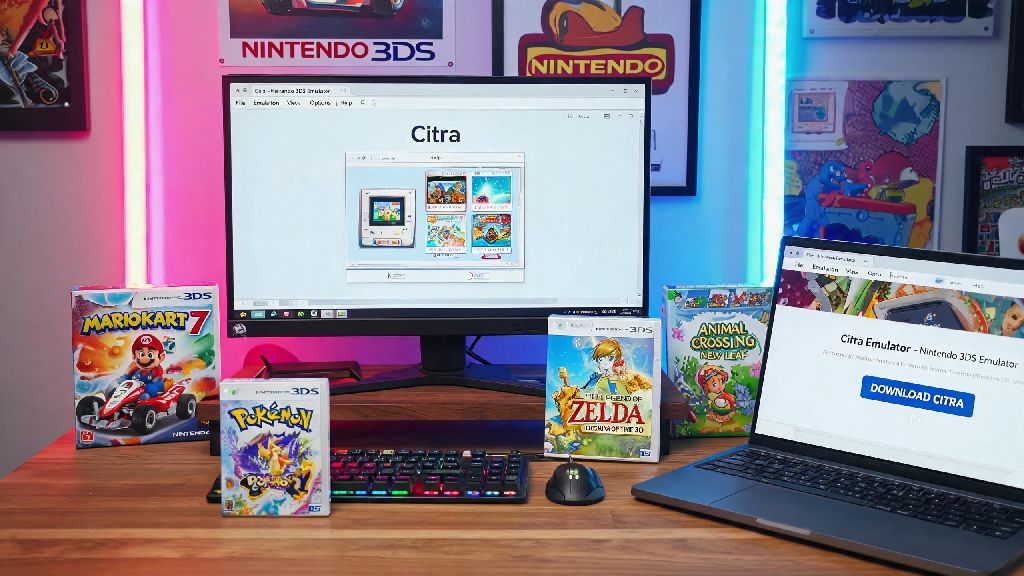
First, you’ll need to install the correct version of Citra for your device. There are two main official builds: Nightly, which is the stable tested version, and Canary, which gets new features first but may have occasional bugs. Only download Citra from the official project page to avoid adware or modified builds that compromise your device security. For Windows and Mac, the installation process is as simple as running the downloaded installer and following the on-screen prompts. For Android, you can grab the official build from the Google Play Store, or download the APK directly from the Citra site if your device doesn’t have Play access.
Next, you’ll need to dump your 3DS system firmware and games from your own personal 3DS console. This is a legal requirement in most regions, as downloading pre-dumped firmware or ROMs counts as piracy. The official Citra site has a step-by-step guide for dumping your system files, and the process takes about 10 minutes if you have a modded 3DS. You don’t need any special hardware beyond your 3DS and a microSD card to complete this step.
Optimal Citra Settings for Smooth, Lag-Free Gameplay
Once you have Citra installed and your system files added, you’ll want to tweak a few settings to get the best performance and visual quality. The default settings work for most basic use cases, but a few small changes will make your gameplay feel far more polished. Turn on asynchronous shader compilation to cut down on stuttering when you load new in-game areas. This is the single most impactful setting you can adjust to fix common performance issues, especially for mid-range devices.
If you’re using a low-end laptop or older Android phone, you can drop the internal resolution to native 1x to get a big performance boost, though visuals will look identical to the original 3DS. Never set internal resolution higher than 4x native, as it will cause unnecessary performance drops with no visible visual benefit for most screens. You can also turn off texture filtering if you prefer the original pixelated look of 3DS games, instead of the smoothed look default settings provide.
How to Load and Manage Your 3DS ROMs on Citra
Before you load any games, a quick reminder: You are legally required to dump ROMs and system files from your own personal 3DS console to use with Citra. Distributing or downloading pre-dumped ROMs violates copyright law, and can expose you to malware from untrusted file sites. Once you have your own legally dumped ROMs, loading them on Citra is extremely simple.
Citra supports .3ds, .cia, and .app file formats, which are the standard outputs from most 3DS dumping tools. To load a single game, just click File > Load File and select the ROM you want to play. If you have a large library of games, you can add your dedicated ROM folder to Citra’s library, so all your titles show up with their original game names and metadata in the main menu. You can even add custom box art to each entry if you want a more polished, console-like library view.
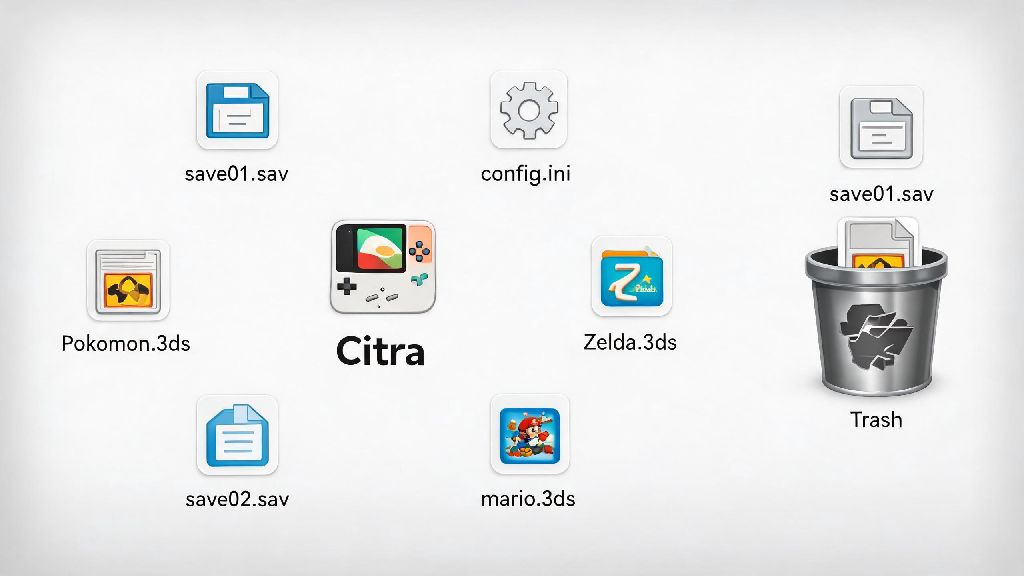
Make sure you store all your ROMs in a single, dedicated folder on your device, so you don’t lose track of files or accidentally delete them. Back up your Citra save files at least once a month to avoid losing progress if your device crashes or you need to reinstall the emulator. Citra stores save files in your user directory by default, and you can copy these files to any other device running Citra to pick up your gameplay right where you left off.
Common Citra Issues and Quick Fixes
Even with the right setup, you might run into small issues every now and then, especially if you’re playing less common 3DS titles. Most problems have simple fixes that take less than a minute to implement. If a game crashes immediately on launch, first check that you dumped your system firmware correctly, and that the game is listed as playable on Citra’s official compatibility list. Some rare titles don’t work with Citra yet, but over 90% of 3DS games run perfectly or with minor glitches.
If you’re getting consistent lag during gameplay, try closing any other apps that are using your GPU in the background, like video editing software or streaming platforms. You can also lower your internal resolution by one step to get a quick performance boost. For audio crackling, turn on audio stretching in the settings menu, or lower the audio latency slider if you’re using a high-end device that can handle faster processing.
If your controller isn’t working, make sure you connect it to your device before you launch Citra. You can remap every button in the controls menu, and Citra supports almost all popular Bluetooth and wired controllers, including Xbox, PlayStation, and Switch Pro controllers. If you run into a unique issue you can’t fix, the official Citra community forums are a great resource for troubleshooting help from other long-time users. Most common issues already have posted fixes, and community members are usually happy to help with less common problems too.
Once you get the hang of how to use 3DS Citra Emulator, you’ll have access to hundreds of classic 3DS games whenever you want, no extra hardware required. I still replay Animal Crossing: New Leaf and Fire Emblem Awakening on Citra a few times a year, and the ability to run games at 1080p with no screen ghosting makes the experience better than I remember on my original 3DS. Just make sure you follow legal guidelines for dumping your own games and system files, and don’t be afraid to tweak settings to find what works best for your device. You’ll be back to playing your favorite 3DS titles in no time.