How to Download the Citra 3DS Emulator
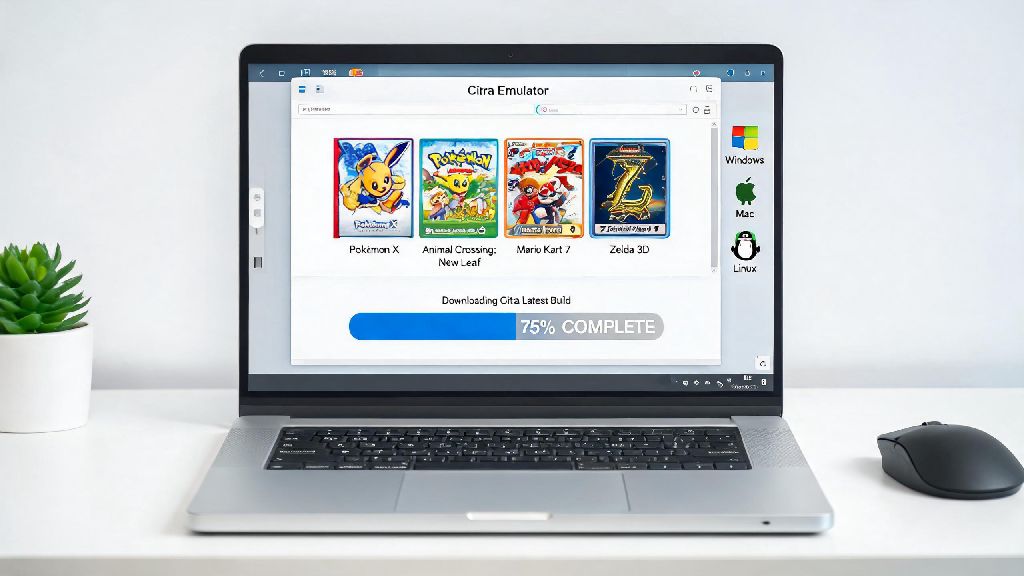
The first step in using the Citra 3DS emulator is to download it from the official website. Here's how you can do it:
1. Visit the official Citra website at https://citra-emu.org/.
2. Navigate to the "Download" section.
3. Choose the version compatible with your operating system (Windows, macOS, or Linux).
4. Click on the download link to start the download process.
Note: Always download the emulator from the official source to avoid potential security risks.System Requirements for Citra Emulator
Before installing the Citra emulator, ensure that your PC meets the minimum requirements:
- Windows: Windows 7 or later (64-bit)
- macOS: macOS 10.13 or later
- Linux: Ubuntu 18.04 or later
Additionally, a powerful GPU is recommended for the best performance, especially if you plan to run high-resolution games.
How to Install the Citra Emulator
Once the download is complete, follow these steps to install the Citra emulator:
1. Open the downloaded file and run the installer.
2. Follow the on-screen instructions to complete the installation.
3. After installation, open the Citra emulator.
How to Configure the Citra Emulator
To ensure optimal performance, it's important to configure the Citra emulator settings:
1. Open the emulator and go to the "Config" menu.
2. Select "General" to adjust the display settings, audio settings, and other general options.
3. Go to "Core" to configure the emulator's core settings, such as the CPU and GPU options.
4. For advanced users, you can also adjust the "Advanced" settings to fine-tune the emulator's performance.
How to Install ROMs on Citra Emulator
To play games on the Citra emulator, you'll need to install the ROMs:
1. Download the ROM file for the game you want to play.
2. Extract the ROM file if necessary.
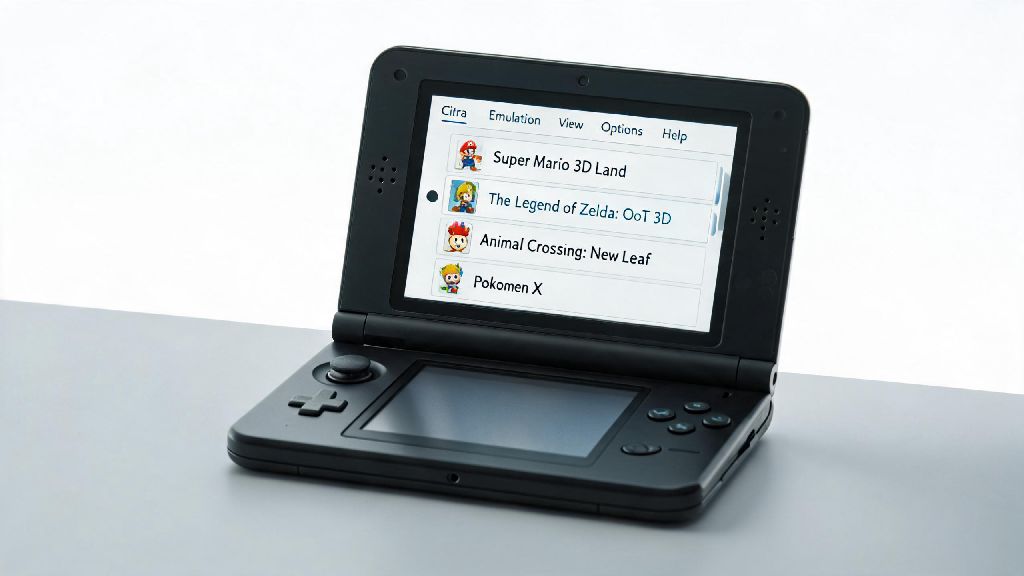
3. Open the Citra emulator and go to the "Game" menu.
4. Click on "Load ROM" and select the ROM file you've downloaded.
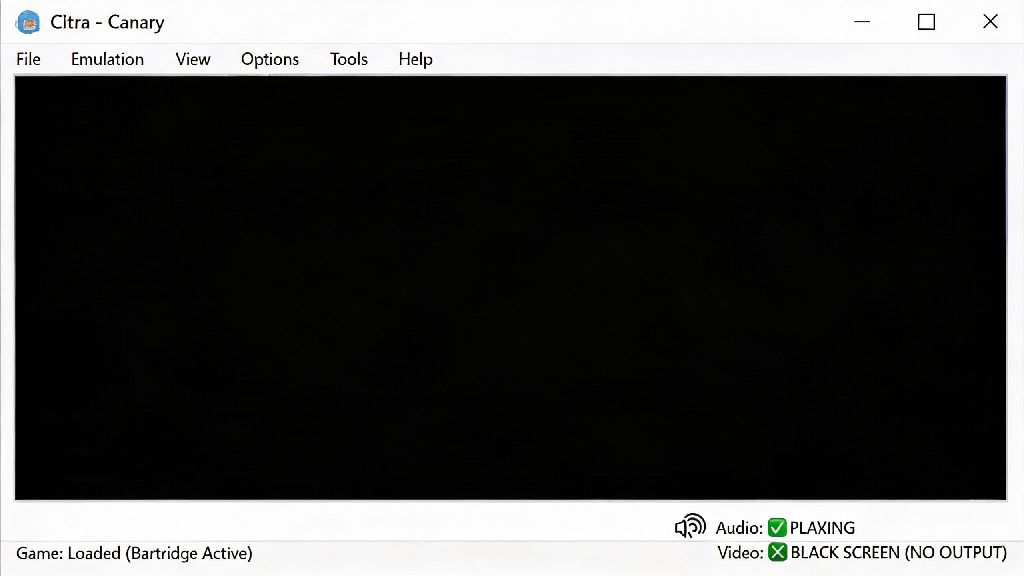
Troubleshooting Common IssuesIf you encounter any issues while installing or using the Citra emulator, here are some common solutions:
- Missing DLL Files: Make sure you have all the necessary DLL files installed on your system.
- Game Crashes: Try updating the emulator or adjusting the settings to resolve crashes.
- Performance Issues: Ensure that your GPU meets the requirements and consider updating your drivers.
---
In conclusion, downloading and installing the Citra 3DS emulator is a straightforward process. By following this guide, you can enjoy your favorite 3DS games on your PC. Remember to keep the emulator updated for the best performance and compatibility.