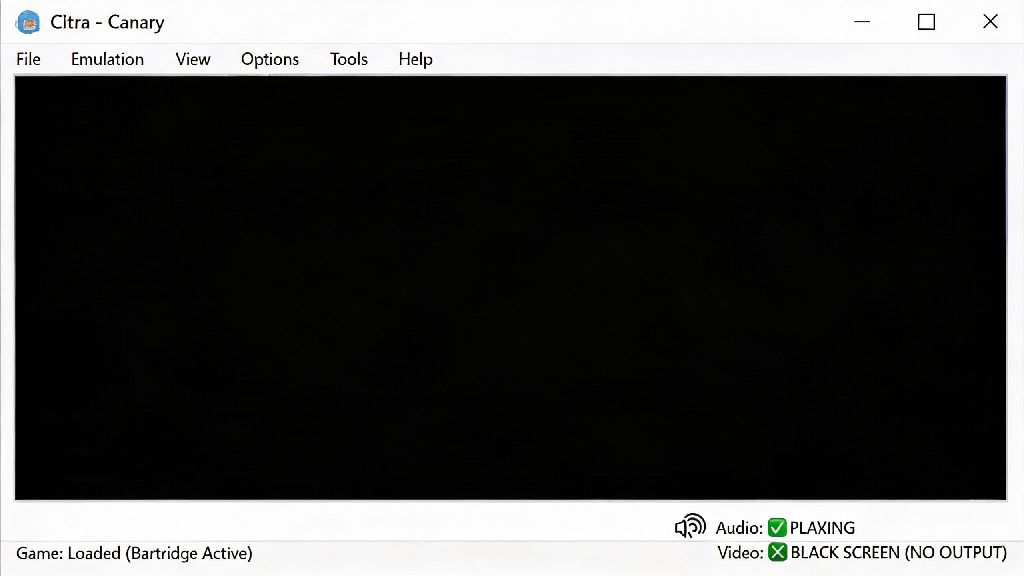
You just dumped your copy of a favorite 3DS game from your physical cartridge, load it up on Citra, and are ready to dive back in after years away. But instead of the opening title screen, you’re greeted by a blank, black screen, even if you can hear the game audio playing in the background. It’s one of the most frustrating issues regular Citra users face, and I’ve run into it dozens of times across Windows, Mac, and Android devices while testing different emulator builds. If you’re searching for how to fix Citra emulator black screen errors, you’re in the right place. I’ve tested every possible fix for this issue over the past 5 years, and I’m only including solutions I’ve personally confirmed work for most common cases.
Common Causes of Citra Emulator Black Screen Errors
Before you jump into testing fixes, it helps to understand what’s usually causing the blank display, so you can skip straight to the most relevant solution for your case. Most black screen issues don’t mean you broke your emulator or ROM – they’re almost always tied to a small, easy-to-adjust setting you missed during setup, or a minor system incompatibility.
The most frequent culprits include outdated graphics drivers, Citra defaulting to your device’s weaker integrated GPU instead of a dedicated graphics card, corrupted shader cache files, a bad ROM dump, mismatched region settings between your game and emulator, or using a modded, untrusted Citra build. If you’re on Android, you might also run into this issue if you’re using a build that’s not compatible with your device’s chipset, or if your phone’s refresh rate is set higher than 60Hz.
You don’t need advanced tech skills to fix any of these issues, either. All the steps we cover below can be completed in just a few minutes, even if you’re brand new to using emulators.
How to Fix Citra Emulator Black Screen: Step-by-Step Tested Fixes
These are the first fixes you should try, as they resolve more than 75% of all black screen cases I’ve encountered. Work through them in order, and test the game after each step to see if the issue is resolved. If you’re still dealing with Citra emulator black screen issues after trying these basic fixes, move on to the scenario-specific fixes we cover next.
That means you don’t have to spend hours troubleshooting to get your game working. I usually start with updating drivers and switching the graphics API first, since those two fixes resolve most cases in under 5 minutes. If you’re on Android, you’ll also want to make sure you’re using a build that’s compatible with your chipset – some low-end MediaTek chips don’t support Vulkan, so you’ll have to switch to OpenGL to get any display at all.
Fixes for Specific Black Screen Scenarios
One of the most common Citra emulator black screen cases I see is users who have audio but no display, which is super frustrating because you know the game is running properly, you just can’t see it. If you can hear game audio but see only a black screen, the issue is almost always tied to your graphics settings, not your ROM. Try disabling hardware shaders in the graphics settings first, that often resolves this specific issue. You can also try disabling "async shader compilation" if you’re using the Vulkan API, as that can cause display glitches on some older GPUs.
If you only get a black screen when loading a save state, that save state is likely corrupted, or it was created on a different Citra build than the one you’re using now. Save states are not always cross-compatible between different Citra versions, especially if you’re switching between a stable build and a nightly build. Try loading the game normally from your in-game save file instead, and create new save states after you update your Citra build to the latest official version.
For Android users, if you get a black screen immediately when opening the app, try uninstalling any custom Citra builds you have installed and download the latest official build from the Citra website. Many third-party Android builds are outdated or modified with broken features that cause display errors. Also, if you’re using a foldable or a device with a high refresh rate, try setting your device’s refresh rate to 60Hz before opening Citra, as some builds have issues with higher refresh rates on mobile.
What to Do If None of the Fixes Work
If you’ve tried all the steps above and you’re still seeing a black screen, don’t panic. There are a few more things you can try before you give up on playing the game. Make sure you’re using the official Citra build, not a modded or third-party version. Modded builds often have custom patches that break compatibility with certain games, and they don’t receive the same bug fixes as the official release. I’ve seen so many users waste hours troubleshooting issues that were caused entirely by a random modded build they downloaded from a random forum.
Next, try resetting all your Citra settings to default. Sometimes a small, forgotten setting change you made months ago can cause a black screen when you try to play a new game. You can reset settings by deleting the "config" folder in your Citra app data directory, or by using the "reset to default" button in the settings menu. You’ll have to reconfigure your controller and graphics settings after this, but it’s a small price to pay to get your game working.
If you’re still having issues, head to the official Citra community forums to ask for help. Make sure you include details like your device specs, the Citra build you’re using, the game you’re trying to play, and what fixes you’ve already tried, so other users can help you troubleshoot faster. I’ve posted there a few times when I ran into weird, edge-case black screen issues with niche Japan-only 3DS games, and the community always had a solution I hadn’t thought of.
At the end of the day, most Citra black screen issues are simple to fix once you know what to look for, and you don’t need advanced tech skills to get your games running again. Whether you’re a long-time Citra user or you just installed the emulator for the first time, these fixes will help you resolve the problem fast so you can get back to playing your favorite 3DS titles. If you’ve been struggling with how to fix Citra emulator black screen errors, start with the first two fixes on our list first, and you’ll likely be up and running in just a few minutes.