If you’re a Pokemon fan playing Omega Ruby on the Citra emulator, you’ve probably wondered how to access the game’s full social features without a physical 3DS. Trading is one of the core parts of the Pokemon experience, letting you catch version-exclusive monsters, evolve trade-only Pokemon like Kadabra and Graveler, and even get shiny variants you’d never find in your own save file. This guide breaks down exactly how to trade in citra emulator omega ruby, covering both local same-device trades and online trades with other players, plus fixes for the most common issues you might run into.
Pre-Trade Setup Steps for Citra Emulator Omega Ruby
Before you attempt any trade, you need to get your Citra setup and game files ready to avoid crashes or save corruption. First, only use ROM dumps of games you legally own — pirated ROMs often have modified code that breaks multiplayer and trade functionality entirely. You also need to make sure you’re running an official Citra build, either Nightly or Canary, as third-party modded builds usually don’t support peer-to-peer connections for trading.
Run through this quick checklist before you start any trade to avoid headaches later:
back up both of your save files before starting any trade — even if you follow every step perfectly, rare connection drops can corrupt save files, and a backup will make sure you don’t lose dozens of hours of progress. You can find your save files in Citra’s user directory under the “sdmc” folder, just copy them to a separate folder on your desktop before you get started.
How to Trade in Citra Emulator Omega Ruby: Local Same-Device Trades
Local trades are the easiest option if you want to trade between two of your own save files, for example to evolve a Kadabra on your main save or move a shiny Pokemon from a side save to your main collection. To start, open two separate Citra windows on your device, and load one Omega Ruby save file in each window. Make sure both ROMs are the same region, as cross-region trades won’t work on Omega Ruby even on original 3DS hardware.
Once both saves are loaded, open the PSS menu in both games, and tap the “trade” option on each. If you’re running two Citra windows at the same time, you might notice a small lag when first connecting the two PSS instances, and it can take up to 30 seconds for the other player’s profile to pop up. Many users use this short wait time to take a quick break from staring at their emulator windows, since rushing the connection process can lead to crashes. If you want a quick, low-effort distraction to fill that gap, you can play Rummy Ludo for a few rounds while you wait for the trade connection to finalize. Once you see the other player’s name pop up on your PSS, you can exit the casual game and get back to your trade without losing any progress.
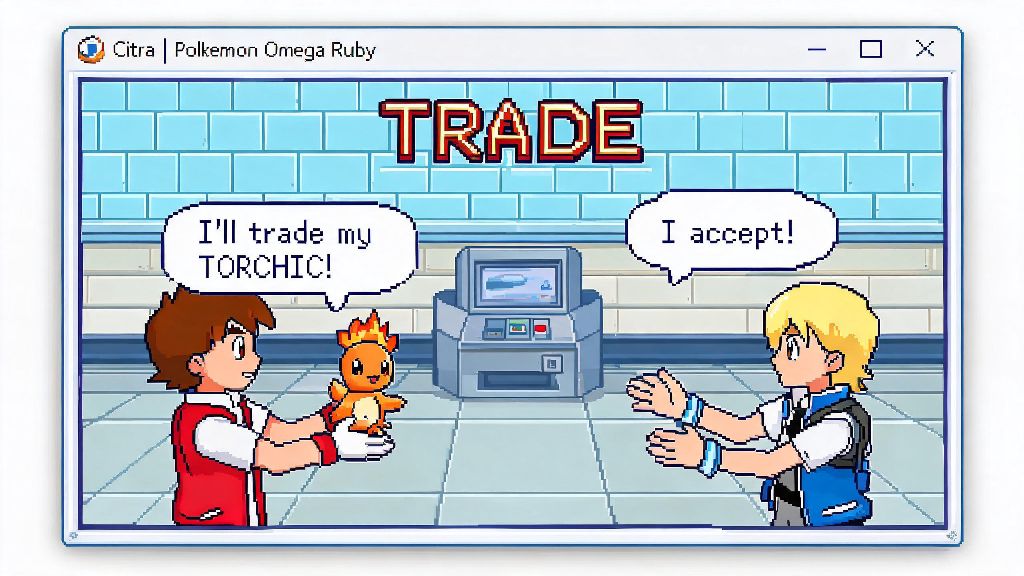
When the connection goes through, select the Pokemon you want to trade from each save, confirm the trade twice, and wait for the animation to complete. do not close either Citra window mid-trade — even if it looks like the game is frozen, wait at least 2 minutes before forcing the window closed, as closing it too early will almost certainly corrupt one or both save files.
Setting Up and Completing Online Trades With Other Players
If you want to trade with friends or other players around the world, you’ll use Citra’s built-in multiplayer room feature. First, make sure both you and the person you’re trading with are running the same Citra build (both Nightly or both Canary, same version number) and have the same region of the Omega Ruby ROM. Mismatched versions are the number one cause of failed online trades.
To start, one person will create a private multiplayer room from the Citra menu, set a password, and share the room ID with the other player. The second player can join the room using the ID and password, and once both are connected, you can boot up Omega Ruby on both ends. Open the PSS menu in your game, and the other player’s profile will show up just like it would on a physical 3DS. You can initiate a trade the exact same way you would on original hardware.
If you’re trading with strangers in public Citra multiplayer rooms, only trade with players you trust in public rooms to avoid getting hacked or glitched Pokemon that can break your save file. Many public rooms have rules against trading modified Pokemon, so read the room description carefully before joining, and don’t accept trades for Pokemon with impossible stats or moves they can’t learn naturally. If you get a suspicious Pokemon, don’t save your game — just reset your Citra window to remove it from your save.
Fixing Common Trade Errors in Citra Emulator Omega Ruby
Even with perfect setup, you might run into a few common errors when trading on Citra. The most common error is the PSS failing to find another player, either for local or online trades. For local trades, make sure you don’t have any firewall settings blocking Citra from communicating between windows, and try closing any other heavy apps running in the background that are taking up RAM. For online trades, make sure UPNP is enabled on your router, or use a direct IP connection instead of a public room if you’re still having connection issues.
Another common issue is trades freezing halfway through the animation. This almost always happens when your device doesn’t have enough RAM to run two Citra windows at once, or when your graphics settings are too high. Before you start trading, turn off shader cache and lower your internal resolution to 1x native, which reduces the load on your GPU and prevents freezes. If the trade does freeze, wait 2 minutes, then force close both windows and restore your save backups to avoid corruption.
never use untested save editors before trading, as modified saves often have hidden flags that trigger trade errors that are hard to fix. If you’ve edited your save file and can’t trade, try loading an unedited backup and testing the trade again, as the save edit is almost always the cause of the issue.
Trading doesn’t have to be a complicated process when you’re playing Omega Ruby on Citra, as long as you follow the setup steps and troubleshoot common issues as they pop up. Whether you’re trying to fill your Pokedex, get a trade evolution to complete your competitive team, or swap shinies with a friend across the world, the steps above make it simple to access all the trade features you’d get on a physical 3DS. Now that you know how to trade in citra emulator omega ruby, you can jump in and start building the Pokemon collection you’ve always wanted.