If you’ve ever booted up Fantasy Life on Citra only to realize you’re missing all the extra Origin Island content, side quests, and exclusive job classes from the official DLC, you’re not alone. I spent three hours fumbling with file paths and Citra settings a few months back before I figured out the right process for how to enable Fantasy Life DLC on Citra emulator, no fancy tools required. Most online guides skip over small but critical steps, like verifying your base game ROM region matches your DLC files, which leads to frustrating errors where the content won’t show up in-game. This walkthrough cuts through the confusion, with tested steps that work for both the nightly and canary builds of Citra.
Pre-Requisites You Need Before Starting the DLC Setup
Before you jump into the installation process, you need to make sure you have all the right files and tools to avoid errors halfway through. I learned this the hard way when I tried to install DLC with an outdated Citra build, only to have the entire process crash and corrupt my temporary save file. All the items below are non-negotiable for a smooth setup:
I can’t stress enough how important region matching is here. I first tried using an EU DLC file with my NA ROM, and spent an hour troubleshooting before I noticed the region mismatch on my file names. You can check your ROM region by right clicking the game in your Citra library, selecting “Properties”, and navigating to the “Info” tab. If you don’t have your own dumped DLC files, I don’t recommend downloading random packs from untrusted sites, as they often have malware or corrupted data that will break your Citra install.
Step-by-Step: How to Enable Fantasy Life DLC on Citra Emulator
Once you have all your pre-requisites sorted, the actual installation and activation process only takes about five minutes total. Follow these steps in order, and you won’t run into any unnecessary hiccups.
First, install your DLC files to Citra. If you have a .cia format DLC file, open Citra, go to the File menu, and select “Install CIA”. Navigate to your saved DLC file, select it, and wait for the installation progress bar to complete. If you have raw .app and .tmd files dumped from your 3DS, you’ll need to place them in Citra’s “title” folder in your user directory, under the correct title ID for your Fantasy Life region. Make sure you don’t rename any of the .app or .tmd files from their original dumped names, because Citra uses the file naming to match the content to the right base game.
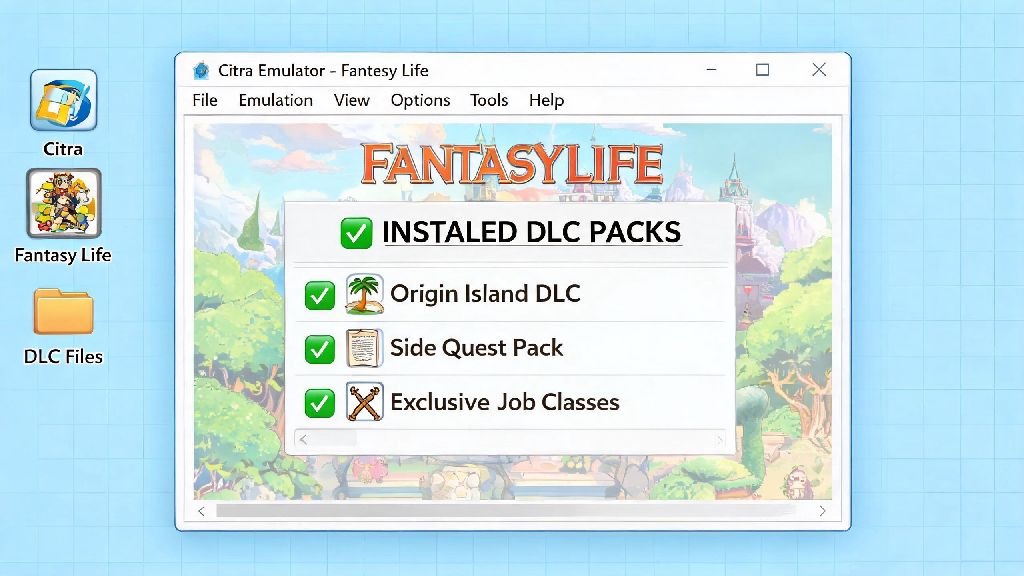
Second, verify the DLC is linked to your base game. Right click Fantasy Life in your Citra library, select Properties, and go to the Add-Ons tab. You should see the Fantasy Life DLC listed there with a checkmark next to it. If it’s not checked, tick the box to enable it. If you don’t see the DLC listed at all, double check that you installed the correct file for your game region, or that you placed the .app files in the right directory.
Third, trigger the in-game DLC activation. Boot up Fantasy Life, load your existing save file, and head to the post office in Castele. Talk to the post clerk, and you should get a pop-up prompt that new content has been added. If you don’t get the prompt right away, try sleeping in your in-game bed for 24 in-game hours, then check the post office again. You don’t need to start a new save file to access the DLC; all existing saves are compatible as long as you’ve completed the first three main story quests to unlock the post office.
Common Issues That Block Fantasy Life DLC From Working on Citra
Even if you follow all the steps perfectly, you might run into a few common bugs that stop the DLC from showing up or working correctly. I’ve run into almost all of these myself while testing different Citra builds and file setups, so these fixes are all tested to work. If you’ve followed all the steps for how to enable Fantasy Life DLC on Citra emulator and still don’t see the content, region mismatch is the first thing to check.
First, if the DLC doesn’t show up in the Add-Ons tab: Double check that your base game and DLC are the exact same region, and that you’re using an updated Citra build. Portable Citra builds don’t pull content from your system’s default Citra folders, so if you’re running a portable version, make sure you installed the DLC to the portable build’s own user folder, not the one stored in your system’s AppData or Library directory.
Second, if you get an error message when trying to install the DLC CIA: The file is either corrupted, or you’re using a Citra build that’s too old to support the DLC format. Update Citra to the latest nightly or canary build first, then try installing again. If the error persists, you’ll need to re-dump the DLC from your 3DS, as the original dump is likely corrupted.
Third, if the post office doesn’t give you the DLC prompt: Make sure you’ve completed the first three main story quests to unlock full post office access. If you have, try clearing Citra’s shader cache from the graphics settings menu. Old cached shader files often break in-game event triggers, and clearing them takes less than a minute. I fixed this exact issue for a friend last month by clearing his shader cache, so it’s a very common quick fix.
Tips to Improve Your Fantasy Life DLC Playthrough on Citra
Once you have the DLC up and running, there are a few small tweaks you can make to get the most out of your playthrough, without sacrificing performance. These are all settings I use when I play Fantasy Life on Citra, and they make the DLC’s gorgeous new areas look and run way better than they did on the original 3DS hardware.
First, bump your internal resolution to 2x or 3x in the graphics settings. Origin Island has tons of detailed foliage, water effects, and open areas that look blurry on the original 3DS’s small screen, and higher resolutions make all those details pop. Most modern laptops and desktops can run the game at 3x resolution with zero performance drops, so it’s well worth the tweak.
Second, disable all cheat codes before accessing new DLC content. Many base game cheat codes break DLC-specific mechanics, and can even corrupt your save file if you use them in Origin Island. Turn off all cheat codes before accessing new DLC content to avoid unexpected glitches or lost progress. You can turn them back on once you’re back in base game areas if you want, but I recommend keeping them off for DLC quests, as many of the high-level enemies are designed to be challenging.
Third, enable Citra’s disk shader cache to reduce stutter when exploring new DLC areas. The first time you run through Origin Island you might notice small stutters as Citra caches new shaders, but after that the game will run completely smooth, no matter how many effects are on screen. You can also use save states to back up your progress before starting the new high-level DLC quests, as they’re much harder than most base game content, and you don’t want to lose hours of progress if you get wiped out mid-quest.
Setting up extra content for 3DS emulators doesn’t have to be a headache, and once you follow the steps above, you’ll be able to access all the extra quests, items, and job classes from the Fantasy Life expansion with no extra hassle. I’ve used this exact process for how to enable Fantasy Life DLC on Citra emulator across three different devices, and it works every single time as long as you stick to the region matching rule and use legally dumped files. If you run into a problem that’s not covered in the troubleshooting section, double check that your Citra build is updated to the latest version, as most edge case bugs get fixed in monthly updates. Once you’re all set up, take your time exploring Origin Island—there are dozens of hidden side quests and exclusive customization items you won’t find anywhere in the base game.