If you’ve spent any time playing 3DS titles on Citra, you’ve probably run into the frustration of missing extra content that came with your original game copies. Figuring out how to get DLC onto Citra emulator doesn’t have to be a confusing mess of broken files and error messages, though. I’ve messed up this process more times than I can count over the last four years of using Citra, so I’ve put together this tested, no-jargon guide to walk you through every step without the headaches. You won’t have to deal with missing texture errors or locked content by the time you’re done, as long as you follow the rules closely.
Pre-Requisites Before You Get DLC onto Citra Emulator
First off, let’s get the legal note out of the way: you must own a physical or digital copy of both the base game and the DLC you want to install. Distributing or downloading game files you don’t own is illegal in most regions, and it can also expose you to malware from untrusted file sites. I always dump my own files from my personal 3DS, and I strongly recommend you do the same to avoid issues.
Before you start the installation process, make sure you have all of the following ready to go:
That last point about region matching is non-negotiable. I once tried to install a European DLC pack on a US copy of Fire Emblem Fates, and it crashed every time I tried to load the extra maps. Save yourself the hassle and double check region codes before you move forward. Never download DLC files from random file sharing sites, even if they claim to be pre-patched for Citra. These files are often corrupted, laced with malware, or locked to a specific console that isn’t yours.
Step-by-Step DLC Installation Process for Citra
Once you have all your pre-requisites sorted, the actual installation process only takes a few minutes if you follow the steps correctly. When you get DLC onto Citra emulator, you don’t need to modify your base game ROM at all, which is a common misconception I see new users believe all the time. I used to skip the restart step all the time, and it led to so many missing DLC errors that I now make a point to do it every single time.
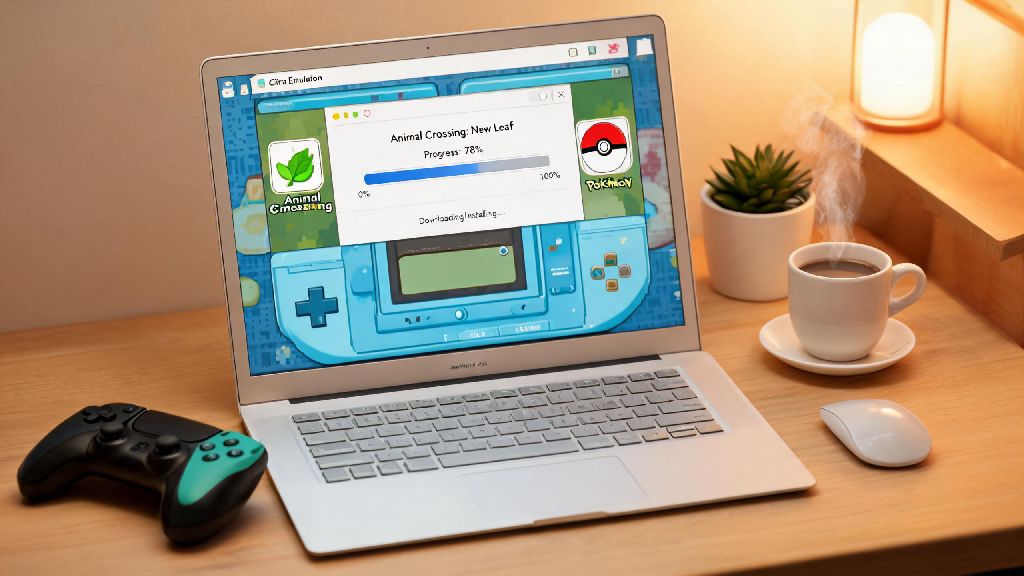
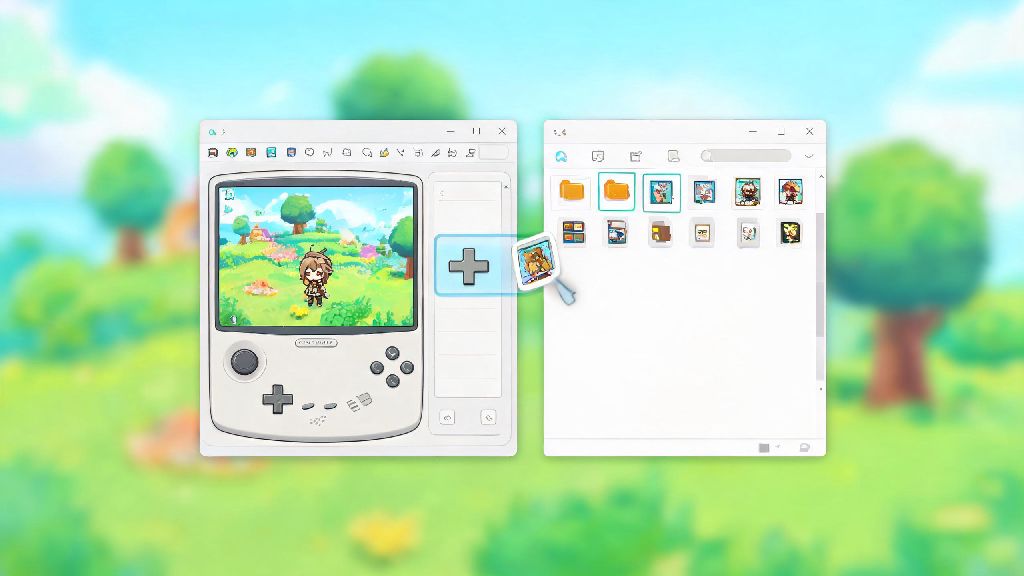
First, open your Citra emulator and navigate to the File menu at the top of the screen. Select “Install CIA” from the dropdown, then navigate to the folder where you stored your dumped DLC .cia files. Select the DLC file you want to install, and wait for the installation progress bar to finish. Don’t close Citra while the installation is running, even if it looks like it’s frozen for a few seconds. Larger DLC packs can take up to a minute to install, depending on your storage speed.
After the installation completes, you’ll need to restart Citra to make sure the emulator recognizes the new DLC files. I’ve had multiple instances where the DLC didn’t show up until I closed and re-opened the program, so don’t skip this small but critical step. If you’re installing multiple DLC packs for the same game, you can install all of them first before restarting to save time.
Once you restart Citra, right click on the base game in your game library, and select “Properties”. Navigate to the Add-ons tab, and you should see your installed DLC listed there. If it’s checked, that means it’s active and ready to use. If it’s not checked, just click the box next to the DLC name to enable it. You can also disable individual DLC packs from this menu if you don’t want to use certain content for a specific playthrough.
That’s the core installation done, but there are a few extra checks you can do to make sure everything works as intended. Load up the base game, and navigate to the section where DLC content is accessed, like the in-game store or extra level select menu. If you can see the content without any error messages, you’re good to go.
Common DLC Installation Issues and Quick Fixes
Even if you follow every step perfectly, you might run into small issues now and then. Most of these are super easy to fix, and you don’t need any advanced technical knowledge to sort them out. I’ve run into every single one of these issues at least once, so I know these fixes work for most users.
The most common issue I see is DLC showing as installed in the properties menu, but not appearing in-game. This is almost always a region mismatch between your base game and your DLC files. Double check the region code on both files, and make sure they are identical. If they aren’t, you’ll need to dump a DLC file that matches your base game’s region.
If you get an encryption key error when trying to install your DLC, that means you haven’t installed your 3DS system archive correctly. Go back to the official Citra setup guide and make sure you dumped all required system files from your personal 3DS, and placed them in the correct system folder for your Citra build. You can also use the built-in Citra system file checker to confirm all files are in the right place.
Another common issue is DLC content causing crashes when you try to access it. This usually happens if you’re running an outdated version of Citra, or if your DLC file is corrupted. First, update your Citra build to the latest version, since newer builds fix compatibility issues for hundreds of games. If that doesn’t work, re-dump your DLC file from your 3DS to make sure the file isn’t damaged during the dumping process.
One less common issue I’ve run into is multiple DLC packs conflicting with each other, usually for games that have lots of small add-on content packs. If this happens, disable all DLC packs except the one you want to use, and enable them one by one to find the conflicting file. You can usually fix this by re-installing the conflicting pack in the correct order, as specified by the game’s official release order.
Tips to Keep Your DLC Running Smoothly Long-Term
Once you have your DLC installed and working, there are a few small things you can do to make sure it stays working, even when you update Citra or add new games to your library. These take almost no time, and they save you from having to re-install all your DLC down the line.
Always back up your Citra user folder regularly, especially after you install new DLC or update the emulator. Your user folder stores all your installed DLC, save files, and settings, so having a backup means you won’t lose all your content if your installation gets corrupted. I back mine up to an external drive once a month, and it’s saved me at least three times after bad Citra updates that wiped my installed content.
When you update Citra to a new build, don’t delete your old user folder unless you’re explicitly told to do so. Most updates are backwards compatible, and your existing DLC will work just fine with the new version. If you do run into compatibility issues after an update, you can roll back to the previous stable build while you wait for a fix, and your DLC will still work as normal.
If you play multiple region versions of the same game, make sure you keep your DLC files organized in separate folders by region. It’s really easy to mix up files when you have multiple copies of the same game, and sorting them by region will save you hours of troubleshooting later on. I use a simple naming system for my files, with the region code at the start of every file name, so I can tell at a glance which version it is.
Don’t install modded DLC files unless you’re sure they are compatible with the current version of Citra and your base game. Modded DLC can be fun, adding new characters or levels to your favorite games, but they often cause compatibility issues that are hard to fix, and they can even corrupt your save files if they aren’t made correctly. If you do install modded DLC, make sure you back up your save files first, so you can restore them if something goes wrong.
At the end of the day, figuring out how to get DLC onto Citra emulator is a lot simpler than most guides make it out to be, as long as you stick to legal, dumped files and follow the steps in order. You don’t need any special technical skills, just a little patience to double check your files before you start installing. The extra content you unlock is well worth the small amount of time it takes to set everything up, especially for games where DLC adds dozens of hours of extra playtime. If you run into an issue I didn’t cover here, you can always check the official Citra community forums for help from other users who have probably run into the same problem.