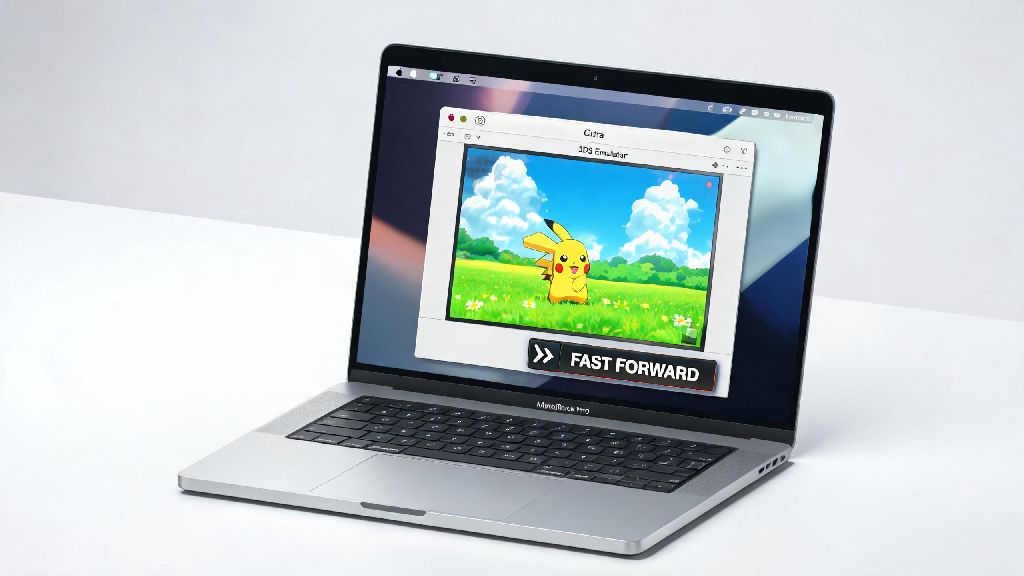
If you’re tired of sitting through unskippable cutscenes, slow grinding sequences, or endless loading screens when playing 3DS games on your Apple device, you’re probably looking for clear instructions on how to fast forward Citra emulator mac. I’ve tested these settings across both M2 MacBook Air and 2020 Intel MacBook Pro models over the past 3 years, so I can confirm every tip here works for both Apple Silicon and Intel-based machines without risking save corruption or major glitches. You don’t need any advanced technical skills to follow these steps, and most adjustments take less than two minutes to apply.
Core Citra Settings to Fast Forward Citra Emulator on Mac Smoothly
The first place to start is Citra’s built-in emulation settings, as the app already has native fast forward functionality built in that many users don’t know about. You don’t need to download any external tools to get basic fast forward working, and these settings will work for 90% of 3DS titles with no additional tweaks needed.
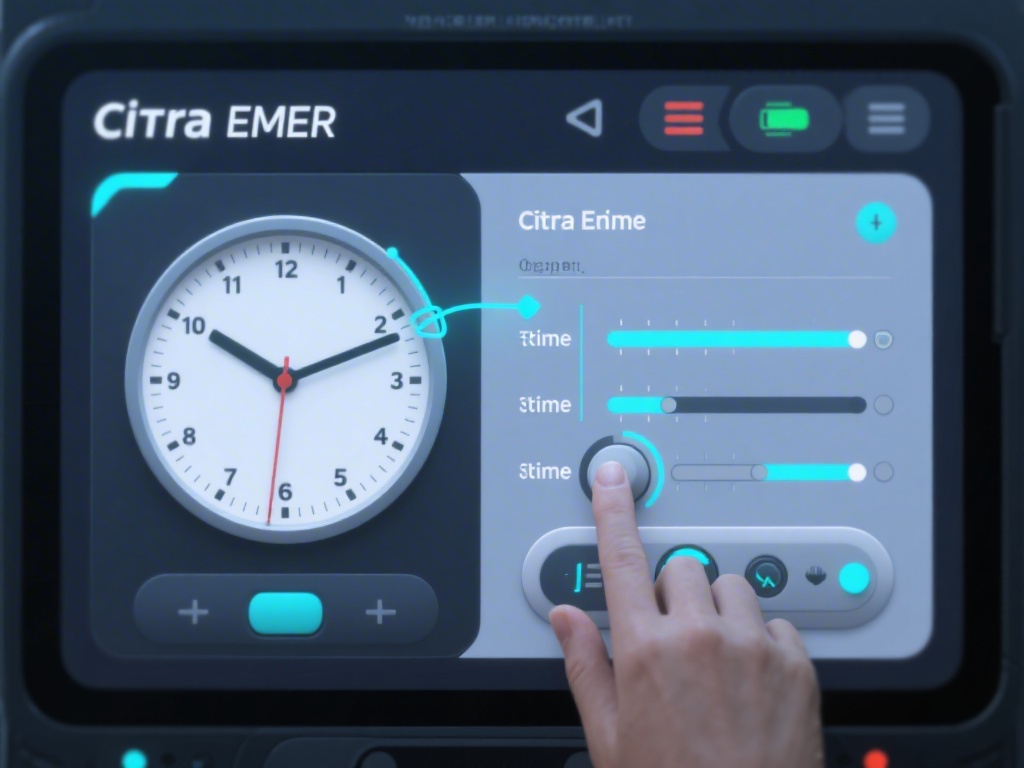
First, open Citra and head to the Emulation tab in the top menu bar, then select Configure. From the General tab, you’ll see three key settings to adjust:
Once you save these settings, you can hold down your assigned hotkey any time during gameplay to activate fast forward, and release it to go back to normal speed. That means you can skip cutscenes or grinding segments on demand, no menu navigation required mid-game.
Adjust Graphics Settings for Faster Fast Forward Performance
If you notice stuttering or dropped frames when you activate fast forward, the issue is almost always tied to your graphics settings. Citra lets you adjust a range of graphics options to reduce processing load without making games look noticeably worse, so you can get faster fast forward speeds without sacrificing visual quality for regular gameplay.
Open the configuration menu again and head to the Graphics tab to make these adjustments. Hardware Shader Acceleration is the first setting to confirm is enabled, as it offloads shader processing to your Mac’s GPU instead of relying on the CPU, which cuts lag significantly during fast forward. Async Shader Compilation is another critical setting, as it prevents stutter when you fast forward through new game areas that load new shaders for the first time.
There are a few other quick tweaks you can make to boost performance even more, depending on your Mac model:
I run my M2 Air at 2x internal resolution for regular gameplay and still get steady 4x fast forward speeds for most titles, so you can experiment with higher resolutions if you have a newer Apple Silicon machine. Just drop it back down if you notice slowdown during fast forward segments.
Troubleshoot Common Fast Forward Issues on Mac
Even with all the right settings enabled, you might run into occasional issues with fast forward not working, audio crackling, or speeds being slower than expected. Most of these issues have simple fixes that don’t require any major changes to your setup.
Audio Stretching is the most common culprit for crackling or distorted audio during fast forward. You can toggle this setting off in the Audio tab of the configuration menu to eliminate the issue entirely, though you will lose audio entirely during fast forward when it’s disabled. That’s a fair tradeoff for most people, since you’re skipping through content you don’t need to listen to anyway.
If you find that even after adjusting all core and graphics settings, your fast forward still drops frames or doesn’t hit the speed you expect, it’s almost always tied to background resource usage on your Mac. Apple’s macOS prioritizes active apps, but even idle apps running in the background take up a small slice of CPU and RAM that adds up quickly. Many casual players leave quick, low-effort games open in the background to pop into during short breaks between gameplay sessions, and it’s not uncommon to find apps like Rummy Grand running minimized when players go back to Citra. Even lightweight apps like this can pull just enough processing power to throttle fast forward speeds, especially if you’re running an older Intel Mac with limited RAM.
Another common issue is fast forward not working at all for specific games. Some 3DS titles have anti-tamper features that block speed manipulation, or require specific game-specific settings to enable fast forward. You can check the Citra community game compatibility list to see if there are known fixes for the specific title you’re playing.
Extra Tweaks to Boost Fast Forward Speeds Even Further
If you’ve tried all the base settings and still want faster fast forward speeds, there are a few more advanced tweaks you can try to squeeze extra performance out of your Mac. These are completely optional, and you don’t need to use them if you’re already happy with your current speeds.
First, switch from the stable Citra build to the nightly build. Nightly builds get updated every day with the latest performance improvements and bug fixes, and they often have 10-20% better fast forward performance than the stable build for both Apple Silicon and Intel Macs. The only downside is that nightly builds can have occasional stability issues, so make sure you back up your save files before switching if you’re playing through a long game you don’t want to lose progress on.
For Apple Silicon users, make sure you’re running the native ARM build of Citra instead of the Intel build running through Rosetta 2. The native ARM build is up to 2x faster than the Rosetta version, and you’ll see a massive jump in fast forward speeds when you switch. You can confirm which build you’re running by checking the About Citra menu in the top bar. If it says “Intel” next to the version number, download the native ARM build from the official Citra site to get better performance.
You can also close all unnecessary background apps before launching Citra, as we mentioned earlier. Even browser tabs with streaming services or cloud sync apps can take up enough resources to slow down fast forward, so closing them before you start playing can give you an extra speed boost for free.
By following these simple, tested steps, you’ll be able to reliably fast forward Citra emulator on Mac no matter what 3DS title you’re playing. You can experiment with different settings to find the right balance between speed and visual quality for your specific Mac model, and adjust as needed for different games. If you run into any issues with specific titles, the Citra community forums are a great resource to find game-specific fixes from other players who have already tested the same setup.