Last month, a friend reached out saying their Citra install kept crashing every time they loaded a Pokemon game, even after they deleted and redownloaded the app three times. When I checked their Mac, I found 7GB of old Citra cache files and broken configs sitting in their Library folder from a 2-year-old install they’d forgotten about. They only dragged the app to the trash each time, so all the old problematic files stayed right where they were. Knowing how to uninstall Citra emulator on Mac properly is way more important than most people realize, whether you’re removing the app permanently or doing a clean reinstall to fix performance issues. Emulators like Citra store far more data off-app than the average productivity tool, and leaving those files behind wastes storage or causes bugs down the line.
Pre-Uninstall Checks to Do Before Removing Citra
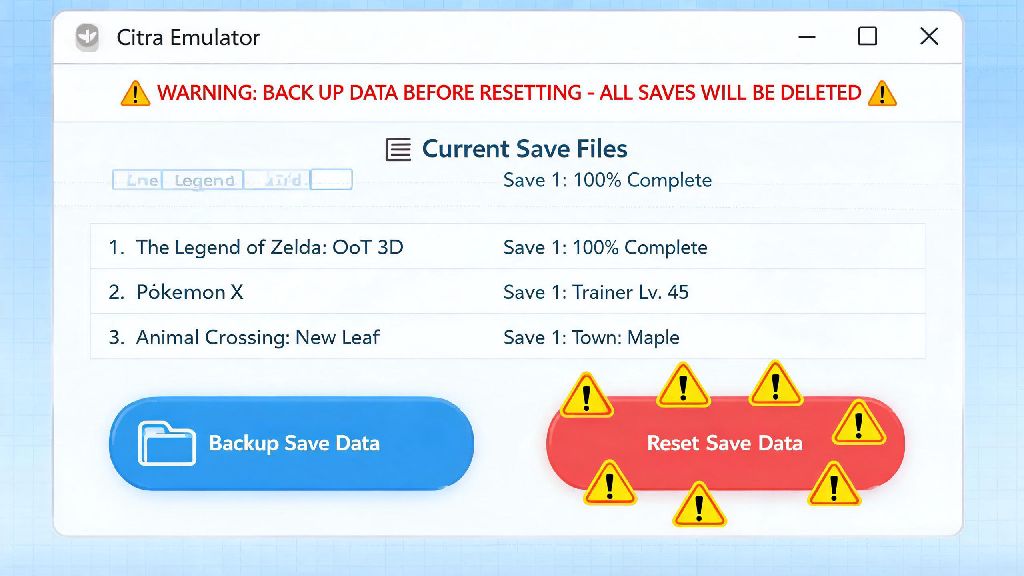
Before you start deleting anything, there are two quick steps you should take to avoid losing important data or running into errors mid-process. These only take a minute, and they’ll save you a lot of headache if you change your mind later or have a frozen Citra install. Always back up your save files before starting any uninstall process if you think you might come back to Citra later, or want to transfer your progress to another emulator.
Citra stores all user data, including in-game saves, save states, custom texture packs, cheat codes, and shader cache, in a hidden Library folder on your Mac. To back up your saves, open Finder, hold the Option key, click the Go menu at the top of your screen, select Library, then navigate to Application Support > Citra > saves. Copy that entire saves folder to your desktop, external drive, or cloud storage, and you’ll be able to drop it right back into a new Citra install later if you want.
Next, Confirm Citra is not running in the background before proceeding. If Citra is frozen or minimized, it might still access its support files while you’re trying to delete them, leading to error messages or incomplete removal. Check your menu bar for the Citra icon, right click it and select Quit. If it’s unresponsive, open Activity Monitor from your Utilities folder, search for Citra, select any running processes, and click the X icon to force quit them.
How to Uninstall Citra Emulator on Mac Manually
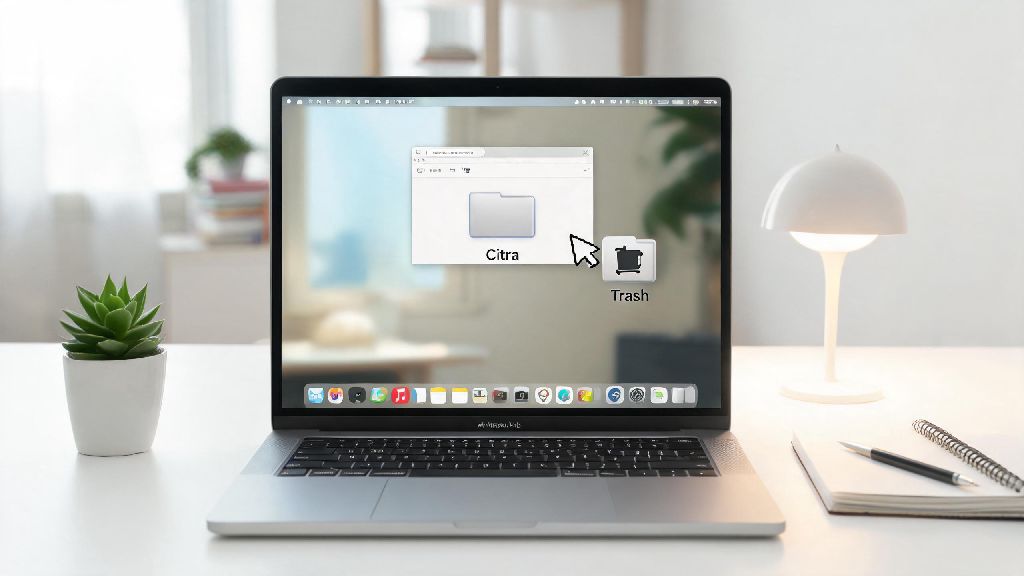
If you prefer to handle the uninstall yourself without downloading extra tools, the manual process is straightforward once you know where to look for hidden files. Never stop at just dragging the Citra app to the trash – that only removes the 50MB app file, leaving gigabytes of support files untouched on your drive. Follow these steps in order for a full removal:
It’s easy to miss one of these folders if you’re not used to digging around the Library, so take your time as you go. If you don’t see a Citra folder in Application Support, that means you either already deleted it, or you installed Citra in a non-standard location, like your Downloads folder. Double check any folders you might have unzipped the Citra app into when you first installed it, just to be sure you didn’t leave stray files there. If you installed Citra via Homebrew, you can run the brew uninstall citra command first to remove the base app, then follow the remaining steps above to delete leftover support files.
Using a Third-Party Uninstaller for Faster, Complete Removal
If you don’t want to dig through hidden Library folders or you’re worried about missing leftover files, a third-party uninstaller tool can handle the entire process for you in 2 clicks. These tools scan your entire drive for all files linked to the app you’re removing, so you don’t have to track down every cache or preference file manually. Free tools like AppCleaner are just as effective as paid options for basic Citra uninstalls, so you don’t have to spend money to get a full removal.
I usually recommend AppCleaner for most users, because it’s 100% free, no bloatware, and it’s been around for over a decade so you don’t have to worry about it installing malware on your device. Just make sure you don’t download it from random third-party sites, since fake versions of popular uninstallers are a common source of Mac adware. To use it, just open AppCleaner, drag the Citra app from your Applications folder into the AppCleaner window, wait for it to scan for related files, select all the files that pop up, and click the Remove button.
If you already have a paid cleaner app installed on your Mac, like CleanMyMac, you can use that too, just make sure you select all Citra-related files when prompted, don’t just delete the base app. Even after using a third-party uninstaller, it’s a good idea to quickly check the Application Support folder for any remaining Citra files, especially if you have custom texture packs or large save files you want to make sure are gone. Third-party tools are usually accurate, but they can miss files stored in non-standard locations from old beta or custom Citra builds.
How to Confirm You’ve Fully Removed All Citra Files From Your Mac
Once you’ve finished the uninstall process, take 2 minutes to confirm there are no leftover Citra files taking up space on your drive, especially if you’re planning to reinstall Citra for a fresh start. The easiest first check is to run a Spotlight search for Citra: press Command + Space, type in Citra, and see what results come up. You shouldn’t see any Citra app files or support files in the results, unless you kept a backup of your saves on your desktop or another folder.
Next, check your storage to confirm the extra space from Citra’s cache and support files is freed up. Click the Apple logo in the top left corner of your screen, select About This Mac, click Storage, then Manage. Navigate to the Applications section, and confirm Citra is no longer listed there. You can also check the Documents and Other files sections to make sure no large Citra-related folders are left behind. Restart your Mac after uninstall if you plan to reinstall Citra for a fresh start, that ensures any residual Citra processes are fully shut down before you download the latest version of the emulator.
If you do find leftover Citra files after you thought you finished uninstalling, don’t panic. It’s super common, especially if you’ve had multiple versions of Citra installed over time, like nightly and canary builds. Just delete those remaining files, empty your trash again, and you’re good to go. If you’re uninstalling Citra because you’re switching to a different 3DS emulator, this full removal also ensures there’s no conflict between old Citra files and your new emulator’s configs.
Uninstalling apps on Mac seems simple on the surface, but emulators like Citra store far more data than the average productivity app, so cutting corners on the process will only leave you with wasted storage or broken installs later. Whether you’re removing the app permanently or doing a clean reinstall to fix performance issues, taking the extra 5 minutes to follow the steps above will make sure you don’t run into avoidable problems down the line. Now that you know how to uninstall Citra emulator on Mac properly, you can free up space or get a fresh working install of the emulator in no time.