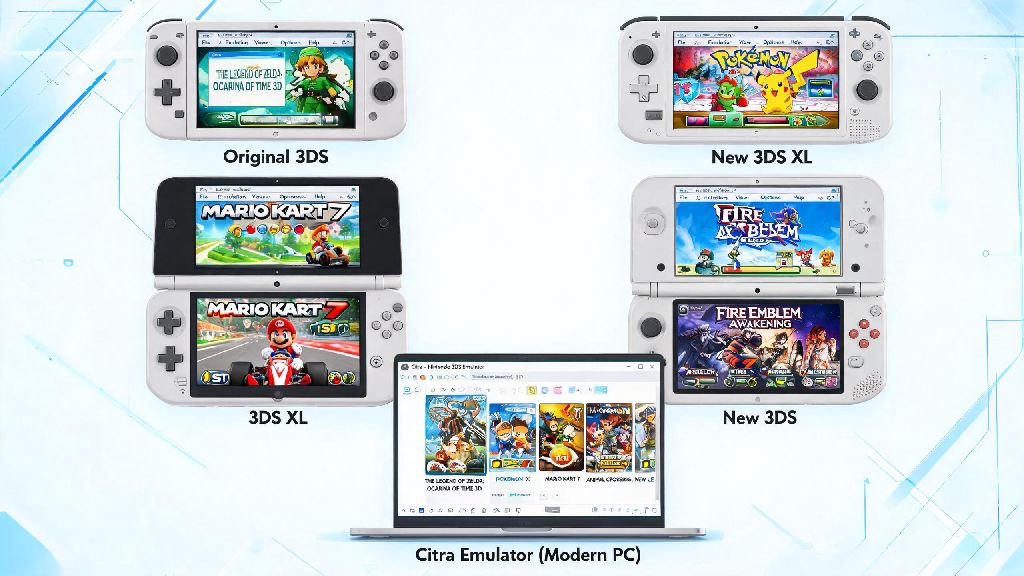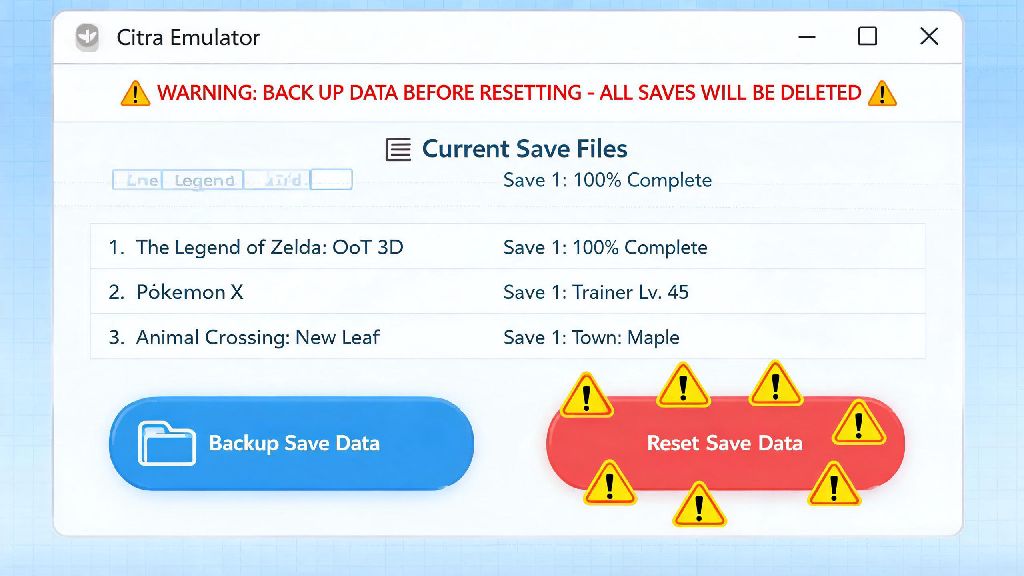
There’s nothing more frustrating than loading up your favorite 3DS game on Citra, only to find your save file is glitched, stuck in a broken cutscene, or you just want to start a fresh playthrough without re-downloading the whole ROM. I ran into this exact issue last year when my Pokemon Ultra Sun save crashed mid-gym battle, and I spent 2 hours digging through forum posts trying to figure out how to reset save data on Citra emulator without wiping all my other game progress. This guide breaks down every step for desktop and mobile, plus all the precautions you need to take to avoid losing your hard-earned progress for good.
How to Reset Save Data on Citra Emulator for Desktop Devices
If you’ve never done this before, the process to reset save data on Citra emulator for Windows, Mac, or Linux is far simpler than you might expect, and there are two reliable methods to choose from depending on your setup. The first and easiest method uses Citra’s built-in file navigation tool, so you don’t have to dig through hidden system folders on your own. Just open your Citra library, right-click the game you want to reset the save for, and select Open Save Data Location from the drop-down menu. This will immediately pull up the folder that holds all active save files for that specific game. Select every file in the folder, delete them, then close the folder and restart the game, and you’ll be prompted to create a new save file.
If that method doesn’t work, it’s usually because your save is stored in Citra’s core user folder instead of the ROM-linked save location. To access that, open Citra’s settings menu, go to the User tab, and click the Open User Folder button. From there, navigate to sdmc > Nintendo 3DS > [random string of numbers] > [second random string] > extdata, then find the folder labeled with your game’s unique 3DS title ID. You can look up the title ID for any 3DS game quickly with a quick search if you don’t already have it. Delete all the contents of that folder, and you’ll wipe the save completely. Desktop Citra stores saves in two separate locations by default, so if you only delete one, the old save might still load when you launch the game, so always check both locations if the first method doesn’t work. If you’re using a portable build of Citra that runs off a USB drive, all saves are stored in the same folder as the Citra executable, but the right-click method still works 90% of the time.
Resetting Citra Save Data on Mobile: Step-by-Step Process
Citra’s official Android build is now used by millions of players, and resetting save data on mobile works a little differently than desktop, since most Android devices lock access to core app folders by default. The simplest method is built right into the Citra app: open your game library, long press the title you want to reset the save for, select Save Data from the pop-up menu, then tap Delete Save Data. Confirm the prompt, and you’re done. This works for 95% of users, and you won’t have to mess with any file folders at all.
If the built-in delete option doesn’t work for you, the manual method to reset save data on Citra emulator for Android only takes a couple extra steps. You’ll need to open your device’s default file manager app, navigate to your internal storage, find the Citra folder, then follow the same file path as desktop: sdmc > Nintendo 3DS > extdata, then find the folder with your game’s title ID and delete all its contents. Mobile Citra saves are tied to your game’s ROM file name, so if you renamed the ROM after creating a save, you might have two separate save files for the same game, so make sure you delete the one that matches your current ROM name. There’s no official iOS build of Citra available as of now, but if you’re using a sideloaded version, the process is almost identical to Android, you’ll just need a third-party file manager app to access the Citra app’s data folders on your iPhone or iPad.
Common Reasons to Reset Your Citra Emulator Save Data
A lot of new users assume resetting save data is only for when you want to start a new playthrough, but there are dozens of common scenarios where a reset is the easiest fix for a frustrating issue. The most common reason is corrupted save files, which usually happen if your game crashes mid-save, or your device shuts off unexpectedly while you’re playing. If you get a “save data corrupted” error when you launch the game, and you don’t have a backup of the save, resetting is often the only way to get the game working again.
Modding issues are another super common reason to reset saves. If you installed a custom texture pack, game mod, or cheat code that broke your save file, resetting the base save and re-applying the mod correctly can fix the problem without you having to re-download the entire ROM. You might also need to reset a save if you run into errors after using Citra’s local wireless feature to trade or battle with other players, since sync issues between devices can sometimes glitch save files. Resetting save data won’t affect your other installed games or Citra settings, so you don’t have to worry about wiping your progress on other titles when you reset one game’s save.
Important Pre-Reset Tips to Avoid Losing Progress Permanently
Before you hit delete on any save files, there are a few key steps you should take to make sure you don’t lose progress you actually want to keep. I learned this the hard way when I deleted the wrong save folder and lost 40 hours of progress on Fire Emblem Awakening a few years back, so don’t skip these simple checks:
One last critical note: never delete the entire Citra user folder unless you know what you’re doing. That folder contains all your game saves, custom settings, installed mods, custom texture packs, and controller configurations, so deleting it will wipe everything related to Citra from your device, not just the one save you want to reset. If you’re not sure which folder to delete, stick to the right-click or long press method built into Citra first, it’s far less likely to cause costly mistakes.
Whether you're fixing a corrupted save, starting a new nuzlocke run, or troubleshooting a modding error, learning how to reset save data on Citra emulator is a simple skill that will save you tons of time digging through forum posts for fixes. Just follow the steps for your device type, double check you're deleting the right files, and always keep a backup of any saves you might want to access later, and you'll be back to playing your favorite 3DS games in no time.