If you’ve ever wanted to revisit classic 3DS titles like Pokémon X/Y, Animal Crossing: New Leaf, or Fire Emblem Awakening without digging your old handheld out of storage, you’ve probably come across Citra as the top option for 3DS emulation. I first tested Citra three years ago when I lost my own 3DS on a trip, and I’ve used it regularly across Windows, Mac, and Android devices ever since. Learning how to start Citra emulator doesn’t have to be a confusing process, even if you’ve never used emulation software before. I’ve broken down the entire process to skip the frustrating trial and error most new users run into, so you can jump straight into your games without hassle.
How to Start Citra Emulator: Initial Installation Steps
Even if you’re not super tech-savvy, this part of the process takes less than five minutes on most devices. First, you’ll want to pick the right build for your operating system: Citra has official stable releases for Windows, Mac, Linux, and Android, plus a testflight version for iOS users that has limited support. Only download Citra from the official developer source to avoid malware or modified builds that break functionality.
For Windows and Linux users, run the installer and follow the on-screen prompts, leaving the default installation folder selected unless you have a specific reason to change it. Mac users will need to drag the Citra app to their Applications folder, then allow access in their Security & Privacy settings the first time they launch it, since it’s not available on the App Store. Android users can download the official APK or grab it from the Google Play Store for automatic updates.
You don’t need to launch the app right after installation. We’ll walk through a few pre-launch checks first to make sure your first run goes smoothly, no matter what device you’re using.
Essential Post-Installation Setup Before You Launch Games
Citra won’t run any games out of the box, and that’s intentional. The emulator requires two key pieces of content that you have to dump directly from your own 3DS console to stay compliant with copyright laws. Skipping these steps will lead to immediate boot errors, so don’t try to jump ahead to launching games before you complete these checks:
It is illegal to download 3DS ROMs or keys from public file sharing sites, even if you own a physical copy of the game. Always dump content directly from your own console. There are official, step-by-step guides for dumping your console keys and game cartridges if you’re not sure how to complete that process. It only takes 10 to 15 minutes if you have a modded 3DS, and it’s the only legal way to use Citra.
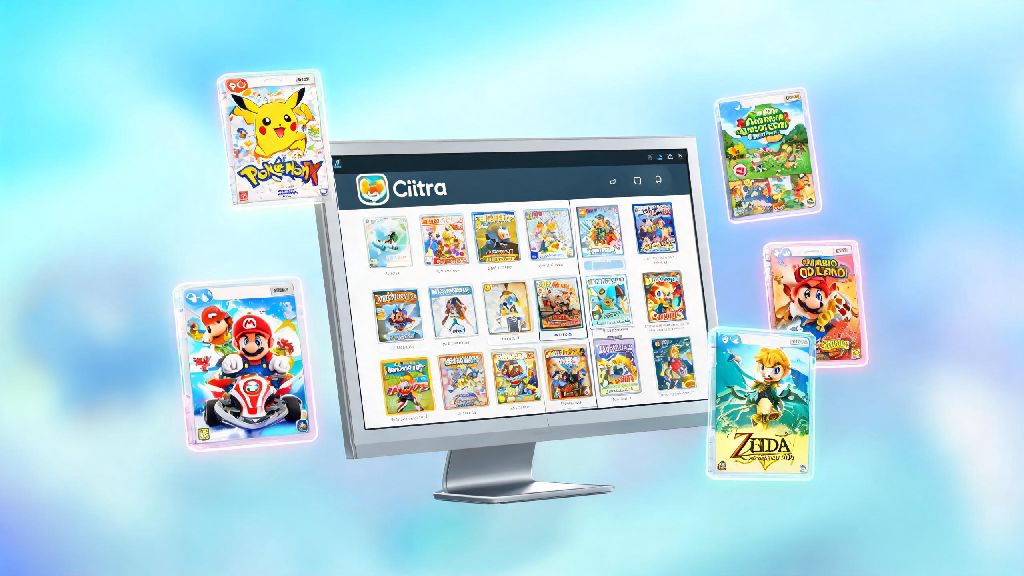
Once you have your keys and ROMs ready, you can open Citra for the first time, go to the File menu, and select "Add Game Folder". Select the folder where you stored your ROMs, and Citra will automatically scan it, add game cover art, and populate your library in seconds.
Optimize Basic Settings for Smooth First-Time Performance
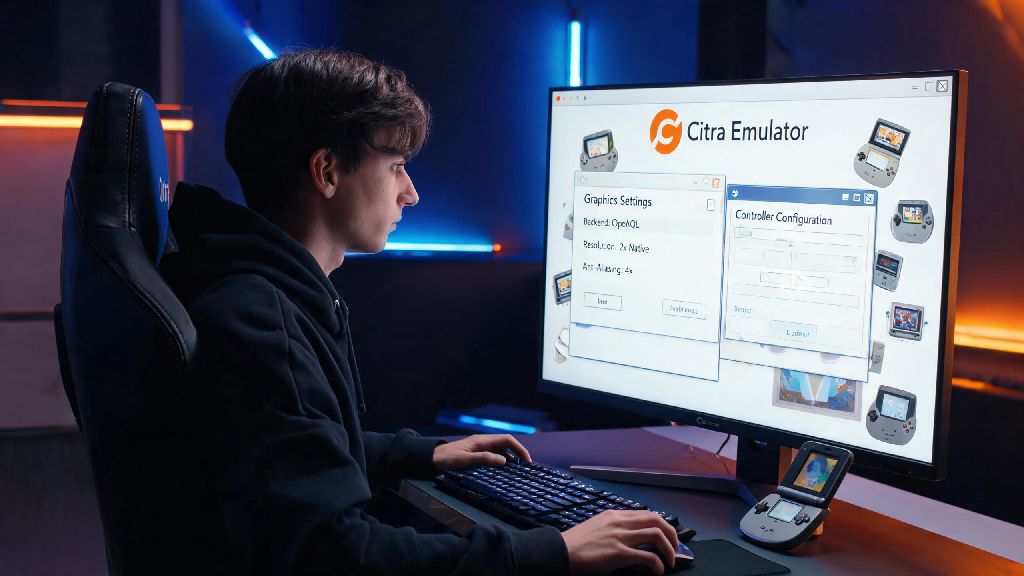
Citra’s default settings work perfectly for most mid-range devices, but a few quick tweaks will make your games look sharper and run smoother without risking crashes. Start with the Graphics tab first: if you have a dedicated GPU, set the graphics API to Vulkan for up to 30% better performance across most titles. If you’re using an older device or integrated graphics, stick with OpenGL for better stability.
Next, adjust the internal resolution setting. The native 3DS resolution is 240p, so bumping it to 2x or 3x will make games look crystal clear on 1080p or 1440p screens with almost no performance hit on most devices. If you notice consistent frame drops below 30fps, drop the resolution back to 1x native to fix the issue. If you notice stuttering during cutscenes or open world segments, turn off "Disk Shader Cache" in the graphics settings to fix the issue for most games.
For audio, switch the default audio engine to Cubeb for the lowest latency, which eliminates most audio crackle or sync issues you might run into with the default setting. You can adjust the audio latency up by 10ms increments if you still hear crackling, but most users won’t need to touch that setting. You don’t need to mess with advanced debug settings unless you’re troubleshooting a specific game issue, as most default values are optimized for general use. You can also make game-specific setting changes by right-clicking any title in your library and selecting Properties, so you don’t have to adjust global settings every time you switch games.
Troubleshooting Common First-Launch Issues
Even if you follow every step perfectly, you might run into small issues on your first run, and most of them have very simple fixes. The most common problem is games refusing to boot at all, and 90% of the time that’s caused by missing or incorrectly placed console keys. Double check that you put the keys in the right sysdata folder, and that you dumped them from a 3DS running a compatible firmware version (11.17 is the latest supported as of this writing).
If your game boots but runs at unplayable frame rates, first make sure that Citra is using your dedicated GPU if you’re on a laptop. Many laptops default to the lower-power integrated GPU for emulation software, so you can manually select the dedicated GPU in your graphics card control panel to fix this. Android users should note that only Snapdragon 8 series or equivalent high-end chips will run most 3DS games at playable speeds, so lower-end devices will struggle even with all performance tweaks enabled.
If you run into glitches or broken features in a specific game, don’t assume it’s a problem with your setup. If you run into a game-specific bug, check the official Citra game compatibility list to see if the title is supported, and if there are known workarounds for common issues. Some less popular 3DS titles have partial support, so you may need to wait for a future Citra update for full functionality. You can also ask for help in official Citra community spaces if you can’t find a fix for your specific issue.
Once you’ve worked through these steps, you’ll be ready to dive into hundreds of compatible 3DS titles right from your device. Taking the time to set up correctly from the start will save you hours of frustration later, and you can always tweak settings as you get more comfortable with the software. Whether you’re replaying an old favorite or trying a 3DS exclusive you missed the first time around, learning how to start Citra emulator opens up a whole new way to enjoy classic handheld games. If you run into more specific issues down the line, you can always check out community resources for targeted fixes and performance tips.