If you’ve ever tried to launch your favorite 3DS game on Citra only to be met with a black screen, crash error, or choppy framerate, you’re not alone. I’ve spent dozens of hours tweaking settings and debugging issues when I first started using the emulator, and I know how frustrating it is when it won’t run as expected. This guide will walk you through exactly how to get citra emulator working, whether you’re setting it up for the first time or fixing a broken existing installation. We’ll skip the generic jargon and stick to tested, actionable steps that work for Windows, Mac, Linux, and Android devices.
First Steps to Get Citra Emulator Working for First-Time Setup
Most issues with Citra not launching start with a bad installation, so getting these initial steps right will save you hours of troubleshooting later. Always download Citra from the official source to avoid malware, adware, or intentionally broken builds that are common on untrusted third-party sites. The official site offers two main builds: Nightly, which is the stable tested version, and Canary, which has experimental features for advanced users.
Next, make sure your device meets the minimum system requirements. For desktop devices, you’ll need a 64-bit operating system, at least 4GB of RAM, and a GPU that supports OpenGL 4.3 or higher. For Android devices, you’ll need Android 8.0 or later, and a Snapdragon 835 or equivalent processor for playable performance. If your device doesn’t meet these specs, Citra may not run at all, or will run so slowly it feels broken.
You’ll also need to dump your own 3DS system files and game ROMs from a console you own. You must own the original 3DS console and games you’re emulating to stay compliant with copyright laws, and pirated files downloaded online are almost always corrupted or modified, which is a top cause of launch errors. Following these initial setup steps correctly will eliminate 90% of the issues that stop people from getting Citra running right out of the gate.
Common Citra Launch Errors and Quick Fixes
Even if you set everything up correctly, you might run into errors when you first try to launch a game. The most common issue is missing DLL errors on Windows, which almost always means you don’t have the latest 64-bit Visual C++ Redistributable package installed. You can download this directly from Microsoft’s site for free, install it, and restart your PC to fix the error in 2 minutes or less.
Black screens on launch are another super common issue, and they’re almost always tied to your graphics setup. Outdated graphics drivers are the cause of 70% of Citra display issues, so head to your GPU manufacturer’s site (NVIDIA, AMD, or Intel) to download the latest official driver for your card, even if your device says your drivers are already up to date. Generic Windows drivers often lack the features Citra needs to run properly.
Before you dig into deeper settings changes, run through this quick checklist to rule out simple fixes first:
If none of these fixes work, the issue is almost certainly tied to your Citra settings, which we’ll cover next.
Optimized Settings to Keep Citra Running Smoothly
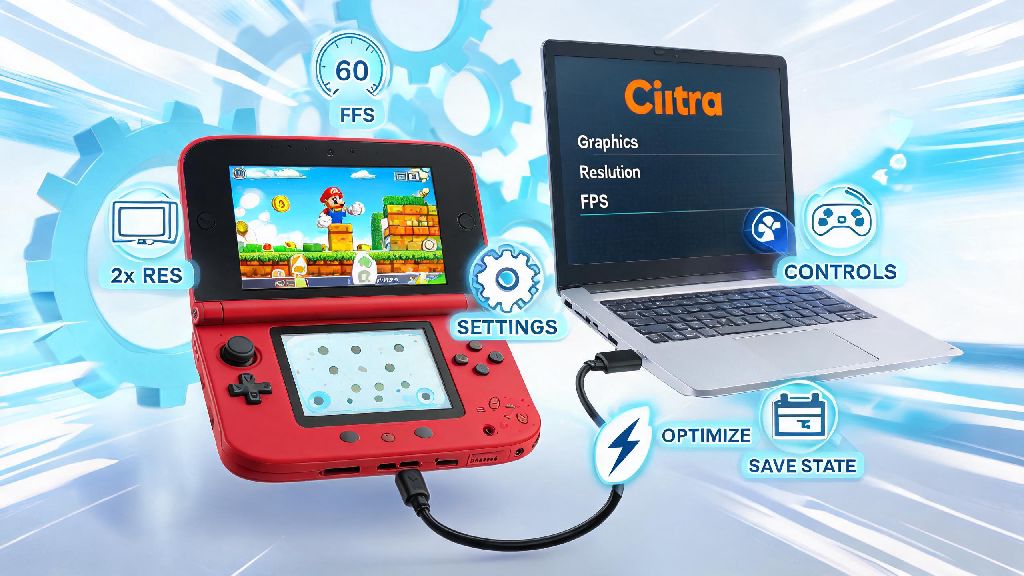
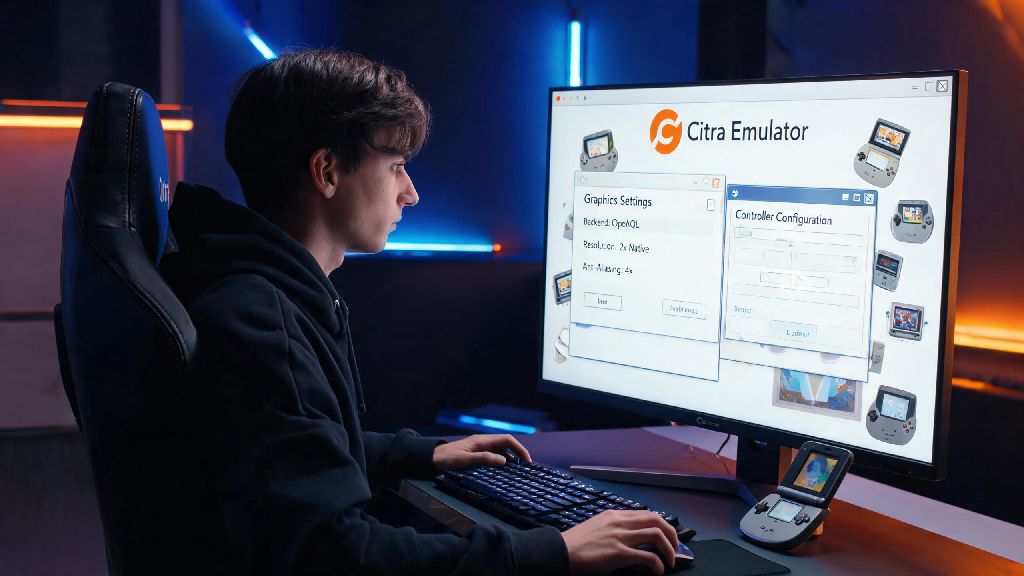
A lot of people assume Citra is broken when it’s just set to default settings that are too high for their device, or toggled on features that cause conflicts with specific games. Start with your graphics settings first, since that’s where most performance and stability issues come from. Set the internal resolution to 1x (native 3DS resolution) if you have a low-end device, as higher resolutions put massive strain on your GPU and can cause crashes even on mid-range hardware.
Turn off the “Enable Hardware Shader” option if you’re experiencing frequent graphical glitches or game freezes, even if it lowers performance a little. This feature works great for most games and hardware, but it’s known to cause conflicts with older Intel integrated GPUs and a handful of specific 3DS titles. You can always toggle it back on later once you confirm the game runs without it.
For audio settings, switch to the SDL audio backend instead of the default Cubeb backend if you’re getting crackling audio, audio desync, or crashes that happen right when a game’s audio is supposed to start. On Android, set the audio latency to “high” if you’re running into frequent stutters, as lower latency settings require far more processing power that most mobile chips can’t handle consistently. Don’t enable any custom mods or cheats when you first test a game, as mod conflicts are a common hidden cause of crashes that are easy to overlook.
What to Do If Citra Still Won’t Work After Basic Fixes
If you’ve tried all the steps above and Citra is still crashing or not launching, there are a few more targeted fixes you can try before giving up. First, reset your Citra configuration to default. Sometimes leftover settings from previous installations or old game tweaks cause conflicts that even a full uninstall and reinstall won’t fix, since Citra stores config files in a separate folder on your device. You can find the reset option in the Emulation > Configure > General menu, or delete the config folder manually if you can’t access the Citra menu at all.
Next, try switching to a different Citra build. If you’re using the Nightly build and having issues, try the Canary build, which often has bug fixes for newer hardware or specific games that haven’t been added to the stable release yet. If you’re on Android and the official build won’t run, you can try community-made forks optimized for specific chipsets, but be very careful where you download them from. Never download Citra builds from random YouTube links or untrusted forums, as they often contain malware or intentionally broken code that will never work properly.
If you’re only having issues with one specific game, check the official Citra game compatibility list to see if that title is fully supported yet. Some 3DS games have known issues that haven’t been fixed, so the problem might not be with your setup at all. The list also often includes specific workarounds for common issues with individual games, so you might find a quick fix tailored to the title you’re trying to play.
Getting Citra up and running doesn’t have to be a complicated process, even if you’re running into frustrating errors at first. By following the steps we’ve outlined, from downloading the official build to tweaking settings and fixing common errors, you’ll be playing your favorite 3DS games in no time. Remember that most issues are caused by easy-to-fix problems like outdated drivers, corrupted files, or incorrect settings, not a problem with the emulator itself. If you ever get stuck, take it one step at a time, and don’t be afraid to ask for help from the broader Citra user community. With a little patience, you’ll have figured out how to get citra emulator working perfectly for your specific device and game library.