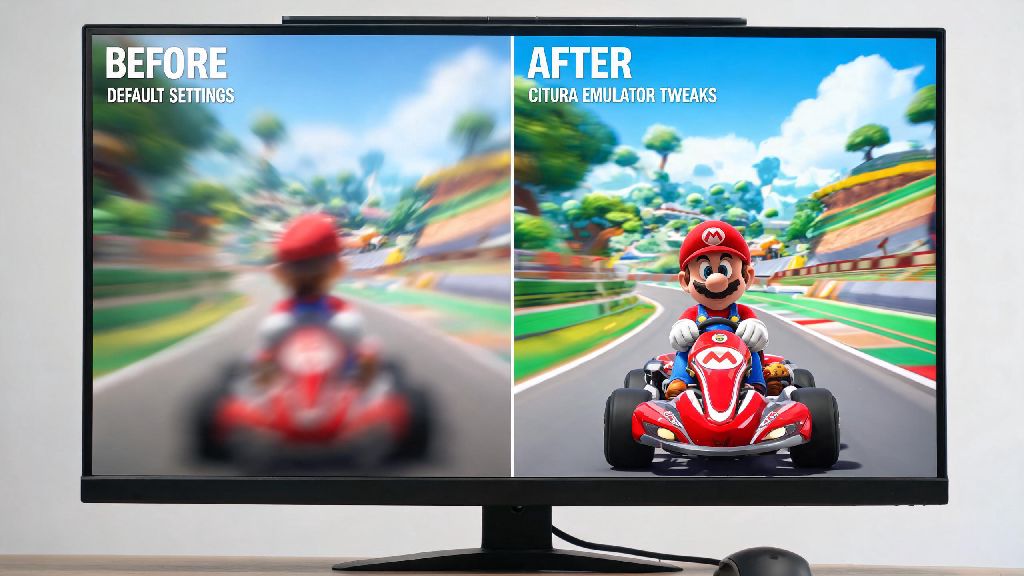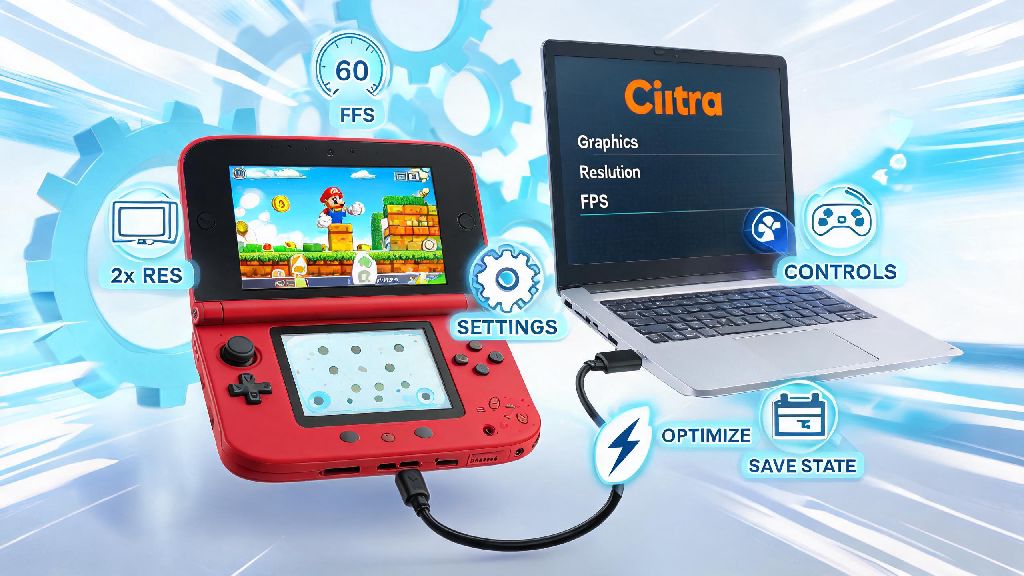
If you’ve ever sat staring at a stuttering 3DS cutscene or waited 10 seconds for a game world to load on Citra, you know how frustrating slow performance can be. I’ve tested dozens of tweaks over the past three years running Citra on everything from a budget laptop to a mid-tier gaming PC, and I’ve narrowed down the most reliable fixes that don’t require spending money on new hardware. This guide covers exactly how to increase speed of Citra emulator, with tweaks that work for both the nightly and canary builds of the emulator. Most of these changes take less than two minutes to apply, and you’ll see a noticeable FPS jump even if you’re running Citra on a low-end device.
Optimize Core Citra Settings to Increase Speed of Citra Emulator
You don’t have to dig through dozens of hidden menus to get better performance, because the most impactful tweaks are right on Citra’s main settings dashboard. I always recommend backing up your current settings first before making changes, so you can revert if a specific tweak breaks compatibility with your favorite game. Start with the graphics tab first, since 90% of Citra lag comes from misconfigured visual settings. Set the internal resolution to 1x (native 3DS resolution) first, as higher resolutions put massive strain on your GPU even if you have a high-end card. If you still have extra performance after testing, you can bump it up to 2x later, but 1x is the sweet spot for speed.
Next, enable async shader compilation to eliminate stutter when new effects load, but note that this can cause minor visual glitches in a small number of games like Animal Crossing: New Leaf. Then, move to the audio tab: lower the audio stretching buffer to 20ms, or turn off audio stretching entirely if you don’t mind minor audio crackle during heavy gameplay sequences. That one tweak alone can boost FPS by 10-15% on low-end CPUs. These small changes can make a massive difference when you want to increase speed of Citra emulator without sacrificing too much visual quality. Don’t change advanced CPU settings unless you know exactly what you’re doing, as overclocking the emulated 3DS CPU can cause crashes or corrupted save files in many games.
Tweak Your Operating System Settings for Better Citra Performance
Many people blame Citra for slow performance when the real issue is background processes hogging their system resources. I’ve seen laptops gain 20+ FPS in Citra just by closing 3 unused browser tabs and a background streaming app. First, set Citra’s priority to high in your task manager (Windows) or activity monitor (Mac). This tells your system to allocate more CPU and RAM to Citra before handling other background tasks. Don’t set it to real-time, though, as that can cause system-wide crashes if Citra freezes.
If you’re on Windows, turn off Game Mode if you’re running older versions of the OS – counterintuitively, Game Mode often reserves resources for Xbox services that Citra doesn’t use, leading to lower overall performance. For laptop users, make sure your device is plugged in and set to high performance power mode – even powerful gaming laptops drop to 30-40% of their maximum performance when running on battery to save power. You should also close any overlay apps you have running, like Discord, Steam, or Nvidia GeForce Experience overlays. These overlays hook into your GPU while you’re gaming, and they often conflict with Citra’s rendering pipeline, causing random FPS drops and stutter. These simple system tweaks are often overlooked, but they’re some of the easiest ways to increase speed of Citra emulator with zero changes to your emulator settings.
Fix Common ROM and Build Issues That Slow Citra Down
Even if your settings are perfectly configured, a bad ROM or outdated Citra build can make even high-end PCs struggle to run simple 3DS games. First, make sure you’re using an official Citra build, either Nightly or Canary. Third-party modded builds of Citra often come with bloated extra features that slow down performance, and they may not include the latest performance patches from the official Citra team. Always use decrypted 3DS ROMs in .CCI or .CIA format – compressed ROMs or ROMs that have been modded with extra textures or patches will run far slower than clean, unmodified dumps. If you’re running a ROM hack, check the hack’s documentation for any specific Citra settings recommended by the creator, as many hacks require specific tweaks to run smoothly.
Another common mistake people make is trying to run games that are listed as “not playable” on Citra’s official compatibility list. These games often have broken emulation that causes constant lag and crashes, no matter how good your settings are. Stick to games marked as “great” or “perfect” on the compatibility list if you’re prioritizing speed. Oh, and if you’ve installed custom texture packs for your games, try disabling them first if you’re noticing lag. High-resolution texture packs can make even 1x internal resolution run as slow as 4x native resolution on weaker GPUs. If you’re still getting unexpected lag, run through these quick checks first:
Advanced Hardware Tweaks for Maximum Citra Speed
If you’ve tried all the basic tweaks and still want more performance, these advanced changes will help you squeeze every last FPS out of your system, no new hardware required. First, if you have a dedicated GPU, make sure Citra is set to run on it instead of your integrated CPU graphics. Many laptops default to integrated graphics for lighter apps like emulators, which cuts performance drastically. You can change this setting in your Nvidia Control Panel or AMD Radeon Software by adding Citra to the list of apps and setting it to use your high-performance GPU.
Update your graphics drivers regularly – both Nvidia and AMD release driver updates every few months that include specific performance optimizations for popular emulators like Citra. I’ve seen driver updates boost Citra performance by as much as 30% for certain 3DS titles. If you’re comfortable with minor system changes, you can also enable hardware virtualization in your PC’s BIOS if it’s supported. This lets Citra access more of your CPU’s virtualization features, which speeds up emulation for CPU-heavy games like The Legend of Zelda: A Link Between Worlds. Just note that enabling virtualization won’t make a difference for most casual games, so you can skip this step if you mostly play 2D 3DS titles. If you have extra RAM available (8GB or more), you can also create a RAM disk to store your most-played ROMs. This cuts loading times to almost zero, though it won’t boost your in-game FPS significantly.
You don’t need a top-tier gaming PC to run Citra smoothly, as long as you apply the right tweaks in the right order. Start with the core Citra settings first, then move to system tweaks and ROM checks before you try any advanced hardware changes. Test each tweak one at a time so you can tell exactly what’s making a difference for your specific setup and favorite games. With a few minutes of adjustments, you’ll be able to increase speed of Citra emulator enough to play most 3DS titles at full speed, even on budget hardware. If you still run into lag with a specific game, check the Citra community forums for game-specific tweaks other players have shared for that title.