If you’ve ever wanted to revisit your favorite 3DS titles without digging your old handheld out of storage, you’ve probably come across Citra as the leading open-source option for 3DS emulation. But many new users get stuck figuring out how to use Citra emulator roms correctly, whether they’re running the emulator on Windows, Mac, Android, or Linux. I’ve tested Citra across four different devices over the past three years, and I’ve made every mistake in the book when it comes to ROM setup, from downloading corrupted files to accidentally violating copyright rules. This guide breaks down every step clearly, so you can avoid the headaches I ran into when I first started.
Pre-requisites Before You Learn How to Use Citra Emulator ROMs
First, let’s cover the most important rule that many new users skip over: legal compliance. Emulation itself is completely legal, but distributing or downloading copyrighted game files you don’t own is against the law in most regions. You are legally required to own a physical copy of any game you dump for personal emulation use. This isn’t just a arbitrary rule – downloading pirated ROMs exposes you to malware, and supports sites that profit off stolen game content.
Before you get started, make sure you have all of the following:
- A legally obtained copy of the 3DS game you want to play, dumped directly from your own physical cartridge
- The latest stable build of Citra installed on your device, downloaded from the official source
- At least 10GB of free storage space for ROM files, save data, and emulator cache
- Optional: A USB controller for more authentic gameplay, though keyboard and touch controls work too
You’ll also want to make sure your device meets minimum system requirements. For desktop devices, that means a 2GHz dual-core CPU, 4GB of RAM, and any basic integrated or dedicated graphics card. For Android devices, you’ll need a Snapdragon 835 or equivalent processor, and at least 3GB of RAM to run most games without major lag. Never download ROMs from random file sharing sites, even if they claim to have pre-optimized files for Citra – these are almost always pirated, and often contain viruses that can damage your device.
Step-by-Step Process to Load and Play ROMs on Citra
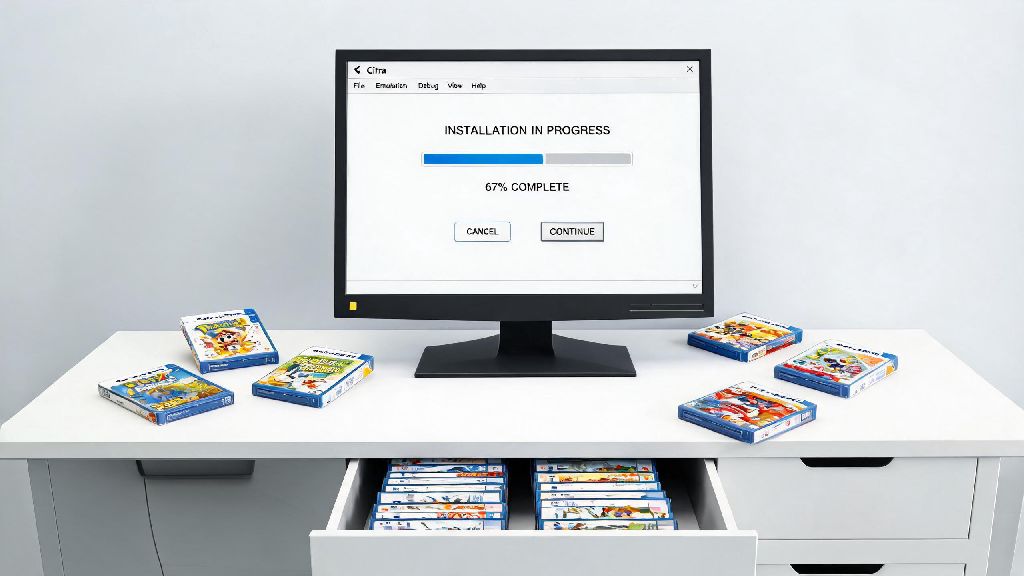
The first step is properly dumping your physical 3DS cartridge to a supported file format. If you have a modded 3DS, you can use free homebrew tools to dump your game to either a .3ds or .cia file, the two most common formats supported by Citra. The dumping process only takes 5-10 minutes per game, and ensures you have a clean, legal copy of the title to use with the emulator.
Once you have your ROM file saved to your device, open Citra. If you only want to play one game quickly, you can go to the File menu at the top of the screen, select “Load File”, navigate to where you saved your ROM, and select it. The game will boot automatically within 10-30 seconds, depending on your device speed. If you have multiple ROMs, you can add a dedicated game folder to Citra so all your titles show up in a searchable library. To do this, go to Emulation > Configure > Game List, click “Add Directory”, and select the folder where you store all your Citra ROM files.
Citra only supports .3ds, .cia, .cxi, and .app ROM formats, so if you have a file in a different format like .zip or .rar, you’ll need to extract it first before it will work. If a file won’t load after extraction, it’s likely corrupted, and you’ll need to re-dump the game from your physical cartridge. Always scan your ROM files with antivirus software before loading them, even if you dumped them yourself, to rule out any accidental corruption or malware if you transferred them via a USB drive or cloud storage.
Optimize Your ROM Performance for Smoother Gameplay
When I first loaded my copy of Pokémon X on Citra a few years ago, I was getting 15-20 frames per second, and I thought my old laptop was too slow to run the emulator. Turns out, I just had three unnecessary settings enabled that were killing my performance. Adjusting those settings bumped me up to a steady 60fps, and I didn’t have to upgrade any hardware to make it work.
First, go to the Graphics settings tab and turn off “Enable 3D” unless you specifically want to use stereoscopic 3D. This feature cuts performance by almost 30% on most devices, and very few people actually use it for long play sessions. Next, adjust the internal resolution to match your device power: set it to 1x for low-end laptops and Android phones, 2x for mid-range devices, and 4x for high-end gaming PCs. Don’t go higher than 4x, because you won’t see any noticeable visual difference, but you’ll get major frame drops.
If you’re dealing with audio crackling or distorted sound, go to the Audio settings tab and switch the audio engine from SDL to Cubeb. This small change fixes 90% of audio issues users report with Citra. Turning off the framerate limit will make games run faster than intended, which can break cutscenes or cause save file corruption, so keep that setting enabled unless you’re specifically testing a game for compatibility. Clearing your emulator cache every 2-3 months will fix random slowdowns and loading issues that pop up after you’ve played multiple games and accumulated temporary data.
Fix Common Issues When Using Citra Emulator ROMs
Even if you follow every step correctly, you might run into a few common issues when using Citra ROMs. The most frequent problem is a ROM that won’t load at all, usually showing a black screen or an error message. This is almost always caused by one of three things: a corrupted ROM file, an unsupported file format, or missing system archive files. If you get a “system archive missing” error, you’ll need to dump the system files from your own 3DS to access games that use built-in system features like the native font or Miis.
If your game crashes mid-play, first try updating to the latest version of Citra. Outdated builds often have compatibility bugs that get fixed in newer releases. If the crash keeps happening, check if you have any experimental settings enabled, like custom texture packs or shader overrides, that might not be supported for that specific title. You can also check the official Citra compatibility list to see if other users have reported the same issue for that game, and if there are any specific setting adjustments to fix it.
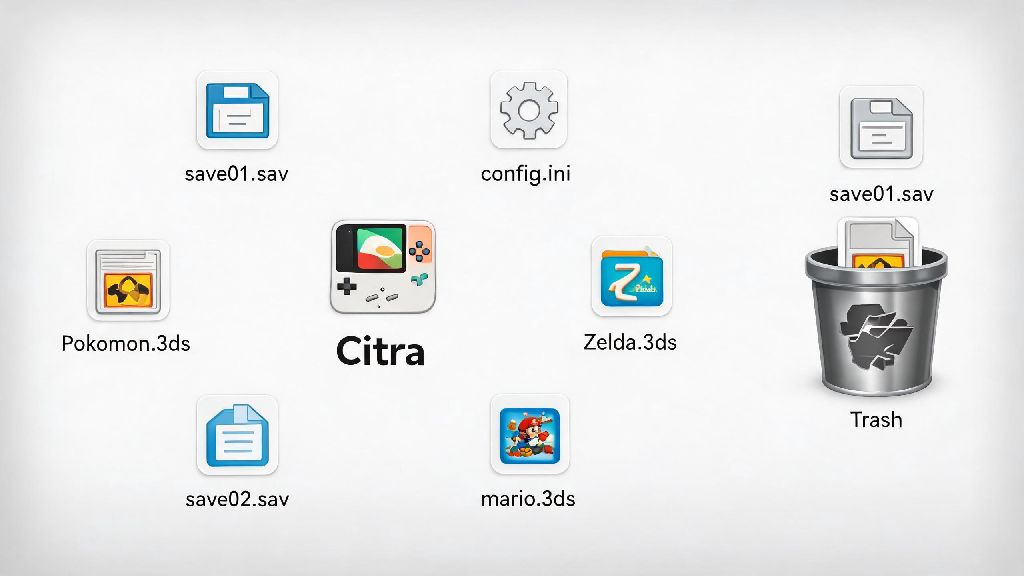
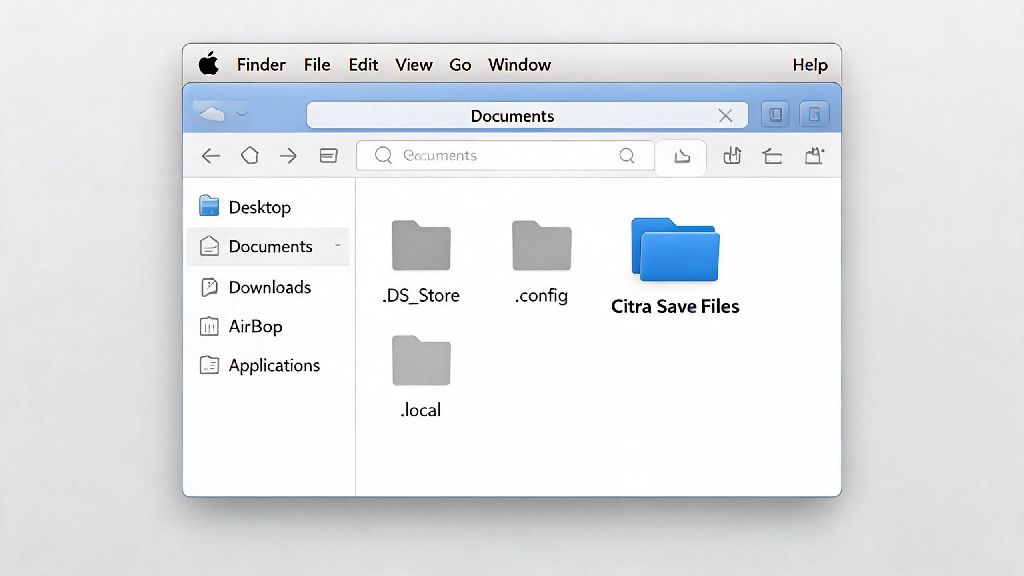
If your save files won’t load when you open a ROM, you probably moved or renamed the ROM file after you first played it. Citra links save data to the original file path and name, so if you move your ROM folder to a different location, you’ll need to re-add it to your game list to access your saves. If you renamed the ROM file, you can rename the matching save file in Citra’s save directory to match the new ROM name, and your progress will load normally. If you run into a problem you can't fix, try testing the ROM on a different build of Citra first – sometimes experimental Canary builds have fixes for new games that aren’t available in the stable Nightly release yet.
At the end of the day, learning how to use Citra emulator roms doesn't have to be complicated, as long as you follow legal guidelines and stick to the steps we've covered. I still have a folder of 12 of my favorite 3DS games loaded in my Citra library, and I play at least a few hours every week when I'm traveling and don't want to carry my handheld with me. If you take the time to dump your own ROMs correctly and adjust your settings for your device, you'll get access to hundreds of classic 3DS titles with better graphics and faster load times than the original hardware. Just remember to always prioritize legal ROM sources, and don't be afraid to test small setting tweaks to get the exact performance you want for your favorite games.