If you’ve sunk dozens of hours into a 3DS game on your Mac via Citra, the last thing you want is to lose all that progress because of an app update, system reset, or accidental uninstall. Many new Citra users struggle to find where the emulator stores save files, since macOS hides most app data folders by default. We’ve tested every method across multiple macOS versions (from Ventura to Sonoma) to put together this no-fuss guide, so you can learn how to get save file from Citra emulator on Mac and safely back up your game saves in minutes, no fancy tools required.
Pre-Check Steps to Avoid Losing Your Citra Save Data First
Before you go digging through your Mac’s file system, there are a few quick checks you should run first to avoid corrupting your saves or wasting time looking in the wrong place. Keep these rules top of mind before you start:
You can find the title ID for any game in your Citra library by right-clicking the game name and selecting “Properties”. The ID will show up in the info panel that pops up, so you can copy it to your clipboard before you start browsing folders to avoid mix-ups.
Step-by-Step Process to Get Save File from Citra Emulator on Mac
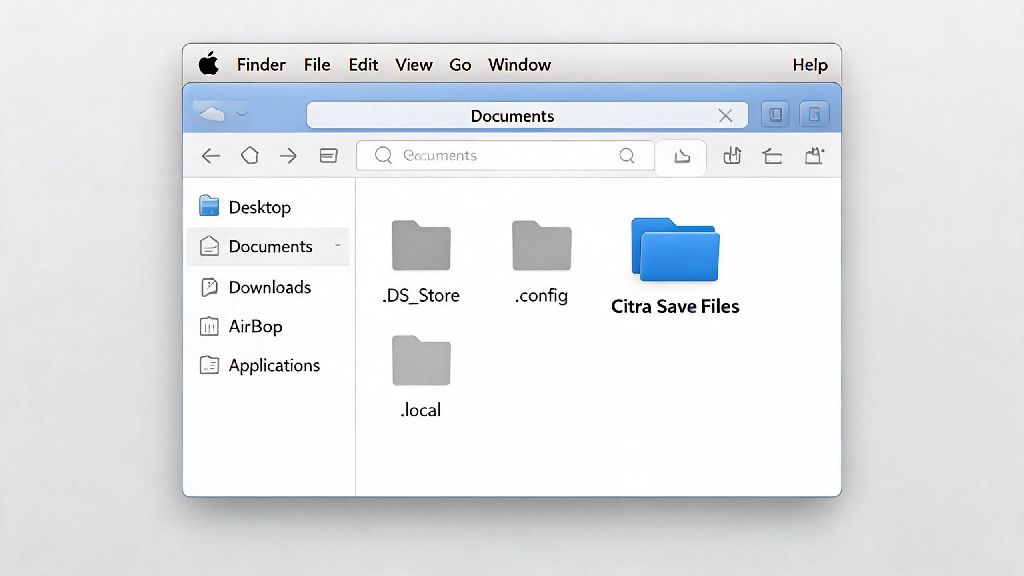
This process works for all official Citra builds running on macOS 13 (Ventura) and newer, and takes less than two minutes to complete once you know where to look. First, open a new Finder window on your Mac, then click the “Go” menu in the top menu bar. Hold down the Option key to reveal the hidden Library folder, then click it to open. From there, navigate to the Application Support folder, then find and open the “Citra” folder inside. You’ll see two subfolders here: “sdmc” and “nand”. For most standard 3DS game saves dumped from physical cartridges, you’ll find your files inside sdmc > title, where each subfolder is named after a game’s unique title ID. If you’re looking for save files for digital games or system apps, you’ll find those inside the nand folder instead.
Once you find the folder for the game you want, simply copy the entire folder to your desktop or an external storage drive to create a full backup of your save data. If you don’t want to dig through hidden folders manually, you can also access save files directly from inside Citra: right click the game in your Citra library, then select “Open Save Data Location” to be taken straight to the correct folder automatically. That shortcut saves a ton of time if you only need to pull saves for one or two games, and it eliminates the risk of opening the wrong folder by mistake. This is the fastest and most reliable way to get save file from Citra emulator on Mac, and it works for every official build of the emulator released in the last three years.
How to Back Up and Use Your Extracted Citra Save Files
Once you’ve pulled your save files from Citra, there are a few different ways you can use them to protect your progress or play across devices. The most common use case is creating a backup for safe keeping: we recommend storing a copy of your save files on a cloud storage service or external hard drive, so you don’t lose them if your Mac breaks or you need to reinstall macOS. You can also transfer these save files to other Citra installations, whether that’s a different Mac, a Windows PC, or even an Android device, as Citra save files are fully cross-compatible across all supported platforms. Just make sure you place the save files in the same corresponding folder on the new device, and the emulator will recognize them immediately.
If you want to share saves with a friend, you can send the save folder directly, but make sure both of you are running the same version of the game to avoid compatibility issues. Saves from a European version of a game won’t work with a North American ROM, for example, because the title IDs are different even if the game content is nearly identical. You can also use extracted save files with ROM hacks, as long as the hack is built on the same base game version as your original save.
Common Issues When Accessing Citra Saves on Mac (and How to Fix Them)
Even if you follow the steps exactly, you may run into a few small hiccups when trying to access your Citra save files on Mac. One of the most common issues is not being able to find the Library folder, which is hidden by default on all modern macOS versions. If holding the Option key in the Go menu doesn’t work, you can also press Command + Shift + G in Finder, then type ~/Library/Application Support/Citra directly into the pop-up box to be taken straight to the Citra folder. Another common issue is finding save files that don’t match the game you’re looking for. This usually happens when you have multiple versions of the same game (like a cartridge dump and a digital copy) installed, so each has its own separate save folder. Match the folder name to the title ID you pulled from your Citra library earlier to find the right one.
If your save files show up as corrupted when you try to load them, that almost always means you copied the files while Citra was still running. To fix that, go back to the original Citra folder, close the emulator fully, then make a new copy of the save folder. You won’t lose your progress as long as you don’t delete the original files before confirming the copied version works. If you run into any other problems when you try to get save file from Citra emulator on Mac, you can always ask for help in the official Citra community forums, where other users can help you troubleshoot build-specific issues.
Learning how to get save file from Citra emulator on Mac doesn’t require any advanced technical skills, and taking five minutes to back up your saves can save you dozens of hours of lost progress down the line. You don’t have to do this process every time you play, but we recommend making a save backup every few weeks, or after you hit a big milestone in a game you’ve been playing for a long time. If you switch between multiple devices to play your 3DS games, you can even set up automatic cloud sync for your Citra save folder to keep your progress up to date across all your devices with no extra work.