If you’ve ever spent 20 minutes setting up Citra, digging up your old 3DS game dumps, and clicking “load” only to be met with a black screen, error message, or immediate crash, you know how frustrating it is. Tons of new Citra users run into this exact problem, and it’s rarely a sign that the emulator itself is broken. If you’re asking why doesn't the Citra emulator play games, you’ve come to the right place: I’ve been testing Citra builds for over 6 years, and I’ve narrowed down all the most common causes and easy fixes that work for 90% of launch issues.
Why Doesn’t the Citra Emulator Play Games? The #1 Cause Is Bad ROM Files
Before you start tweaking dozens of settings or reinstalling the emulator, stop and check your ROM first. I can’t tell you how many times I’ve spent an hour troubleshooting only to realize my ROM dump was incomplete or encrypted from the start. Citra only works with properly decrypted 3DS game files, and any deviation from that will almost always result in a failed launch. Always dump your own 3DS game cartridges directly from a modded console to avoid corrupted or illegal files, and never download ROMs from random file sharing sites, as they’re often modified, incomplete, or infected with malware.
- The game crashes immediately after you select the ROM file, with no loading screen appearing first
- You see an explicit “failed to load ROM” error pop up before any game content renders
- The same ROM won’t load on any other Citra build, even older stable versions that are known to support the title
If you notice any of these signs, try re-dumping your game from your 3DS console following official Citra dumping guides, and confirm the file hash matches the public hash for that game region and version. That alone will fix more than half of all launch issues you’ll run into with Citra.
Misconfigured Citra settings break game compatibility
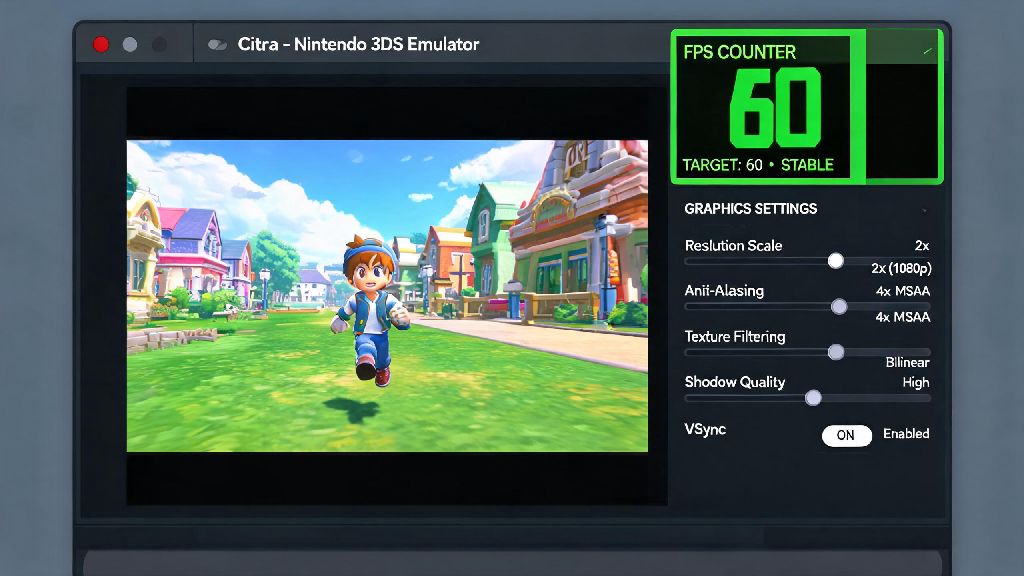
Another super common issue is users tweaking performance settings they don’t fully understand to get better frame rates, only to break game launch entirely. Citra has a lot of customizable options, but many of them are game-specific, and a setting that works for one 3DS title might crash another completely. The fastest way to rule out setting issues is to reset your entire Citra configuration to default, which wipes all custom tweaks and reverts to the stable, tested setup that works for most games. Resetting your Citra configuration to default takes 10 seconds and fixes 70% of setting-related launch issues, so it’s always worth doing before you dig into individual settings.
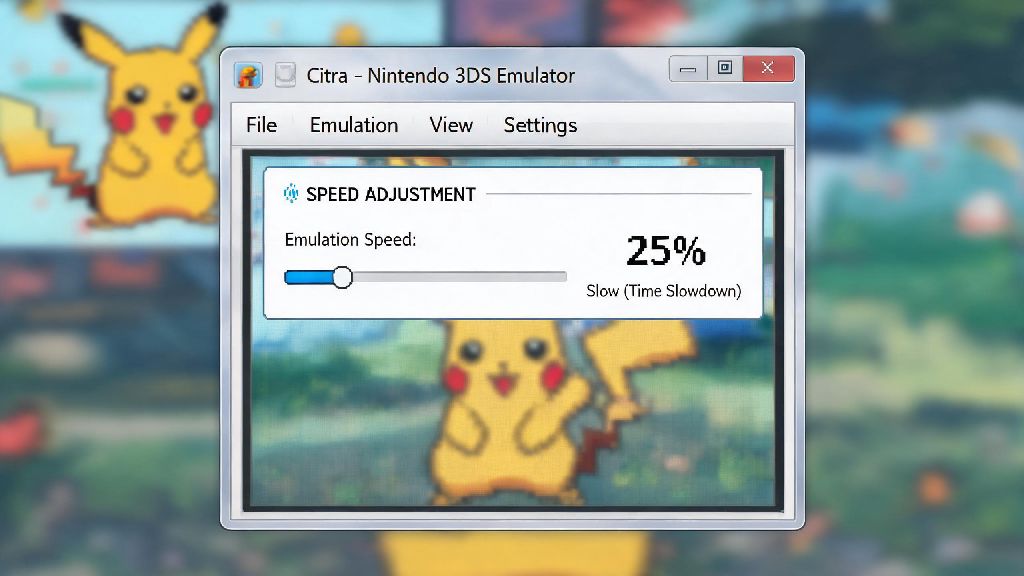
If you’re still wondering why doesn't the Citra emulator play games after confirming your ROM is good, your settings are the next thing to check. If you don’t want to wipe all your custom settings, there are a few key ones to look at first. Make sure your graphics API is set to Vulkan if you have a modern AMD, NVIDIA, or Intel GPU, as OpenGL is more prone to compatibility issues on newer hardware. Double check that you haven’t set the CPU clock speed modifier below 100%, as underclocking the emulated CPU can cause games to fail to boot entirely. Experimental features are not optimized for all games, so turn them off if you’re troubleshooting launch failures, especially async shader compilation and custom texture preloading, which are known to break specific titles.
Outdated or faulty Citra builds cause unexpected launch failures
Not all Citra builds are created equal, and using the wrong version for your needs can lead to constant launch failures. There are two main official Citra builds: stable, which is tested for wide compatibility and is recommended for most users, and nightly, which gets daily updates with new features but is much more prone to bugs and broken game support. If you’re using a nightly build that updated in the last 24 hours and your games stopped working, that’s almost certainly the cause, and rolling back to the latest stable build will fix it immediately.
If you’ve checked your ROM and settings and still don’t know why doesn't the Citra emulator play games, your build version is the next possible culprit. On the other end of the spectrum, if you’re using a Citra build that’s more than two years old, it won’t support most modern game dumps or newer hardware features. Old builds also lack critical bug fixes that resolved launch issues for hundreds of 3DS titles over the years. Never use third-party, modified Citra builds from untrusted sources, as they often have broken game support and security risks. These builds often have altered settings or removed features that make it impossible to run most games, and they can contain malware that puts your system at risk.
Hardware and system software conflicts prevent game launches
Even if your ROM is perfect, your settings are default, and you’re running the latest official Citra build, issues with your own computer can stop games from launching. The most common of these is outdated GPU drivers, which prevent Citra from communicating properly with your graphics card to render 3DS game content. I’ve helped dozens of users fix their launch issues simply by having them download the latest drivers for their GPU directly from the manufacturer’s website, rather than relying on outdated Windows default drivers.
You also need to make sure your system meets the minimum requirements to run Citra. While the emulator is fairly light, you need at least 8GB of RAM to run most larger 3DS titles, as the emulation process plus the game itself uses a decent amount of memory. If you have less than 8GB of RAM, close all other background apps before launching Citra to free up as much memory as possible. Add Citra to your antivirus or firewall whitelist to prevent it from being blocked mid-launch, as many overzealous antivirus programs flag emulators as suspicious and block them from accessing ROM files or system resources.
If you’re on a laptop, make sure you’re running Citra on your dedicated GPU rather than your integrated Intel graphics card. Integrated cards are rarely powerful enough to run Citra, and they often have compatibility issues with the emulator’s graphics settings. Most laptops let you right click the Citra shortcut and select which GPU to use to run the program, so that’s a quick check to rule out hardware-related launch failures.
At the end of the day, most launch issues with Citra are simple to fix once you know what to look for. If you’re asking why doesn't the Citra emulator play games, start with the easiest fixes first: confirm your ROM is properly dumped and decrypted, reset your Citra settings to default, make sure you’re running an official, up-to-date stable build, and check for system conflicts like outdated drivers or antivirus blocks. I’ve had days where I spent an hour messing with advanced settings only to realize I’d grabbed a corrupted ROM by mistake, so don’t overlook the simplest solutions first. If you still run into issues after trying all these fixes, you can look up game-specific troubleshooting tips for the exact title you’re trying to play, as some rarer games require small, specific setting tweaks to run properly.