When I first started playing Pokemon Ultra Sun on Citra a few years back, I spent two weeks wondering why the game kept stuttering during elite four battles. I tried adjusting every graphics setting I could find, uninstalling and reinstalling the emulator, even downloading a new ROM, and nothing worked. It wasn’t until a friend told me to turn on the FPS counter that I realized my GPU was throttling mid-battle, dropping my frame rate from 60 to 18 without me noticing. If you’ve ever struggled to figure out how to show FPS in Citra emulator, you’re not alone. Most new users don’t even know the built-in counter exists, and it’s one of the most useful tools you can use to get the best possible 3DS emulation experience.
How to Show FPS in Citra Emulator: 3 Quick In-App Steps
First off, you want to make sure you’re running the latest version of either Citra Nightly or Citra Canary. Older builds from 2020 or earlier have the FPS counter setting in a different location, and some don’t have the feature at all. Always update your Citra build first before adjusting settings to avoid unnecessary confusion. Once you’re on the latest version, follow these simple steps.
First, open Citra and click the “Emulation” tab on the top menu bar, then select “Configure” from the dropdown menu. This will pull up the full settings menu for the emulator. Next, navigate to the “General” tab on the left-hand side, then select the “Interface” sub-tab. You’ll see a list of display options for the emulator’s UI and in-game overlay. Finally, check the box labeled “Show FPS counter” and click “OK” to save your changes. The next time you launch a 3DS game, the counter will appear automatically.
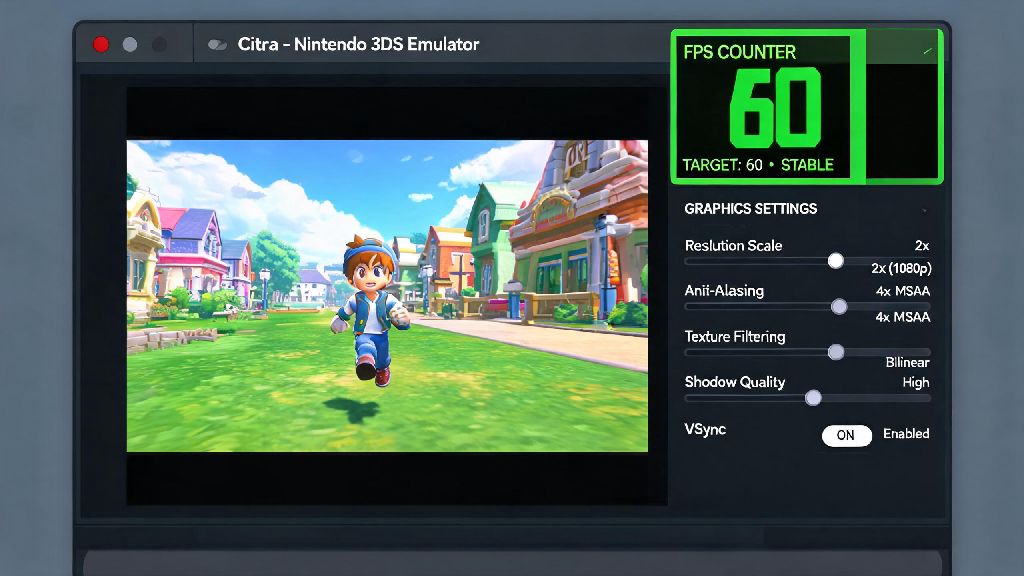
The FPS counter will appear in the top-left corner of your game window by default, and it will show your current frame rate, average frame rate over the last 10 seconds, and frame time in milliseconds. If you want to move the counter to a different corner, you can adjust its position in the same Interface settings menu, under the “FPS counter position” dropdown. That’s all there is to the basic setup. It only takes 30 seconds to turn on, but it will save you hours of guesswork when you’re trying to fix performance issues. If you don’t see the counter right away, don’t panic -- we’ll cover common fixes for that later on.
Why You Should Enable the Citra FPS Counter
A lot of new Citra users skip turning on the FPS counter because they think it’s only for hardcore players who care about maxing out frame rates. But that’s not true at all. The counter is a useful tool for every type of user, no matter if you’re playing casual Animal Crossing sessions or trying to run modded 3DS games at 4K resolution.
Many new Citra users waste hours tweaking settings without monitoring FPS, leading to unnecessary frustration. When you can see your frame rate in real time, you can tell exactly what’s causing performance issues, instead of guessing. Some of the biggest benefits of keeping the counter enabled include:
I keep the counter turned on 100% of the time when I’m using Citra, even if I’m just replaying old Pokemon games that run perfectly on my PC. A few months back, I noticed my frame rate was dropping to 25 for no reason, and the counter helped me realize my laptop was running on battery saver mode, which was throttling my GPU. I would have never figured that out without seeing the real-time FPS data.
Even if you have a high-end PC, some 3DS games have known emulation bugs that cause unexpected FPS drops. The counter will help you confirm if the issue is with your setup or with the emulator itself, so you don’t waste time trying to fix a problem that’s already being worked on by the Citra development team.
Fixes for When the Citra FPS Counter Won’t Show Up
Sometimes, even if you check the “Show FPS counter” box, you won’t see it appear when you launch a game. This is a common issue, and it’s almost always easy to fix. Before you go reinstalling the emulator or resetting all your settings, try these simple fixes first.
The most common culprit is third-party overlay software. Apps like Steam Overlay, Rivatuner Statistics Server, Discord Overlay, or NVIDIA GeForce Experience overlay can block Citra’s native FPS counter, or make it appear off-screen. Third-party FPS overlays often conflict with Citra’s native counter, so disable them first if you’re having issues. You don’t have to uninstall them, just close them temporarily while you’re using Citra to see if that fixes the problem.
Another common issue is custom display layouts. If you’ve adjusted Citra’s custom game layout to stretch the screen or move the UI around, you might have accidentally moved the FPS counter off-screen or covered it with another UI element. To fix this, go back to the Interface settings menu and reset the FPS counter position to “Top-left” first, then reset your custom layout to default to see if the counter reappears.
If you’re playing in fullscreen mode, some older graphics drivers will hide overlay elements like the FPS counter. If you still can’t see the counter, try switching between windowed and fullscreen mode twice to refresh the game display. This almost always fixes the issue for me when I’m playing on my older desktop PC. If none of these fixes work, you’re probably running an outdated version of Citra. Grab the latest build, and your counter should work as expected after you update.
How to Use Your FPS Data to Improve Citra Performance
Once you have the FPS counter turned on, you can use the data to tweak your Citra settings to get the perfect balance of performance and visual quality for your hardware. There’s no one-size-fits-all setup for Citra, since every PC has different specs, but the FPS counter will make it easy to find what works for you.
If your FPS is consistently sitting at 60 (or the native cap for the game you’re playing) with no drops, you can safely turn up your graphics settings to get better visual quality. Try increasing the internal resolution to 2x or 3x the native 3DS resolution, turning on anisotropic filtering, or enabling anti-aliasing to make the game look sharper. Keep an eye on the FPS counter as you adjust each setting, so you can tell if a specific feature is causing performance drops.
If your FPS is regularly dropping below 30, or stuttering during gameplay, you’ll want to turn down some settings to improve performance. Start by lowering the internal resolution back to native, then disable anti-aliasing and anisotropic filtering. If you’re still having issues, turn off post-processing effects and enable the “Hardware Shader” setting in the Graphics menu. Enabling hardware shaders is the single most effective setting to boost FPS on lower-end PCs, as it offloads most of the emulation work to your GPU instead of your CPU.
It’s important to remember that not all 3DS games can run at 60 FPS on Citra, even on high-end hardware. Some games are natively capped at 30 FPS on the original 3DS, and the emulation community hasn’t found a way to unlock the frame rate for those titles yet. Native 3DS game FPS caps vary by title, so check a game’s official specs before you panic about low performance. For example, Animal Crossing: New Leaf runs at a native 30 FPS, so you’ll never get higher than that no matter how powerful your PC is. I usually spend 5-10 minutes testing settings for each new game I play on Citra, using the FPS counter to see what works. For Zelda: Ocarina of Time 3D, I can run it at 4K resolution with max settings and keep a steady 60 FPS on my mid-range laptop. For more demanding games like Metroid: Samus Returns, I have to turn the resolution down to 2x to avoid stuttering during boss fights. The FPS counter makes that process fast and easy.
At the end of the day, knowing how to show FPS in Citra emulator is one of the simplest yet most impactful skills you can have as a 3DS emulation fan. It takes less than a minute to set up, and it will save you hours of frustration when you’re troubleshooting performance issues or tweaking settings for your favorite games. You don’t have to be a tech expert to use it, either -- all you need to do is check one box, and you’re good to go. Next time you fire up Citra to play your favorite 3DS title, take 30 seconds to turn on the FPS counter. You’ll be surprised how much of a difference it makes.