If you’ve ever wanted to revisit your favorite Nintendo 3DS titles without digging out your old handheld, you’ve probably come across Citra as the top open-source emulator option for the job. Learning how to put games on the Citra game emulator is the first big hurdle for new users, and it’s easy to run into confusion over file types, legal rules, and setup steps if you don’t have clear guidance. I’ve been using Citra for over 3 years to play everything from Pokémon Sun to Animal Crossing: New Leaf, so I’ve worked through all the common missteps most people hit their first time around. This guide skips the confusing jargon to walk you through every part of the process, from sourcing compatible files to troubleshooting games that won’t load.
How to Put Games on the Citra Game Emulator: Core Pre-Requisites First
Before you start adding any games, there are a few non-negotiable rules and checks you need to complete to avoid issues down the line. First, you must only use game files you have personally dumped from your own 3DS hardware. Downloading pirated game files from random sites violates copyright law in most regions, and those files often come with malware, corrupted data, or missing content that will cause Citra to crash.
Next, confirm you have a valid, updated version of Citra installed. You can choose between the Nightly build (more stable, tested regularly) or the Canary build (has experimental features for newer game compatibility, but may have more bugs). For most new users, the Nightly build is the best pick to start.
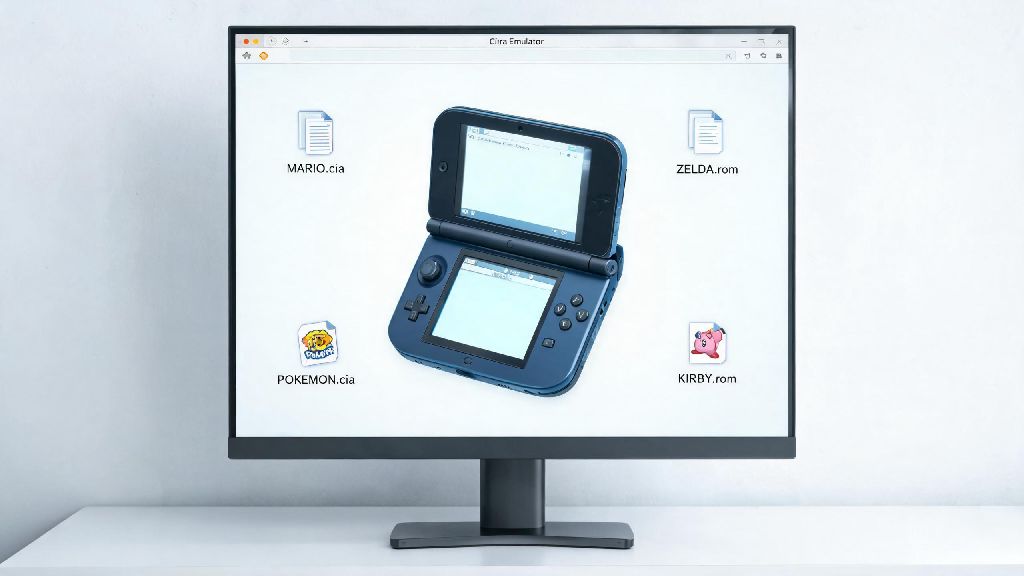
You also need to make sure your game files are in a Citra-compatible format. CIA files are the most widely compatible for Citra, as they include all game updates and DLC in one package if dumped correctly. Other supported formats include .3ds, .cxi, and .app, but these often require separate files for updates and extra content, which can make setup more complicated for beginners.
Step-by-Step Process to Add and Organize Your Games
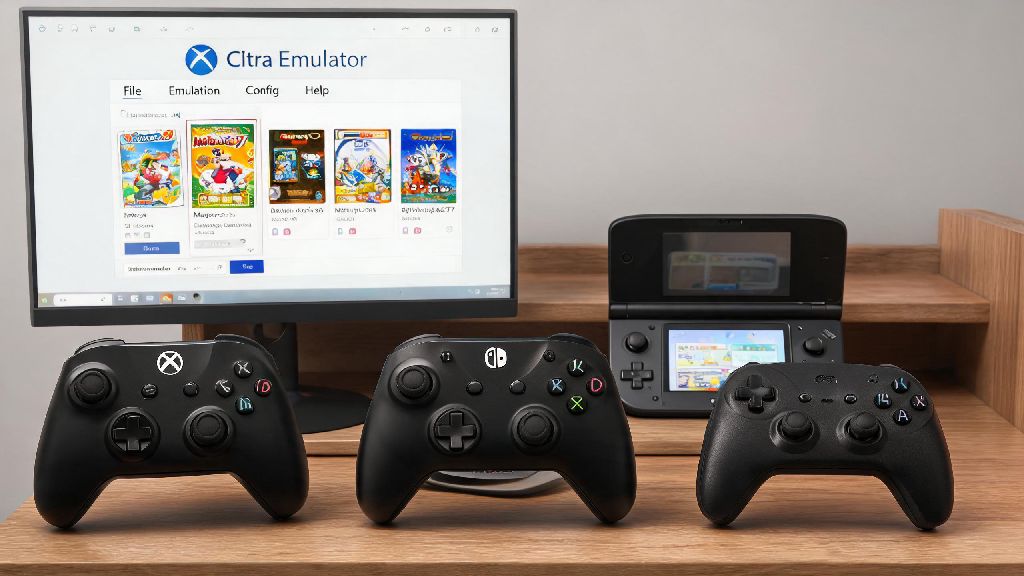
Once you have your legally dumped game files ready and Citra installed, the actual process of adding games takes less than 5 minutes for most users. For standalone .3ds or .cxi files, all you need to do is add your game storage folder to Citra’s library. Open Citra, click “File” in the top menu, then select “Add Game Directory”, and pick the folder where you store all your dumped 3DS game files. Citra will automatically scan the folder and add all compatible titles to your home screen.
If you’re using CIA files (for base games, DLC, or updates), the process is slightly different. Click “File” then select “Install CIA”, navigate to the CIA file you want to add, and wait for the installation progress bar to finish. Once complete, the title will show up in your Citra library automatically.
I’ve tested dozens of organization systems for my Citra library over the years, and these small tweaks make a huge difference in avoiding mess later:
Always install game updates and DLC after you install the base game, to make sure all content loads correctly. If you install DLC first, Citra won’t recognize the base game associated with it, and the extra content won’t show up when you play. If you don’t see box art for your games after adding them, right click the title in your library and select “Refresh Game List” to pull metadata from Citra’s public database.
Fix Common Issues When Adding Games to Citra
Even if you follow all the steps perfectly, you might run into a few common errors when first adding games to Citra. The most frequent issue I hear from new users is that their added game doesn’t show up in the library at all. This almost always means the file format is incompatible, or the game dump is corrupted. Double check that the file is one of the supported formats we listed earlier, and re-dump the game from your 3DS if you suspect the file is damaged.
Another common error is the “ticket missing” pop-up when trying to install a CIA file. If you get a “ticket missing” error for a CIA file, that means your dump didn’t include the required licensing data from your 3DS, so you’ll need to re-dump the file correctly. You can fix this by making sure your 3DS is running custom firmware that allows full, ticket-inclusive dumps of your owned games.
If your game shows up in the library but crashes immediately when you try to launch it, the first fix to try is updating your Citra build. Updating to the latest Citra nightly build fixes 70% of common game load errors, as developers regularly patch compatibility issues for popular 3DS titles. If the update doesn’t work, check Citra’s public compatibility list to confirm the game is supported; some less popular 3DS titles still don’t run on Citra at all, even with perfect setup.
Optimize Your Added Games for Smooth Gameplay
Once your games are added to the library, you don’t have to stop there. A few quick setting tweaks can make your gameplay experience far better than playing on original 3DS hardware, depending on what device you’re using. The first thing I recommend doing is setting up per-game settings instead of changing global settings for all titles.
For slower laptops or mobile devices, drop the internal resolution to 1x (native 3DS resolution) and turn off texture filtering to boost frame rates significantly. For higher-end devices, you can crank the internal resolution up to 4x or even 6x for much sharper, clearer visuals than the original 3DS could ever produce. You can also turn on anisotropic filtering to make textures look smoother when you’re playing at higher resolutions.
Using per-game settings is the best way to balance performance and visual quality, since different 3DS titles have different hardware demands. For example, a simple 2D puzzle game will run perfectly at 6x resolution on most mid-range laptops, but a more intensive 3D title like The Legend of Zelda: Majora’s Mask 3D may need to be set to 2x resolution to avoid frame drops. You can access per-game settings by right clicking any title in your Citra library and selecting “Properties”.
At the end of the day, learning how to put games on the Citra game emulator doesn’t have to be complicated, as long as you follow the rules for legal dumping and stick to compatible file types. I still get excited every time I add a new old favorite to my Citra library, and being able to play them on my laptop or phone when I’m traveling makes all the small setup steps worth it. If you run into a problem we didn’t cover here, start by double checking your game dump first, since that’s the source of 9 out of 10 setup issues for new users. Once you get your library set up, you’ll have access to hundreds of 3DS titles whenever you want, no old handheld required.