If you’ve ever tried playing a 3DS Pokémon or Zelda title on Citra with just your keyboard, you know how clunky the experience can feel. Button mashing to pull off a special move or navigate a puzzle feels nothing like the handheld experience you remember. Learning how to set up a controller for Citra emulator is the easiest way to bring that nostalgic, tactile feel back to your favorite 3DS games, no matter what controller you have lying around the house. I’ve tested this process with over 10 different controller models over the last two years, from first-party Nintendo Switch Pro controllers to generic budget Bluetooth options, so I’ve worked out all the kinks you might run into.
What Controllers Work With the Citra Emulator?
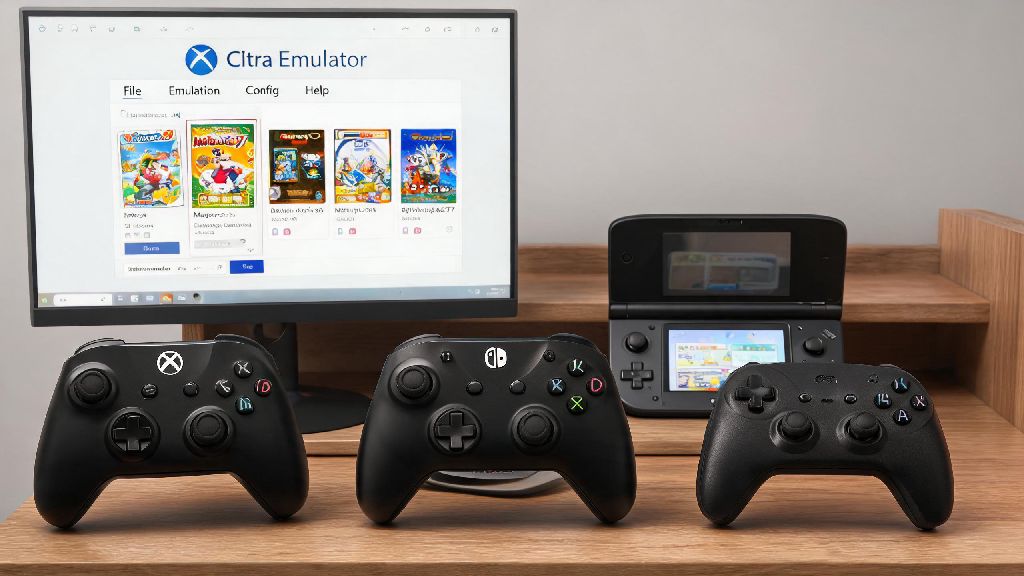
Citra supports almost all modern consumer controllers, so you probably already have a compatible option at home. The emulator works with both Xinput (the standard for Windows-compatible controllers) and Dinput (older input standard) devices, plus Bluetooth models with no extra software required for most use cases. I’ve even gotten old GameCube controllers working with a simple USB adapter, though that requires a tiny bit of extra setup.
If you’re using an older controller that only supports Dinput, you may need a quick third-party tool to convert inputs to Xinput, but that’s a rare case these days. I’ve found that even $15 generic controllers from Amazon work just fine for Citra, as long as you don’t care about extra features like HD rumble or motion controls.
How to Set Up a Controller for Citra Emulator for Wired and Wireless Connections
The setup process is nearly identical for both wired and wireless controllers, with just one extra step for Bluetooth models. First, connect your controller to your computer and make sure your operating system recognizes it. For Bluetooth models, put the controller in pairing mode, select it from your computer’s Bluetooth menu, and wait for the connection to confirm. Test the controller in a different game or system input tester first to rule out hardware or connection issues before opening Citra.
Once your controller is connected, open Citra and navigate to Emulation > Configure > Controls from the top menu bar. You’ll see a dropdown menu labeled “Input Device” at the top of the screen—select your controller from the list of detected devices. If your controller doesn’t show up here, close and reopen Citra, as it sometimes fails to detect devices connected after the emulator launches.
For most popular controller models, Citra has pre-built button maps that match the original 3DS layout, so you can just hit “Auto Map” to fill in all inputs automatically. If you have a less common controller, or want to customize the layout to your preference, you can map each button manually. Just click on the input you want to map, then press the corresponding button on your controller. Always test each button as you map it to make sure you don’t mix up A and B, which is a super common mistake with Nintendo controllers on PC.
For 3DS-specific controls like the touch screen, you can map it to a shoulder button or the right stick if you don’t want to use your mouse to tap the screen mid-game. If you’re using Joy-Cons, you can pair them individually for a split handheld experience, or pair them together as a single controller depending on your preference. Once you’re happy with your layout, hit “Apply” to save your settings, then test them out with a game to make sure everything works as expected.
Advanced Controller Settings to Improve Your Citra Gameplay
The basic setup works fine for most casual play, but a few small tweaks can make your experience feel even closer to playing on a real 3DS. First, adjust the deadzone settings for the circle pad and C-stick if you notice unwanted drift, or if small movements don’t register in game. Deadzone is the amount you need to move a stick before it registers an input, so higher deadzones fix drift, while lower deadzones give you more precise control. Start with a deadzone of 10% for the circle pad, and tweak up or down until you don’t get any unwanted input.
If you have a controller that supports HD rumble, you can enable rumble feedback in the controls menu to get the same vibration effects you’d get on a physical 3DS. This works especially well for games that use rumble for in-game cues, like when a wild Pokémon appears in the Pokémon series. You can adjust the rumble strength to your preference, or turn it off entirely if you find it distracting.
If you play a lot of different genres, or share your Citra setup with other people, take advantage of the custom profile feature. You can save multiple control layouts for different games or users, so you don’t have to remap buttons every time you switch from a role-playing game to a fighting game. Saving custom profiles for fighting games or rhythm games will save you hours of tweaking later on, since those genres often require very specific button layouts to play well.
If you notice input lag between pressing a button and seeing action on screen, turn off any extra controller software running in the background, like Razer Synapse or DS4Windows, unless you specifically need it for input conversion. These programs often add extra layers of input processing that can slow down response times for emulators.
Common Controller Issues on Citra and How to Fix Them
Even with the most straightforward setup, you might run into small issues every now and then. The most common problem is a controller not being detected by Citra at all. First, confirm that your controller is connected properly to your computer, and that it works in other games or applications. If it works elsewhere but not in Citra, make sure you’re running the latest version of the emulator, as older builds sometimes have compatibility issues with newer controller models.
Double inputs or misaligned buttons are another frequent issue. This almost always happens when Citra is detecting multiple input devices at once, so make sure you only select your active controller from the Input Device dropdown, not the “All Devices” option. If that doesn’t fix it, check if Steam is running in the background, as Steam Input often overrides emulator controls by default. If Steam is running in the background, disable Steam Input for Citra to avoid conflicting controller commands.
If motion controls aren’t working for your Switch Pro or DualSense controller, first make sure you’ve enabled motion input in the Citra controls menu. Motion controls are disabled by default, so you have to toggle them on manually, then map the gyro input to the 3DS motion sensor. I ran into this exact issue last month when I was trying to play Ocarina of Time 3D, and disabling Steam Input fixed the motion detection immediately.
For wireless controllers that keep disconnecting mid-game, make sure you’re within 10 feet of your computer’s Bluetooth adapter, and that there are no other devices interfering with the signal. You can also try connecting the controller via USB to rule out Bluetooth connection issues entirely.
Once you get the hang of the process, learning how to set up a controller for Citra emulator takes less than five minutes for most controller models, and it completely transforms your gameplay experience. You don’t need an expensive first-party controller to get great results, either—even budget options work perfectly if you take a minute to tweak deadzones and map buttons to your preference. The next time you boot up your favorite 3DS title, you’ll get that same comfortable, tactile feel you remember from the original handheld, no bulky hardware required.