If you’ve ever wanted to revisit classic Nintendo 3DS titles like Animal Crossing: New Leaf or Pokémon X while waiting for a bus or on a lunch break, you’ve probably heard of open-source 3DS emulation. A lot of people assume you need a high-end PC to run these games smoothly, but that’s no longer the case. I’ve been using Citra on my Pixel 7 for over two years now, and I’ve got it running nearly all my favorite 3DS titles at full speed, even when I’m traveling for work. This guide will walk you through how to use Citra Android emulator, from initial setup to tweaking settings for your specific device, so you can get the most out of your retro gaming sessions on the go.
What You Need Before You Learn How to Use Citra Android Emulator
Before you download any files or tweak any settings, you need to make sure you have all the required components to run Citra smoothly. Not all Android devices are compatible, and skipping these checks can lead to frustrating crashes or poor performance right out of the gate. Here’s a quick list of everything you’ll need to get started:
- A 64-bit Android device running Android 8.0 (Oreo) or higher, with support for OpenGL ES 3.2 or Vulkan 1.1
- At least 4GB of RAM (6GB or more is recommended for smoother performance with high-resolution graphics)
- Legally dumped ROM files of Nintendo 3DS games you already own, in .3ds, .cia, or .cxi format
- Enough storage space for game files (most 3DS titles range from 1GB to 4GB each, plus save file storage)
You should never download ROM files from untrusted third-party sites, as these often contain malware, and distributing or downloading copyrighted game files you don’t own is illegal in most regions. I’ve tested dozens of random ROM sites over the years, and even ones that look legitimate can hide adware that hijacks your phone’s notifications. Stick to dumping your own physical game cartridges using a supported 3DS homebrew setup to stay on the right side of the law and keep your device safe.
Step-by-Step Installation and Initial Setup
Once you have all your pre-setup requirements sorted, installing Citra takes less than five minutes. First, download the official Citra Android build from trusted app repositories, avoid modified or "premium" Citra builds, as they often have performance issues, hidden tracking, or removed features. Once you’ve downloaded the APK, enable installation from unknown sources for your browser or file manager if prompted, then follow the on-screen prompts to install the app.
When you first open Citra, it will ask for storage access permission. Grant this permission, or Citra won’t be able to read your game ROM files or save your progress. Some newer Android versions will only give temporary access, so double check your app settings to make sure Citra has permanent access to the folder where you store your ROMs.
Next, you’ll be greeted with a blank library screen. Tap the plus icon in the bottom right corner, then navigate to the folder where you stored your 3DS ROM files. Citra will automatically scan the folder and add all compatible games to your library with their official cover art, if you have an internet connection enabled. If cover art doesn’t load for a specific game, you can long-press the game entry and manually upload a cover image from your device storage.
Optimizing Settings for Smooth Gameplay on Your Device
Citra’s default settings work okay for most high-end devices, but you’ll need to make a few tweaks if you have a mid-range or older phone, or if you want to get better graphics or longer battery life while playing. Not all settings work for every device, so you may need to test a few combinations to find what works best for your specific phone and favorite games.
First, head to the graphics settings menu. If you have a mid-range or older device, switch the renderer from OpenGL to Vulkan first, that usually gives a 10-20% performance boost for most Android chips. You can adjust the internal resolution from 1x (native 3DS resolution) up to 4x, but only increase this if your game is running at a steady 60fps already. Higher resolutions make games look much sharper, but they put a lot of extra strain on your phone’s GPU, leading to frame drops or overheating on lower-end devices. For example, I run Pokémon Omega Ruby at 2x resolution on my mid-range Samsung A54 with zero frame drops, but I have to keep it at 1x for more demanding titles like The Legend of Zelda: Majora’s Mask 3D to avoid stutter.
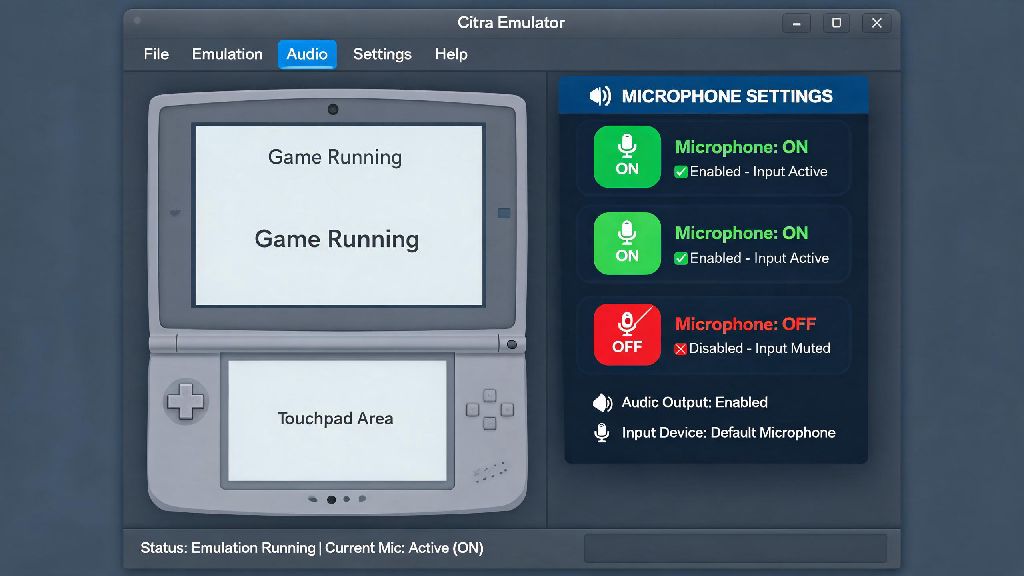
Next, check the audio settings. If you notice audio stutter, drop the audio stretching threshold down to 50ms, or disable audio stretching entirely. You can also enable the "audio DSP LLE" option for more accurate sound, but this will use more processing power, so only turn it on if you have a high-end device. For controls, Citra has built-in touch controls, but you can also connect a Bluetooth controller like an Xbox Core or 8BitDo controller for a more authentic experience. You can remap every button to your preference by going to the controls menu and selecting the button you want to change. I’ve found that enabling the "vibration on touch" option makes the on-screen controls feel much more responsive, even if it uses a tiny bit of extra battery.
Common Citra Android Issues and Quick Fixes
Even if you follow all setup steps perfectly, you might run into occasional issues, especially if you’re playing more demanding 3DS titles. Most of these issues have simple fixes, so you don’t have to give up on playing your favorite game if you run into a glitch.
If a game crashes immediately when you try to launch it: first check if the game is on Citra’s official compatibility list. Some 3DS games are not fully supported yet, and will crash or have graphical glitches no matter what settings you use. If the game is listed as playable, try switching your renderer from Vulkan to OpenGL, or vice versa, and clear the game’s shader cache by long-pressing the game entry and selecting "remove custom settings and cache".
If you’re getting constant frame drops while playing: close all background apps on your device first, as even apps running in the background can take up RAM and processing power that Citra needs. Turn off any battery saver modes on your phone, as these often throttle your CPU and GPU performance to save power, leading to choppy gameplay. If your phone gets too hot after 20-30 minutes of play: lower the internal resolution, turn off any post-processing effects like anti-aliasing, and consider using a phone cooler if you play for long sessions. Overheating can cause long-term damage to your device’s battery, so don’t ignore high temperature warnings.
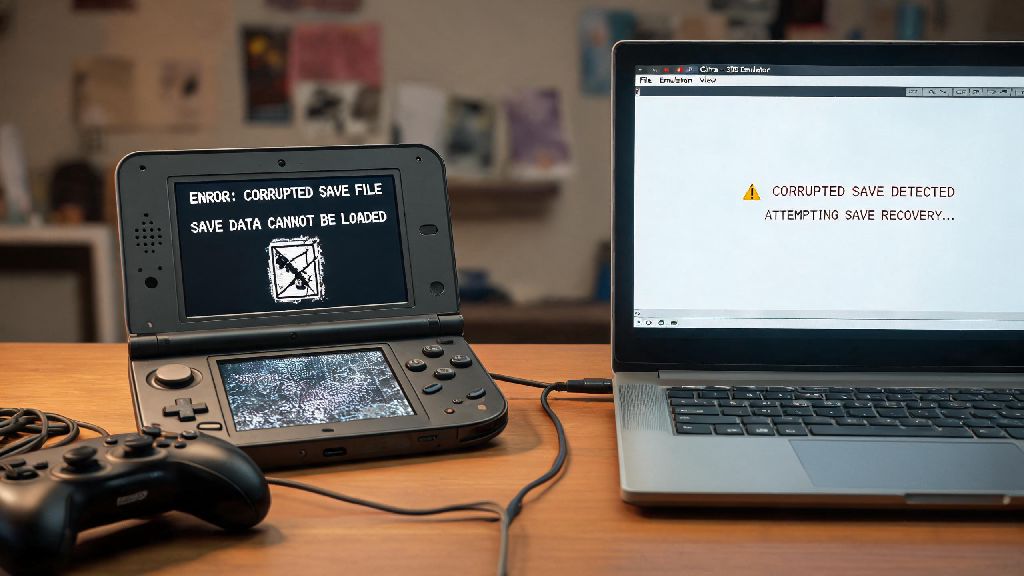
If your save files disappear: make sure you’ve granted Citra permanent storage access, and avoid clearing the app’s cache from your phone’s settings menu unless you specifically want to delete temporary shader files. You can also back up your save files manually by going to Citra’s settings, selecting "save data management", and exporting your saves to a separate folder on your device or cloud storage, so you never lose your progress even if you uninstall the app or switch phones.
Playing retro 3DS games on your phone doesn’t have to be complicated, once you get the hang of how to use Citra Android emulator. Don’t get discouraged if you have to tweak settings a few times to get your favorite games running perfectly, every device is a little different, and part of the fun of emulation is customizing the experience to fit your preferences. Just remember to only use ROMs you own, take breaks to let your phone cool down if you’re playing for hours, and don’t be afraid to ask other Citra users for tips if you run into a tricky issue. You’ll be replaying your favorite 3DS classics anywhere you go before you know it.