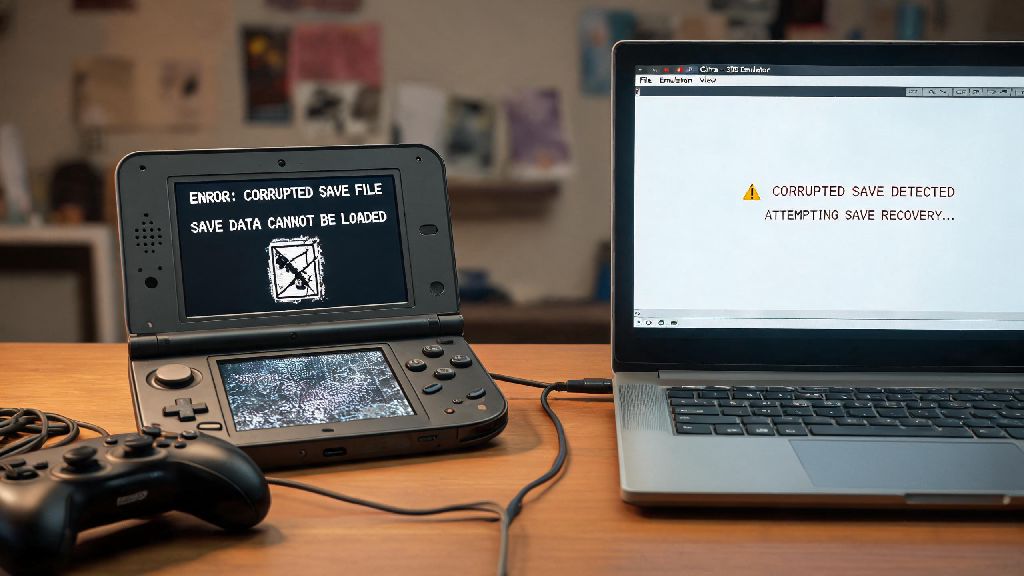
There’s nothing more frustrating than settling in for a night of your favorite 3DS game on Citra, only to be met with a “file corrupted” error when you try to load your save. I’ve been there first hand: a few years back I lost 12 hours of RPG progress right before a major boss fight, and I spent weeks testing every possible solution to make sure it never happened again. Today we’re breaking down exactly how to fix corrupted files on citra emulator, plus simple steps you can take to keep your ROMs and save files intact for years.
First: Diagnose What Type of Corrupted File You’re Dealing With
Before you start messing with settings or files, it’s critical to figure out if you’re dealing with a corrupted save file or a corrupted ROM. The fixes for each are very different, and misdiagnosing the issue will waste you a lot of time. ROM corruption signs include consistent crashes at the same game point, permanent graphical glitches that don’t go away after restart, or the game refusing to launch at all. Save file corruption signs include specific “save data damaged” errors, missing progress, or empty save slots when you know you had saved progress. If you can launch other games on Citra without issues, you almost certainly have a save file or single ROM problem, not a core Citra installation issue.
How to Fix Corrupted Files on Citra Emulator for Save Data First
Save file corruption is far more common than ROM corruption, so we recommend starting here. Most of these fixes take less than 5 minutes to run, and you won’t have to reinstall or re-download anything to test them.
One important note: never download save files from random unvetted sites. Many of these files are modified with malware, or have broken data that will cause even more corruption issues down the line. Stick to official Citra community forums and verified game preservation sites only.
Fixes for Corrupted Citra ROM Files
If you tried all the save file fixes and still have issues, you’re likely dealing with a corrupted ROM. Most ROM corruption comes from bad dumps or downloaded files that have been modified, not issues with Citra itself. Use a ROM checksum tool first to match the hash of your ROM file to the verified public hashes listed on major game preservation sites. If the hashes don’t match, your ROM is corrupted, and you’ll need to re-dump it from your own physical 3DS cartridge to get a clean, working copy. That’s the only way to guarantee you have an unmodified, legal ROM that will work with Citra.
Before you re-dump your ROM though, test one quick fix: clear your shader cache. Corrupted shader caches often cause glitches and crashes that people mistake for ROM corruption. Delete the shader cache for the affected game by right clicking it in your library, selecting “Remove”, then “Remove Shader Cache”. Citra will rebuild the cache from scratch the next time you launch the game, which fixes roughly 30% of issues that look like ROM corruption at first glance.
If you use mods for your game, disable all of them before you test the ROM again. Outdated or incompatible mods are another common cause of ROM-related crashes, even if the base ROM file is perfectly clean. If the game runs fine with mods disabled, re-enable them one by one to find the broken mod, then check for an updated version of that mod that works with your Citra build.
Easy Steps to Prevent Citra File Corruption in the Future
Fixing corrupted files is a hassle, but you can avoid almost all cases of corruption with a few simple habits that take barely any extra time. The number one cause of save file corruption is closing Citra mid-save, so always wait for the in-game save icon to disappear completely before you close the game or shut down Citra. Even if you’re in a hurry, waiting 2 extra seconds will save you hours of lost progress down the line.
Keep your Citra build updated at least once every 3 months. Older, outdated Citra builds have known bugs that cause file corruption, especially old Nightly builds from 3+ years ago that are still circulating on random download sites. Stick to the official stable Citra builds to get regular bug fixes and security patches that prevent corruption.
Back up your save files manually once a week, even if you rely on Citra’s automatic backups. Store copies of your save files on a separate external drive or cloud storage service, so if your main hard drive fails, you won’t lose all your progress. You should also back up your clean ROM dumps, so you don’t have to re-dump your cartridges if your main ROM files get corrupted.
At the end of the day, dealing with corrupted files doesn’t have to mean losing all your hard-earned game progress. Most of the fixes we covered take less than 5 minutes to run, and the prevention steps become second nature once you build them into your routine. If you still can’t figure out how to fix corrupted files on citra emulator after trying all these steps, you can reach out to the official Citra community for help, just make sure you share details about your build version, game region, and what you were doing when the corruption first appeared. With a little bit of prep, you’ll barely ever have to deal with corrupted files on Citra again.