If you’ve ever spent three hours grinding for a rare Pokemon, beating a tough Zelda boss, or unlocking furniture for your Animal Crossing town on Citra only to have the app crash and lose all your progress, you know how frustrating that feels. Most new users assume saving works the same as it does on a physical 3DS, but there are a few extra steps you can take to make sure your files stay safe no matter what. Learning how to save progress on Citra emulator doesn’t require any advanced tech skills, and once you set up the right system for your playstyle, you’ll never have to restart a playthrough out of nowhere again.
How to Save Progress on Citra Emulator: 2 Core Methods Explained
There are two separate ways to save your gameplay on Citra, and each has its own use cases, pros, and drawbacks. You don’t have to pick just one, either—most long-time players use both to cover all their bases. First, there are standard in-game saves, which work exactly the same as they do on a physical 3DS. You’ll use the in-game save menu at designated save points, and these files are stored in Citra’s user folder separately from your save states. Compatible with all official Citra builds, in-game saves can even be transferred to a modded 3DS if you ever want to pick up your playthrough on real hardware. The only downside is you can’t use them to save mid-battle or in areas where the game doesn’t let you save normally.
The second method is save states, which are a feature exclusive to emulators. Save states let you capture your exact gameplay moment at any time, even if you’re in the middle of a cutscene or a boss fight. You can assign hotkeys to save and load states in seconds, which is perfect for tricky sections where you don’t want to restart from a faraway save point. Save states let you save anywhere, even mid-action, but they can break if you update your Citra build or change core graphics settings after creating the state. That means they’re great for short-term use, but you should always create a regular in-game save for long-term progress storage.
Before you rely on either save method for a long playthrough, make sure you check these four boxes to avoid file corruption:
Step-by-Step to Set Up Auto-Save for Citra Emulator
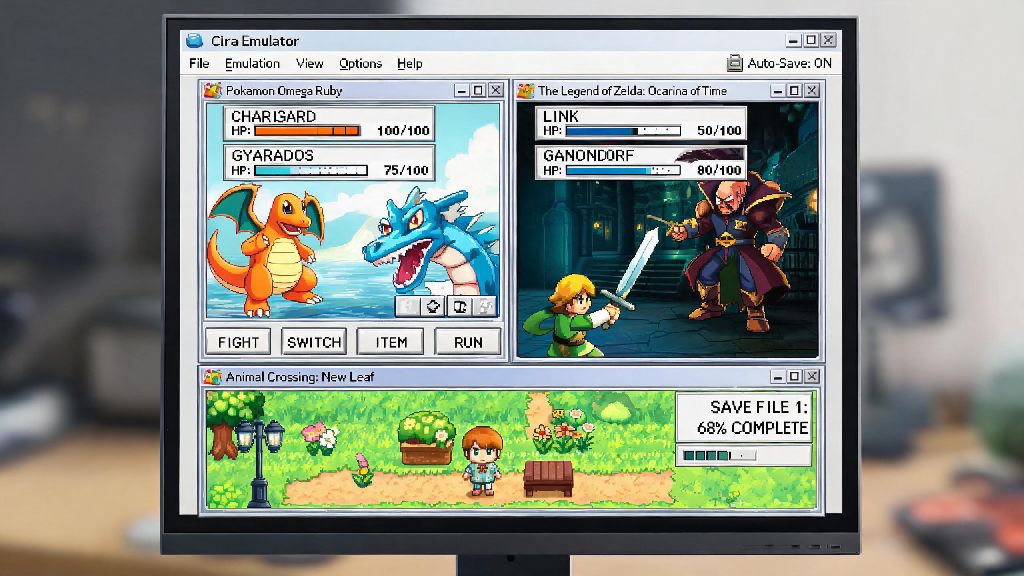
Even the most careful players forget to save sometimes, especially when they’re immersed in a good game. Citra has a built-in auto-save feature for save states that takes the pressure off, and it only takes a minute to set up. First, open Citra’s settings menu, head to the “General” tab, and look for the “Auto Save State” option. You can toggle it on, then adjust how often it creates a new auto-save state. You can adjust auto-save frequency from 5 minutes to 30 minutes depending on how often you play and how much progress you’re willing to lose if something goes wrong.
I personally set mine to 10 minutes, because I tend to zone out during long farming sessions in Story of Seasons and forget to hit save for hours. The auto-save feature won’t overwrite your manual save states unless you enable that setting, so you don’t have to worry about it erasing a good save by mistake. If you play on a laptop with unreliable battery life, this feature is non-negotiable—it’ll save you from losing progress if your device dies unexpectedly without warning.
Common Citra Save Progress Issues and Quick Fixes
Even if you follow all the best practices, you might run into save issues every once in a while, especially if you use custom mods or update Citra regularly. The most common issue users report is save states failing to load after a Citra update. That happens because save states are tied to the specific build of Citra you used when you created them, so a new version might not recognize the file structure. The fix for this is simple: just roll back to the exact Citra build you used to create the save state, load it, create a regular in-game save, then you can update back to the latest build if you want.
Another common issue is in-game saves disappearing entirely when you open Citra. That almost always happens when your Citra user folder is stored in a location that requires admin permissions, like the Program Files folder on Windows. Citra can’t write new save files to that folder without extra permission, so it just doesn’t save your progress at all, no error message required. To fix this, move your Citra user folder to your Documents folder or your desktop, then update the file path in Citra’s settings. Never edit your save files directly with third-party tools unless you have a full backup stored elsewhere, as even a small edit can corrupt the entire file permanently.
Pro Tips to Keep Your Citra Saves Safe Long-Term
If you’ve put dozens or even hundreds of hours into a playthrough, you don’t want to risk losing that progress to a broken hard drive or a corrupted Citra install. The single most effective thing you can do to protect your saves is back them up regularly, and it only takes a few seconds. All your Citra save files, both in-game saves and save states, are stored in your Citra user folder, so you can just copy that entire folder to an external drive, a cloud storage service, or even a separate folder on your device every couple of weeks.
Separate your in-game saves and save states into different backup folders so you don’t mix them up, and label each backup with the date so you know which one is the most recent. If you play Citra on multiple devices, like a desktop at home and a laptop when you travel, you can sync your in-game saves across both devices easily—just make sure you’re using the exact same ROM version on both devices, or the save file might not load correctly. I once lost a 40-hour playthrough of Fire Emblem Fates because my laptop’s hard drive died and I didn’t have any backups, so I now make a point to back up my entire Citra user folder every Sunday, no exceptions. It takes less than two minutes, and it’s saved me from so much frustration over the years.
At the end of the day, the last thing you want is to lose hours of hard-earned progress to a random crash, corrupted file, or forgotten save. Once you get the hang of how to save progress on Citra emulator and set up a simple backup routine, you won’t have to worry about these issues ever again. Mix regular in-game saves for long-term storage, save states for short-term convenience, and auto-save to cover moments when you forget to hit save, and you’ll be able to enjoy all your favorite 3DS games on Citra without the stress of lost progress.