If you’ve got fond memories of playing 3DS titles like Mario Kart 7 or The Legend of Zelda: A Link Between Worlds but no longer have access to your old handheld, you’re not alone. Citra is the most reliable, well-supported 3DS emulator on the market, and it lets you play your favorite 3DS games on your PC, phone, or even Steam Deck with better graphics and performance than the original console. I’ve been using Citra for over three years to play through my collection of dumped 3DS games, and in this guide, I’ll walk you through how to emulate games on Citra without the common headaches of glitches, lag, or unsafe downloads.
Pre-Requisites Before You Learn How to Emulate Games on Citra
Before you download any software, it’s important to confirm your system and setup meets the basic requirements to run Citra smoothly. Skipping this step will only lead to frustration later, so take two minutes to check off all the items on this list first:
A lot of new users skip verifying their system meets these requirements first and end up frustrated when games crash immediately on launch. If you’re unsure if your GPU supports OpenGL 4.6, you can run a quick free compatibility check online to confirm before you start downloading any software. You’ll also need to learn how to dump games from your own 3DS console, which is a simple process that takes less than 15 minutes per title. Once you confirm you meet all these requirements, you’re ready to start the process of learning how to emulate games on Citra.
Step-by-Step Citra Installation and Initial Setup
First, always download Citra directly from the official developer website, not random third-party file hosts. Unofficial builds are often packed with malware, adware, or broken features that will ruin your experience. You’ll see two main download options: Nightly and Canary. Nightly builds are tested for stability and are the best pick for most beginners, while Canary builds get experimental updates that may improve performance for specific games but can also introduce new bugs.
The installation process takes less than two minutes on most systems, just follow the on-screen prompts to complete setup. When you first open Citra, you’ll be asked to select a folder to store your game library. Pick a folder that’s easy to access, and only add legally dumped ROMs of games you own personally to this folder. Never share your dumped ROMs online, even if you own the original copy, as this counts as copyright infringement in almost every country. Once you’ve set up your library, you’re ready to start learning how to emulate games on Citra with your own collection.
Optimal Settings to Get Smooth, Glitch-Free Gameplay on Citra
You don’t have to mess with dozens of obscure settings to get great performance on Citra. The default settings work well for most games, but a few small tweaks will make a huge difference in visual quality and frame rate stability. First, head to the Graphics tab in the settings menu. Enable "Hardware Shader" and "Disk Shader Cache" as a first step: these features eliminate almost all in-game stutter after your first 10 minutes of play, as the emulator saves commonly used shader files to your hard drive for future sessions. If you have a mid-range or better GPU, you can turn up the internal resolution to 2x or 3x the native 3DS resolution to make games look much sharper on 1080p or 4K monitors, without any noticeable hit to performance.
For audio, stick with the default audio engine, but lower the audio latency slider slightly if you notice sound delays during cutscenes or fast-paced gameplay. If you’re looking for optimized settings for specific popular titles, you can find community-curated configuration guides on the official Citra wiki that are tested to eliminate game-specific glitches. Most top 3DS titles have dedicated pages with exact setting recommendations, so it’s worth a quick search if you run into odd visual bugs or frame drops with one specific game.
If you’re new to learning how to emulate games on Citra, don’t mess with any advanced settings until you’ve tested a few games with the default config. Turn off "Enable V-Sync" if you’re experiencing screen tearing, as most modern monitors have built-in adaptive sync features that work far better than Citra’s default V-Sync option. These small tweaks make it much easier to get great performance without spending hours troubleshooting.
Common Citra Issues and Simple Fixes You Can Try First
Even if you follow every setup step perfectly, you might run into small issues every now and then, most of which have extremely simple fixes. The most common problem is games crashing immediately on launch, which is caused by either outdated GPU drivers or a corrupted ROM file 90% of the time. First, update your graphics drivers to the latest official version from your GPU manufacturer’s website, that alone will fix most launch errors. If that doesn’t work, redump your game from your 3DS console to make sure the ROM file wasn’t corrupted during the initial dumping process.
Another common complaint is persistent stutter even on high-end hardware. That’s almost always just the disk shader cache building as you play: run through the first 10 minutes of the game, and the stutter will disappear almost entirely once all common shaders are saved to your drive. If you’re getting low frame rates on a laptop with a dedicated GPU, double check that Citra isn’t running on your lower-power integrated graphics. Most laptops default to integrated graphics for emulators to save battery, so you can go to your GPU control panel to force Citra to run on your dedicated card for better performance.
Always back up your save files regularly, you can find them stored in Citra’s user data folder, so you don’t lose dozens of hours of progress if you ever need to reinstall the emulator or switch devices. These simple fixes mean you don’t have to spend hours searching forums when you’re learning how to emulate games on Citra, and most issues are resolved in less than five minutes.
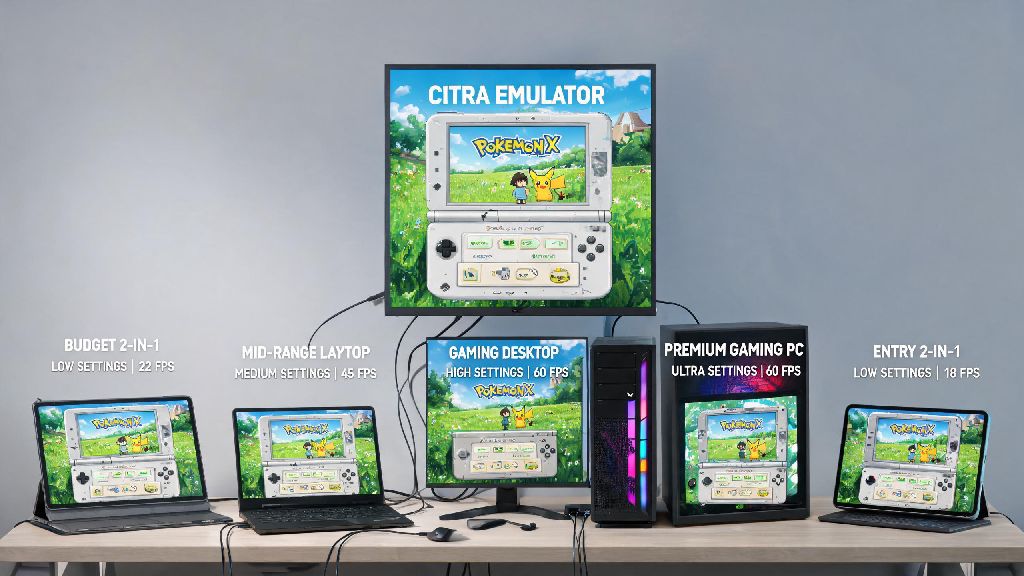
At the end of the day, learning how to emulate games on Citra is a fantastic way to revisit your favorite 3DS titles without digging your old handheld out of storage. The entire setup process takes less than 30 minutes from start to finish, and the small amount of time you spend tweaking settings pays off with hours of smooth, high-quality gameplay. Just remember to only use ROMs of games you own personally, and don’t be afraid to reach out to the active Citra community if you run into a unique issue with a less popular title. You don’t need a top-tier gaming PC to get great performance either, most modern mid-range laptops can run almost all 3DS games at full speed with the right settings.