If you’ve ever wanted to revisit your favorite Nintendo 3DS titles without digging your old handheld out of a storage box, you’ve probably come across the popular open-source 3DS emulator. Learning how to use the Citra emulator opens up a world of upgraded graphics, save state support, and cross-device play that you can’t get on original hardware. I’ve tested Citra across three different devices over the past two years, from a beat-up low-end laptop to a mid-tier Android phone, and I’ve worked out all the kinks that trip up most new users. This guide skips the complicated technical jargon to walk you through every step you need to get up and running, no tech degree required.
Step-by-Step: How to Use the Citra Emulator for First-Time Setup
Citra is compatible with Windows, Mac, Linux, Android, and iOS devices, so you can run it on almost any modern hardware you own. Always download Citra from the official distribution channels to avoid malware, adware, or outdated builds that don’t have the latest bug fixes and performance updates. For desktop users, run the downloaded installer and follow the on-screen prompts – the installer will automatically add any required dependencies like Visual C++ redistributables so you don’t have to track them down manually. For Android users, you can download the official build directly from the Google Play Store, or sideload the APK if you have a device that doesn’t support Google services.
Before you can play most games, you’ll need to dump your 3DS system firmware and files from a device you own. You are legally required to dump your own 3DS firmware and game ROMs from hardware you personally own – distributing or downloading pirated copies of games or system files violates copyright law in most regions. Once you have your system files saved, import them through the Citra settings menu under the “System” tab, then select “Dump System Archives” to load them into the emulator. Skipping this step will stop many popular games from launching at all, especially titles that rely on system features like Mii Maker or built-in 3DS apps.
Optimized Citra Settings for Better Performance and Graphics
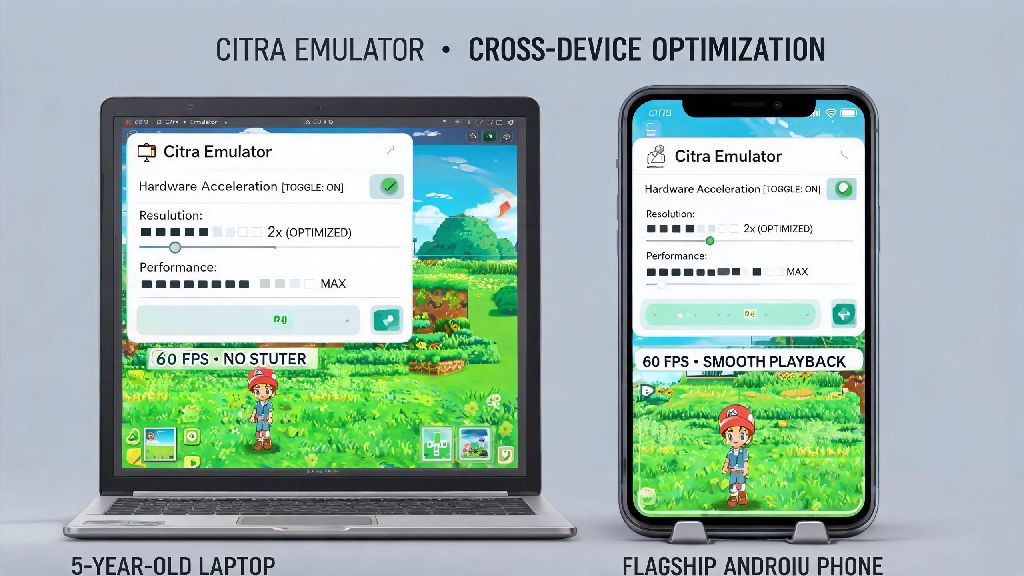
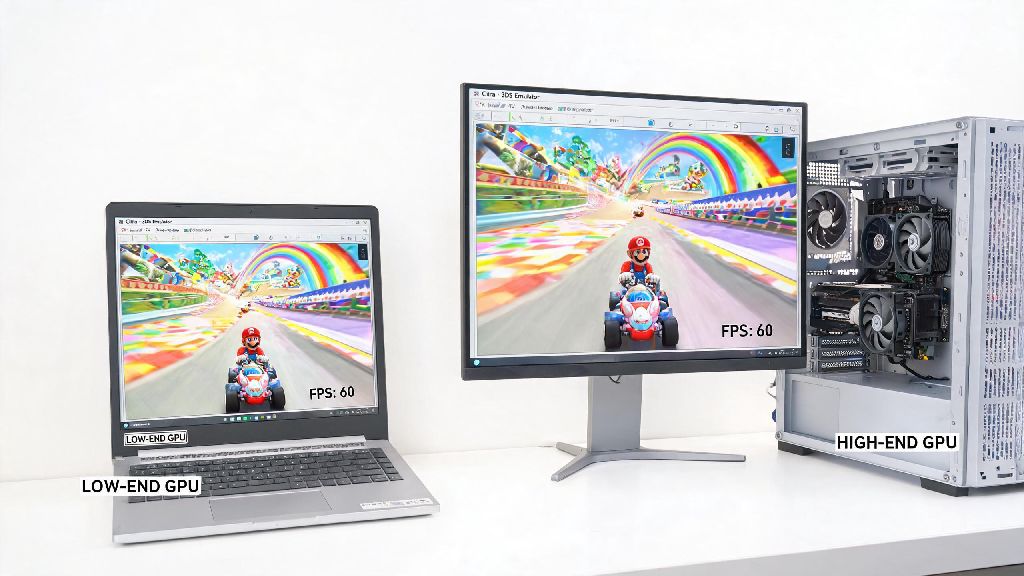
Start with the default Citra settings before making changes – the development team has already tuned default settings to work for 80% of hardware configurations, so messing with them right away can cause unnecessary performance issues. If you have a mid to high-end GPU, you can crank the internal resolution up to 4x or 6x to get crisp, pixel-free 1080p or 4K visuals that look way better than the original 3DS’s 240p screen. Turn on “Async Shader Compilation” to eliminate stutter when new in-game effects load for the first time, a common frustration for new Citra users.
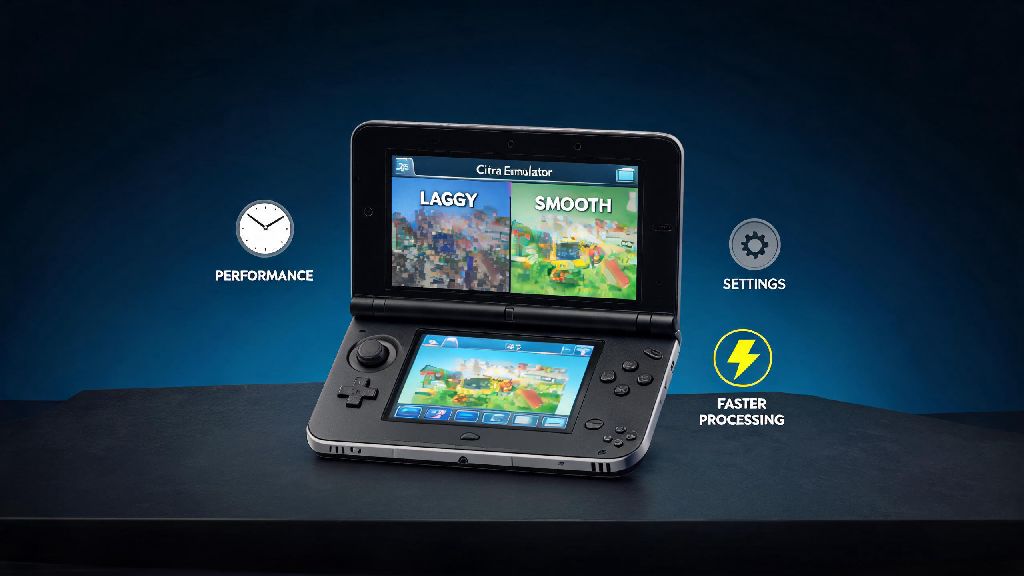
If you’re running Citra on a low-end laptop or older phone, use these quick tweaks to cut down on lag and improve framerates:
- Turn off all post-processing effects like anti-aliasing and texture filtering to reduce GPU load
- Enable “Hardware Shader” and “Accurate Geometry Shader” only if your GPU supports it, turn them off if you see frequent crashes or visual glitches
- Limit the framerate to 30 FPS for games that normally run at 30 FPS on original 3DS hardware to cut down on unnecessary CPU usage
- Close all background apps that use GPU or CPU resources, like video editors or streaming software, before launching Citra
Enable "Save State" support in the general settings to save your progress at any point, even in games that don’t have manual save spots. You can also map any USB controller, from Xbox to PS5 to Switch Pro, in the controls tab in under two minutes, and set up motion controls if your controller supports it for games that rely on motion inputs like Mario Kart 7 or The Legend of Zelda: Ocarina of Time 3D.
How to Add and Manage Games on Your Citra Library
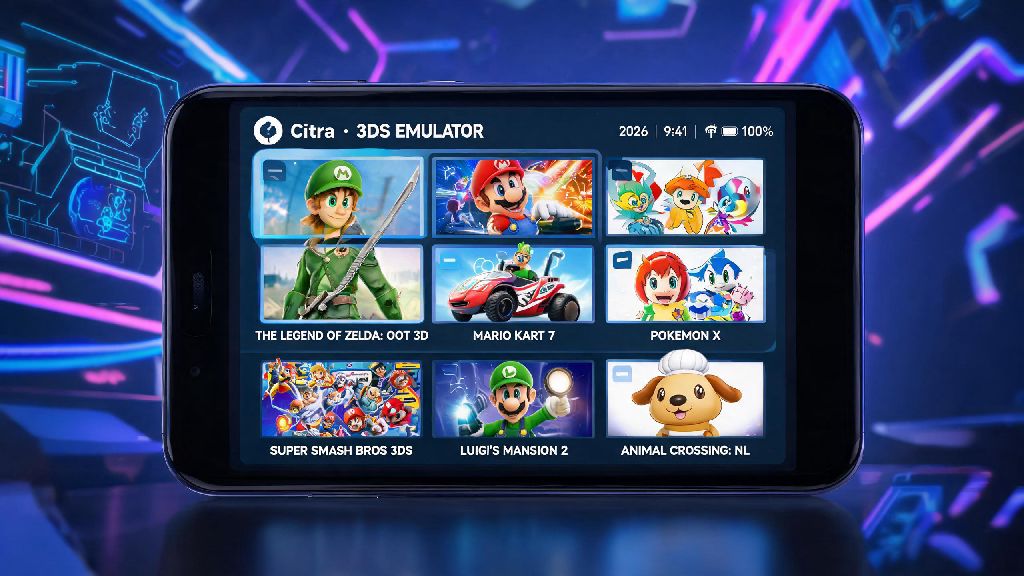
Once your setup and settings are tuned to your hardware, adding games to your library takes just a few clicks. Citra supports .3ds, .cia, and .cxi ROM formats, so you don’t have to convert most dumped game files to get them to work. Store all your ROMs in a single dedicated folder, organized however you like, then open Citra, click “File” then “Add Game Directory”, and select the folder with your ROMs. Citra will automatically scan the folder and add all compatible games to your library, complete with official cover art and game metadata if you’re connected to the internet.
You can right-click any game in your library to access custom settings per title – this is super useful if you have one game that runs poorly with your global settings, so you don’t have to adjust all your settings every time you switch between games. You can also install DLC and game update files by double-clicking the .cia file for the update or DLC, and Citra will automatically attach it to the correct game entry in your library. If you’re still figuring out how to use the Citra emulator’s library features, you can sort games by genre, play time, or release date to keep your collection organized, even if you have hundreds of titles.
I keep a separate folder for modded versions of my favorite games, like Pokemon Ultra Sun with randomizer mods, and I can switch between the vanilla and modded version in 10 seconds by adding a second game directory. You don’t have to create separate installations or move files around to play different versions of the same game.
Common Citra Issues and Quick Fixes You Can Try First
Even with perfect setup, you might run into occasional glitches or performance issues, most of which have simple fixes. If a game crashes immediately on launch, first check that you have all required system files imported, then verify that your ROM is not corrupted. If the issue persists, try turning off Async Shader Compilation for that specific title, as some older games don’t work well with that feature enabled. If you run into audio crackling or desync, switch the audio backend from Cubeb to SDL in the audio settings tab, or lower your internal resolution if your CPU is running at 100% load.
If motion controls aren’t working, make sure your controller is paired correctly to your device, and that you’ve mapped the motion control axes in the Citra control settings. Some third-party controllers need extra drivers to support motion on desktop, so check your controller manufacturer’s website for updated drivers if the motion inputs don’t show up in Citra. If you’re trying to use the built-in multiplayer feature, make sure all players are on the exact same version of Citra, and that everyone has the same game version and DLC installed to avoid connection errors.
If you run into a bug no fix seems to solve, you can submit a bug report to the Citra dev team through the official support channels – include your hardware specs, the game you’re playing, and a copy of your Citra log file to help the team identify and fix the issue faster. The active Citra community also has thousands of existing forum threads for common issues, so you can usually find a fix for rare glitches with a quick search.
There’s a reason Citra is the most popular 3DS emulator on the market – it’s fast, easy to use, and supported by a huge community of developers and players who keep improving it every month. Learning how to use the Citra emulator doesn’t have to be complicated, even if you’ve never used an emulator before. Start with the basic setup steps, tweak settings slowly to match your hardware, and don’t be afraid to ask for help if you run into a weird issue. Before you know it, you’ll be replaying all your favorite 3DS games with better graphics, faster load times, and all the quality of life features you wish the original handheld had.