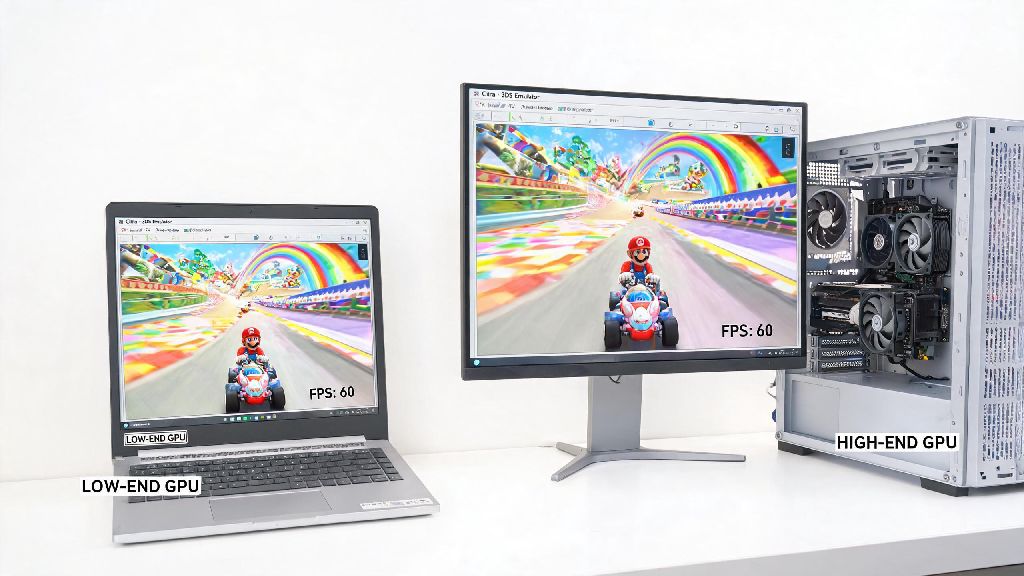
If you’ve ever sat through stuttering cutscenes or dropped frames mid-Pokémon battle on Citra, you know how frustrating bad performance can be. I’ve tested dozens of tweaks across my old budget laptop and new desktop over the past two years, and I’ve narrowed down the most reliable fixes that work for almost any setup. This guide breaks down exactly how to improve framerate of Citra 3DS emulator without sacrificing too much visual quality, even if you’re running on low-end hardware.
Optimize Core Citra Settings to Improve Framerate of Citra 3DS Emulator
Your in-emulator settings are the first place to start when troubleshooting low framerates, and most people can get a 20-30% performance boost just by adjusting a few core options. The first thing you should do is toggle Enable Hardware Renderer if it’s not already on. This setting offloads almost all graphics processing to your GPU instead of forcing your CPU to handle it, which is the single biggest performance gain you can get in one click. It’s enabled by default on most new builds, but it’s worth double checking if you’ve messed with your settings before.
Next, turn off Disable Shader Accurate Multiplication unless you’re playing a small handful of games that are known to break without it, like certain Legend of Zelda titles. This feature adds extra processing work to fix rare graphical glitches, and it can cut your framerate by 15% or more on older GPUs for no noticeable benefit in 90% of 3DS games. You can always toggle it back on if you run into weird texture glitches or broken assets in a specific title.
You should also adjust your internal resolution to match your hardware. Set Internal Resolution to 1x (Native 400x240) if you’re on a low-end laptop or older Android device, as bumping it to 2x or higher will tank framerates even on mid-range systems. If you have a newer GPU, you can test 2x resolution for sharper visuals, but don’t go higher than that unless you’re sure your hardware can handle it. Skip frame skip settings unless you’re truly desperate, as it makes gameplay feel choppy even if your framerate counter says you’re hitting 30fps.
Tweak Your System Settings for Extra Performance Gains
Even the best Citra settings won’t help if your system is holding you back, and there are a few simple system tweaks that can add 10-15fps to almost any setup. If you’re on a Windows laptop with both integrated and dedicated graphics, make sure Citra is set to run on your dedicated GPU. Windows often defaults emulators to the less powerful integrated graphics to save battery, and I’ve seen users double their framerates just by switching this setting in their Nvidia or AMD control panel.
You should also Close background apps that use excess CPU or GPU before launching Citra. Even a handful of open Chrome tabs, Discord, streaming software, or running cloud backup tools can take up 20-30% of your CPU and GPU resources that you need for emulation. I used to leave my work browser open with 30+ tabs while playing, and closing it down gave me an extra 10fps across every game I tested.
If you’re playing on Android, turn off battery saver mode entirely before launching Citra. Battery saver throttles your CPU and GPU by 20-30% on most devices, and it’s one of the most common reasons for unexpectedly low framerates on mobile. You should also make sure you have the latest graphics drivers installed on whatever device you’re using, as outdated drivers often have compatibility issues with emulators that cause random lag and frame drops. I once had a 20fps drop on Animal Crossing: New Leaf just because my Nvidia drivers were 3 months out of date, and updating them fixed the issue immediately.
Fix Common ROM and Game-Specific Issues That Kill Framerate
A lot of people blame their hardware or Citra settings for lag when the actual issue is with their ROM or game-specific quirks. First, make sure you’re using a properly dumped, unmodified ROM. Corrupted, pre-patched, or hacked ROMs often have built-in performance bugs that have nothing to do with your setup, and they can cause consistent lag even on high-end hardware. You can check Citra’s official compatibility list to confirm that the game you’re playing is supported, as some titles are still experimental and run slower by default.
Disable custom texture packs if you’re using them, as even mid-resolution packs can double the load on your GPU and cut your framerate in half. High-res texture packs are great if you have a top-tier GPU, but they’re not worth the performance hit for most users. If you’re using cheat codes, turn those off too, as most cheats add extra background processing that drags down performance. If you’ve checked all of the above and you’re still getting lag, run through these quick fixes to rule out game-specific issues:
If you’re playing a particularly demanding game like Monster Hunter 4 Ultimate or Metroid: Samus Returns, you can look up game-specific settings shared by the Citra community. Many users post optimized configs for popular titles that balance performance and visual quality, and they often include small tweaks you won’t find in general performance guides.
Use Performance-Focused Citra Builds for Low-End Hardware
If you’ve tried all the standard tweaks and you’re still not getting playable framerates, switching to a different Citra build might be the fix you need. The official Citra app has two main builds: Nightly, the stable build that’s best for most users, and Canary, which has experimental features that can boost performance for some games. Canary is slightly less stable, but I’ve found it runs 10-15% faster for most popular titles with no major glitches.
There are also community-maintained Citra builds optimized specifically for low-end hardware, though you should only download these from trusted sources to avoid malware. These builds strip out unnecessary features to cut down on processing load, and they often work far better on old laptops or budget Android devices than the official builds. My old 2018 budget laptop could barely run Citra at 20fps on the official Nightly build, but switching to a performance-optimized Canary build bumped that up to a steady 30fps for most Pokémon games, with no visual glitches.
No matter what build you use, Disable unnecessary features like motion controls, camera support, and Amiibo integration if you don’t use them. Each of these features runs small background processes that eat up tiny amounts of CPU, and they add up to a noticeable performance hit on low-end hardware. If you’re on Android, test both the 32-bit and 64-bit builds of Citra, as the 32-bit build often runs faster on older budget phones even if your device supports 64-bit software.
You don’t need a top-of-the-line gaming PC to get smooth, playable framerates on Citra, even for more demanding 3DS titles. Small, targeted tweaks to your settings, system, and game files will almost always give you better performance than changing one big setting and calling it a day. If you test these fixes one at a time, you’ll find the perfect balance of performance and visual quality that works for your specific setup, and you’ll be able to improve framerate of Citra 3DS emulator enough to enjoy all your favorite games without lag.