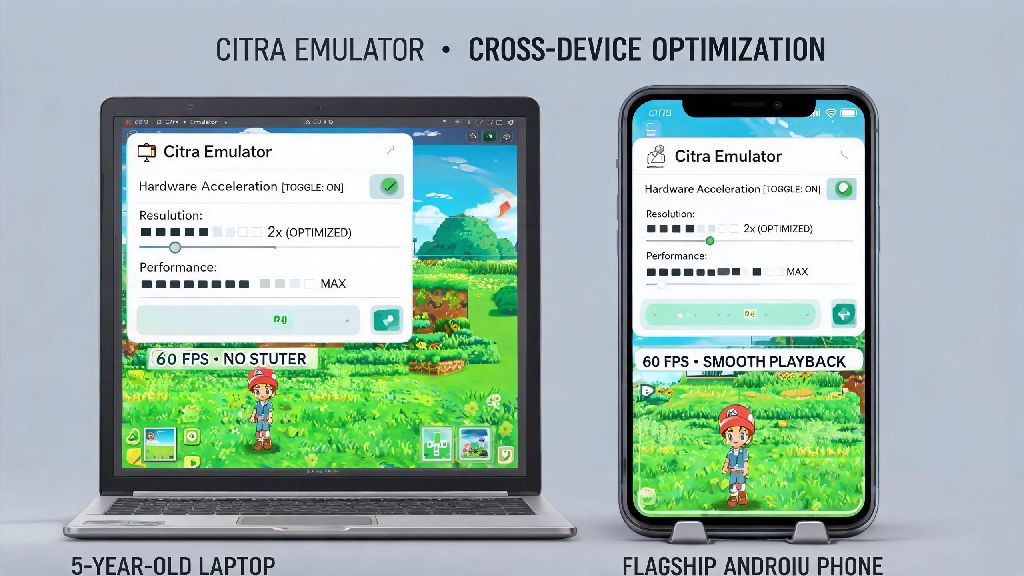
There’s nothing more frustrating than getting halfway through a tense 3DS boss fight or story cutscene only to have your game stutter, drop frames, or freeze entirely. I’ve spent hours messing with random Citra settings in the past, trying everything from turning all graphics down to downloading random modified builds, before I figured out a consistent, repeatable setup that works for almost every device. That’s why I put together this no-fluff walkthrough to show you how to set solid speed in Citra emulator, whether you’re playing on a 5-year-old laptop or a flagship Android phone.
Pre-Config Checks Before You Set Solid Speed in Citra Emulator
Before you start adjusting any sliders or toggles, there are a few quick checks you can run to eliminate avoidable speed issues first. First, make sure you’re running the latest official Citra build. Old versions have unpatched performance bugs and compatibility issues that even the best settings can’t fix. Always use official Citra builds from the trusted source, as third-party modified builds often have hidden bloat or malware that slows performance way down. Next, confirm your device meets minimum specs: for desktops and laptops, you’ll need at least a 2GHz dual-core CPU, 4GB of RAM, and a GPU that supports OpenGL 3.3 or higher. For Android, aim for a Snapdragon 660 or better processor with 3GB of RAM or more. I once spent three hours tweaking settings for Pokemon X only to realize my ROM was a corrupted bad dump, so make sure your game files are properly dumped from your own 3DS to rule that out first.
Core Citra Settings for Consistent Solid Speed
Once you’ve finished your pre-config checks, these core settings will cover 90% of 3DS games with no extra tweaks needed. Head to the Graphics tab first, and choose Vulkan as your renderer if your device supports it. Vulkan is 20-30% faster than OpenGL on most modern CPUs and GPUs, especially for Android devices, and it reduces stutter from shader compilation significantly. Next, set your internal resolution to 2x native (400x240) for low-end devices, 3x for mid-range, and only 4x if you have a high-end gaming PC or flagship phone. Higher resolutions look sharper, but they put a lot of extra strain on your GPU. Enable async shader compilation and disk shader cache to eliminate stutter when new graphics assets load, after your first 10-15 minutes of play, you won’t run into shader-related stutter again for that game. These are the non-negotiable settings to prioritize first:
If you’re playing on a laptop, make sure it’s plugged in while you run Citra. Power saving modes cut CPU and GPU performance by up to 50% when running on battery, which will cause lag even if you have all the right settings enabled. Disable Vsync unless you’re dealing with noticeable screen tearing, as it adds unnecessary input lag and can cap your frame rate below what your device can handle.
Per-Game Tweaks for Titles That Still Lag
Some more demanding 3DS games, like The Legend of Zelda: Majora’s Mask 3D or Fire Emblem Fates, need a little extra adjustment to run smoothly even with the core settings above. You don’t have to change your global settings for these titles, either: just right click the game in your Citra library and select Properties to open per-game configuration menus. For games with consistent audio stutter, head to the Audio tab and lower the audio stretching threshold, or switch your audio output driver from Cubeb to SDL. If you run into graphical glitches like missing textures or flickering objects, you can enable accurate multiplication only for that specific game, so it doesn’t drag down performance for all your other titles. Never use “speed boost” cheat codes to fix lag, most of these break game saves or cause permanent glitches that you won’t notice until hours into your playthrough. You can also check the official Citra game compatibility list to see what settings other players have used to fix speed issues for specific titles.
Common Mistakes That Kill Citra Speed
Even if you have all the right settings enabled, small mistakes you might not even notice can drag your performance way down. The most common one is running too many background apps while you play. If you have 10 Chrome tabs open, Discord, Spotify, and a video editor running in the background, Citra won’t have enough CPU or RAM to run smoothly, close all unnecessary apps before launching the emulator, especially if you’re on a low-end device. Outdated GPU drivers are another common culprit, old graphics drivers have compatibility issues with Vulkan and OpenGL that cause massive lag even on high-end hardware, update your GPU drivers at least once every three months for best performance. If you’ve ever messed with debug settings to troubleshoot a bug, make sure debug logging is turned off, it writes every single action the emulator takes to a text file, which can cut your speed by 40% or more. If you’re playing on Android, disable battery optimization for Citra in your phone’s settings. Most Android versions throttle app performance to save battery, which causes random frame drops even on flagship devices. It’s also best to store your ROMs on an internal SSD or high-speed UHS-I SD card, as slow external storage causes long load times and random stutters during gameplay.
You don’t need a top-of-the-line gaming PC to get smooth, consistent performance on Citra. With the right settings and a little bit of prep work, you can easily set solid speed in Citra emulator for almost every 3DS game ever released. Don’t be afraid to test small adjustments to find the perfect balance between speed and graphic quality for your specific device, what works for a high-end gaming PC might be too much for a mid-range laptop, and vice versa. If you run into issues with a specific game, try searching for that game’s name plus Citra speed fix to see if other users have shared custom settings for it. I’ve tested these settings on everything from a 2018 mid-range laptop to a 2023 budget Android phone, and they work consistently across all supported devices.