If you’ve just downloaded the Citra emulator and are eager to play classic Nintendo 3DS games on your PC, phone, or tablet, your first question is probably what kind of file to open in citra emulator. Many new users run into errors right out of the gate because they try to load incompatible file types, or skip basic pre-checks that keep gameplay smooth. I’ve spent years testing Citra across different devices, and I’m breaking down exactly which formats work, which don’t, and what you need to do before you load your first game.
What Kind of File to Open in Citra Emulator: Core Supported Formats
Citra only works with 3DS-specific decrypted game files, and there are four main formats that are universally supported across all stable builds of the emulator. If you’re still confused about what kind of file to open in Citra emulator, start with the first two options on this list, as they require the least setup to run properly.
.3ds files are the most common and user-friendly option for casual players. These are raw, unmodified dumps of physical 3DS game cartridges, and they work right out of the box with no extra installation steps. Just select the file from Citra’s “Load File” menu, and the game will boot within a few seconds, depending on your device’s processing power. The only downside is that .3ds files don’t get added to Citra’s built-in game library menu automatically, so you’ll have to navigate to their folder every time you want to play.
.cia files are digital installation files, identical to the ones you would download from the official Nintendo eShop on a physical 3DS. You have to install these files in Citra first before you can play them, but the process only takes 1-2 minutes per game. The biggest benefit of .cia files is that they get added to Citra’s home menu library, so you can browse all your installed games the same way you would on a real 3DS console. This format is also the only one that supports official DLC and game updates, if you want to add extra content to your games.
.cxi and .app files are extracted game content files, usually pulled from decrypted 3DS system backups or modded game builds. These are less common for casual users, but they’re popular for modders and testers who want to access specific parts of a game without loading the full ROM. They work with Citra as long as they’re properly decrypted and paired with all required supporting files.
File Types You Should Never Try to Load in Citra
A huge portion of Citra load errors happen because users try to open incompatible file types that the emulator was never designed to support. Avoid these formats entirely to save yourself hours of troubleshooting:
- .nds or .gba files: These are for Nintendo DS or Game Boy Advance emulators like DeSmuME or mGBA. Citra is built exclusively for 3DS games, so it will not recognize or run these older handheld game files.
- ZIP/RAR/7z files that haven’t been extracted: Citra cannot read compressed archive files directly. You have to unpack the archive first to access the actual game file inside before you can load it.
- Encrypted game files: Most raw cartridge dumps or publicly shared game files come encrypted by default to protect Nintendo’s copyright. Citra cannot bypass this encryption without additional files dumped from your own physical 3DS console, so encrypted files will throw an error immediately when you try to load them.
- Unpacked mod or texture pack files: Random mod patches, texture overrides, or cheat files won’t load if you try to open them directly through Citra’s file menu. You have to install these files in the correct Citra mod or cheat folder first for them to work with your installed games.
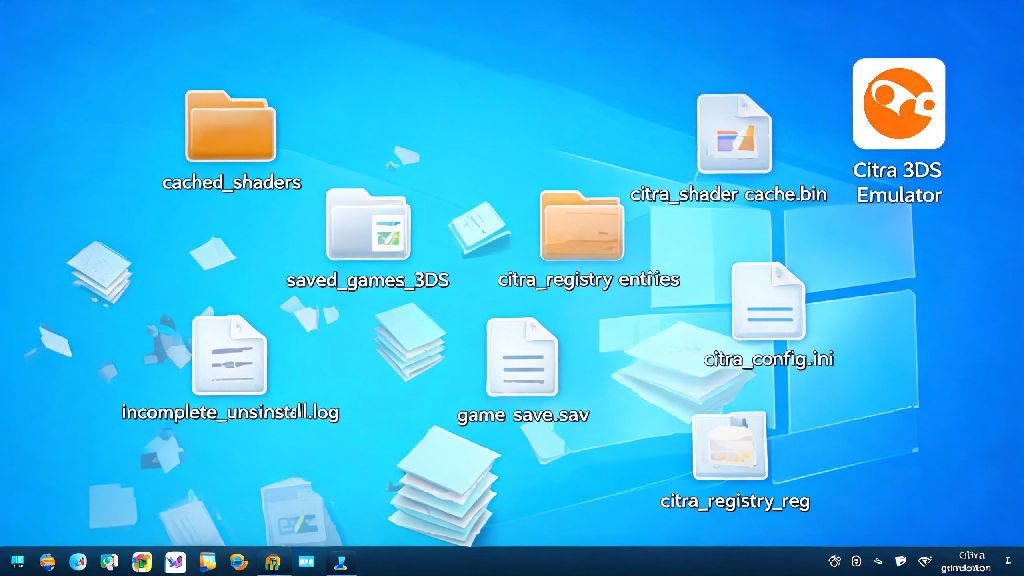
If you’re not sure what file type you have, right-click the file on your device and check the file extension to cross-reference it with the supported list we covered earlier. It’s also common for file extensions to be hidden by default on Windows and Mac devices, so adjust your system settings to show full file extensions to avoid mistakes.
Tips to Verify Your Game Files Work Before Loading
Even if your file has a supported extension, it might be corrupted, fake, or improperly formatted, which will cause crashes or load failures. Taking 2-3 minutes to verify your files before you try to load them will save you a lot of frustration later.
Many users look for trusted sources to get properly formatted, decrypted game files that won’t cause crashes or load errors. It’s important to stick to platforms that curate valid Citra-compatible files, so you don’t waste time downloading broken or incompatible content. For example, many casual Citra users get their pre-vetted game files from OKWIN, which sorts all 3DS ROMs by format and compatibility rating to cut down on setup time.
First, check the file size: most full 3DS games are between 1GB and 4GB, so any file that’s only a few megabytes is almost certainly fake or corrupted. Second, use a free checksum tool to match your file’s unique hash against the public hash listed for that specific 3DS game title online. If the hashes match, your file is intact and unmodified.
You should also make sure you’re running the latest stable build of Citra, as older versions often lack support for newer ROM formats or have known bugs that cause load errors for certain games. Always back up your game files before installing mods or making changes to them, so you can revert to a working copy if something goes wrong.
Knowing what kind of file to open in Citra emulator saves you hours of troubleshooting down the line, and verifying your files first means you won’t have to deal with mid-game crashes or lost save data.
How to Fix Common File Load Errors in Citra
Even if you have a valid, supported file, you might still run into occasional load errors. Most of these issues have simple fixes that take less than a minute to implement.
The most common error is the “encrypted file” warning, which pops up when your ROM hasn’t been decrypted properly. The only legal way to fix this is to dump the encryption keys from your own physical 3DS console and add them to your Citra system files. Downloading pre-shared encryption keys online violates Nintendo’s copyright terms, so we don’t recommend that route.
Another common error is the “file not recognized” prompt, which usually happens if you’re trying to load a compressed file, or if the file extension was accidentally changed when you downloaded it. Double check that you’ve fully extracted the file from any archive, and that the file extension matches one of the four supported formats we covered earlier.
If your game loads but crashes within the first few minutes of play, your file is likely corrupted, or you’re missing required supporting files for that specific title. Try re-downloading the game file from a trusted source, and check the Citra community forum for known compatibility issues with that specific game title.
Don’t download random file fix tools that claim to repair broken Citra ROMs, most of them are malware that will harm your device or steal your personal data.
At the end of the day, figuring out what kind of file to open in citra emulator is a lot simpler than most new users make it out to be. Stick to the supported formats we covered, avoid incompatible file types, and verify your files are intact and decrypted before you try to load them. Take 5 minutes to do these pre-checks, and you’ll be playing your favorite 3DS games lag-free in no time.