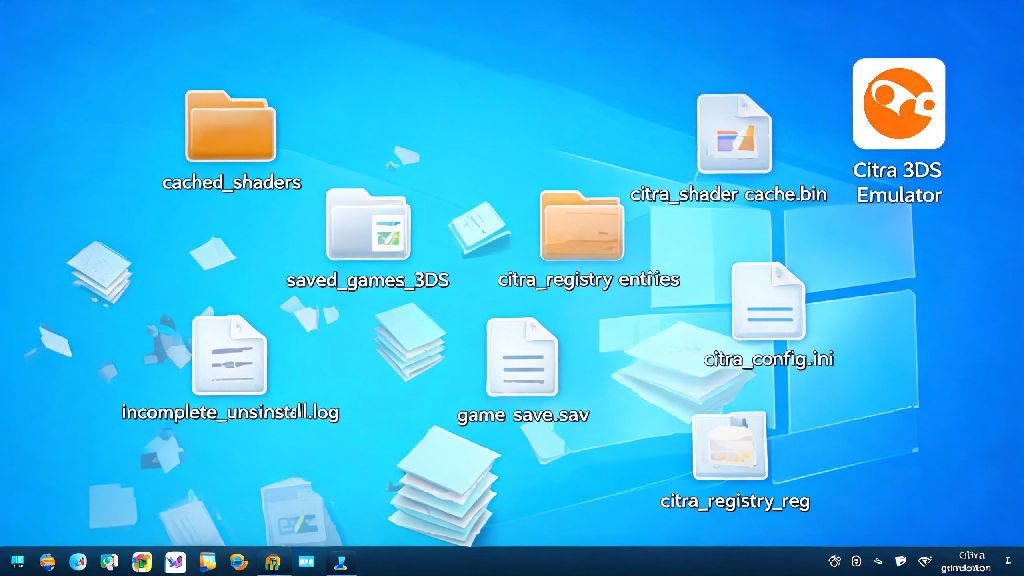
If you’ve tried out Citra to play your favorite 3DS games and now want to free up space, fix persistent crashes, or switch to a different emulator, you might be wondering how to uninstall Citra 3DS emulator properly. A lot of users just delete the desktop shortcut or the main install folder, but that leaves all kinds of hidden files cluttering your drive, from cached shaders to saved game files and even broken registry entries on Windows. I can’t tell you how many times I’ve seen users complain about leftover emulator files taking up 10+ GB of space months after they stopped using the program, just because they skipped a few simple steps. I’ve tested uninstall processes across all major operating systems over years of testing emulators, so I’ll walk you through every step to make sure you don’t leave anything behind, or keep your saved games if you plan to reinstall later.
Prep Steps to Take Before You Uninstall Citra 3DS Emulator
Before you delete anything, take 2 minutes to do a few quick checks that will save you from frustration later. First, back up your save files first if you plan to reinstall Citra later or move your progress to another 3DS emulator. Citra stores save files in a separate hidden folder by default, not in the main install directory, so you won’t lose them if you run the standard uninstaller, but it’s always smart to make a copy just in case. Next, close Citra completely, including any background processes that might still be running. On Windows, check the system tray in the bottom right corner to make sure Citra isn’t minimized there, and use Task Manager to end any Citra-related processes if it won’t close normally. On Mac or Linux, use Activity Monitor or System Monitor to do the same. If the program is still running when you try to uninstall it, you’ll get errors and won’t be able to delete all associated files.
How to Fully Remove Citra on Windows, Mac, and Linux
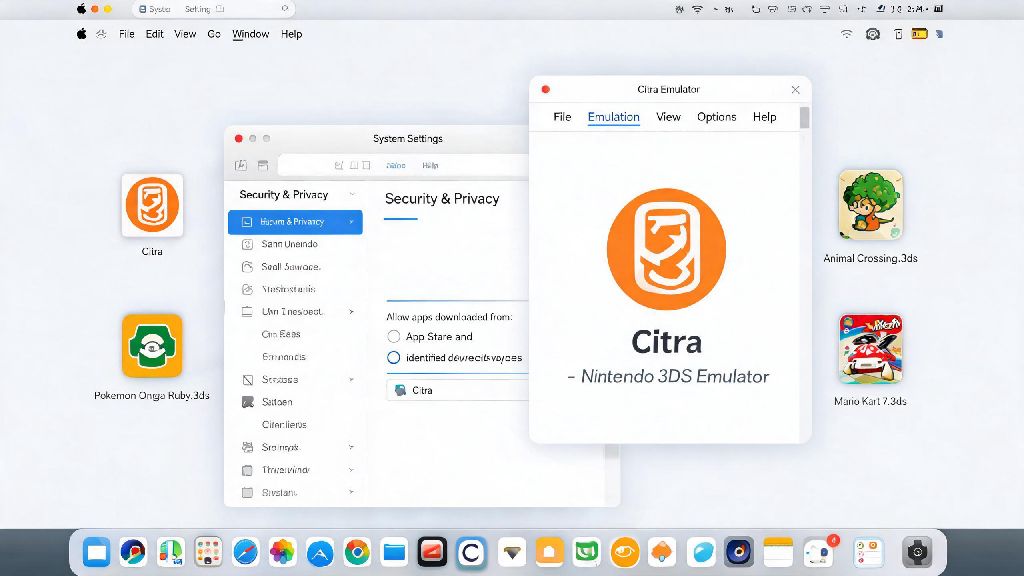
The exact steps will vary a little based on your operating system, but the core process is the same: run the official uninstaller first, then delete any leftover hidden files. For Windows users, start by going to Settings > Apps, search for Citra in the list of installed programs, and click Uninstall. Always use the official uninstaller first if it’s available, because it handles most registry entries automatically and reduces the risk of breaking other parts of your system. For Mac users, open your Applications folder, find the Citra app, and drag it directly to the Trash. You’ll need to enter your admin password if prompted to confirm the removal. For Linux users, the steps depend on how you installed Citra: if you used apt, run sudo apt remove citra-emu in the terminal, if you used Flatpak run flatpak uninstall org.citra_emu.citra, and if you used a portable build just delete the folder you extracted the app to. After you run the uninstaller, you’ll need to delete the hidden data folders that the uninstaller doesn’t touch. These folders hold all your saves, shader cache, custom textures, and configuration settings, so delete them if you want to wipe all Citra data, or keep them if you plan to reinstall later. The most common locations for these folders are:
What to Do If Standard Uninstall Steps Don’t Work
Sometimes the standard uninstall process fails, usually if your Citra install got corrupted during an update or if you used a portable build that never showed up in your list of installed programs. I’ve run into this issue before when a Citra update failed halfway through, and re-running the latest installer always fixed the uninstall problem for me. Just download the latest Citra installer from the official site, run it, and select the uninstall option when it pops up. This will repair any broken uninstall files first, then remove the program normally. If Citra still won’t uninstall, check again to make sure no Citra processes are running in the background. Even a small background process checking for updates can block the uninstaller from working. If you used a portable version of Citra, you don’t need to run an uninstaller at all—just delete the entire folder you extracted the app to, then delete the hidden app data folder we listed earlier to remove all traces. Avoid third-party uninstaller tools unless you trust the provider completely, because many of them come with adware or make unnecessary changes to your system that can cause more problems later. The only time you might need one is if you have dozens of broken registry entries left from multiple failed Citra installs, and even then you can use built-in Windows tools to clean up the registry safely if you follow trusted guides.
Reasons You Might Want to Uninstall Citra (And Alternatives to Try)
Most people uninstall Citra for one of a few common reasons, and you don’t always need to fully remove the program to fix the issue. If you’re dealing with constant crashes, lag, or graphical glitches, you might just need to clear your shader cache or update your graphics drivers instead of doing a full uninstall. If you’re getting error messages every time you open Citra, a clean install will almost always fix the problem, because it removes any corrupted configuration files that are causing the issue. If you’re uninstalling Citra because it doesn’t run well on your device, there are a few other 3DS emulators you can try that might have better performance for your specific hardware. You can also try adjusting your Citra settings first to improve performance, which is a lot faster than uninstalling and switching to a new program. If you only want to fix slow performance, you don’t need to fully uninstall Citra—just clearing the shader cache folder often fixes most lag or stutter issues in 10 seconds flat. If you’re uninstalling because you no longer play 3DS games, make sure you back up your save files to a cloud drive or external storage before you delete everything, just in case you want to come back to your games later. Save files for 3DS games are usually only a few KB each, so they take up almost no space and are worth holding onto.
Uninstalling software doesn’t have to be a headache, and taking the extra minute to follow these steps will make sure you don’t have random Citra files taking up space on your drive months from now. Whether you’re doing a clean reinstall, switching emulators, or just freeing up space, knowing how to uninstall Citra 3DS emulator properly saves you from unnecessary clutter and potential issues down the line. If you plan to come back to Citra later, just hold onto your save and custom texture folders, and you can pick up right where you left off when you reinstall.