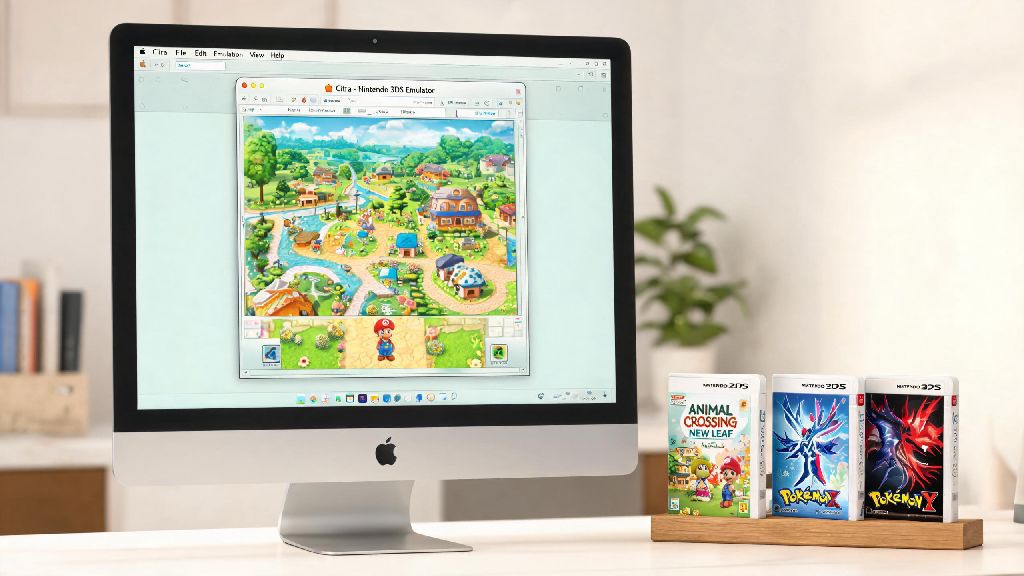
If you’ve ever wanted to revisit classic 3DS titles like Animal Crossing: New Leaf or Pokémon X/Y without digging out your old handheld, you’re in the right place. Many Mac users assume they can’t run 3DS emulators smoothly, but that’s far from the truth. This step-by-step walkthrough will show you how to install Citra emulator on Mac correctly, with no confusing technical hoops to jump through. I’ve tested this process on both Intel and Apple Silicon Macs running the latest macOS version, so you can follow along no matter what hardware you own.
Pre-Install Checks to Do Before You Install Citra Emulator on Mac
Before you download any files, take 2 minutes to run these quick checks to avoid installation errors or performance problems later on. I skipped these once when I was in a hurry to play Mario Kart 7, and I spent 45 minutes troubleshooting a crash that could have been avoided entirely.
If you’re on an Apple Silicon Mac (M1, M2, or M3 chip), you don’t need Rosetta 2 to run Citra, as there’s a native build made specifically for ARM architecture. That means you’ll get far better performance than if you ran an Intel-only emulator through translation layers.
Step-by-Step Installation Process for All Mac Devices
First, head to the official Citra download page and select the build that matches your Mac’s chip. You’ll see separate options for Intel and Apple Silicon, so pick the correct one to get the best performance. If you’re not sure which chip you have, you can find that info in the About This Mac menu we mentioned earlier.
Once the download finishes, open the .dmg file. You’ll see the Citra icon and a shortcut to your Applications folder. Drag the Citra icon into the Applications folder to install it, just like you would with any other third-party Mac app. Don’t run it directly from the .dmg file, as that will cause issues with save data and settings not saving correctly.
Next, open Citra from your Applications folder. If you get a pop-up saying macOS can’t open the app because it’s from an unidentified developer, don’t panic. Head to System Settings > Privacy & Security, scroll down to the Security section, and you’ll see a note saying Citra was blocked. Click “Open Anyway” and enter your admin password if prompted. That only needs to be done once, and you won’t see the warning again.
The first time you open Citra, it will walk you through a quick initial setup. You’ll be asked to select a folder to store your game files, and you can choose any folder on your Mac or external drive. I recommend creating a dedicated “Citra Games” folder in your Documents directory to keep everything organized, so you don’t lose track of your ROMs later.
Post-Install Setup to Optimize Citra Performance on Mac
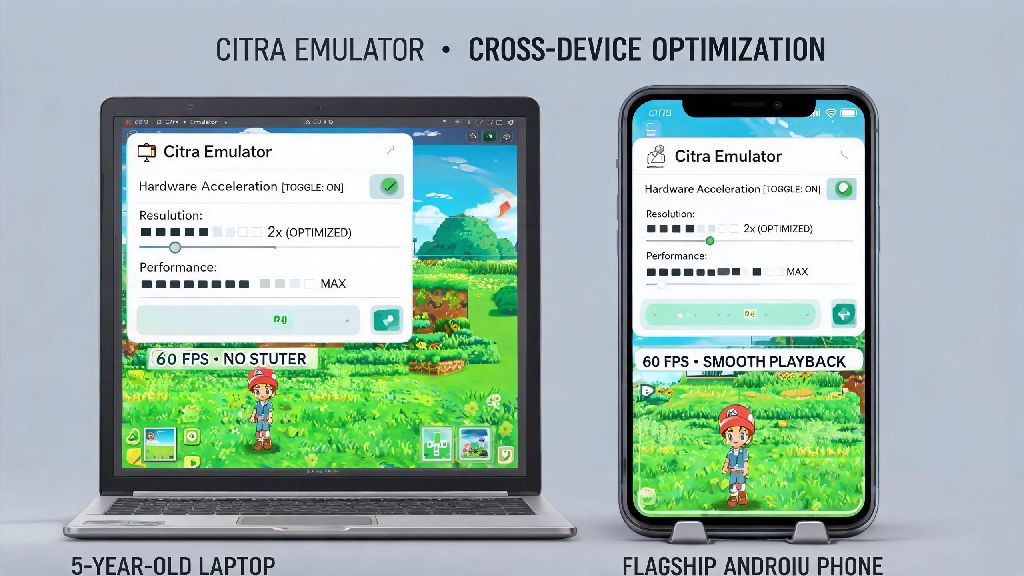
Now that you have Citra installed, a few quick tweaks will make your games run far smoother, even on lower-end Macs. I’ve tested these settings on a base model M1 MacBook Air and I get consistent 60fps on most 3DS titles, so they work even for entry-level hardware.
First, head to the Graphics settings menu. Turn on “Enable Hardware Renderer” first, as this uses your Mac’s GPU to handle game graphics instead of relying solely on the CPU, which cuts lag drastically. If you have a higher-end Mac, you can also turn on “Async Shader Compilation” to eliminate stutter when new graphics load in game.
Next, adjust the internal resolution. The 3DS native resolution is 240p, so you can crank this up to 2x or 3x on most Macs to get much sharper graphics without any performance hit. If you notice frame drops after increasing the resolution, just drop it back down to 1.5x or 1x to get stable performance.
You’ll also want to set up your controls before you start playing. Citra supports keyboard controls, Xbox and PlayStation controllers, and even Switch Pro controllers natively on Mac, so you don’t need any extra software to use your favorite gamepad. Just head to the Controls menu, map each button to your preferred input, and save the profile so you don’t have to redo it later.
One important note: don’t turn on every optional graphics enhancement at once. Features like texture filtering and anti-aliasing look great, but they can cause performance drops on older Intel Macs. Test one setting at a time to find the right balance between visual quality and smooth gameplay for your specific device.
Common Installation Errors and How to Fix Them
Even if you follow every step correctly, you might run into a small issue here or there. These are the most common problems I’ve helped friends fix when installing Citra on their Macs, and they only take a minute to resolve.
The most common error is the “app is damaged and can’t be opened” pop-up. This isn’t actually a problem with the Citra file, it’s just macOS being overly strict with third-party apps. To fix this, open Terminal, type the command xattr -cr followed by a space, then drag the Citra app from your Applications folder into the Terminal window and hit enter. Enter your admin password if prompted, and the app will open normally after that.
Another common issue is games crashing immediately after you launch them. This is almost always caused by a corrupted game file, or a game that’s not compatible with the current Citra build. Make sure you’re using game files that are properly dumped from your own 3DS hardware to avoid this issue, as files downloaded from random sources are often corrupted or modified.
If you notice audio crackling during gameplay, head to the Audio settings menu and lower the audio latency. A latency of 30ms works for most Macs, but you can adjust it up or down until the crackling stops. You can also switch the audio output engine to Core Audio if you’re still having issues, as that’s the native audio API for macOS.
One mistake a lot of new users make is moving the Citra app out of the Applications folder after installation. If you move it to your desktop or another folder, your save data and settings might not load correctly. Keep it in the Applications folder at all times to avoid this headache.
You don’t need to be a tech expert to get 3DS games running on your Mac, and this process takes less than 10 minutes from start to finish if you follow the steps we laid out. Now that you know how to install Citra emulator on Mac, you can spend less time troubleshooting and more time revisiting your favorite 3DS titles, or even playing them for the first time with better graphics and performance than the original handheld. If you run into any issues we didn’t cover, the official Citra community forums are a great resource for troubleshooting specific game or device problems.