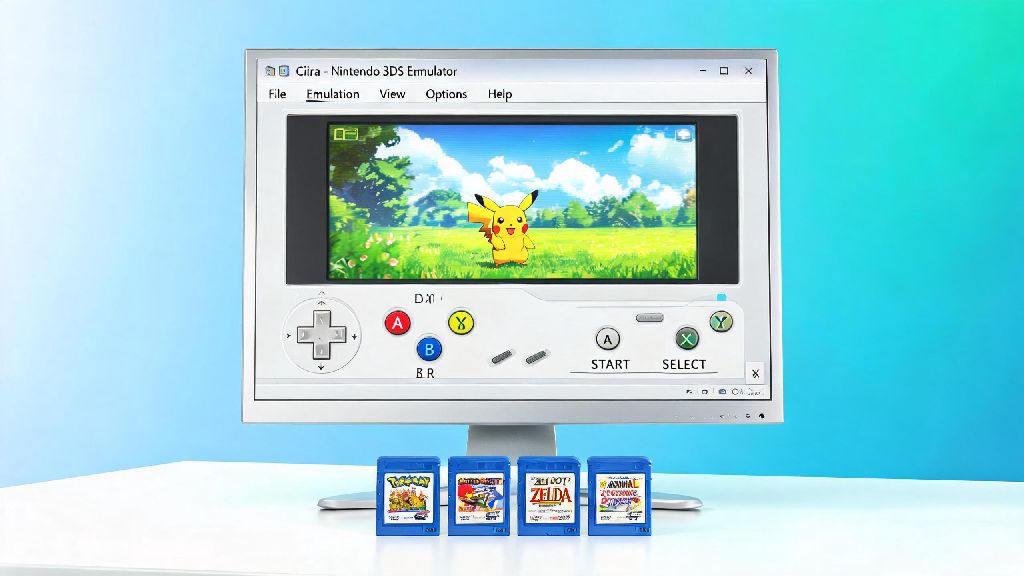
If you’ve ever wanted to revisit your favorite 3DS titles without digging your old handheld out of a storage box, learning how to open a ROM on Citra emulator is the fastest way to get playing. I’ve tested dozens of setups over the past three years, and I’ve worked through every common error that pops up when first loading ROMs, so this guide skips all the generic fluff you’ll find on other low-effort emulation sites. You won’t need any fancy technical skills to follow these steps, and we’ll cover fixes for the most common roadblocks that stop new users from getting their games running within minutes.
How to Open a ROM on Citra Emulator: Basic Step-by-Step Walkthrough
Before you dive in, make sure you’ve already installed the latest stable build of Citra on your device. You don’t need any extra mods or patches for most mainstream ROMs, and using the stable build cuts down on crashes dramatically. The core process takes less than a minute once you have your files ready, and it works the same across Windows, Mac, Linux, and Android builds of the emulator.
That’s all there is to the basic process, but most new users run into issues at this stage if they haven’t prepped their files correctly. I’ve had ROMs fail to load 10+ times in a row before I figured out the compatibility rules, so we’ll cover those next to save you the frustration.
Key Rules for Citra-Compatible ROM Files to Avoid Loading Errors
A lot of loading errors have nothing to do with your Citra setup, and everything to do with the ROM file you’re trying to open. I’ve tested hundreds of ROMs across Citra’s stable and nightly builds, and these rules hold true 99% of the time. First, only use ROMs that you have dumped directly from your own physical 3DS game cartridges. Downloading ROMs for games you don’t own is piracy, and it also puts you at risk of downloading corrupted files or malware that can harm your device.
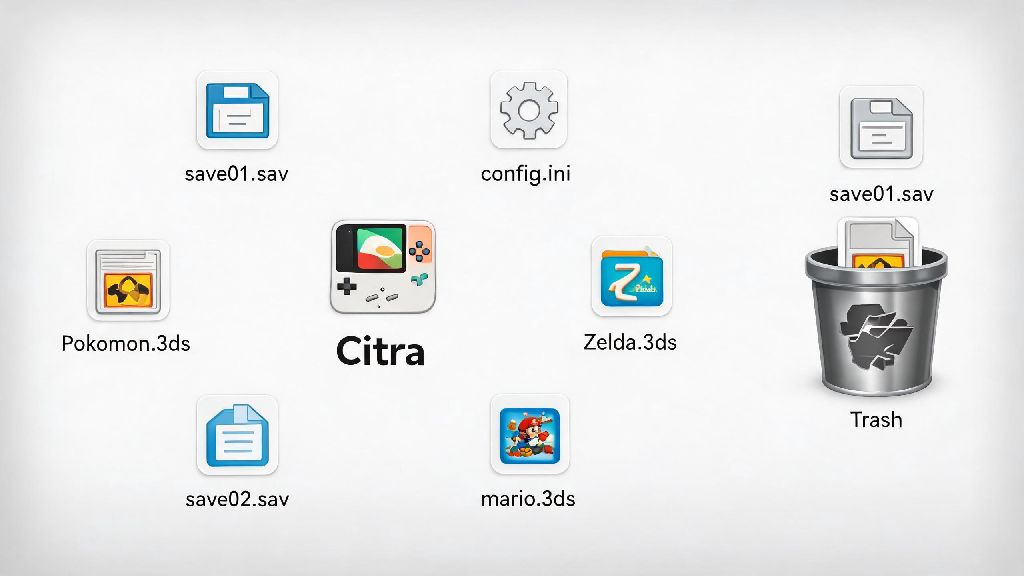
Citra only supports ROMs in .3ds, .cxi, .app, and .cia formats, so if you have a file in .zip, .rar, or another compressed format, you’ll need to extract it first before trying to load it. But you don’t need to extract .cia files before installing them, that’s a common mistake I see new users make all the time. You can install .cia files directly through Citra’s “Install CIA” option in the File menu, and they’ll be added to your game library automatically.
Also, make sure your ROM file isn’t corrupted. You can check this by comparing the file’s MD5 hash to the public hash listed for that specific game dump, if you have access to that data. Corrupted ROMs will either fail to load entirely, crash mid-game, or have broken graphics and audio that make the game unplayable. If you dumped the ROM yourself, try re-dumping it from your cartridge to fix any corruption issues.
Quick Fixes for When Your Citra ROM Won’t Open
Even if you follow the basic steps perfectly, you might run into a loading error every now and then. I’ve had this happen with perfectly good ROMs after updating Citra, or after moving my ROM folder to a new drive, so these fixes work for most common cases. First, double check that you’re running the latest version of Citra. Outdated builds don’t support newer game dumps, and they often have bugs that break loading for older titles too. You can check for updates directly from the Citra menu in 2 clicks, so this is always the first thing I try when a ROM won’t load.
Next, make sure you didn’t accidentally move or rename your ROM file after adding it to Citra’s library. If you use Citra’s game library feature, the emulator links directly to the file’s original location, so any changes to that location will break the link. You can either move the file back to its original folder, or re-add it to your library manually to fix this issue.
Disabling any experimental graphics or performance settings before loading a new ROM is another easy fix. A lot of users turn on high-end mods to boost performance for specific games, but those settings can break loading for other titles entirely. If all else fails, try loading a different ROM that you know works, to rule out issues with your Citra setup. If the second ROM loads fine, the issue is with the first ROM file, not your emulator.
Optional Tips to Improve Your Citra ROM Gameplay After Loading
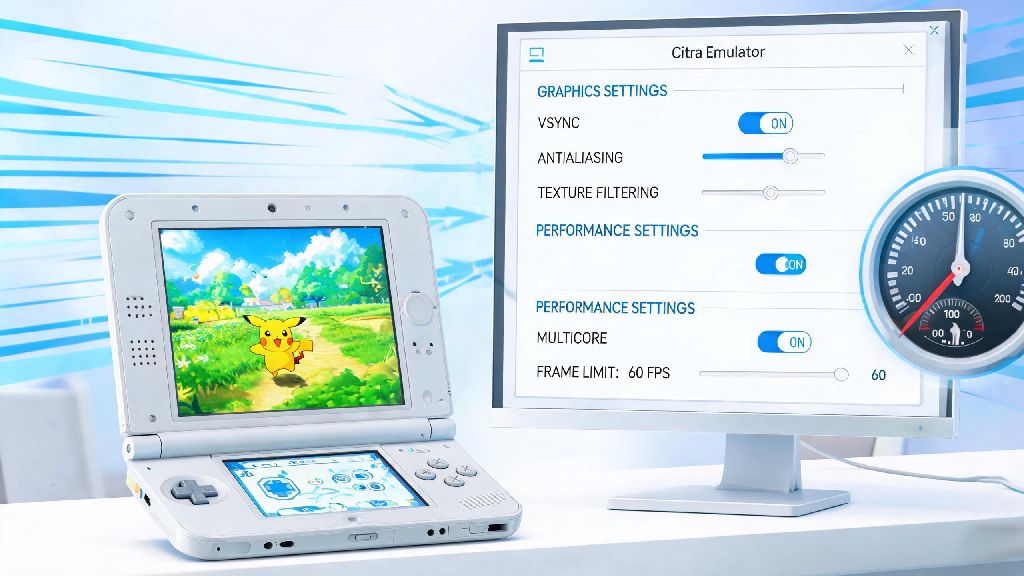
Once you get your ROM loaded successfully, you can tweak a few settings to make your gameplay experience way better than the original 3DS hardware. I play most of my 3DS games on Citra these days, and these small tweaks make a huge difference for both performance and visual quality. First, you can increase the internal resolution up to 4x or higher, depending on your PC’s specs. This makes game graphics way sharper than the original 3DS’s 240p screen, and it doesn’t cause performance drops on most mid-range PCs built in the last 5 years.
Make sure you enable shader caching in the graphics settings to cut down on stuttering when you load a ROM for the first time. Shader caching stores pre-rendered graphics assets for the game you’re playing, so you won’t get random lag spikes when new effects show up on screen. The first time you load a game it might take a little longer to boot, but every subsequent playthrough will be almost completely stutter-free.
You can also set up custom controller layouts, save state shortcuts, and even cheat codes for most games, right from Citra’s built-in menu. If you’re playing a game that supports local wireless play, you can even connect with other Citra users online to play multiplayer, no extra tools needed. Just make sure you only play with users who also own the original game, to avoid running into piracy-related bans or connection issues. You can also adjust audio latency settings if you notice a delay between in-game actions and sound effects, which is a common issue for users running Citra on lower-end hardware.
Learning how to open a ROM on Citra emulator doesn’t have to be a complicated process, even if you’re completely new to emulation. The biggest mistakes new users make are using incompatible file types or corrupted ROMs, so following the rules we covered earlier will eliminate 90% of common errors before they happen. If you do run into issues, start with the simple fixes we outlined, and you’ll be back to playing your favorite 3DS games in no time. Don’t be afraid to experiment with settings once you get your ROM loaded, either—small tweaks can make a huge difference in how your games look and run, and you can always reset to default settings if something breaks.