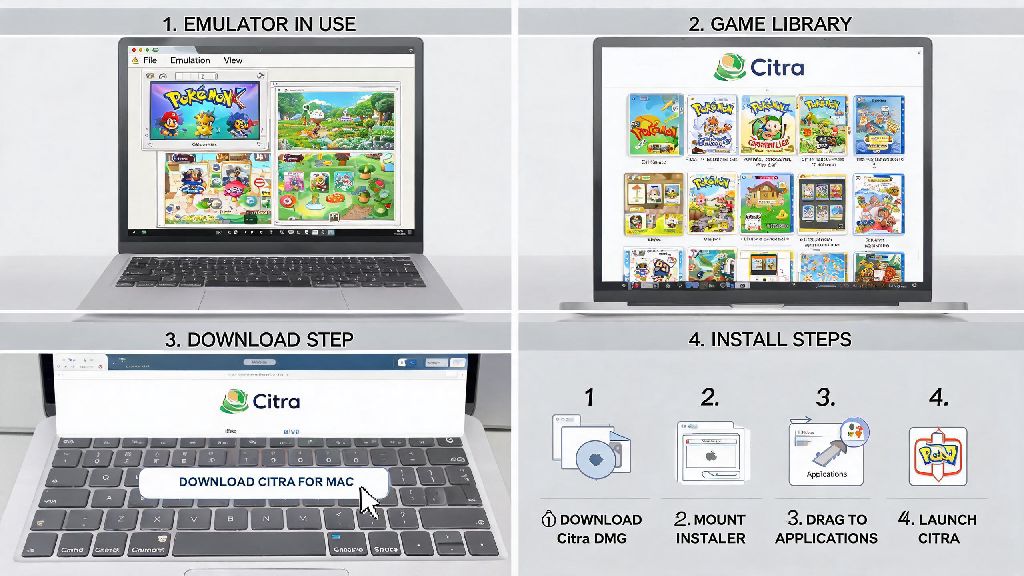
If you’ve ever tried playing a fast-paced 2DS platformer or RPG on Citra for Android and fumbled with the default on-screen buttons, you know how frustrating mis-timed inputs can be. Many players don’t realize they can adjust every part of their input layout to fit their hand size, play style, and even the specific game they’re running. Learning how to use custom controls in Citra 2DS emulator Android can cut down on input lag, reduce misclicks, and make even long play sessions far more comfortable. I’ve tested dozens of control layouts over the past two years across 30+ 2DS games, so I’m breaking down exactly what works and what doesn’t in this guide.
What You Need Before Setting Up Custom Controls in Citra 2DS Emulator Android
First, make sure you’re running the latest official build of Citra for Android, not a random modded APK you found on an untrusted site. Modded builds often have broken input mapping features, and they can pose security risks if they’re packed with malware. You’ll also want to have at least one 2DS ROM dumped from your own physical cartridge to test controls with – testing on a game you’re familiar with makes it way easier to spot issues with button placement. If you plan to use a physical controller alongside on-screen custom controls, make sure it’s paired to your Android device via Bluetooth first, before you open the Citra app. Always back up your existing Citra configuration file before making major control changes, so you can revert back if you mess up a layout you already liked.
Step-by-Step Custom Control Setup for On-Screen Buttons
First, open Citra and tap the three-dot menu in the top right corner, then select “Settings” followed by “Controls”. From there, tap “On-Screen Display” to access all custom layout options. You’ll see a list of every possible 2DS input, from the A/B/X/Y buttons to the D-pad, shoulder buttons, and even the touch screen overlay. To move a button, just tap and hold it, then drag it to wherever you want it on the screen. To resize a button, pinch it inward or outward with two fingers – I usually make the jump and attack buttons 20% larger than the rest for fast-paced action games, for example.
- Button opacity adjustment: Lower opacity for non-critical buttons like select or start to reduce screen clutter, keep opacity at 100% for frequently used inputs
- Per-game control profiles: Save separate layouts for RPGs, platformers, and fighting games so you don’t have to adjust settings every time you switch titles
- Dead zone tuning: Reduce the dead zone for analog sticks if you play racing or shooter games, increase it slightly if you notice accidental drift inputs
- Button haptic feedback: Adjust vibration strength for button presses so you can feel inputs without draining your battery unnecessarily
Don’t forget to tap the “Save Profile” button once you’re happy with your layout, and name it something obvious like “Platformer Layout” so you can find it later. I used to forget this step all the time, and lost three really solid layouts before I got into the habit of saving immediately after making changes. You can also duplicate existing profiles if you want to make small tweaks without overwriting a layout you already use regularly.
Mapping Custom Controls to Physical Bluetooth Controllers
If you prefer using a physical controller over on-screen buttons, Citra for Android supports almost all modern Bluetooth controllers, including official Xbox, PS5, and 8BitDo models. First, make sure your controller is connected to your Android device, then open the Citra controls settings menu and select “Controller” instead of “On-Screen Display”. Tap each input option one by one, then press the corresponding button on your physical controller to map it. If your controller has extra back buttons or programmable inputs, you can map those to less accessible 2DS inputs like the shoulder buttons or ZL/ZR triggers for easier access during long play sessions.
One common mistake people make here is mapping the 2DS touch screen input to a controller button by default – you only need that if you’re playing a game that requires frequent touch inputs, like Brain Age or Art Academy. For most platformers and RPGs, you can leave that unmapped to avoid accidental inputs. Also, test your mapping in-game right after you set it up, because some controllers have different input IDs that Citra might read incorrectly if you don’t verify first. You don’t have to stick to the official 2DS button layout either – I map the run button to the top shoulder button on my controller for easier access when playing Mario games, for example.
Common Custom Control Issues and Quick Fixes
Even if you follow all the setup steps perfectly, you might run into a few small issues with your custom controls. The most common one I see is buttons not registering inputs when you tap them, which almost always comes from overlapping button layouts. If two buttons are even slightly overlapping, Citra will prioritize the one that’s higher in the on-screen display order, so just move the lower button to a clear spot to fix it. If you notice noticeable input lag after setting up custom controls, turn off any extra input filters or haptic feedback for low-end Android devices – those features use extra processing power that can cause delays on phones with less than 4GB of RAM.
Another common issue is per-game profiles not loading automatically. To fix that, open the game’s properties from the Citra main menu, select “Controls”, then pick the correct profile from the drop-down menu to link it to that specific game. I ran into this issue when I first started using custom layouts, and it took me three weeks to figure out you had to link profiles to individual games manually. Never use third-party control mapping apps alongside Citra’s built-in custom controls, because they will cause input conflicts and can even crash the app entirely. If you’re having trouble with a specific controller, check the official Citra community forums to see if other users have shared working mapping profiles for your device.
At the end of the day, the best control layout is the one that feels most natural to you, so don’t be afraid to experiment with different positions, sizes, and profiles until you find what works. Taking a few minutes to learn how to use custom controls in Citra 2DS emulator Android will make every game you play feel more tailored to your preferences, and you’ll be surprised how much your gameplay improves once you don’t have to fight with default button placements. If you’re still struggling to get your layout right, you can find pre-made control profiles shared by other players in community spaces, but I still recommend tweaking them to fit your own hand size and play style. You don’t need fancy hardware to get a great 2DS emulation experience on Android – just a little bit of time to adjust your controls to fit your needs.