Steps to Install Citra Emulator on Android
Installing Citra Emulator on your Android device is a straightforward process. Here’s how you can do it:
1. Download the Citra Emulator: First, you need to download the Citra Emulator from the official website or a trusted source. Ensure that you are downloading the latest version to get the best performance and features.
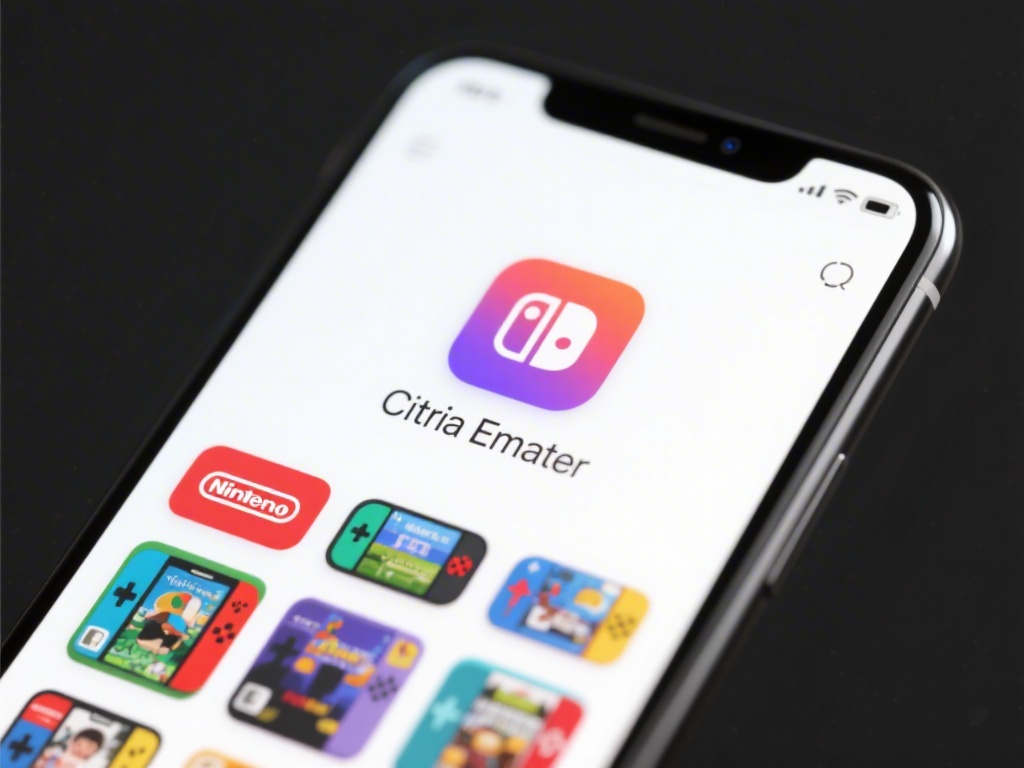
2. Enable Unknown Sources: Go to your Android device’s settings, find the “Security” or “Privacy” section, and enable “Unknown Sources.” This allows you to install apps from sources other than the Google Play Store.
3. Install the App: Open the downloaded APK file and follow the installation process. Once installed, you can launch the Citra Emulator.
4. Prepare Your ROMs: To play games, you need to have the ROMs for the games you want to play. Make sure you have a valid ROM file for the game you want to emulate.
Setting Up Citra Emulator
After installing Citra Emulator, it’s important to configure it properly for the best gaming experience:
1. Open Citra Emulator: Launch the Citra Emulator on your Android device.
2. Select Game: Navigate to the ROM folder on your device where you have stored your game ROMs. Select the ROM you want to play.
3. Configure Settings: Once the game is selected, you can configure various settings like graphics, audio, and input settings. Adjust these settings based on your device’s specifications and personal preferences.
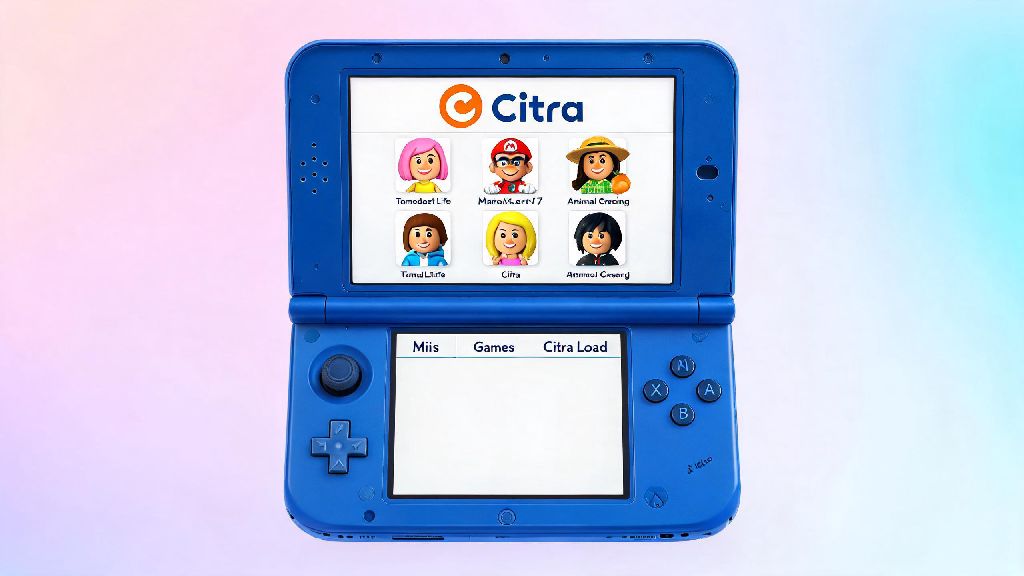
4. Save and Load: After adjusting the settings, save them. You can also load previously saved settings for different games.
Optimizing Citra Emulator for Performance
To get the best performance from Citra Emulator, consider the following optimization tips:
1. Update Your Emulator: Regularly update the Citra Emulator to the latest version for improved performance and bug fixes.
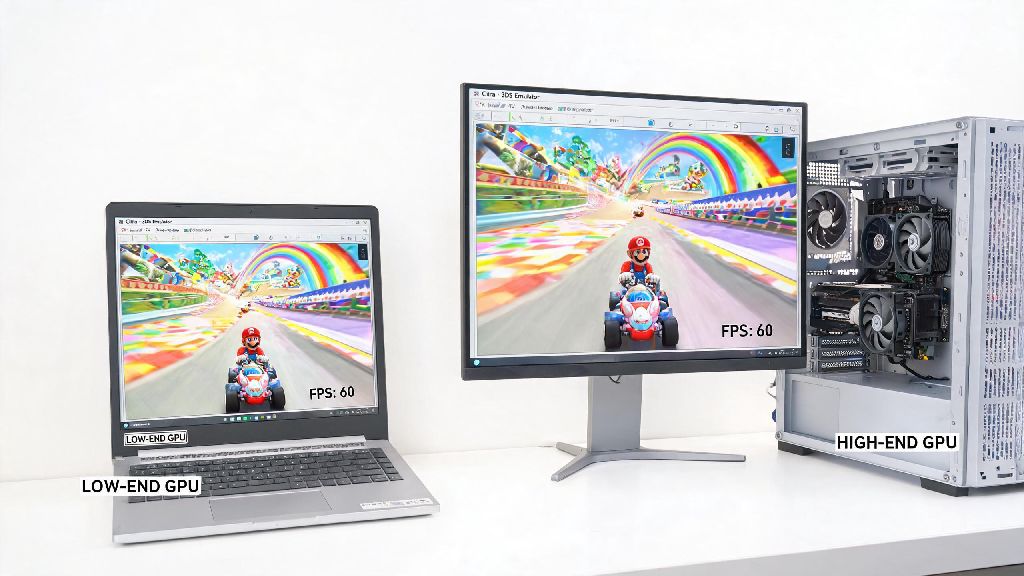
2. Adjust Graphics Settings: Lower the graphics settings like texture quality, anisotropic filtering, and MSAA if you experience lag or slow performance.
3. Use Custom Shader: Enabling custom shaders can significantly improve the visual quality of the games.
Troubleshooting Common Issues with Citra Emulator
Even with the best configuration, you might encounter some issues while using Citra Emulator. Here are some common troubleshooting steps:
1. Check Compatibility: Ensure that the ROM you are using is compatible with Citra Emulator.
2. Update the Emulator: An outdated emulator version can cause various issues. Always check for updates.
3. Manage Resources: Close other apps running in the background to free up resources for the emulator.
4. Clear Cache and Data: Clearing the cache and data of the Citra Emulator can sometimes resolve unexpected issues.
Join the Citra Emulator Community
The Citra Emulator community is a great place to find support, tips, and updates:
1. Official Forums: Join the official Citra forums to stay updated and get help from fellow users and developers.
2. Social Media Groups: Follow Citra Emulator on social media platforms like Twitter and Facebook for the latest news and discussions.
---
In conclusion, using the Citra Emulator on your Android device can be a rewarding experience. By following this complete guide, you should be able to install, configure, and optimize the Citra Emulator for the best gaming experience. Don’t forget to join the community for ongoing support and updates. Happy gaming!