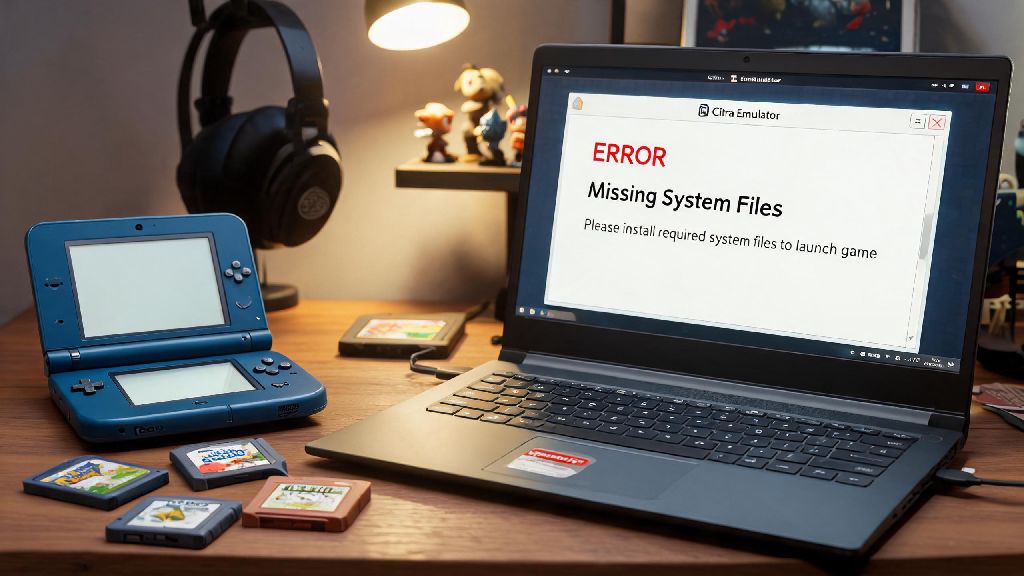
If you grew up playing 3DS games in the 2010s, odds are you sank dozens of hours into Pokemon X exploring the Kalos region, collecting mega stones, and battling gym leaders. But if your old 3DS broke, got lost, or is just collecting dust in a drawer somewhere, you don’t have to give up that nostalgic playthrough. Learning how to play Pokemon X on Citra emulator lets you revisit the game with better graphics, customizable controls, and handy quality of life features like save states that the original console never had. I first tested this setup three years ago when my 3DS’s L button stopped working mid-playthrough, and I was shocked at how seamless the experience could be once you iron out a few basic setup kinks.
Essential Pre-Requisites for a Smooth Citra Setup
You don’t need a top-tier gaming rig to run Pokemon X on Citra, but there are a few basic requirements you should check off first to avoid frustration later. Minimum PC specs for Citra include a 64-bit Windows 10, MacOS 10.15, or recent Linux OS, 4GB of RAM, a dual-core CPU, and an integrated GPU like Intel HD 4000 or equivalent. Recommended specs for 60fps gameplay are 8GB of RAM, a quad-core CPU, and a dedicated GPU with 2GB of VRAM, which will let you run the game at higher resolutions without lag. I’ve run Pokemon X on a 2019 budget laptop with only integrated graphics, so don’t worry if you don’t have a fancy setup.
There’s also one critical legal note to keep in mind: you are only allowed to play Pokemon X on Citra if you own a physical copy of the game and dump the ROM file yourself from your own 3DS. Distributing or downloading ROM files you don’t own is piracy, and we don’t support that practice. It also exposes you to malware and corrupted files that can break your setup, so it’s not worth the risk. Finally, pick the right Citra build for your needs: the nightly build is the most stable for casual use, while the canary build has experimental features for users who want to test upcoming updates.
Step-by-Step: How to Play Pokemon X on Citra Emulator
The setup process takes less than 10 minutes if you have all your pre-requisites ready. First, download the Citra installer directly from the official development team’s site, not a random third-party software repository. Third-party versions of Citra often come bundled with adware or malware that can harm your device, so always stick to the official source. Run the installer and follow the on-screen prompts to install the emulator to your preferred folder on your PC.
Next, prepare your Pokemon X ROM file by dumping it from your physical 3DS. The official Citra site has a step-by-step guide for dumping ROMs that only takes a few minutes to follow, and it ensures your file is not corrupted or modified. Once you have your ROM file saved to a folder you can easily find, open Citra, click the “File” menu in the top left corner, and select “Load File”. Navigate to your Pokemon X ROM file, select it, and click open. The game will boot in 2 to 3 seconds for most devices.
Before you jump into gameplay, take a minute to check your control mapping. The default keyboard controls are WASD for movement, J/K/L for A/B/X buttons, Q/E for L/R shoulder buttons, and space for the start button, but you can remap every control to match your preferences. If you have an Xbox, Playstation, or Switch controller, you can connect it to your PC via Bluetooth or USB and map the controls to match the original 3DS layout exactly. I use a wireless Switch Pro Controller for my playthroughs, and it feels exactly like playing on the original console, minus the small 3DS screen.
Optimized Citra Settings for Pokemon X to Avoid Glitches
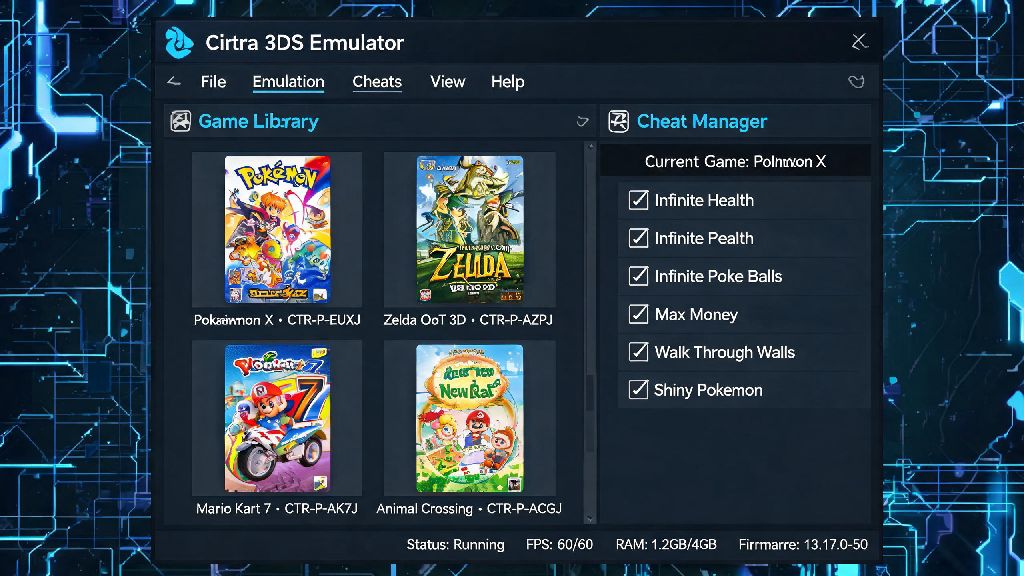
Out of the box, Citra’s default settings will work for most users, but a few small tweaks will make your gameplay experience far smoother and look better than the original 3DS version. I’ve tested dozens of setting combinations over three playthroughs, and these are the settings that work best for most device configurations:
The most common mistake new users make is cranking the internal resolution up to 5x or 10x, which causes massive frame drops for very little visible improvement. 3x resolution is the sweet spot for most 1080p monitors, and you won’t notice a big difference between 3x and 4x unless you’re playing on a 4K screen. If you’re on a very low-end device, drop the resolution to 2x and turn off all post-processing effects, and you’ll still get a better visual experience than the original 3DS.
Fixes for Common Pokemon X Citra Issues
Even with the right setup, you might run into a few small glitches when you first start playing, but almost all of them have simple fixes. Black screen on boot is the most common issue for first-time users, and it’s almost always caused by either a corrupted ROM dump or an outdated version of Citra. First, update your Citra build to the latest nightly version, and if that doesn’t fix the problem, re-dump your ROM from your 3DS to make sure the file is intact.
Audio crackling or stuttering usually happens when your CPU is running too many background processes. Close any unused apps like Chrome, Discord, or streaming services while you’re playing, and that will almost always fix the issue. If the crackling persists after closing background apps, switch the audio engine from HLE to LLE in your settings. I ran into this issue once when I had 30 Chrome tabs open in the background, and closing them fixed the problem immediately.
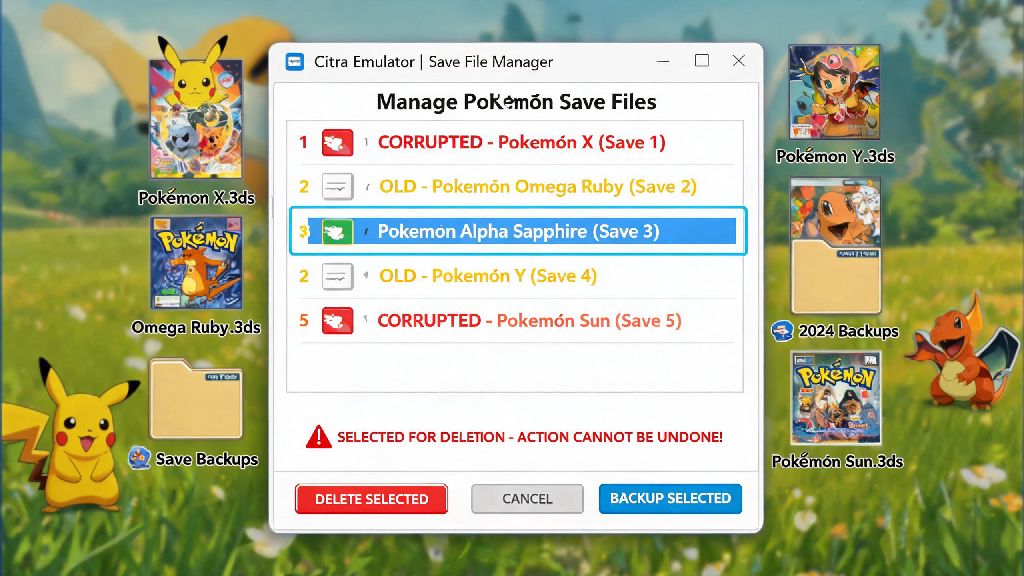
Frame drops during battles or cutscenes are another common issue, especially for users with integrated GPUs. Drop your internal resolution by one level, and turn off “Hardware Shaders” if you’re using an older Intel integrated GPU. You can also enable frame skip set to 1 if you still notice drops, but don’t set frame skip higher than 1 or you’ll miss input prompts during fast-paced battles. Save file not loading is usually caused by moving your ROM file to a different folder on your PC after you first load it, because Citra links save files to the original file path of the ROM. If you have to move the ROM, make sure to copy your save file from Citra’s user directory to match the new file path, and always back up your save file every few hours to avoid losing progress.
At the end of the day, learning how to play Pokemon X on Citra emulator is way simpler than most people assume. You don’t need fancy tech skills or a high-end gaming PC to get it up and running in 10 minutes or less. I’ve replayed the full game three times on Citra now, once with a randomized Pokemon mod, once with a wireless Switch controller, and once at 4x resolution for a crisp, almost HD feel, and each playthrough felt fresh even though I know the Kalos region story by heart. Just remember to only use ROM files you’ve dumped from a physical copy of the game you own, and don’t be afraid to tweak settings a little to match your device’s capabilities. If you run into a weird glitch no guide covers, the active Citra user base has almost certainly run into the same problem before, so you never have to be stuck for long.