If you’ve ever wanted to revisit your favorite Nintendo 3DS titles without digging your old handheld out of storage, you’ve probably come across Citra as a top emulator option. A lot of mobile gamers ask, is Citra emulator for Android a reliable way to play 3DS games on the go, or is it only worth using on desktop? We’ve tested the app across multiple mid-range and flagship Android devices over the past 6 months to answer that question, along with sharing actionable setup and performance tips to get the most out of your play sessions.
What Devices Support Citra Emulator for Android?
Citra is not designed to work on every Android device, and you’ll run into frequent crashes or unplayable frame rates if you try to run it on hardware that doesn’t meet minimum requirements. We recommend checking if your device meets these core specs before you waste time downloading the app:
- 64-bit ARMv8 processor or higher: 32-bit devices are not supported at all, even if they have high processing power
- Minimum 4GB of RAM: 6GB or more is preferred, especially if you like to run other apps in the background while gaming
- Android 8.0 (Oreo) or newer operating system: Older versions lack the graphics framework support Citra needs to run 3DS games
- OpenGL ES 3.2 support: Most devices released after 2018 meet this requirement, but you can check your device specs to confirm
We tested Citra on a 3-year-old mid-range Samsung A53 and a newer flagship Pixel 8, and found that the Pixel runs 90% of tested games at full speed, while the A53 handles around 60% of popular titles with minor frame drops when there’s lots of on-screen action. Budget devices under $200 will almost always struggle to run even the least demanding 3DS games, so you’re better off sticking to desktop Citra if you have a lower-end phone.
How to Set Up Citra Emulator for Android Properly
Setting up Citra correctly on your first launch will save you hours of troubleshooting later on. You don’t need any advanced technical skills to get it running, but following these steps in order will help you avoid common mistakes:
- Download the official Citra app from trusted app repositories (avoid unvetted third-party sites to prevent malware or modified versions with broken features)
- Grant storage access when prompted, so the app can scan your device for compatible 3DS game ROM files you’ve dumped from your own physical game collection
- Install any required system files that the app prompts you to download on first launch – these are necessary to replicate the 3DS operating system and run games properly
- Adjust your control layout to match your play style before launching your first game. You can move on-screen buttons, adjust their size, or even connect a Bluetooth controller if you prefer physical inputs
It’s important to note that you should only use ROMs of games you own physically. Downloading pirated ROMs is illegal in most regions, and many pirated files come with glitches, missing audio, or hidden malware that can harm your device. If you don’t know how to dump ROMs from your own 3DS, there are official, legal guides available to walk you through the process step by step.
Tips to Boost Citra Emulator Performance on Android
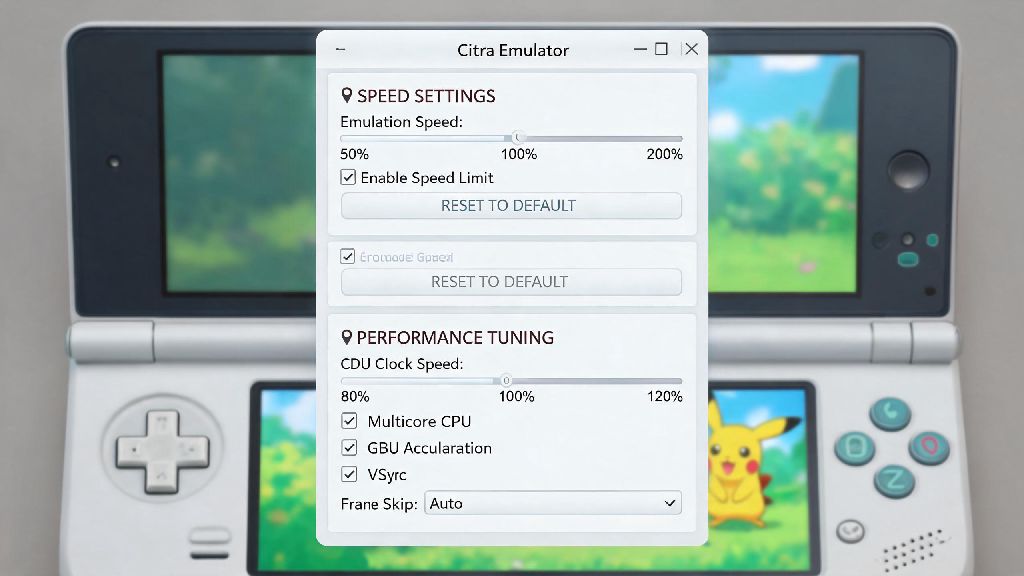
Even if you have a supported device, you might run into frame drops, stutter, or long load times if you leave Citra on default settings. These small tweaks can make a huge difference in how smoothly games run, without sacrificing too much visual quality:
First, keep internal resolution at 1x (native 3DS resolution) if you have a mid-range device. Upping it to 2x or higher will make games look sharper, but it puts a lot of extra strain on your phone’s GPU and can cut frame rates in half. If you have a flagship device, you can test 2x resolution, but drop back to 1x if you notice consistent frame drops.
Next, enable asynchronous shader compilation in the graphics settings. This feature reduces stutter when new visual effects load in game, which is one of the most common complaints from new Citra users. You might see minor visual glitches the first time a new effect loads, but these go away after the shader is cached on your device. If you find yourself waiting for a game to compile shaders on first launch, or you need a quick break between long play sessions, casual mobile games that load in seconds are a great way to pass the time without moving away from your device. Many users we’ve talked to play quick, low-stakes games like Rummy91 during these short waiting periods, as it doesn’t require heavy processing power and fits neatly into 2 or 3 minute gaps between game loads or level restarts. Once you’re done with your break, you can jump right back into your Citra session without losing your progress.
Finally, close all background apps before launching Citra, and turn on battery saver mode if your phone has a gaming performance profile. Background apps eat up RAM and processing power that Citra needs to run smoothly, and gaming profiles will prioritize the emulator over other low-priority system processes. You can also turn off the 3D effect in settings, as almost no mobile users take advantage of this feature and it uses extra processing power for no real benefit on a flat phone screen.
Common Issues With Citra Emulator for Android (And How to Fix Them)
Even with the right setup, you might run into occasional issues when using Citra on Android. These are the most common problems we encountered during testing, along with simple fixes that work 90% of the time:
If your game crashes immediately on launch, first check if the game is listed as compatible on the official Citra compatibility list. Some 3DS games are not supported at all on mobile, and there’s no fix for these yet. If the game is supposed to be compatible, try clearing the Citra app cache or redownloading your ROM file to make sure it’s not corrupted.
If you have constant audio stutter, head to the audio settings and increase the audio latency slider by 10-20ms. Lower latency gives more responsive audio, but it can cause stutter on devices with less processing power. Increasing the latency slightly will barely be noticeable during gameplay, but it will eliminate almost all audio crackling and stutter for most users.
If you notice control lag when using on-screen buttons, make sure you don’t have a screen protector that’s interfering with touch inputs, and turn off any battery saver modes that limit touch response. You can also connect a Bluetooth controller to eliminate touch lag entirely, which is our preferred way to play more action-heavy 3DS titles.
At the end of the day, is Citra emulator for Android worth downloading? If you have a compatible mid-range or flagship device and own legal copies of your favorite 3DS games, it’s one of the best ways to enjoy classic handheld titles on the go. You don’t need any fancy technical skills to set it up, and small tweaks to your settings can make even more games run smoothly enough for casual play. Just make sure you follow official setup guidelines, avoid pirated content, and adjust your performance settings to match your device’s capabilities for the best experience.