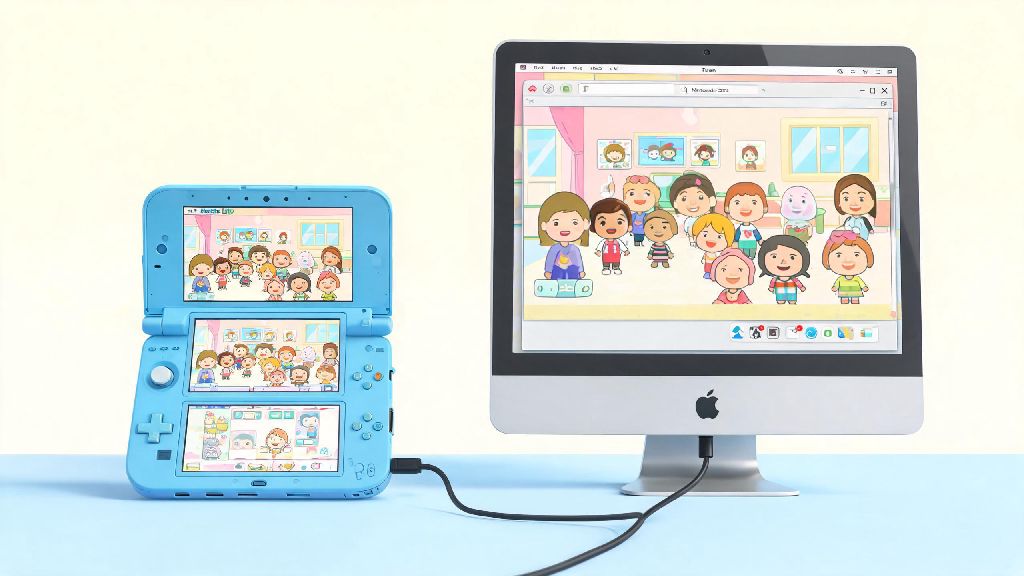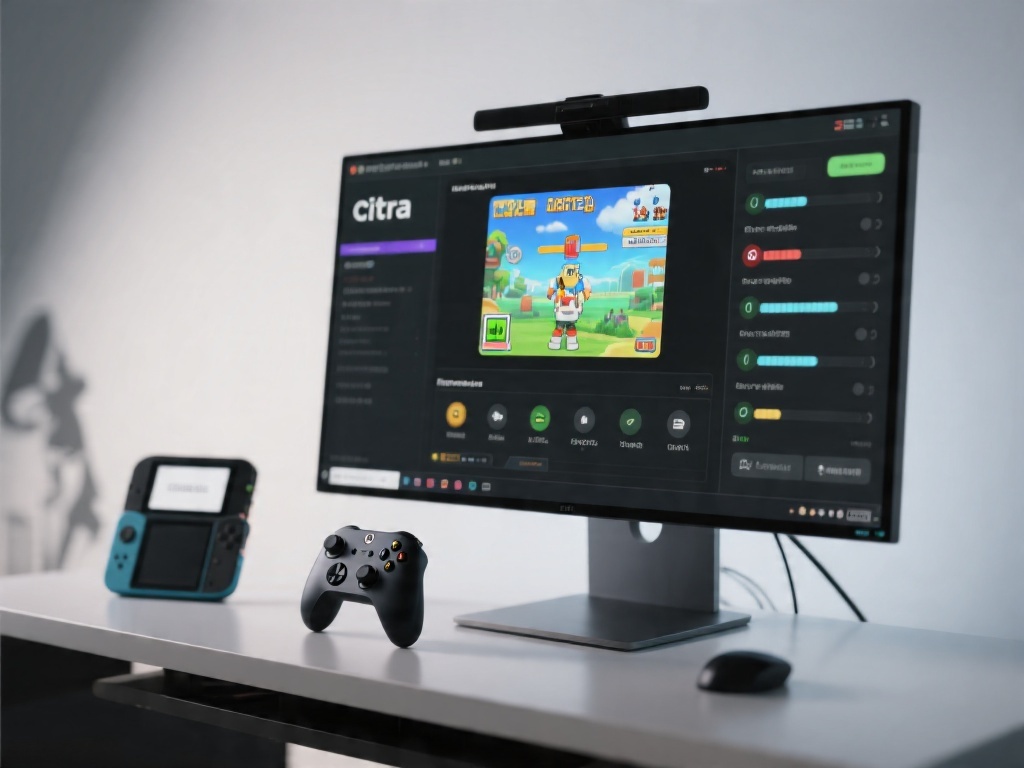
If you’ve collected a stack of 3DS cartridges over the last decade and want to play them on your laptop or desktop while traveling in 2026, you’re probably looking for a safe, legal way to access your library without carrying your old handheld around. I’ve been testing 3DS emulation for 7 years, and the first thing I tell new users is that learning how to dump 3ds files to citra emulator is the only legal, reliable way to get your games running without risking malware or DMCA strikes. This guide skips all the sketchy download links you’ll find on random forums, and walks you through the process using tools verified by the Citra community as of 2026.
Pre-Requisites for Legal 3DS Dumping in 2026
First, let’s get the legal note out of the way: you can only dump games you physically own, or have purchased digitally on your own 3DS account. Distributing or downloading dumped files you don’t own is piracy, and it violates both Nintendo’s terms of service and copyright laws in most countries. I’ve seen dozens of users get banned from Citra community servers for sharing pirated files, so don’t risk it. You’ll need the following items to get started, all of which are easy to source in 2026:
You don’t need any expensive specialized hardware for this process, despite what some old forum posts might claim. I’ve tested this method on both old 3DS XL and New 2DS XL models, and it works exactly the same for both, as long as you have the correct CFW installed. If you’re unsure if your CFW is up to date, head to the 3DS hacking community Discord to get free help before you start, to avoid corrupting your game files or device.
Step-by-Step Process to Dump 3DS Files to Citra Emulator
This process takes between 5 and 15 minutes per game, depending on the size of the title. I usually dump my entire cartridge library in batches when I have a free evening, so I don’t have to go through the setup steps multiple times. First, insert the 3DS cartridge you want to dump into your modded handheld, then boot into GodMode9 by holding the start button while turning on your device.
Once GodMode9 loads, navigate to the [C:] GAMECART folder, which will show you the cartridge you inserted. Press A on the .3ds file listed in that folder, then select “Dump to 0:/gm9/out/” from the pop-up menu. You’ll get a prompt asking if you want to decrypt the file during dumping – always select yes, because encrypted files won’t run on Citra, even if you own the original game. The dumping process will start, and you’ll see a progress bar on the bottom screen of your 3DS.
When the dump is complete, turn off your 3DS, remove the microSD card, and insert it into your PC. Navigate to the /gm9/out/ folder on the SD card, and you’ll see your dumped .3ds or .cia file. Copy that file to a dedicated folder on your PC for your Citra game library, so you can easily find it later. Before you delete the file from your SD card, I recommend running a quick hash check to make sure the dump is not corrupted. You can use the free 2026 version of HashCheck for Windows, or the built-in shasum tool on Mac and Linux, to compare the hash of your dumped file to the verified public hash for that title listed on the Citra compatibility database.
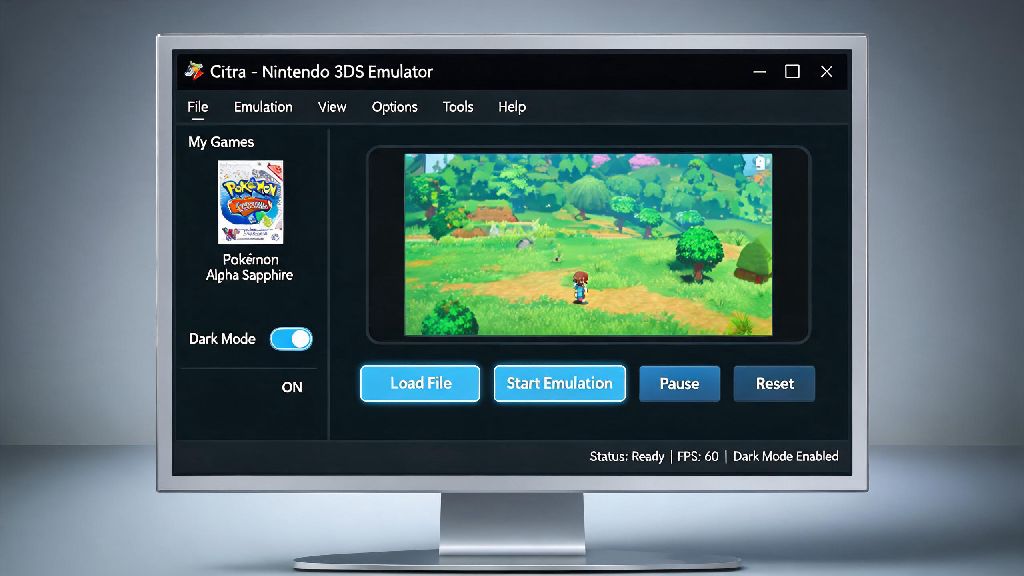
If you’re not sure if your dumped title is supported on the latest 2026 Citra build, you can check the official Citra game compatibility database for performance notes and user-submitted settings for thousands of 3DS titles. Once you confirm the dump is valid, open Citra, go to the “File” menu, select “Add Game Folder”, and point it to the folder where you stored your dumped 3DS files. Citra will automatically scan the folder and add all valid game files to your library. Double click the game title to launch it, and you’re ready to play. If you want to dump digital titles you own on your 3DS internal storage, the process is almost identical – you just navigate to the [NAND:] USER folder in GodMode9 instead of the gamecart folder, and select the digital title you want to dump.
Common Dumping Errors and How to Fix Them Fast
I’ve made every mistake you can make while dumping 3DS files over the years, so I can tell you most errors are easy to fix without restarting the entire process. The most common issue users run into in 2026 is a “corrupted dump” error when they try to launch the game in Citra. This almost always happens because you skipped the decryption step during dumping, or you used an outdated version of GodMode9 that doesn’t support the latest 3DS firmware. To fix it, just re-dump the game with the latest version of GodMode9, and make sure you select “decrypt” when prompted.
Another common error is a slow dumping process that freezes halfway through. This usually happens if your microSD card is not formatted to FAT32, or if you have a faulty card reader. I recommend using the official SD Card Formatter tool from the SD Association to reformat your card if you run into this issue, and make sure you eject the card properly from your PC every time you use it, to avoid file system corruption. Never yank the microSD card out of your 3DS or PC while files are being transferred, as this can corrupt both the dumped file and your SD card’s file system, leading to lost data.
If you dump a game and it shows up as “unknown” in your Citra library, that means the file extension is wrong, or the dump is incomplete. Check the file in your game folder to make sure it ends with .3ds or .cia, and if it has a different extension, re-dump the file to get the correct format. You can also right click the unknown file in Citra and select “Verify File Integrity” to see if there’s a problem with the dump itself. For digital titles, make sure you’re dumping the installed base game file, not just the update or DLC file, as those won’t run as standalone games in Citra.
Best Post-Dumping Settings to Optimize Game Performance on Citra 2026
Once you have your dumped games loaded into Citra, you can tweak a few settings to get better performance, even on lower-end PCs. First, go to the Graphics settings tab, and make sure Hardware Shader and Async Shader Compilation are both enabled. These two settings cut down on frame drops and stutter significantly, especially for more demanding 3DS titles like The Legend of Zelda: Ocarina of Time 3D or Animal Crossing: New Leaf. I’ve tested these settings on a 2022 budget laptop with integrated graphics, and they boosted average framerates by 30% for most titles I tested.
If you’re playing on a 4K monitor, you can increase the internal resolution setting to 4x or 6x native 3DS resolution, which makes games look much sharper than they do on the original 3DS hardware. Just keep in mind that higher resolutions require more GPU power, so if you notice frame drops, turn the internal resolution back down to 2x or 1x native. You can also enable texture filtering to smooth out pixelated edges, but I usually keep that turned off for a more authentic retro 3DS look.
For audio settings, make sure you’re using the HLE audio emulator, which is the default setting on the 2026 Citra build. LLE audio is only needed for a handful of niche titles, and it uses far more CPU power, so you’ll only want to enable it if you notice audio glitches with HLE. If you run into controller issues, you can map your Xbox, PlayStation, or Switch Pro controller in the Controls tab in less than a minute, and Citra will save your controller profile for all future sessions.
One thing a lot of new users miss is the ability to transfer your save files from your physical 3DS to Citra, so you don’t have to restart your playthroughs. You can dump your save files using GodMode9 the same way you dump your game files, then import them into Citra by right clicking the game title in your library and selecting “Import Save File”. I did this with my 100-hour Animal Crossing save last year, and it worked perfectly, with no lost progress at all.
Dumping your own 3DS games is the only safe, legal way to build your Citra library in 2026, and it’s a much more reliable option than downloading sketchy ROM files from random websites that often come with malware or broken code. Once you learn how to dump 3ds files to citra emulator, you can play your entire 3DS collection on almost any PC, with better graphics and quality of life features that the original hardware never supported. If you run into any issues during the process, the official Citra community forums are full of experienced users who are happy to help, as long as you’re using legally dumped files that you own. Happy gaming in 2026!