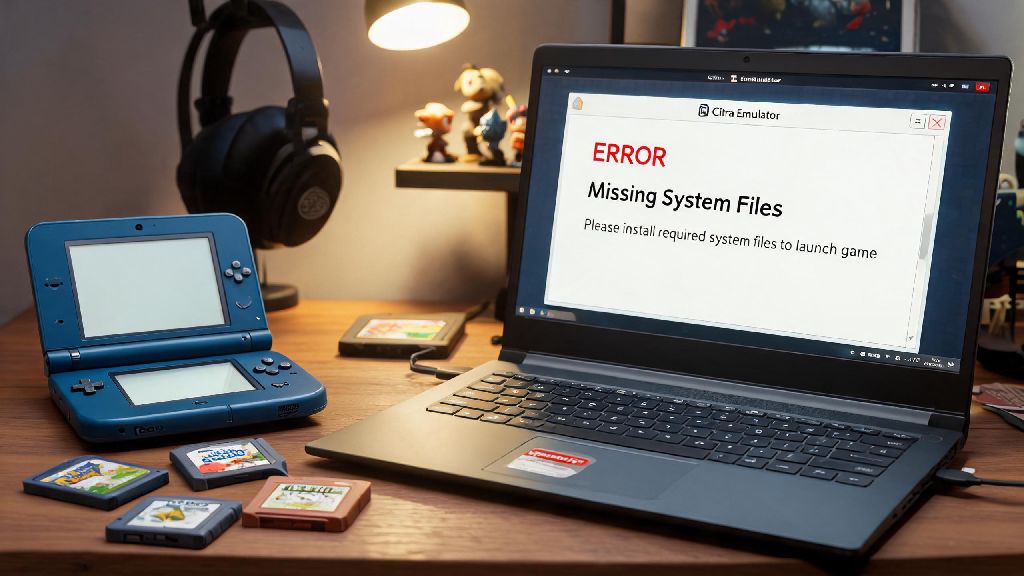
If you’ve ever tried to boot a 3DS game on Citra only to get a vague “missing system files” error, you’re far from alone. A lot of new Citra users skip over adding official system files because they assume the emulator’s built-in placeholders work for all titles, but that’s rarely the case for popular releases like Pokémon, Animal Crossing, or Zelda. We’ll walk you through exactly how to insert system folder into Citra emulator so you can skip those frustrating error popups and jump straight to your favorite games.
What You Need Before Adding Your Citra System Folder
Before you start the process, it’s critical to have all your materials prepped to avoid mistakes mid-install. First and foremost, you must use system files dumped from your own Nintendo 3DS console – downloading pre-made system folders from third-party sites violates Nintendo’s copyright terms, and often comes with corrupted files or malware that can harm your device. You’ll also need the following:
If you don’t know how to dump system files from your 3DS, there are official, widely tested guides available to walk you through the process safely. Make sure you dump all relevant region files if you play games from multiple regions, to avoid compatibility issues later on. We also recommend updating your Citra build to the latest version before you start, as older versions often have bugs that prevent proper system folder detection.
Step-by-Step: How to Insert System Folder into Citra Emulator
The process is far simpler than most users expect, and only takes a few minutes if you have your files ready. First, open your Citra emulator, navigate to the File menu at the top of the window, and select Open Citra Folder – this is the fastest way to access the correct directory, no matter if you’re on Windows, Mac, or Linux. You won’t have to dig through hidden system folders manually, which cuts down on the risk of putting files in the wrong place.
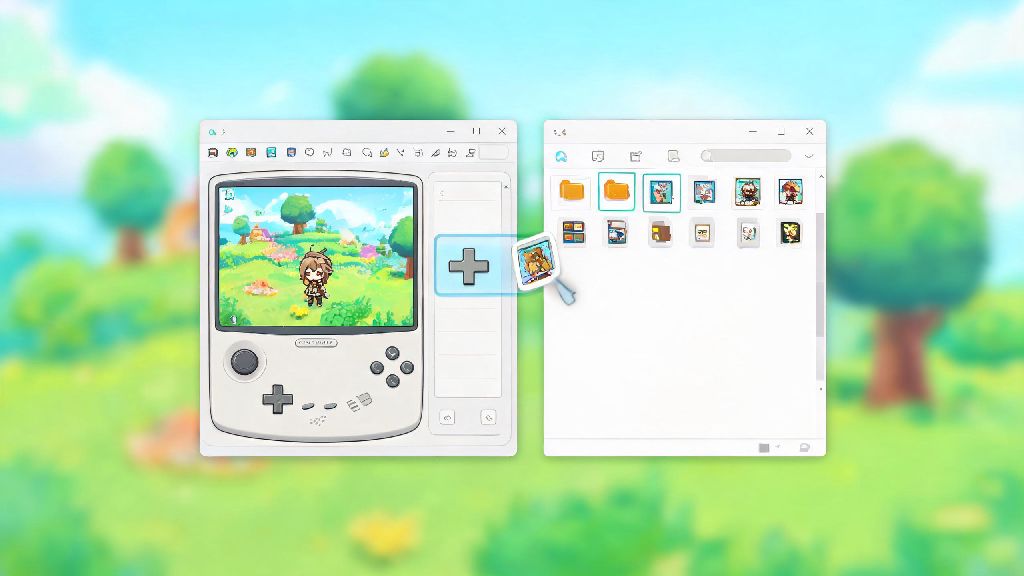
Once the Citra folder opens, locate and open the nand subfolder, then open the folder named “0000000000000000” inside it. This is the exact location where your system folder contents need to be pasted. Open your dumped 3DS system folder, select all of the subfolders inside (these usually include title, private, and extdata folders, depending on your dump), and copy them directly into the 0000000000000000 folder.
If you get a pop-up asking if you want to overwrite existing files, select yes to all. The default files in that folder are just placeholders, so replacing them with your official dumped system files is exactly what you want to do. Once the file transfer is complete, close and restart Citra to apply the changes. That’s all there is to the core installation process.
Common Mistakes to Avoid When Adding Your System Folder
Even with a simple process, a lot of users run into avoidable issues that break their Citra setup. The most common mistake we see is users downloading pre-made system folders from random forums or file sharing sites. Not only is this illegal, but these folders are often outdated, missing critical region files, or packed with malware that can steal personal data from your device. It’s worth the 30 minutes it takes to dump your own files from your personal 3DS to avoid these risks.
Another frequent mistake is placing the entire system folder into the main Citra directory instead of the nand subfolder. A lot of new users assume they can just drop the folder anywhere and Citra will find it, but the emulator only looks for system files in that specific nand subdirectory. If you restart Citra and don’t see your system details populated in the settings menu, this is the first thing you should check.
You also want to avoid mixing system region files with mismatched ROMs. If you dumped system files from a North American 3DS but are trying to play a Japanese exclusive title, you’ll likely run into broken text, missing audio, or full game crashes. If you regularly play games from multiple regions, make sure you dump system files for every region you use, or enable region auto-select in Citra’s system settings to reduce conflicts.
How to Verify Your System Folder Was Added Correctly
You don’t have to load a full game to confirm your system folder was installed properly, and doing a quick check first will save you from frustration later. First, open Citra’s settings menu, navigate to the System tab, and check the listed firmware version. If it matches the firmware version of the 3DS you dumped your files from, the basic installation worked. If it shows a placeholder number or says “missing”, your files are in the wrong location, or your dump was incomplete.
Next, try booting a game that previously threw a missing system files error. For most users, that will be a Pokémon or Zelda title that relies on official system fonts and cutscene files to run properly. If the game loads past the title screen and runs without graphical glitches or error popups, your setup is working as intended. If you still see errors, run the built-in Citra system file checker to scan for missing or corrupted files, so you know exactly what you need to re-dump from your 3DS.
You can also test extra system features like Mii Maker to confirm full functionality. If Mii Maker loads and lets you create or edit Miis, your system folder installation is 100% complete. These extra features won’t work with Citra’s default placeholder files, so they’re a reliable indicator of a successful setup.
Now that you know how to insert system folder into Citra emulator, you can enjoy far more stable gameplay, better compatibility with rare 3DS titles, and access to extra features like Mii customization and official system menus that don’t work with placeholder files. Take the time to dump your own files correctly from your personal 3DS, and you won’t have to deal with random crashes or broken cutscenes mid-game. If you run into any issues after setup, double-check your file paths first, and make sure you’re running the latest version of Citra to avoid unnecessary compatibility bugs.