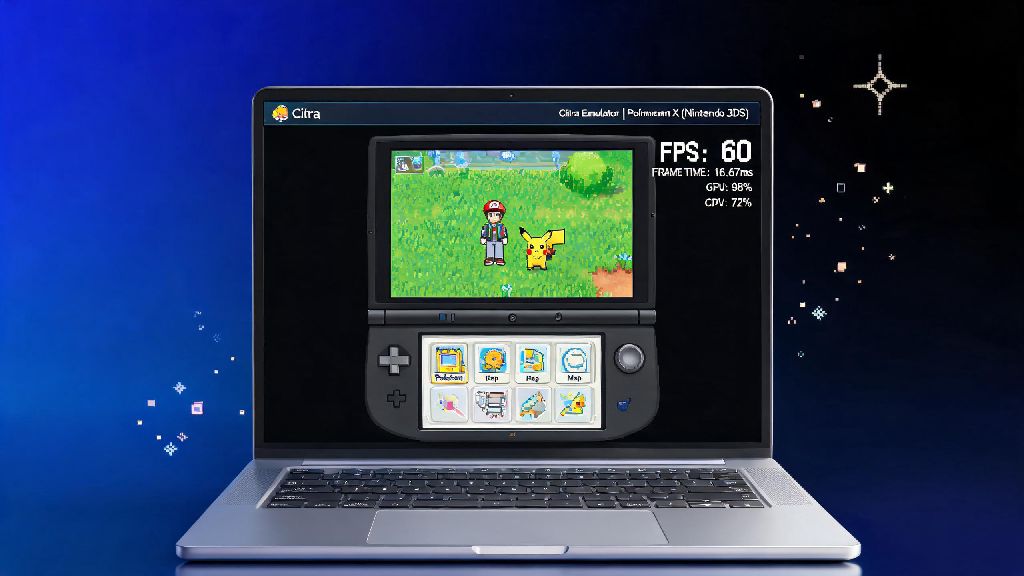
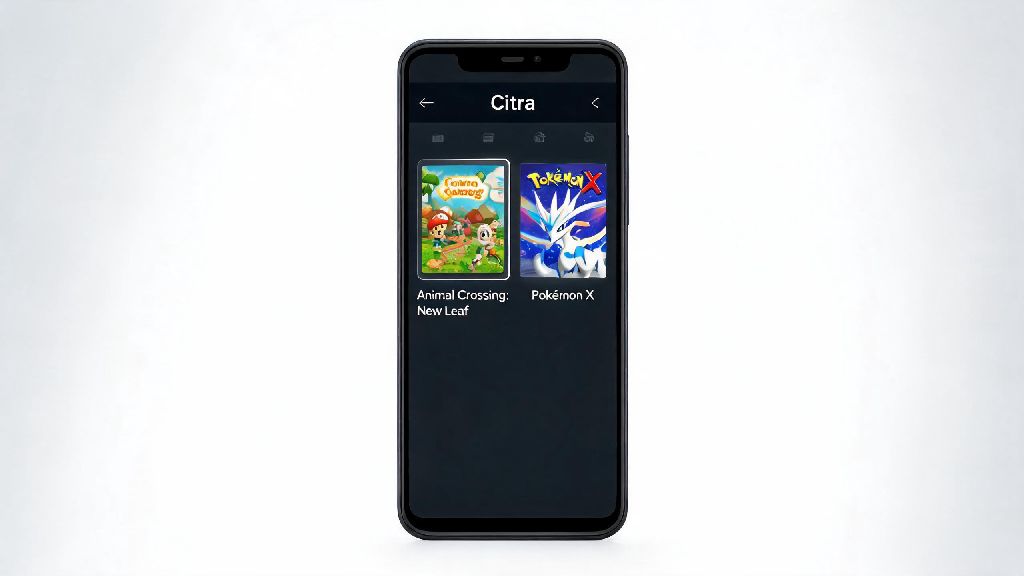
If you’ve got a box of old 3DS cartridges gathering dust in a closet, or you want to play your favorite handheld titles on a bigger screen without carrying your old console around, Citra is the perfect solution. I’ve tested dozens of 3DS emulators over the past 4 years, and Citra is far and away the most stable, feature-rich option for both PC and Android users. This guide walks you through exactly how to play games on Citra 3DS emulator, with no confusing jargon or unnecessary steps.
First-Time Citra Installation for Best Performance
Before you jump into loading games, you need to make sure you install the right build of Citra for your device. The two official builds are Nightly and Canary: Nightly is the stable, thoroughly tested version that works for 90% of users, while Canary includes experimental features that may fix issues for specific games but can be less reliable. For Windows users, just download the installer from the official source, run it, and grant admin access when prompted to avoid permission errors later. For Android users, make sure your device has at least 4GB of RAM and a Snapdragon 845 or equivalent processor if you want to run most 3D games smoothly.
Never download Citra from third-party untrusted sites, as these builds often come bundled with malware, adware, or outdated code that will cause crashes or security issues. Once installed, you can optionally dump your own 3DS system files to access features that require official system apps, like Pokémon Bank or Miiverse replacements.
How to Play Games on Citra 3DS Emulator: ROM Sourcing and Loading
Now that Citra is installed, the next step is getting your game files ready to play. First, a critical legal note: You can only use ROMs of 3DS games you physically own. Distributing or downloading pirated ROMs violates copyright law in most regions, and we don’t support that practice. Dumping a ROM from your own 3DS cartridge is simple with free, open-source tools that walk you through the process step by step.
Once you have your ROM file, loading it is straightforward: open Citra, click File > Load File, navigate to the folder where you stored your ROM, select it, and the game will launch within a few seconds. If you have a large library of games, you can add your ROM folder to Citra’s library to see cover art, playtime stats, and game details all in one place. Citra supports three main ROM formats:
- .3ds: The most common format for dumped physical 3DS cartridges, works with all official Citra builds with no extra steps
- .cia: The standard format for digital 3DS eShop games, requires you to install the file within Citra before you can play it
- .cxi: A decrypted file format most often used for homebrew games and smaller, indie 3DS titles
Always keep your ROM files stored in a dedicated, uncompressed folder to avoid load errors, missing save data, or Citra failing to recognize your game files.
Optimized Settings to Boost Gameplay Smoothness
Default Citra settings work fine for simple 2D games, but if you’re playing more demanding 3D titles like The Legend of Zelda: Majora’s Mask 3D or Monster Hunter Generations, a few small tweaks will make a huge difference in performance and visual quality. Start with the Graphics tab: if you have a mid-range or better GPU, set the internal resolution to 2x or 3x your monitor’s native resolution to get crisper, less pixelated visuals without major frame drops. Don’t go higher than 4x, even on high-end rigs, as it will waste processing power for minimal visual gain.
Turn on linear filtering to smooth out rough texture edges, and disable v-sync if you’re noticing input lag during fast-paced gameplay. Turn on "Async Shader Compilation" if you are experiencing stutter during cutscenes or when new areas load, as this feature pre-loads shader files to prevent sudden frame drops. For audio, switch the output backend to Cubeb to get the lowest possible latency, which is especially important for rhythm games like Rhythm Heaven Megamix.
Save your custom settings per game instead of applying them globally, because some games run better with specific configurations, and global settings can cause unexpected issues for less compatible titles. Android users should also close all background apps before launching Citra, and switch their device to high performance mode to get the most stable frame rates.
Fixes for Common Citra Gameplay Issues
Even with the right setup, you might run into small issues from time to time, but most are easy to fix with a few quick checks. If a game crashes immediately on launch, first confirm that your ROM is decrypted: encrypted ROMs straight from cartridges won’t work on Citra until you run them through a decryption tool. Next, make sure you have the latest GPU drivers installed, as outdated graphics drivers are the number one cause of launch failures and graphical glitches.
If you’re hearing constant audio crackling, try raising the audio latency slider in settings by 10-20ms, or switch to a different audio backend to see if that resolves the issue. If your save data disappears unexpectedly, make sure you didn’t move your Citra user folder, and turn on automatic save backups to avoid losing hours of progress. If you encounter a game-specific bug, check the Citra game compatibility list first, as it notes which games are fully playable, which have minor known issues, and which are not yet supported. If nothing else works, try switching between the Nightly and Canary builds, as some game-specific bugs are fixed in one build before they make it to the other.
You don’t need to be a tech expert to get Citra up and running, and the whole process takes less than 10 minutes if you follow these steps. Stick to official builds, only use ROMs of games you own, and tweak settings based on your device’s capabilities to get the best possible experience. I’ve replayed dozens of my old favorite 3DS games on Citra over the past 3 years, and I still love being able to play them on my 4K monitor with upgraded graphics, or on my phone when I’m traveling. Learning how to play games on Citra 3DS emulator is a great way to breathe new life into your old 3DS game collection, and preserve classic handheld titles that are no longer available for sale.