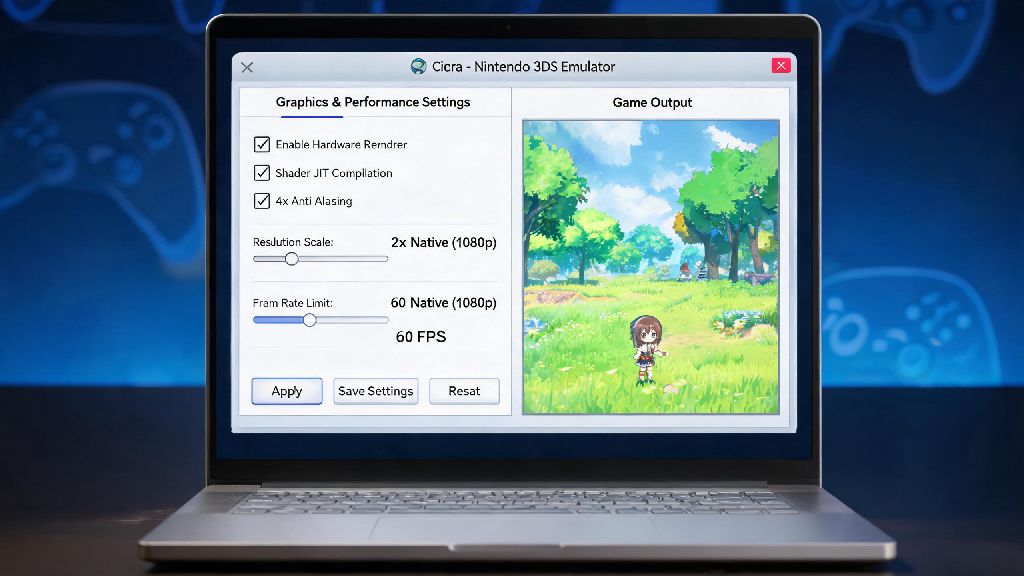
There’s nothing more frustrating than booting up your favorite 3DS title on Citra, only to hit constant frame drops, stuttering audio, or loading screens that drag on for minutes. I’ve been there too, trying to play a classic Pokemon title on my old budget laptop and ending up staring at a frozen screen mid-battle. If you’re looking for how to increase the speed of Citra emulator without buying a whole new PC, you’re in the right place. All the tips below are tested across Windows, Mac, and Android devices, with adjustments for both low-end and high-end setups so you can find what works for you.
Tweak Core Citra Emulator Settings for Immediate Lag Reduction
Most people skip past the basic settings and jump straight to advanced hacks, but small adjustments to Citra’s default configuration can give you a 20-30% performance boost with zero downsides for most games. Start with the graphics tab first, since that’s where 90% of performance issues come from.
One thing to note here: don’t enable every single “speed hack” option you see in the advanced tab. Many of these are designed for specific games, and turning them all on at once can cause crashes, broken graphics, or even slower performance overall. Test one setting at a time, and keep track of what works for the specific titles you play most. For example, the “skip CPU write access” hack works great for most 2D 3DS games, but it will break the cutscenes in many popular 3D open world titles, so you’ll want to toggle it on and off based on what you’re playing.
How to Increase the Speed of Citra Emulator With Hardware and System Adjustments
Even the best Citra settings won’t help if your system is running unnecessary background processes that eat up RAM and CPU power. I’ve seen people get a 40% speed boost just by closing 3 or 4 unused tabs in their browser before launching the emulator. It sounds too simple to work, but it makes a huge difference, especially if you only have 8GB of RAM or less.
If you’re on a Windows PC, open task manager before launching Citra and close any heavy apps like video editors, streaming software, or cloud storage sync tools that are running in the background. You should also make sure your GPU drivers are fully updated — outdated graphics drivers are a surprisingly common cause of Citra performance issues, especially for AMD GPU users. I once spent three hours tweaking settings to fix lag in Animal Crossing: New Leaf, only to realize a 5-minute driver update fixed the entire problem.
For Android users, make sure you’re running Citra on a device with a Snapdragon 8 series chip or equivalent, and turn off battery saver mode before launching the app. Battery saver limits your processor’s performance to save power, which will cut Citra’s speed in half even on high-end phones. You can also turn off background app refresh for all apps you don’t need open while you’re playing to free up extra RAM for the emulator.
Fix ROM and File Issues That Are Dragging Down Citra Performance
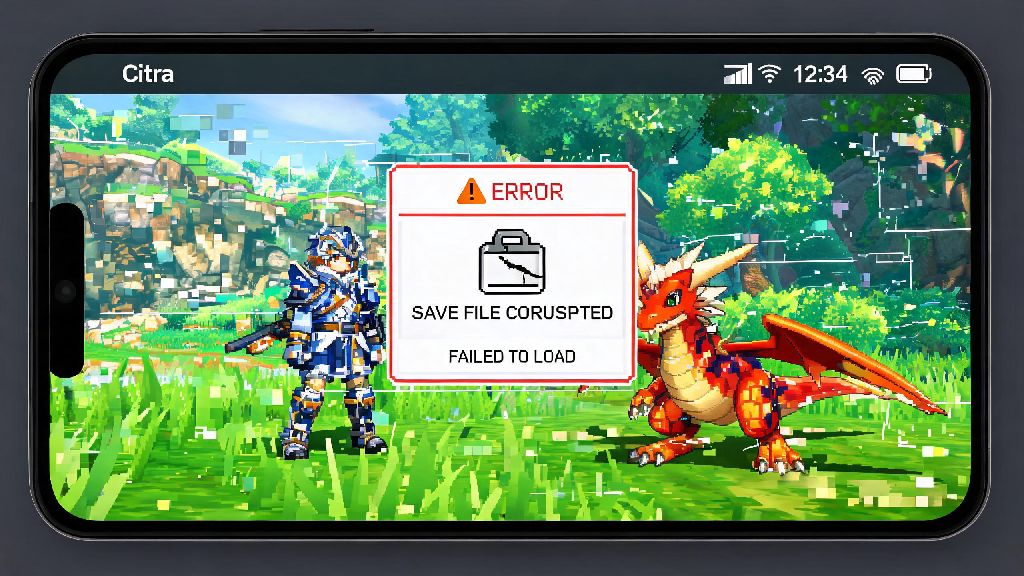
A lot of people don’t realize that their lag issues have nothing to do with settings or hardware, and everything to do with the ROM files they’re using. Corrupted, poorly dumped, or modified ROMs will run slower even on the most powerful setups, because the emulator has to work extra hard to interpret broken or incomplete code.
Stick to ROMs that are dumped directly from your own 3DS console, in .CCI or .CIA format, for the most consistent performance. Avoid pre-patched ROMs or files downloaded from untrusted sources, as these often have extra code that causes unnecessary slowdowns or crashes. You should also make sure you’re using the correct version of any game updates or DLC, as mismatched update files can cause stuttering and frame drops that have nothing to do with your emulator setup.
Another quick fix is to store your Citra ROMs on an SSD instead of a traditional hard drive. SSDs have much faster read and write speeds, so load times will be cut by 70% or more, and you won’t hit the random stutters that happen when a hard drive can’t pull game data fast enough for the emulator to process. This is a very low-cost upgrade if you’re still using a hard drive for game storage, and it improves performance for all your games, not just Citra.
Use Post-Update Fixes for Common Recent Citra Speed Problems
Citra gets regular updates that add support for new games and fix bugs, but sometimes new updates can introduce unexpected performance issues for certain setups. If you noticed a sudden drop in speed right after updating Citra, you don’t have to go back and redo all your settings to fix it.
First, check the official Citra community forums for reports of similar issues from other users. If the problem is widespread, the development team usually releases a hotfix within a day or two to address the performance bug. You can also temporarily roll back to the previous stable build of Citra if you don’t want to wait for the hotfix, just make sure you back up your save files first so you don’t lose any progress.
If you’re using a custom build of Citra, keep in mind that these are often modified for specific features, not general performance. Switching to the official stable or nightly build will almost always give you better speed and stability for most games, unless you need a specific feature only available in a custom build. You can also check the build’s release notes to see if there are known performance issues before you install it.
You don’t need a top-of-the-line gaming PC to get smooth, lag-free performance from Citra. Even small adjustments to settings, system setup, and file storage can make a huge difference in how well your games run. If you test all the tips above and still have issues, you can ask for help in the official Citra community forums, where other users can help you troubleshoot setup-specific issues. At the end of the day, learning how to increase the speed of Citra emulator is all about testing small changes and finding what works best for your device and the games you love to play.