How to Download Citra Emulator: Step-by-Step Guide
Are you looking to download the Citra emulator but unsure of the process? Fear not, as we have crafted a comprehensive guide to help you download and set up the Citra emulator with ease. Whether you are a beginner or an experienced user, this guide will provide you with all the information you need to start emulating your favorite Nintendo 3DS games.
Step 1: Visit the Official Citra Website
The first step in downloading the Citra emulator is to visit the official Citra website. This ensures that you are downloading a reliable and up-to-date version of the emulator.
Step 2: Choose the Right Version
Citra offers different versions for various operating systems. Select the version that matches your operating system (Windows, macOS, or Linux) and proceed to download it.
Step 3: Install the Emulator
Once the download is complete, locate the installer file and run it. Follow the on-screen instructions to install the Citra emulator on your computer.
Step 4: Configure the Emulator Settings
After installing the emulator, you will need to configure the settings to ensure optimal performance. Here are some key settings to consider:
- Graphics: Adjust the graphics settings to improve performance or change the rendering backend to Vulkan or OpenGL.
- Audio: Configure the audio settings to match your hardware and preferences.
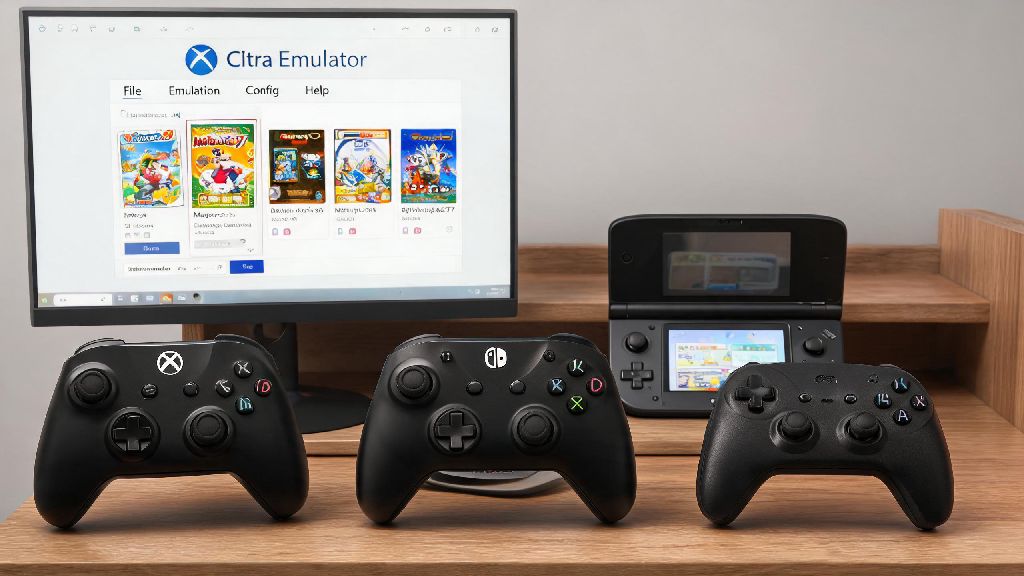
- Control: Map your controller buttons to the game controls to ensure a comfortable gaming experience.
Step 5: Install ROMs
To start emulating games, you will need to install ROMs. ROMs are digital copies of game cartridges and can be obtained legally from reputable sources.
Step 6: Run a Game
With everything set up, launch a game from the Citra emulator. You should now be able to play your favorite Nintendo 3DS games on your computer.
Troubleshooting Common Issues
If you encounter any issues while downloading or using the Citra emulator, here are some common troubleshooting steps:
- Ensure Compatibility: Some games may not work with the emulator due to compatibility issues. Check the game's compatibility list on the Citra website.
- Update the Emulator: Make sure you have the latest version of the Citra emulator for the best performance and bug fixes.
- Check for Conflicting Software: Ensure that no other software on your computer is interfering with the emulator.
Join the Citra Community
The Citra emulator has a vibrant community that is always ready to help. If you need assistance, join the Citra forums or Discord server to connect with other users and developers.
In conclusion, downloading and setting up the Citra emulator is a straightforward process. By following our step-by-step guide, you can start emulating your favorite Nintendo 3DS games in no time. Whether you are a casual gamer or a seasoned emulator enthusiast, the Citra emulator offers a great way to enjoy your favorite games on a larger screen.